Staff
4.1 New Staff
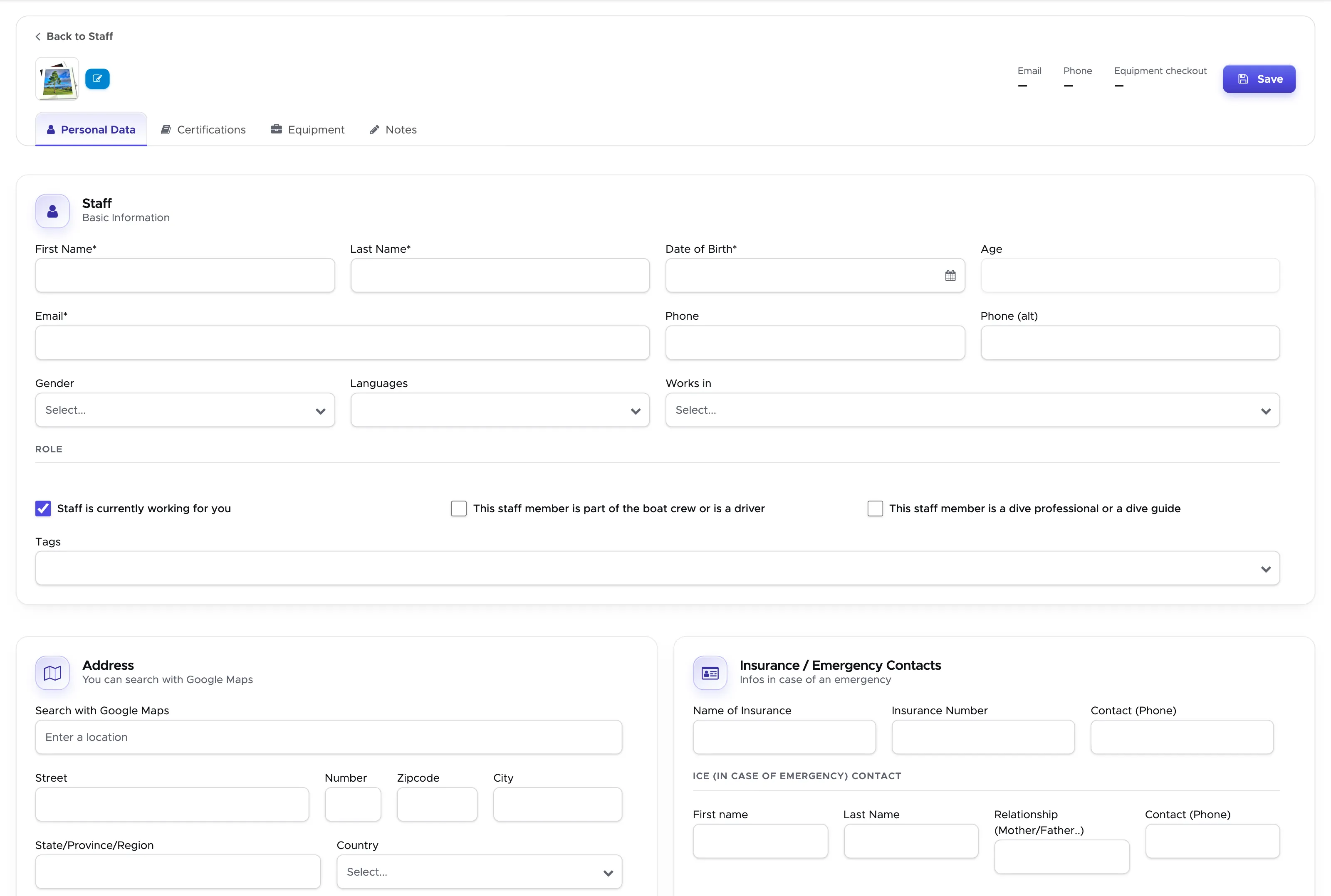
Section titled “4.1 New Staff”From the menu on the left, Click on Staff and New Staff. Enter name, last name, date of birth and email address as minimum mandatory information. You can fill out every other field in the Personal Data tab now or you can go back to them later. If you have more than one location, please type the name of the location(s) the staff member works for. The checkbox “Staff is currently working for you” is automatically ticked when you enter a new staff member. If you are entering a dive professional or a dive guide, please tick the checkbox “This staff member is a dive professional or a dive guide”. If you are entering a member of the boat crew or a driver for your bus/van, tick the checkbox “This staff member is part of the boat crew or is a driver”. For every other staff member you don’t need to tick any other checkbox. Scroll down and click on Save.
Click on Certifications tab and enter the highest diving certification for this staff member (if appropriate).
If it’s a new certification (meaning that you never entered this kind of certification before in Geek Divers), the system will ask you if you want to save it:
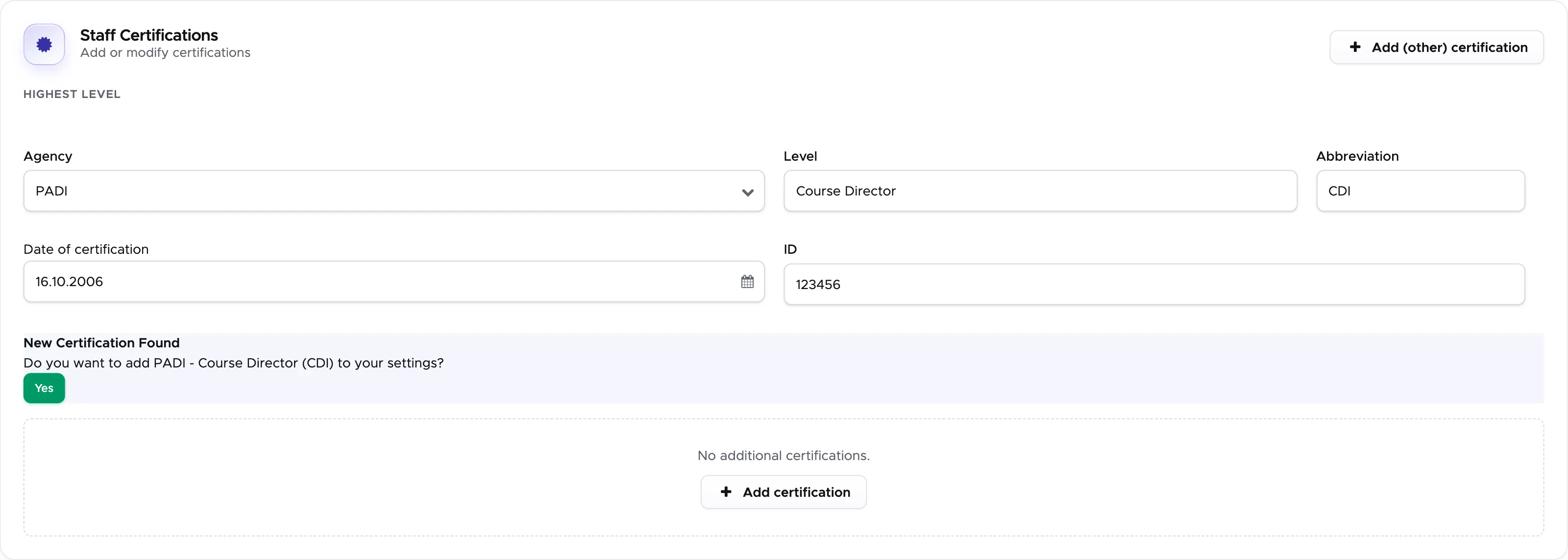
If you click Yes, you will find this certification under Settings - Certification ( Chapter Certifications and the next time you need to enter the same, Geek Divers will suggest it from your saved list.
You can also enter additional certifications (e.g. specialities or other) underneath the highest certification. You can also go back to this section later to add more information.
Scroll down and click on Update.
Your staff member profile is now successfully created in Geek Divers.
In case this staff member stops working for you, please untick the checkbox “Staff is currently working for you”. This way you won’t see this staff member when you create an activity and their payslips won’t be automatically created. The staff member profile will remain on the All tab and it won’t be found on Current.
4.1.2 Staff Equipment
Section titled “4.1.2 Staff Equipment”In this tab you can have a list of the equipment that belongs to your staff member, including make and model of every piece. The bag/box number will clearly identify their set. In case of newly certified Divemasters or in the unlikely event that a piece of equipment is malfunctioning, staff members can rent equipment from your dive center. Before you do that, you need to define a check-out date. This is because the equipment that you assign today is immediately considered unavailable for the assignment to another staff member or a customer and cannot be assigned forever.
At the top of the tab you can switch between two views, Modern and Legacy. The pictures here show the Legacy view.
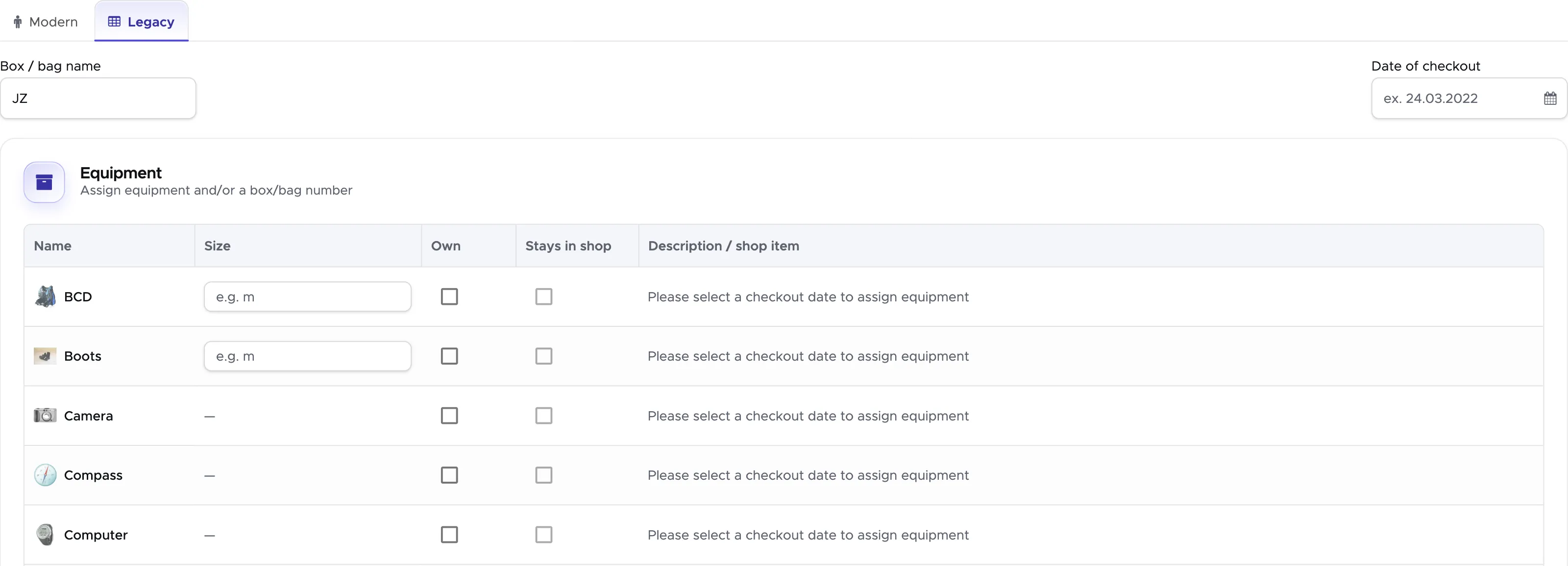
As soon as you enter an equipment check-out date, the buttons “Assign from inventory” will be available.
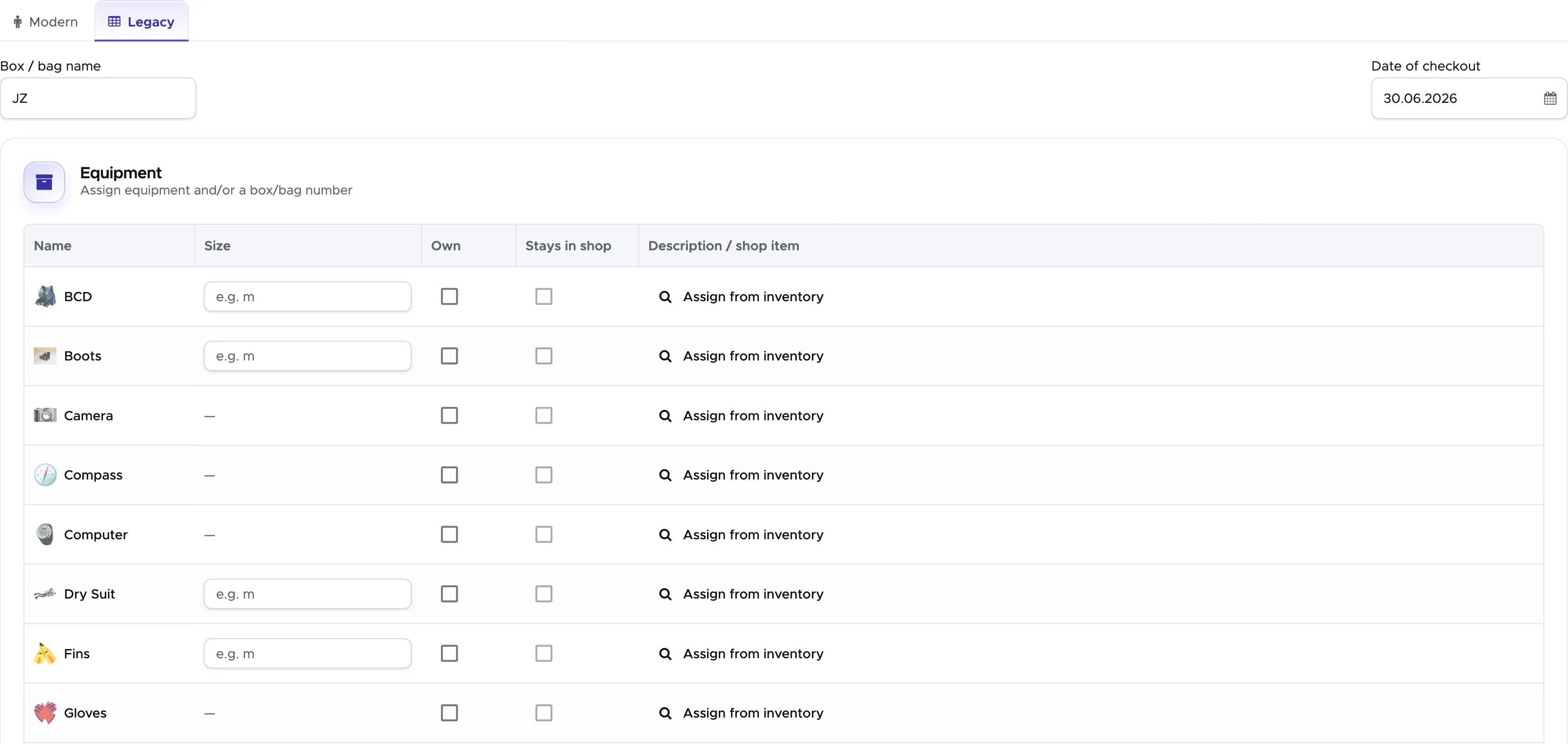
Before assigning equipment to a staff member you need to set it up in Geek Divers. Read how in chapter Equipment.
4.1.3 Staff commissions/salary
Section titled “4.1.3 Staff commissions/salary”In Geek Divers you choose how frequently you pay your staff. In chapter Payslips you will learn how to “freeze” a staff member’s payslip whenever you decide that it’s time to finalise the payslip, check the content and pay the amount due.
If you wish to automate the calculation of base salary and/or commissions for your staff members, on each of your staff members’s profiles you can set up how much you pay them, both in terms of base salary and commissions.
Geek Divers will consider the base salary and/or the commissions that you set up on a staff member’s profile and write their payslip positions according to what they actually did (depending on the activities that you set up in your Activity Calendar).
On a staff member page, click on tab Commissions/Salary.
4.1.3.1 Base Salary
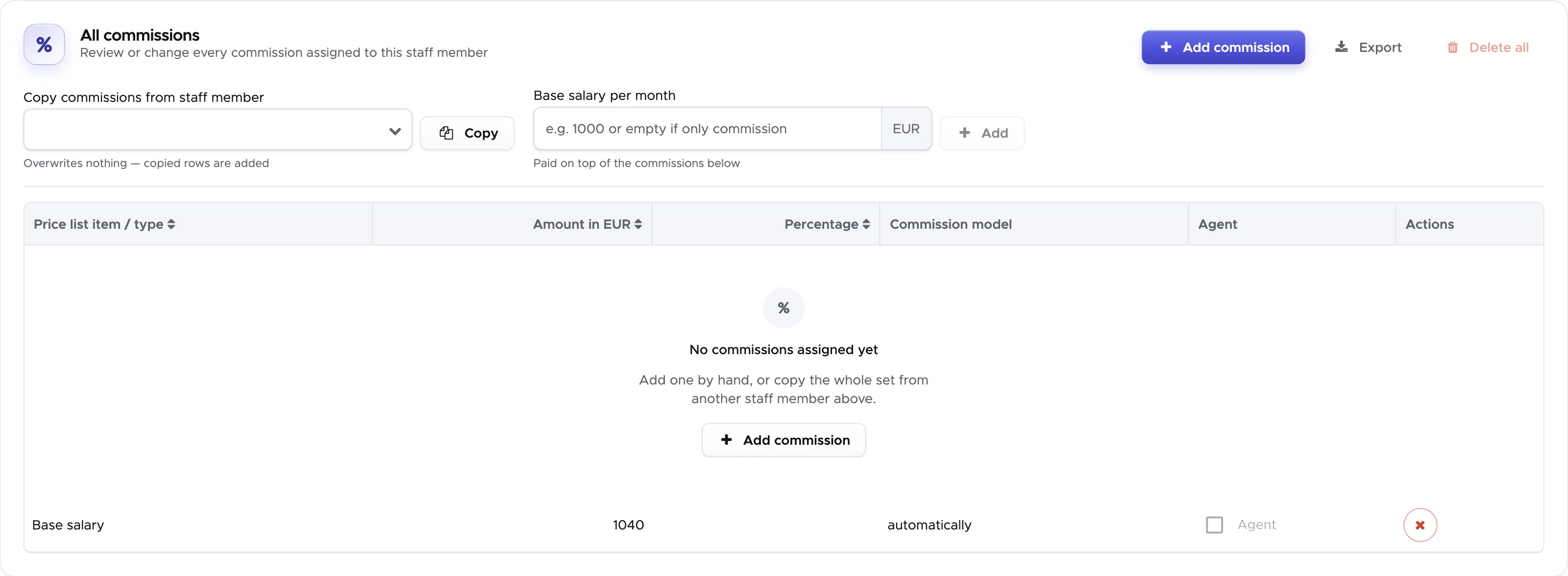
Section titled “4.1.3.1 Base Salary”If you give your staff members a base salary, enter the amount in the field “Base salary per month” at the top of the “All commissions” card and click on Add. Please remember that this base salary is related to the period between one payslip and the next. E.g. if you pay weekly, you need to enter the weekly base salary.

The table in the same card now shows a row with this base salary.
Once you enter a base salary the Add button will be disabled. In case you need to change the base salary for this staff member you need to delete the Base salary row at the bottom of the table and enter a new salary in the field “Base salary per month”.
4.1.3.2 Commissions
Section titled “4.1.3.2 Commissions”If your staff members receive commissions for the activities that they do or for the services or retail items that they sell, you can set them up by clicking on button Add commission. The pre-requisite to set up commissions is that you’ve completed the setup of your price list.
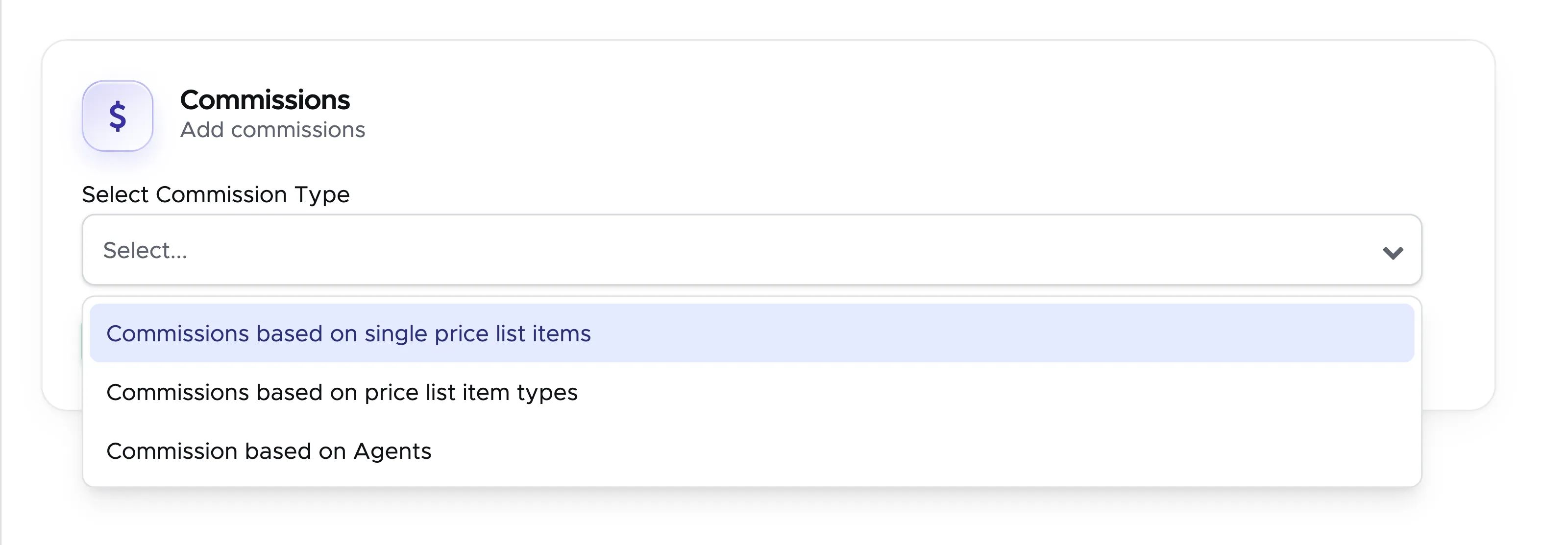
A sidebar will open and a menu will ask you to select what kind of commission you would like to set up.
Commissions based on single price list items
Section titled “Commissions based on single price list items”Select this item to define a specific commission in fixed amount or in percentage for each price list item in your price list. You can select the commission model (per Customer, per Tank, per Dive or per Activity) and type either a fixed amount or a percentage. If you select a course, the only commission models available are per Customer or per Activity. If you type a percentage, the commission will be calculated on the price list item price, without the additional items that you might have specified.
Example:
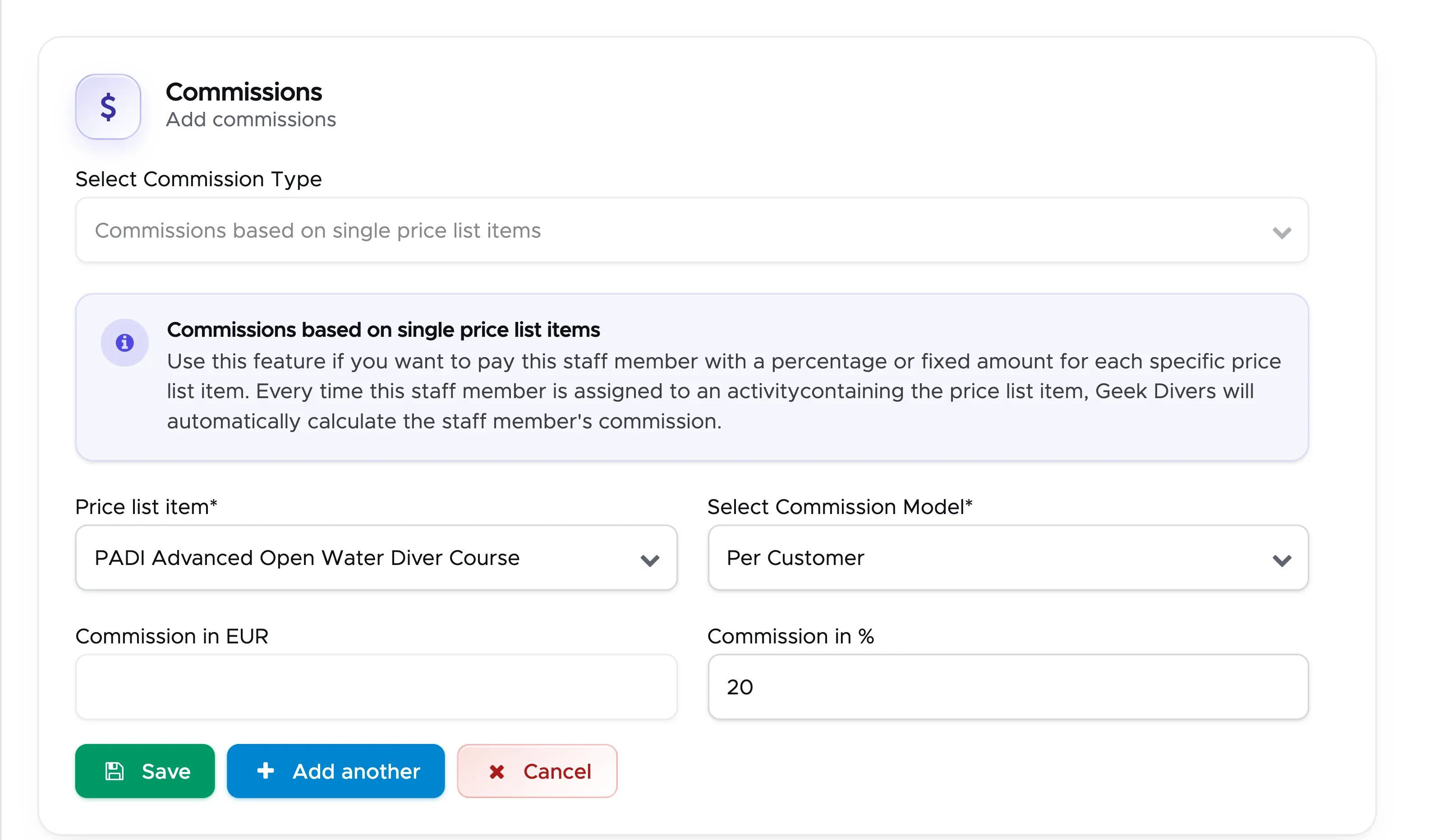
In the picture above here, the instructor will receive a 20% commission on the PADI Advanced Open Water Diver Course per customer. The commission will be calculated automatically by Geek Divers as the 20% of the total cost for the course, excluding fees, course material, food and drink or extra costs, in case you’ve specified these extra charges in field Additional Price List Items in your price list.
Click on the button Save. The commission is added as a new row to the All commissions table.
Repeat these steps for each item of your price list that could provide a commission to your staff member.
Commissions based on price list item types
Section titled “Commissions based on price list item types”Select this item to define a specific commission in fixed amount or in percentage for a price list item type in your price list. You can select the commission model (per Customer, per Tank, per Dive or per Activity) and type either a fixed amount or a percentage. E.g. your instructors receive a 25% commission on every course that they teach (excluding fees, course material, food and drink or extra costs).
If you select type Course, the only commission models available are per Customer or per Activity. If you type a percentage, the commission will be calculated on the price list item price, without the additional items that you might have specified.
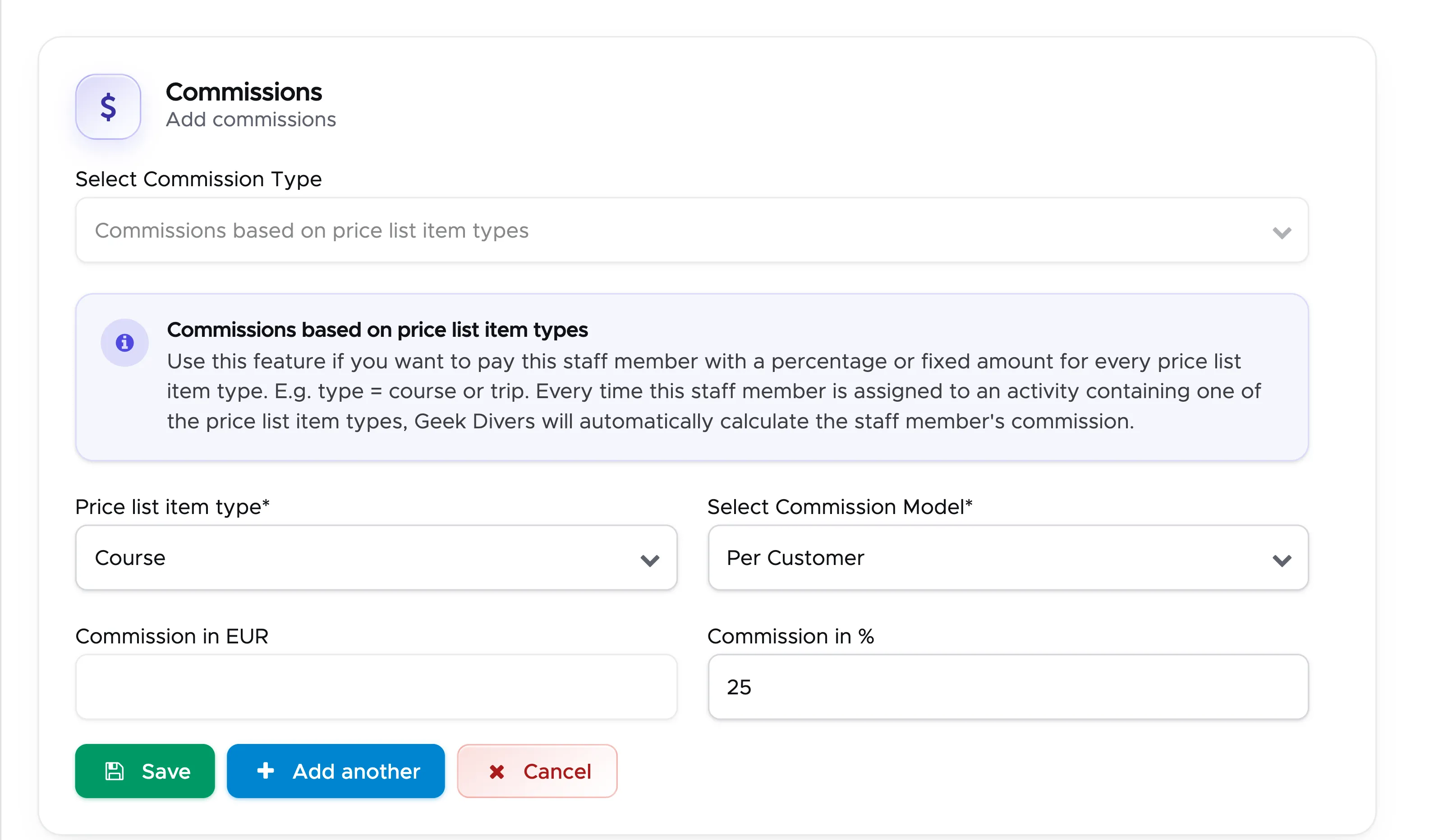
Click on the button Save and check the new row in the table.
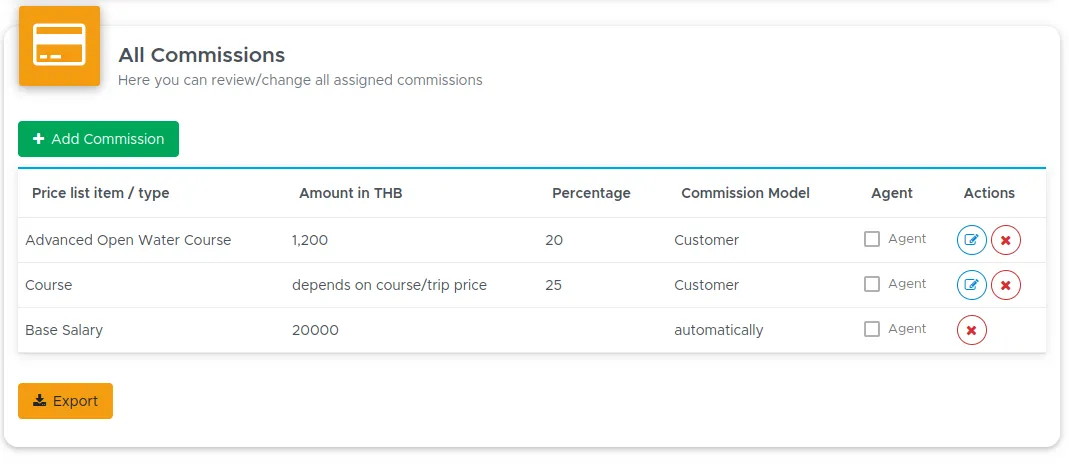
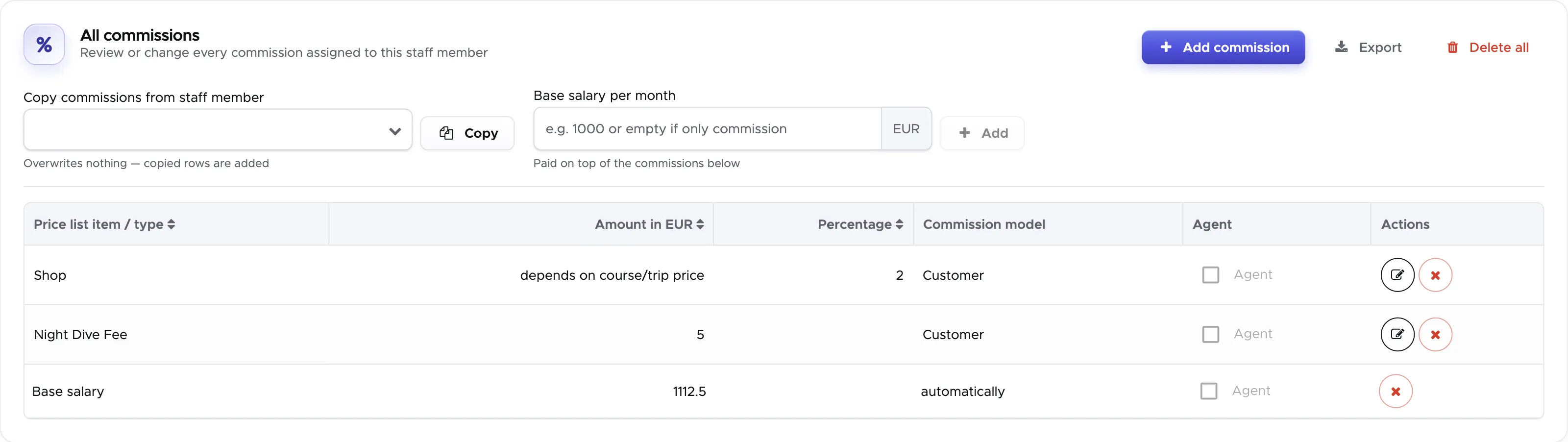
In the complete All commissions table shown further down in this chapter, the staff member receives a base salary of 1112.5 EUR, a 2% commission per customer on every price list item of type Shop and a fixed commission of 5 EUR per customer on the price list item Night Dive Fee. Please make sure that you use either the commissions on price list items or the ones on price list item types or your staff members might receive double commissions for the same course or trip. They might be very happy, but I’m not sure if you like it! :)
Repeat these steps for each price list item type that could provide a commission to your staff member.
The commission models are intended as follows:
-
Per Customer - the commission will be repeated and written separately in the staff member’s payslip for each customer in the activity.
-
Per Activity
-
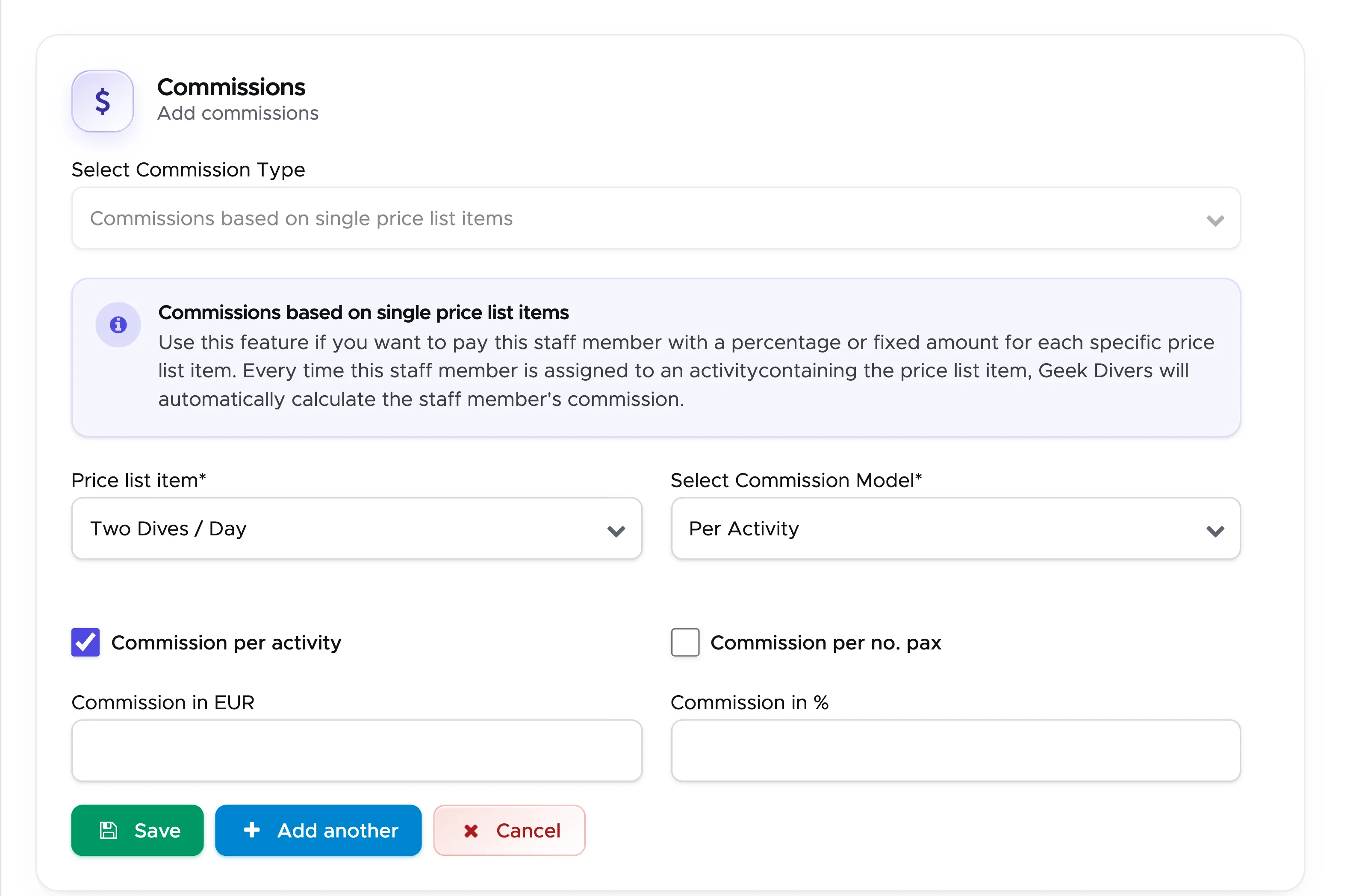
Commission per activity - the commission will only be written once for a specific activity, regardless of the number of customers joining the activity
-
-
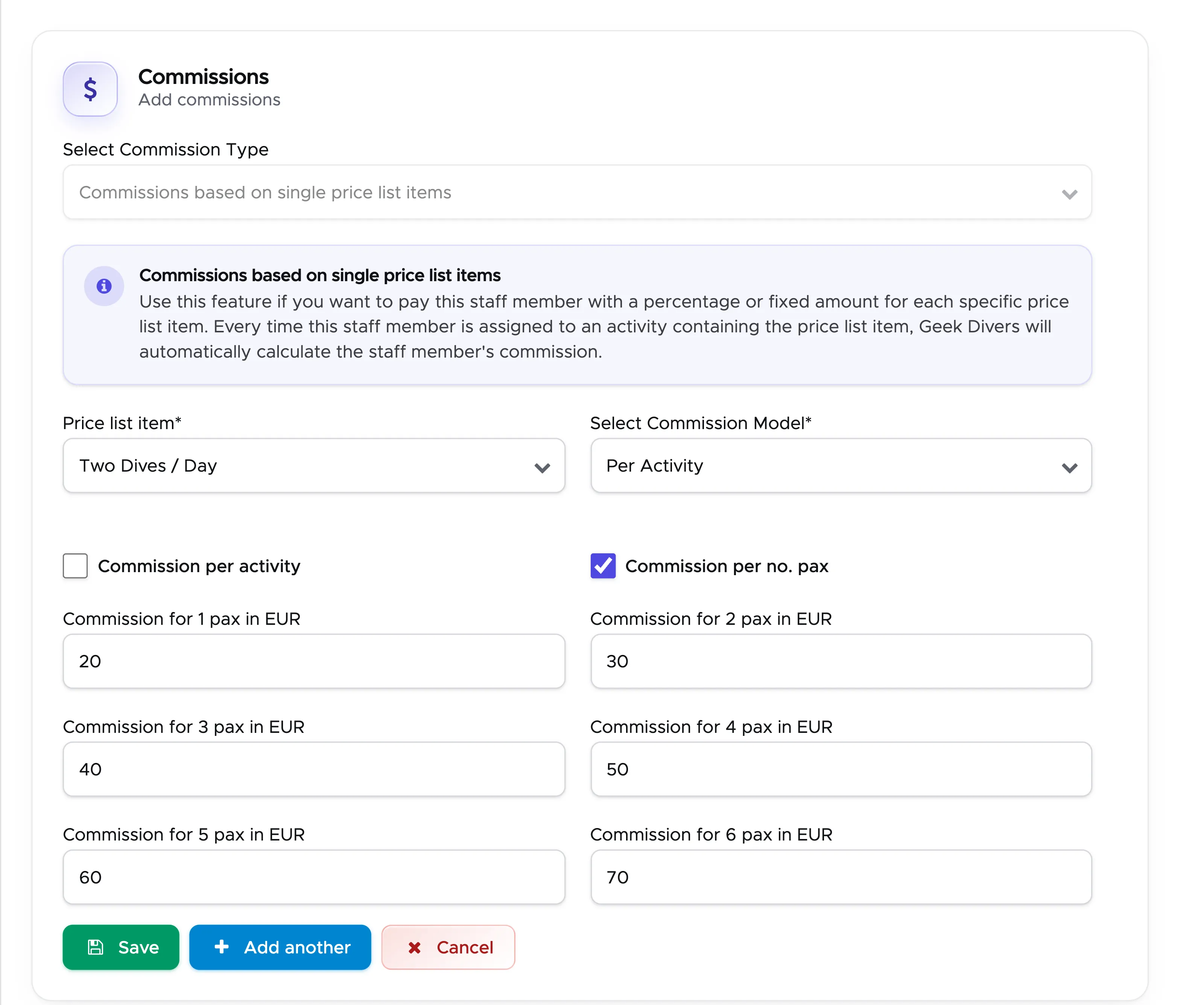
Commission per no. pax - you can define a different amount based on the number of customers joining the activity.
-
-
-
Per Dive (not available for courses) - the commission will be repeated and written separately in the staff member’s payslip for the number of dives, done by the staff member, in the activity.
-
Per Tank (not available for courses) - the commission will be repeated and written separately in the staff member’s payslip for the number of customer’s tanks in the activity. E.g. 4 divers in a group for 2 dives - the commission will be repeated 8 times.
Please consider that the staff commissions will be written in the staff members’ payslips when the activity is completed and closed.
Commissions based on Agents
Section titled “Commissions based on Agents”An agent can be:
-
an external individual or company that sells your services - you can enter this person or company as a New Partner in Geek Divers (more on this in Partners chapter);
-
an internal staff member who acts as an agent when they bring a new customer or receives a commission on sales.
The commission model for agents is only per customer.
Select this item in the Add Commission sidebar to define a specific sales commission in fixed amount or in percentage for a price list item in your price list. Select the price list item and type either a fixed amount or a percentage. E.g. your instructors receive a 10% sales commission on every course that they sell (excluding fees, course material, food and drink or extra costs).
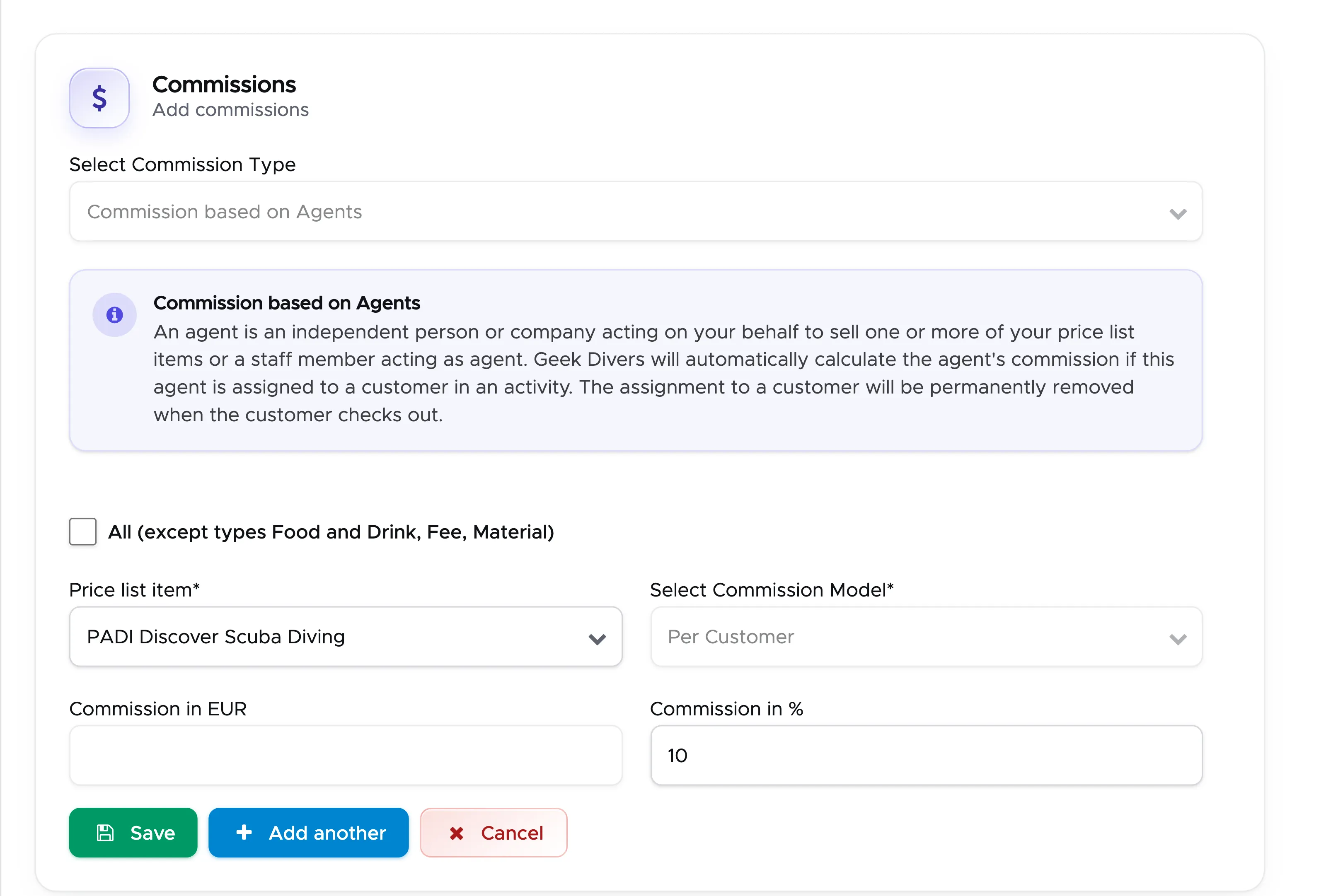
Click on the button Save and check that you see it in the table.
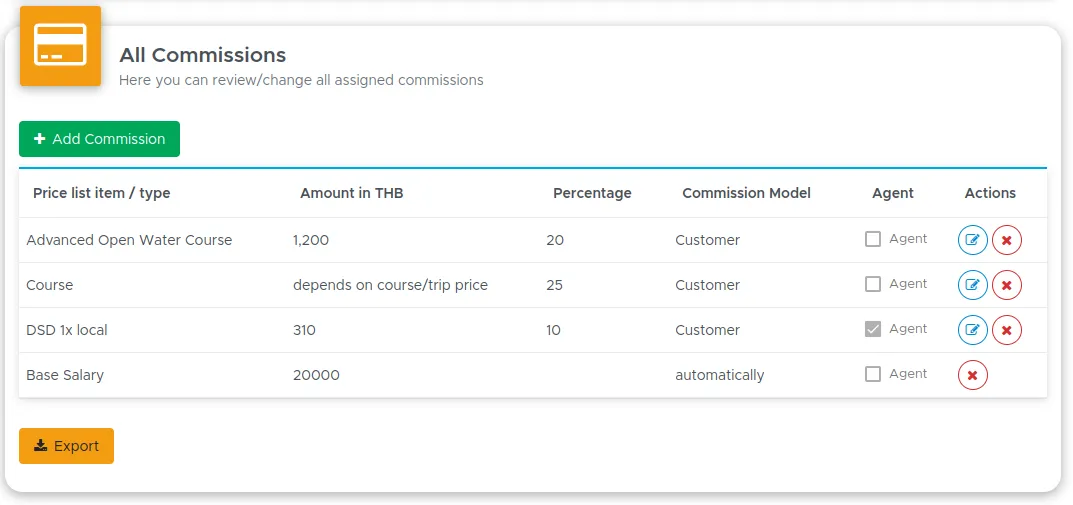
As you could probably see, the sales commission is marked as Agent commission in the table.
Repeat these steps for each item of your price list that is promoted by your staff member.
To make sure that these commissions are correctly calculated and added to your staff member’s payslip, you will need to assign the staff member as agent to a customer in an activity. When you close the activity, the agent commission will be calculated and written in the staff member’s payslip.
If you have a special agreement with your staff members and you offer a commission in percentage for whatever the customer does or a fixed amount per customer, then you need to tick the checkbox “All (except types Food and Drink, Fee, Material)”.
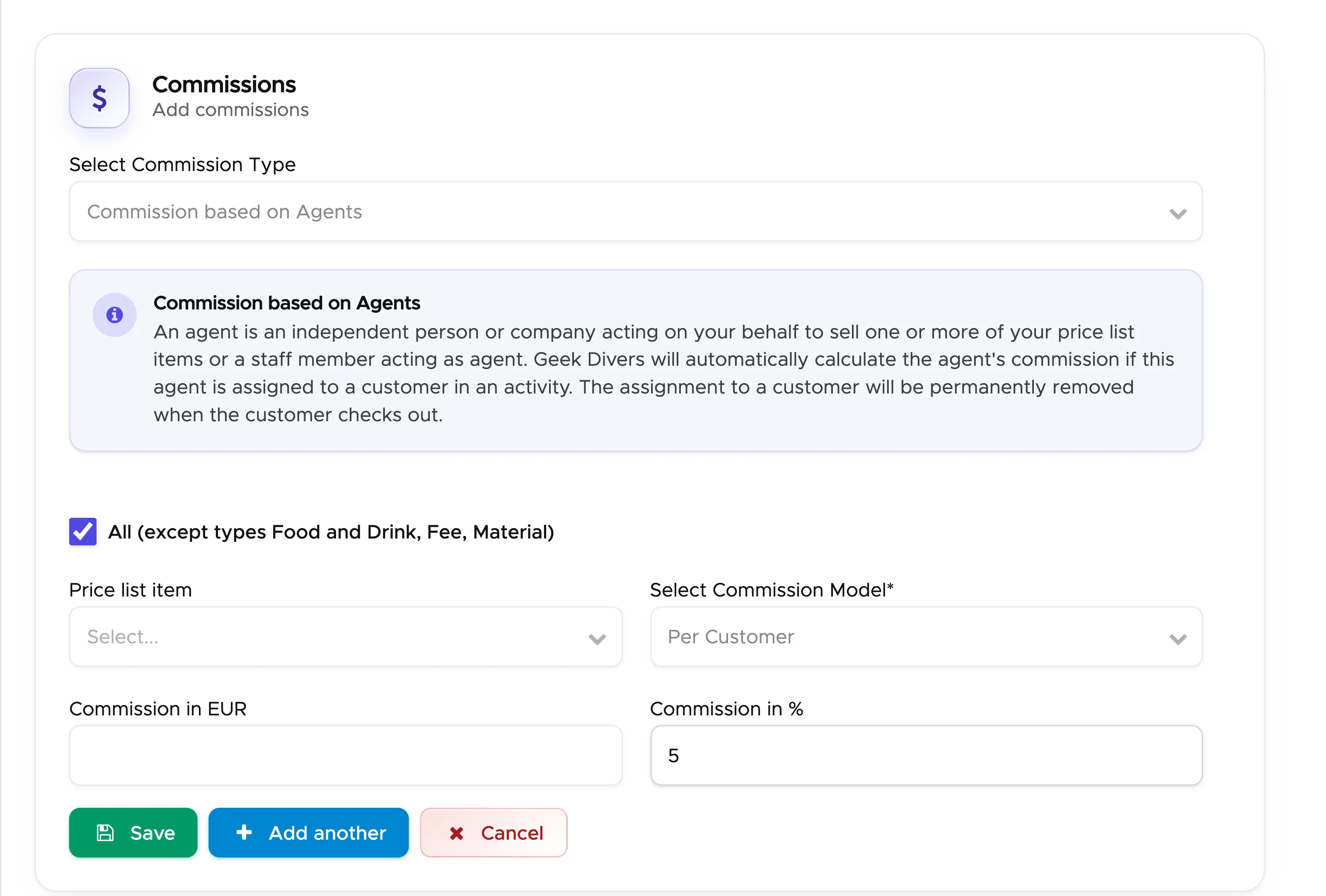
Write the amount or the percentage and click on button Save. The “All” commission is added to the table as a row with the same name as the checkbox.
This is what the All commissions table looks like for a staff member with a commission on a price list item type, a commission on a single price list item and a base salary:
This commission will be calculated and written in the staff member’s payslip when you close the customer’s bill. If you choose a commission in percentage, the calculation will exclude types Food and Drink, Fee and Material. Additionally, if the customer’s bill has an applied voucher, all the bill positions that match voucher positions will not be included in the calculation of this commission.
To make sure that this commission is correctly calculated and written in the staff member’s payslip, you need to assign the staff member as agent to the customer in the customer’s profile.
In the All Commissions table you can see which commissions are “teaching” commissions and which ones are “sales” commissions: the sales commissions will have a tick in the Agent column. In column Actions you can edit a row or delete it.
This table can be exported by clicking on button Export at the top of the All commissions card. Additionally, by clicking on the column names, you can sort the content of the table.
4.1.3.3 Copy remuneration model
Section titled “4.1.3.3 Copy remuneration model”You don’t need to repeat the commission setup for every staff member: you only need to set up your staff remuneration model for the staff members who have different commissions/base salary. If two or more staff members receive the same remuneration (or very similar) you can use the field “Copy commissions from staff member” at the top of the “All commissions” card.
Here’s what you need to do:
-
Create a New Staff member as described in chapter New Staff
-
Click on Save button
-
Click on Commissions / Salary tab
-
In the field “Copy commissions from staff member”, select the staff member in Geek Divers who has the same (or very similar) remuneration model and click on button Copy

Verify that the table below is complete. The copied rows are added to the rows that are already there.
In case you need to change one or more rows of this table you can click on button Delete in the row that you need to change and set up a different commission.
4.2 All Staff
Section titled “4.2 All Staff”From the menu on the left, click on Staff and Staff list, then open the All tab. If your login has access to it, you will see all the staff members in all the locations, both currently working for your dive centers and past staff members. At the top of the page you’ll see a search string where you can type the staff member’s name. As soon as you start typing some characters, you’ll see the search results that match your search. Once you’ve identified the staff member that you’re looking for, click on the card to go to the staff profile. Here you can apply changes and save or update the profile.
4.3 Current Staff
Section titled “4.3 Current Staff”From the menu on the left, click on Staff and Staff list, then open the Current tab. If your login has access to it, you will see all the staff members that are currently working in the location that you’ve chosen at the top of the screen.
At the top of the page you’ll see a search string where you can type the staff member’s name. As soon as you start typing some characters, you’ll see the search results that match your search. Once you’ve identified the staff member that you’re looking for, click on the card to go to the staff profile. Here you can apply changes and save or update the profile.
In case a staff member doesn’t work for you anymore, click on their name and untick the checkbox “Staff is currently working for you”.

Scroll down and click on button Update. The staff member will remain on the All tab, but you won’t find their name on the Current tab, nor in the activities that you plan in the Activity Calendar.
4.4 Staff Calendar
Section titled “4.4 Staff Calendar”From the menu on the left, Click on Staff and Staff Calendar.
Starting with Version 2.1 you will have a new calendar to display all your staff activities. The staff calendar updates itself automatically, every time you assign a staff member to a trip or course. You can also enter manual dates like ‘no-show’, ‘day off’, ‘leave’ or ‘other’.
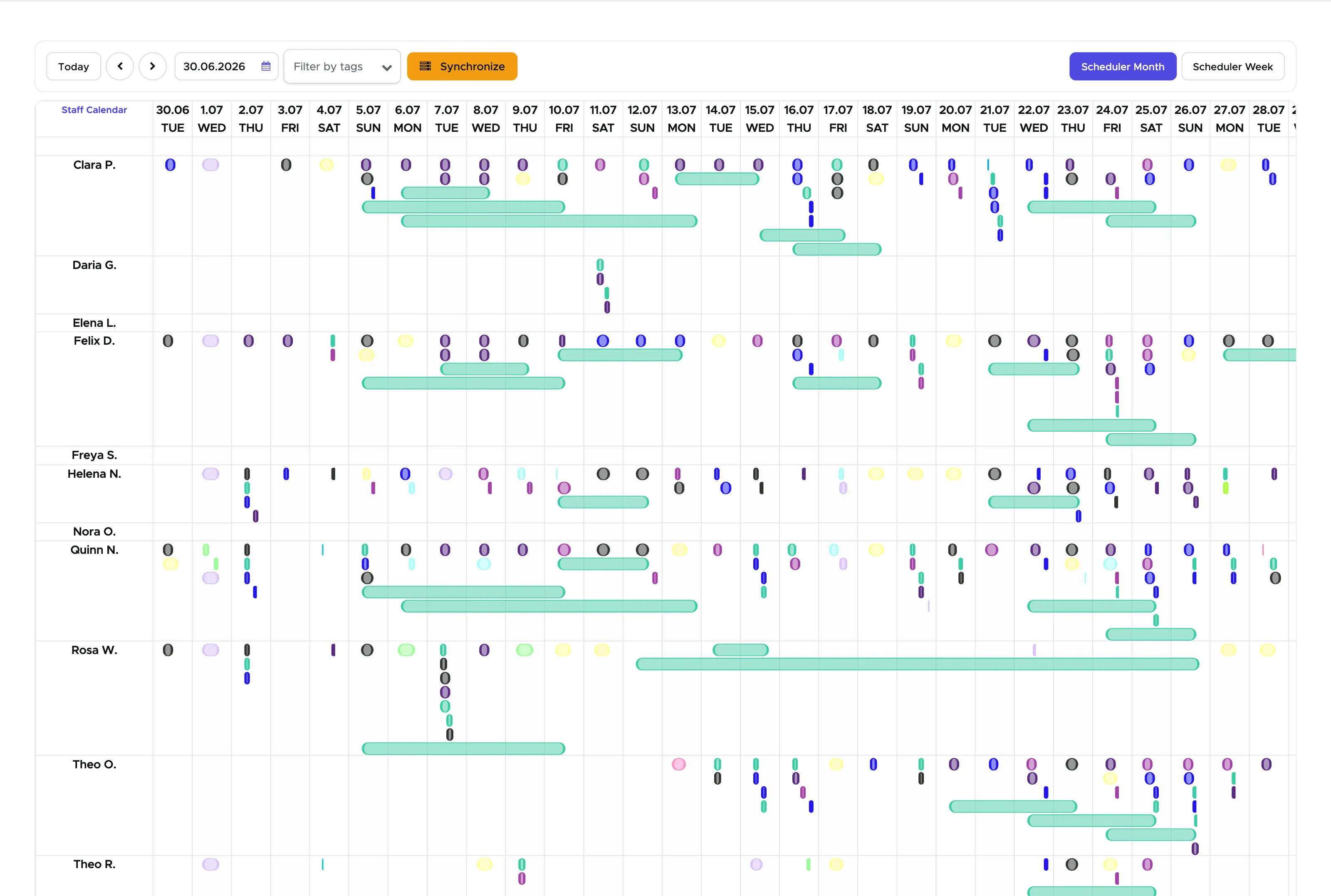
To create a new entry, simply click on the date and start time and a side bar will open.
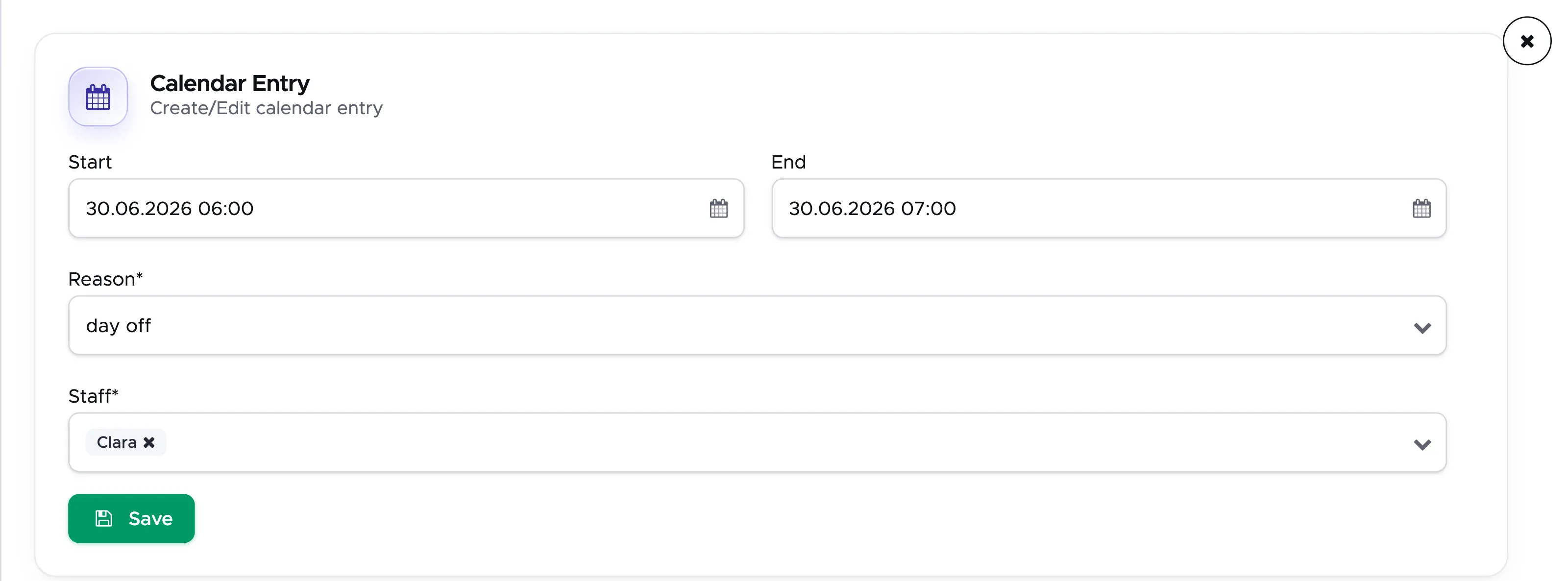
Enter reason and select the dates accordingly. When you are done click on the save button.
In case you need to change the entry you can just click on the colored part in the staff calendar and update it as needed.
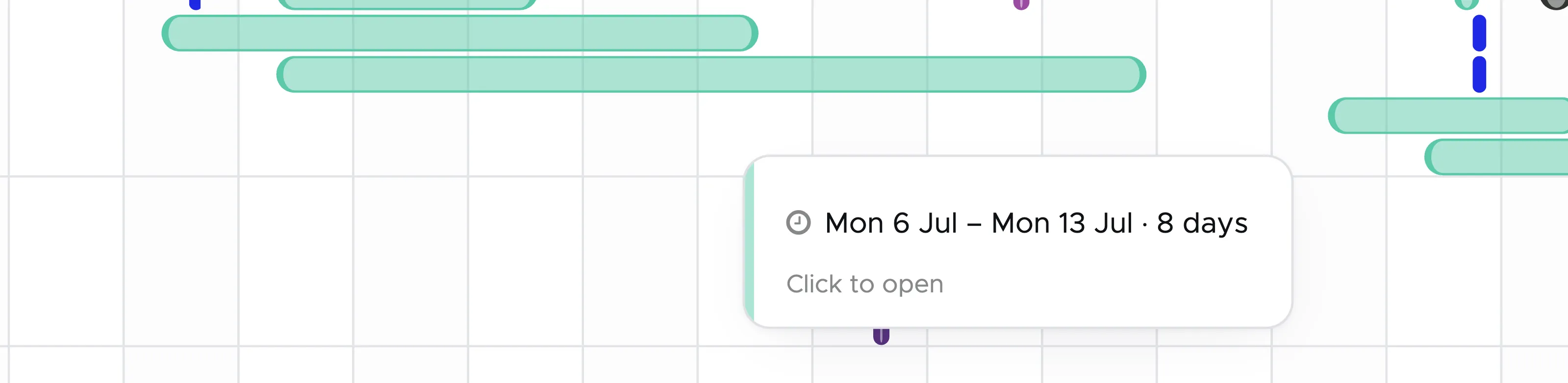
If you hover over an entry, you can see more information about it.
You will see different colors in the staff calendar:
Red: you created an entry with the reason ‘no-show’
Gray: you created an entry with the reason ‘other’
Green: you created an entry with the reason ‘leave’
Light Blue: you created an entry with the reason ‘day off’
Dark Green: automatically created and entry from a course
Other colors: automatically created entry from a trip. The color represents the color of the selected transportation.
Synchronize Button
In case some entries are missing from the calendar and you want to synchronize your staff calendar with your activity calendar, you can click here. Your calendar entries will now be sychronized.
If you click on an automatically generated entry, you will be navigated to the event accordingly.
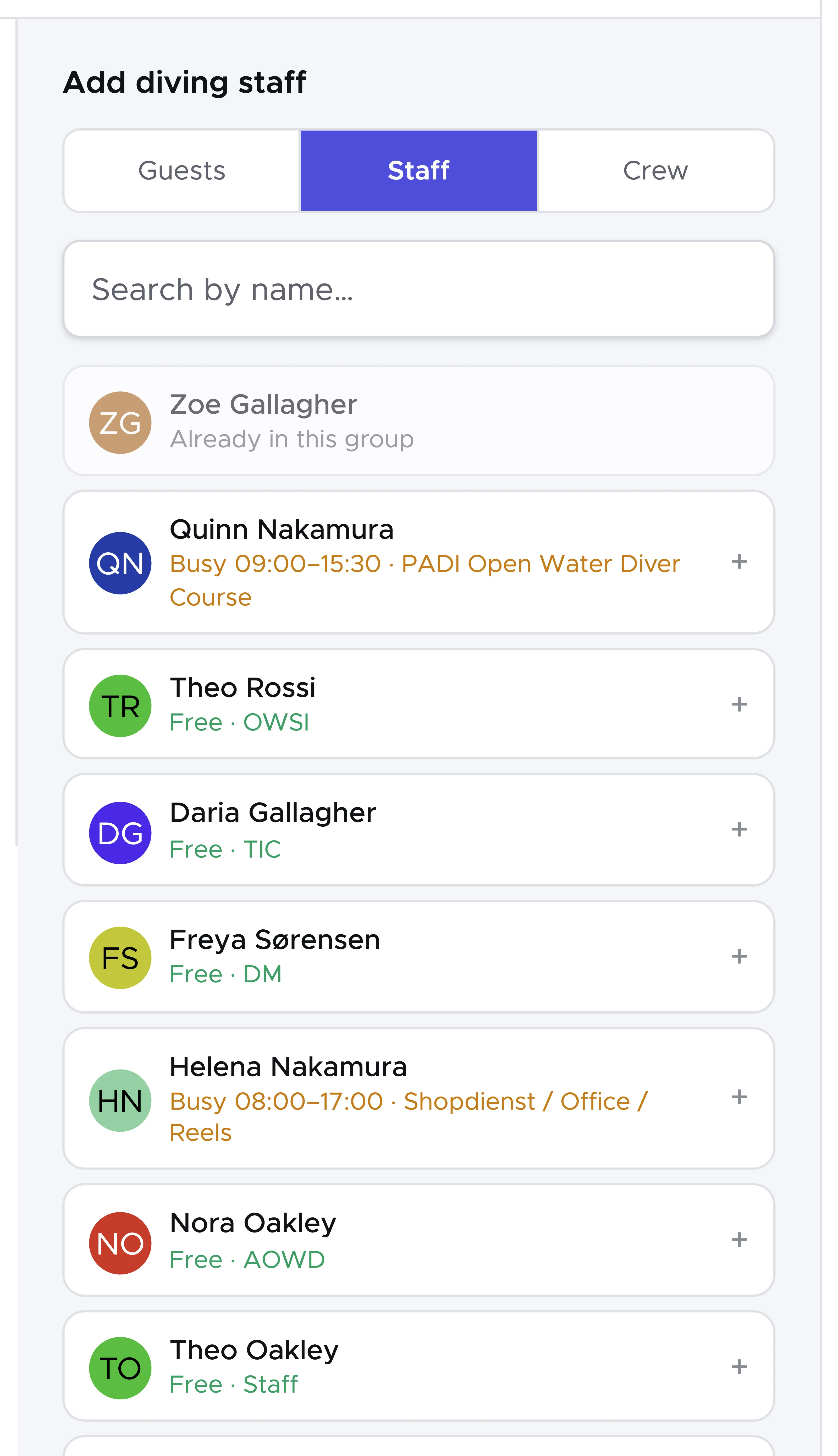
When you create a new trip you will now see if your staff already has an entry on that day and time in the calendar. In the staff list of the Trip Builder every staff member is marked as Free or as Busy, with the time and the name of the other entry.