
Partners
In Release 1.0.2 we introduced the Partners menu to collect all the external partners and agents that sell your services and promote your business.
In Release 2.0 the Partners menu has been enhanced due to several new features. We can now distinguish between a local Agent who only works on commissions and a Partner that is intended as a company working with you on a B2B basis.
In Geek Divers both Agents and Partners can be managed in menu Partners - Partner list, on the Current tab.
A partner in Geek Divers is a company (usually a travel agency) or an individual who sells your services. If they sell your services and receive a full payment from customers, then in Geek Divers you will set up your partner price list and use it for quotes and automatic invoices. If they promote your services in exchange for a commission (you receive the customer’s payment), then in Geek Divers you will set up agent commissions.
5.1 New Partner
Section titled “5.1 New Partner”From the menu on the left, Click on Partners and New Partner. Here you can enter the contact data and/or the company information of your agent or business partner. In the field ‘Works for’, please select the locations of your business that this agent or partner can promote.
In section Company Contacts you can add some direct contacts with your partner.
Just click on the button “+ Add Contact” to open the sidebar.

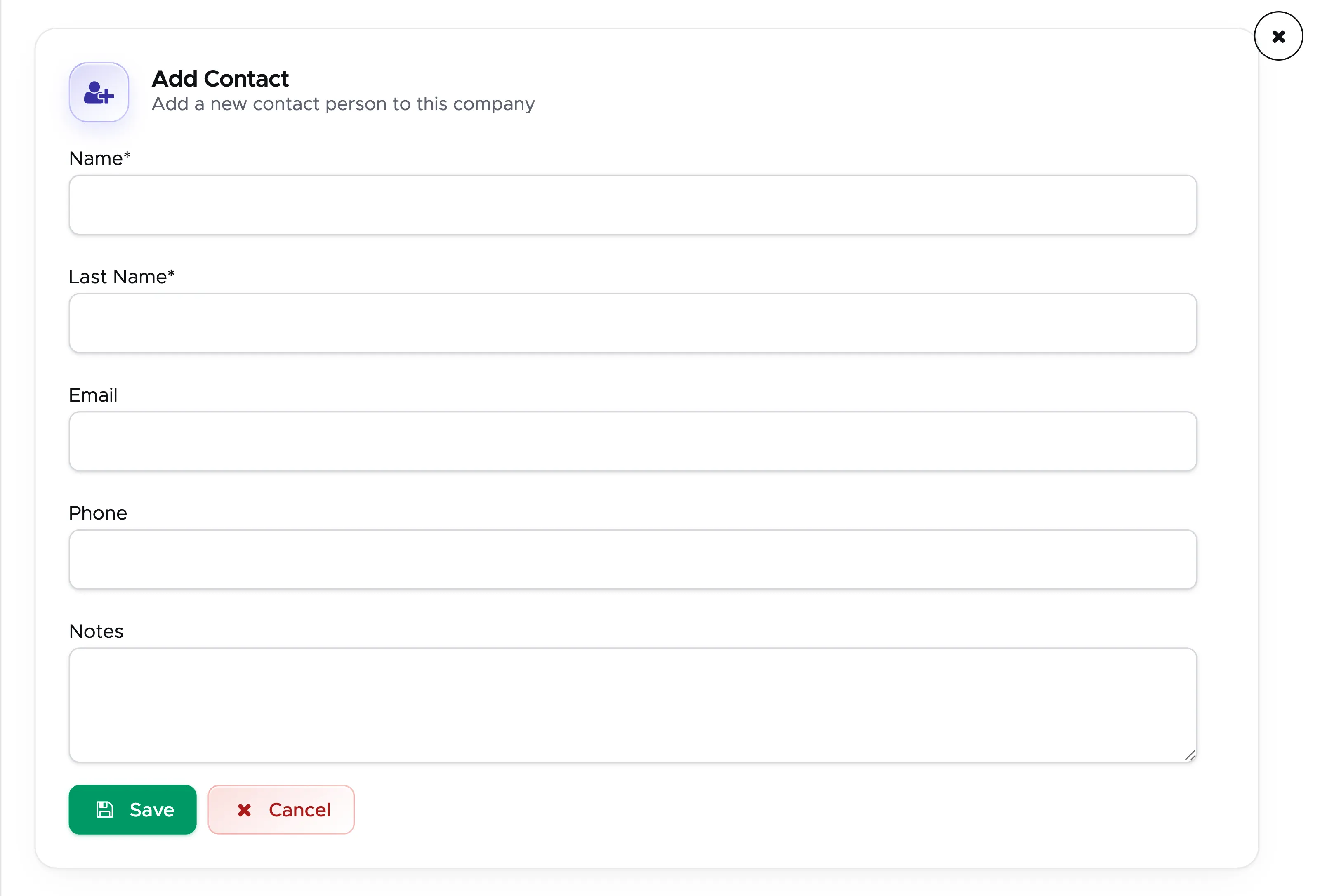
These could be useful when these contacts request a quote.
At the top of the page click on button Save.
If this partner works on commissions, click on tab Commissions/Price List to set up your Agent’s commissions. Please read chapter Commissions based on Agents to find out how to set up commissions for your agents.
When you assign this agent to a customer (more on this in chapter Activity) and you close the Activity, the agent’s commissions will automatically be calculated and added to the agent’s invoice or credit note once you close the activity. You can view the current credit note together with the past ones in tab Invoice/Credit Note. The last tab, Notes, provides you with a text area where you can write any note about this agent or partner. These notes are only for your internal use.
If the Partner that you just created is a travel agent working on an agreed price list, please follow chapter Partner Price Lists to set up a correct price list.
5.2 All Partners
Section titled “5.2 All Partners”From the menu on the left, click on Partners and Partner list, then open the All tab. If your login has access to it, you will see all the agents and partners in all the locations, both currently working with your dive centers and past partners. At the top of the page you’ll see a search string where you can type the partner’s name. As soon as you start typing some characters, you’ll see the search results that match your search. Once you’ve identified the partner that you’re looking for, click on their name to go to the partner’s profile. Here you can apply changes and save or update the profile.
5.3 Current Partners
Section titled “5.3 Current Partners”From the menu on the left, click on Partners and Partner list, then open the Current tab. If your login has access to it, you will see all the agents and partners that are currently working in the location that you’ve chosen at the top of the screen. At the top of this page you’ll see a search string where you can type the partner’s name. As soon as you start typing some characters, you’ll see the search results that match your search. Once you’ve identified the partner that you’re looking for, click on the partner’s name to go to the partner profile. Here you can apply changes and save or update the profile. Should you decide not to work with a partner/agent anymore, you can remove the tick from the ‘Partner is currently working with me’ checkbox.

Click on button Update at the top of the page to confirm the changes.
5.3.1 Tab Commissions/Price List
Section titled “5.3.1 Tab Commissions/Price List”When you click on a Partner’s profile, from either tab of the Partner list, you end up in the tab Contact Data. Here you’ve entered the Partner’s name, company information, contacts and address.
Click on tab Commissions/Price List.
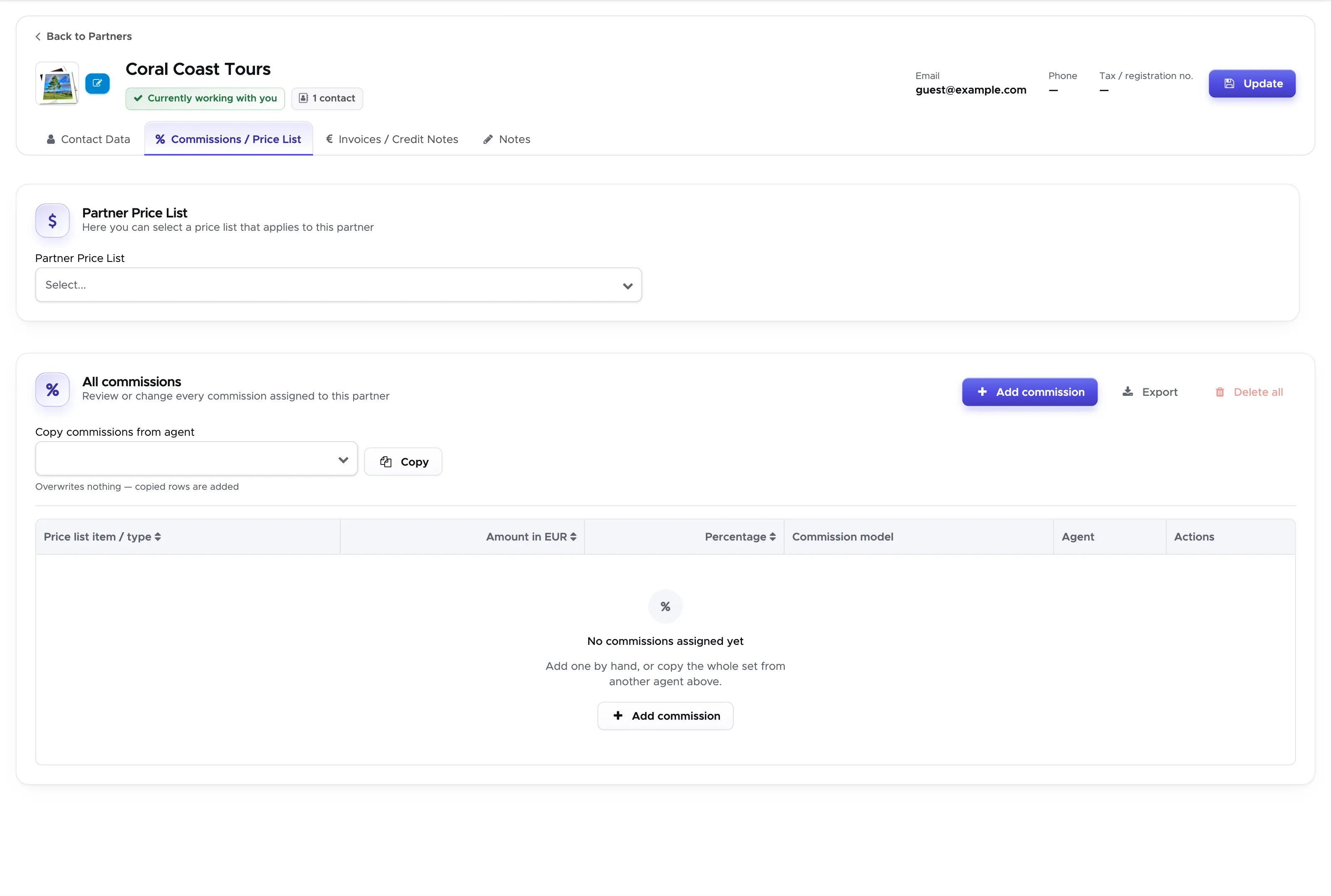
On this page you will see two sections: Partner Price List and All Commissions.
Agent Commissions
Section titled “Agent Commissions”In section All Commissions you can set up the commissions that you’re going to pay to this partner/agent when they send customers your way. The pre-requisite to set up commissions is that you’ve completed the setup of your price list.
Please make sure that you’re in the correct location by checking the Geek Divers status bar on the top-right of the page.
Click on the button Add Commission to open the sidebar.
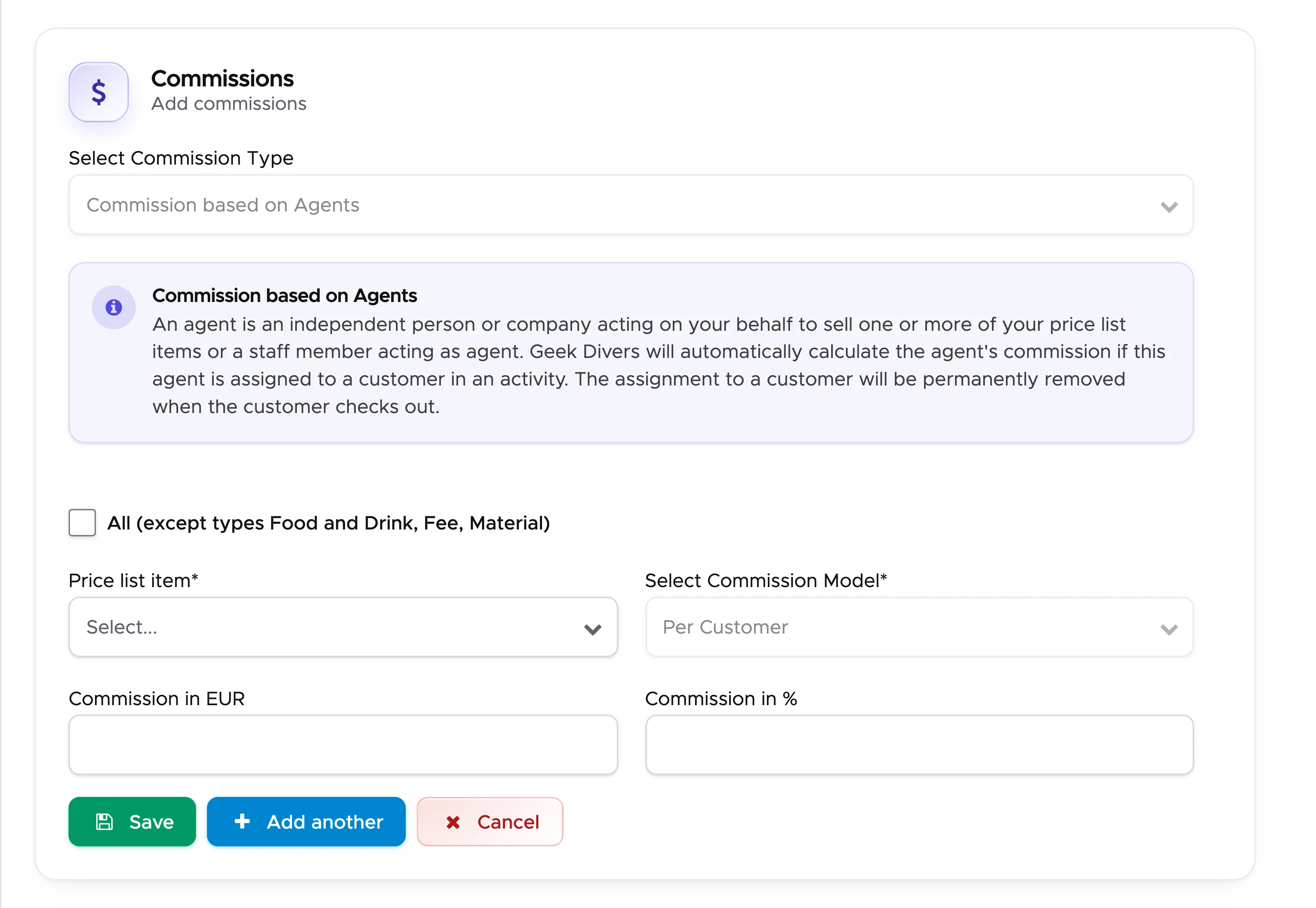
Select a price list item and type either a fixed amount or a percentage. E.g. your agent receives a 10% sales commission on a specific course that they sell (excluding fees, course material, food and drink or extra costs). The commission model for agents is only Per Customer.
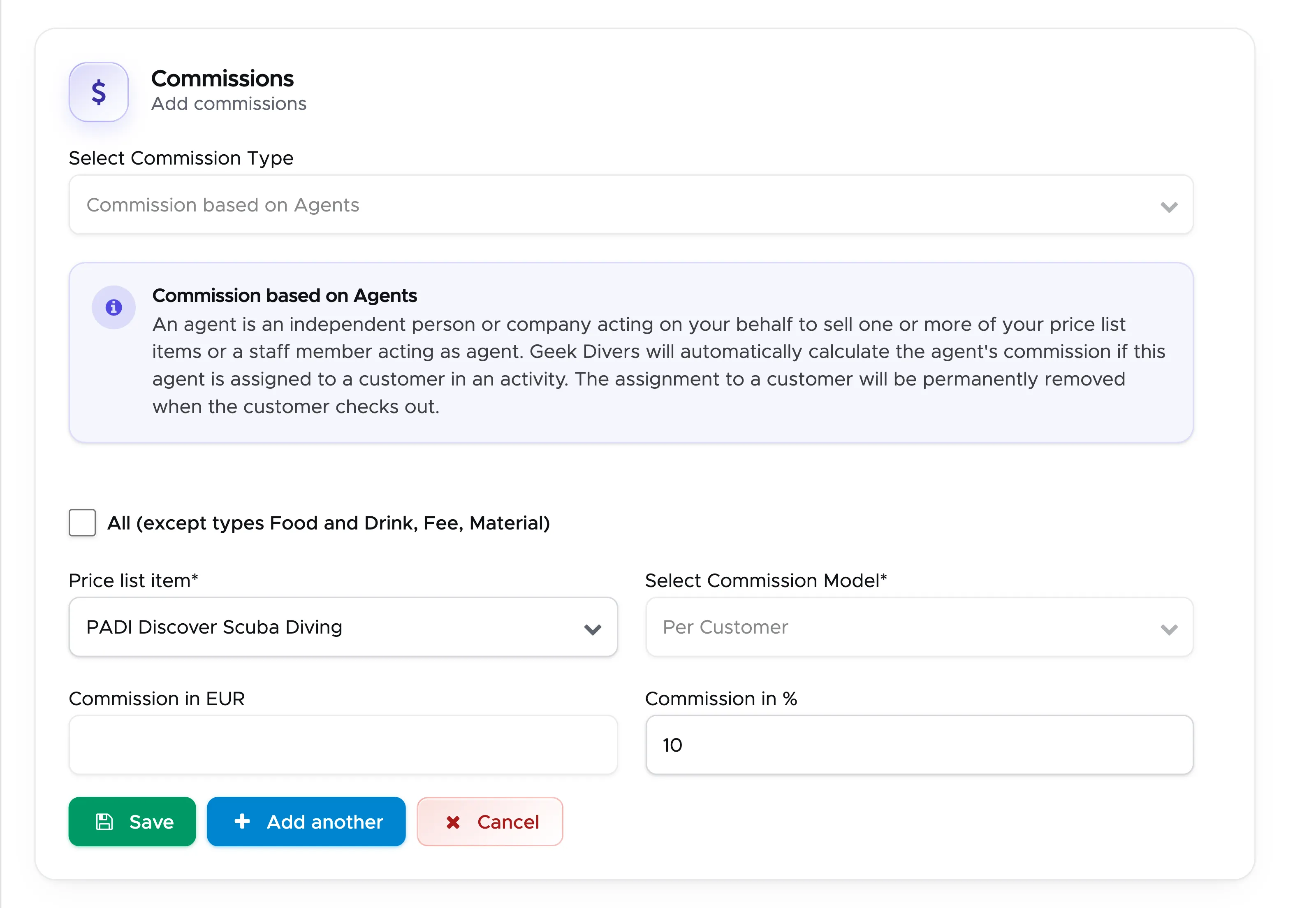
Click on the button Save and check that you see it in the table.
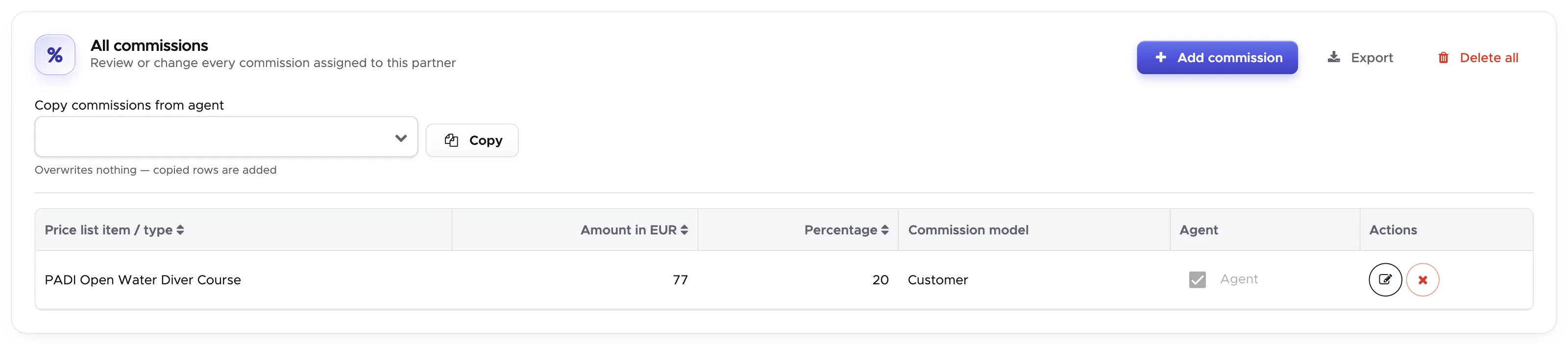
As you could probably see, the sales commission is marked as Agent commission in the table.
Repeat these steps for each item of your price list that is promoted by your agent.
To make sure that these commissions are correctly calculated and added to your partner’s credit note, you will need to assign the agent to a customer in an activity. When you close the activity, the agent commission will be calculated and written in the partner’s credit note.
If you have a special agreement with your external agents and you offer a commission in percentage for whatever the customer does or a fixed amount per customer that they send your way, then you need to tick the checkbox “All”.
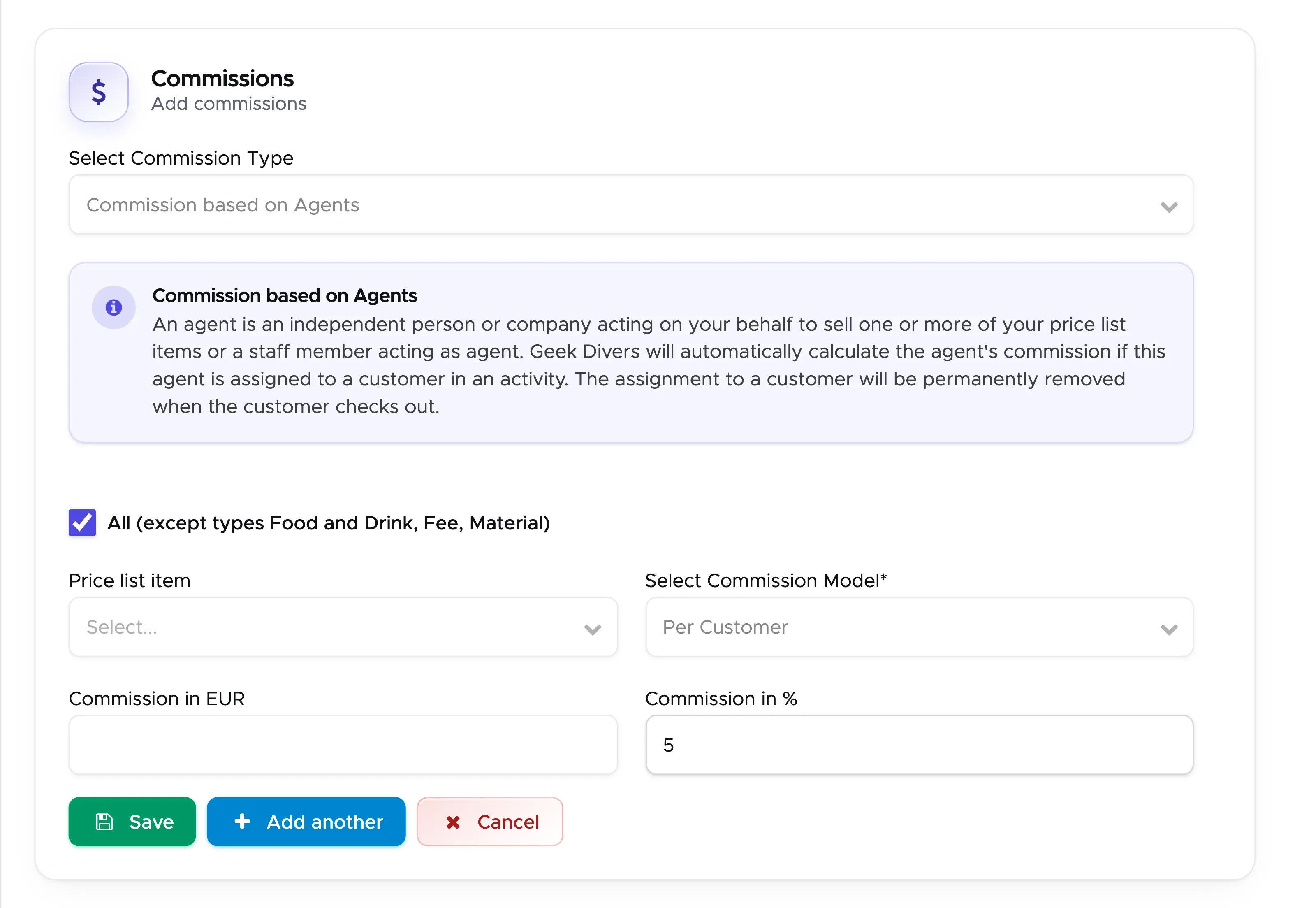
Write a fixed amount or a value in percentage and click on button Save. Check this “All” commission in the table.
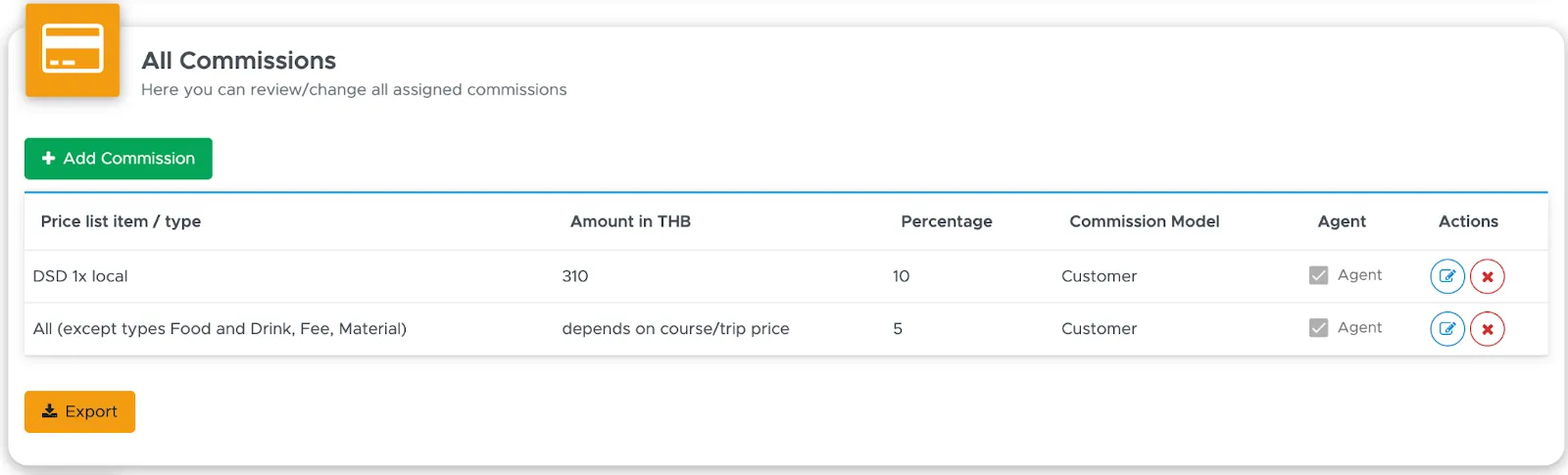
This commission will be calculated and written in the partner’s credit note when you close the customer’s bill. If you choose a commission in percentage, the calculation will exclude types Food and Drink, Fee and Material. Additionally, if the customer’s bill has an applied voucher, all the bill positions that match voucher positions will not be included in the calculation of this commission.
To make sure that this commission is correctly calculated and written in the partner’s credit note, you need to assign the partner as agent to the customer in the customer’s profile.
In the All Commissions table of a partner, all the commissions will be marked as Agent commissions. You can change a row with the edit button at the end of the row, or delete it with the delete button next to it.
This table can be exported by clicking on button Export at the top of the table.
Copy remuneration model
Section titled “Copy remuneration model”You don’t need to repeat the commission setup for every agent: you only need to set up commissions for those agents who have different commissions. If two or more agents receive the same commissions (or very similar) you can use the copy feature in the first row of section All Commissions (“Copy commissions from agent”).
Here’s what you need to do:
-
Create a new Partner and save it or click on the Partner’s profile
-
Click on tab Commissions / Price List
-
Select the Partner in Geek Divers who has the same (or very similar) commissions and click on button Copy

The copied rows are added to the table; nothing is overwritten. Verify that the All Commissions table is correct and complete.
In case you need to change one or more rows of this table you can click on the button Delete in the row that you need to change and set up a different commission.
Partner Price List
Section titled “Partner Price List”In this section you can select an existing Partner Price List to assign it to this Partner. If your partner works only with commissions (you receive the customer’s payment), then you can skip this part.
If your Partner works with an agreed price list or special discounts on your regular retail prices and pays you directly for the services (the customer pays your partner), then set up your Partner Price List and assign it to this partner here in this section.
5.4 Partner Price Lists
Section titled “5.4 Partner Price Lists”In this menu you can set up your Partner Price Lists. You can set up a price list to assign to several partners or a price list per partner or even several price lists for one partner. Below here you can find a few examples of scenarios.
-
You offer a generic 20% discount on your regular published rates to your travel agents in Europe. In this case you could create a EU-price list with currency in EUR and the discount of your choice. You can then proceed to assign this price list to all your travel agents in Europe. You can repeat this scenario for your travel agents in Asia or in North America or anywhere else in the world.
-
You have very specific and different price lists for each of your travel agents. In this case you will create a price list for each travel agent and proceed to assign it only to that partner.
-
You offer any of the above scenarios to travel agents who wish to sell your services in EUR and in USD. In this case you will create at least 2 price lists per partner, one in EUR and another one in USD. You will then assign them both to your partners.
For every price list you can define a name, the currency, currency conversion, rounding and if the prices are fixed or if they can change according to the changes to the default price list. According to the most appropriate scenario for your business, you might want to choose a partner price list name that helps you remember how it is set up. The name of the partner price list will only be visible internally in Geek Divers.
When you choose a name for your new partner price list, please remember the following:
-
Partners that sell your services that belong to more than one of your locations will need at least one price list per location. It would be easier for you if something about the location is written in the price list name. E.g. the location abbreviation.
-
A partner price list can be assigned to more than one partner in case your B2B offer is the same.
-
A partner price list can be set up in a different currency.
-
A partner price list can have fixed prices or discounted prices according to the prices in the default price lists.
Here you can see a couple of examples of price list names:
-
T_USD-2020-discount20-VAT - from this name it’s easy to understand that the price list is in USD, it’s for the year 2020, it provides a 20% discount on the regular prices and it has an applied sales tax. The initial “T” identifies my Thailand location.
-
E_EUR-2020-discount15-noGST - the price list is in EUR, it’s valid for the year 2020, it provides a 15% discount on the regular prices, it doesn’t charge any sales tax and the prices will change according to the changes to the default price list. The initial “E” identifies my Egypt location.
-
S_GBP-2020-blocked-noVAT - the price list is in GBP, it’s valid for the year 2020, it has fixed prices (blocked) and there’s no applied sales tax. The initial “S” identifies my Spain location.
The above are just examples. Please feel free to use a system of your choice to pick the price list that you’re looking for just by reading the name.
Partner Price Lists are location-specific and they represent a copy of your customer price list (the one in menu Financials - Price List). Therefore, if you wish to create a partner price list for one of your locations, please go to that location using the menu at the top-right of the screen.
To create a new Partner Price list, click on the Add Price List button. A sidebar opens.
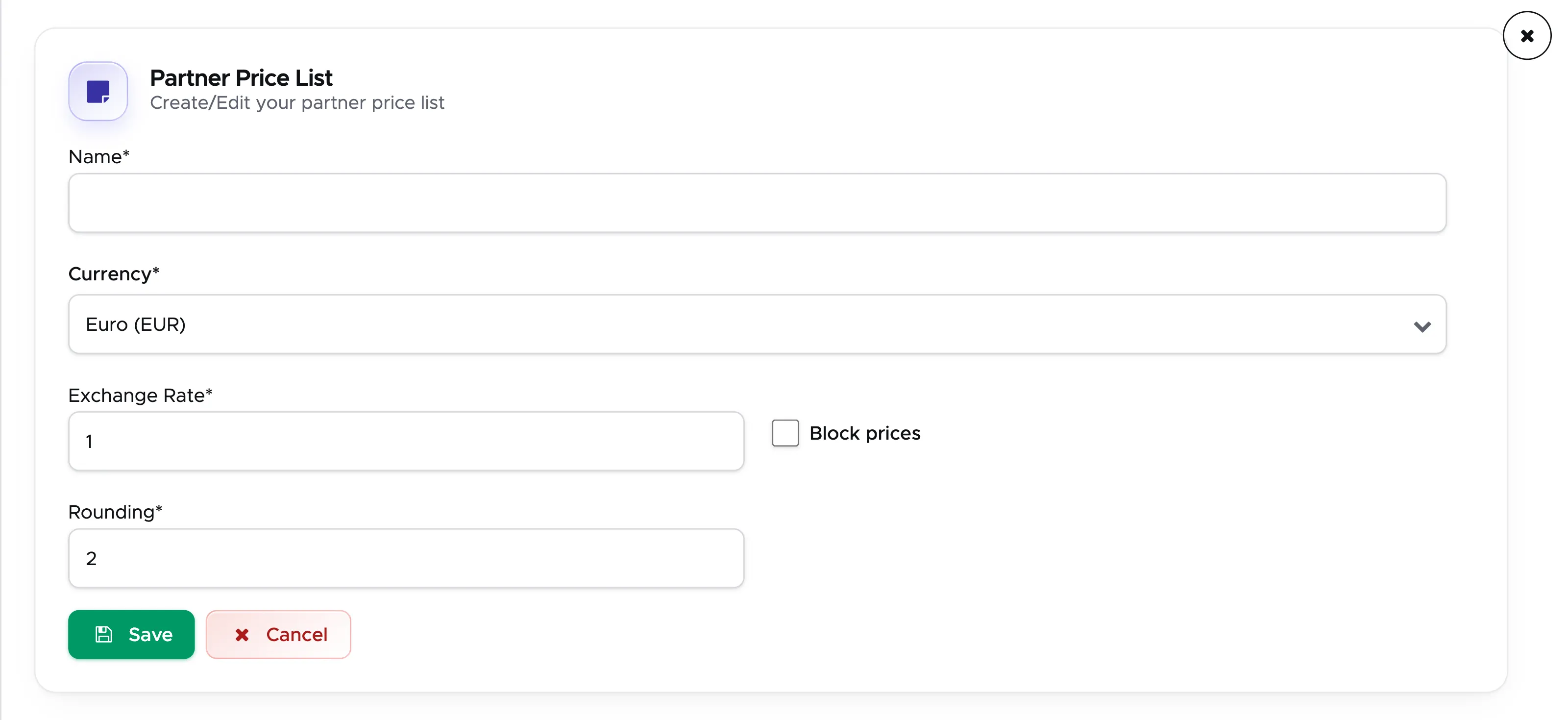
To save a new price list you need to at least type a name. The proposed currency will be your default currency: you can leave it or select a different one, if needed. If you’ve selected a different currency and if you’ve already set up the standard currency conversion between your default currency and the selected one in Settings - General Settings - Conversion Rates (see chapter Conversion Rates), the exchange rate and the rounding will be automatically written. You can change them, if needed. The changes made here in the partner price list will not affect your settings.
In the Rounding field you can choose how the conversion should be rounded.
Rounding 2 - in your Partner Price List you will see 2 decimal digits. E.g. $160.75
Rounding 1 - in your Partner Price List you will see only one decimal digit. E.g. $160.8
Rounding 0 - in your Partner Price List you will only see the units. E.g. $161
Rounding -1 - in your Partner Price List you will see units mathematically rounded to the nearest tens. E.g. $160
Rounding -2 - in your Partner Price List you will see units mathematically rounded to the nearest hundreds. E.g. $200.
Please consider that the mathematical rounding works as follows:
-
Digits from 1 to 4 will be subjected to a floor rounding. E.g. $160.42 rounding 0 = $160. E.g. $160.4324 rounding 2 = $160.43.
-
Digits from 5 to 9 will be subjected to a ceiling rounding. E.g. $160.75 rounding 0 = $161. E.g. $160.4354 rounding 2 = $160.44.
The checkbox “Block prices”, unticked by default, means that every time you update your default customer price list, the partner price list will be automatically updated.
Leave it off if:
- You offer a generic percentage discount on your current published rate. Whenever your prices change, the partner price list will be automatically updated to reflect the discount in percentage of your choice (you can define different discounts in percentage in the next step). E.g. 10% discount on all your courses, 20% discount on all your trips, 5% discount on your airport transfers. Whenever your retail prices change, the partner prices will change according to the discount in percentage that you’ve set.
Turn it on if:
- You have a specific agreement with your partner, you have defined and set prices for every item in your price list and you want to make sure that no changes to the default price list (your published rates) could affect your partner price list. E.g. OWC is €300, AOW is €280, regardless of their prices in your Default Price List.
All the above can be modified after the creation of the price list if you choose to leave the toggle off. Please consider that once you activate the toggle to block the prices, this cannot be deactivated again and the currency, conversion rate and rounding cannot be changed anymore. This is to prevent an unwanted update to your partner price list in case of any changes to your customer prices. If you choose to turn the toggle on and block the prices in the partner price list you will however be allowed to change the price list name.
Click on button Save and you’ll see your new Partner Price List in a table together with your other partner price lists. To modify the content of the fields described above here click on the edit button at the end of the row. To delete a partner price list click on the trash bin button at the end of the row.
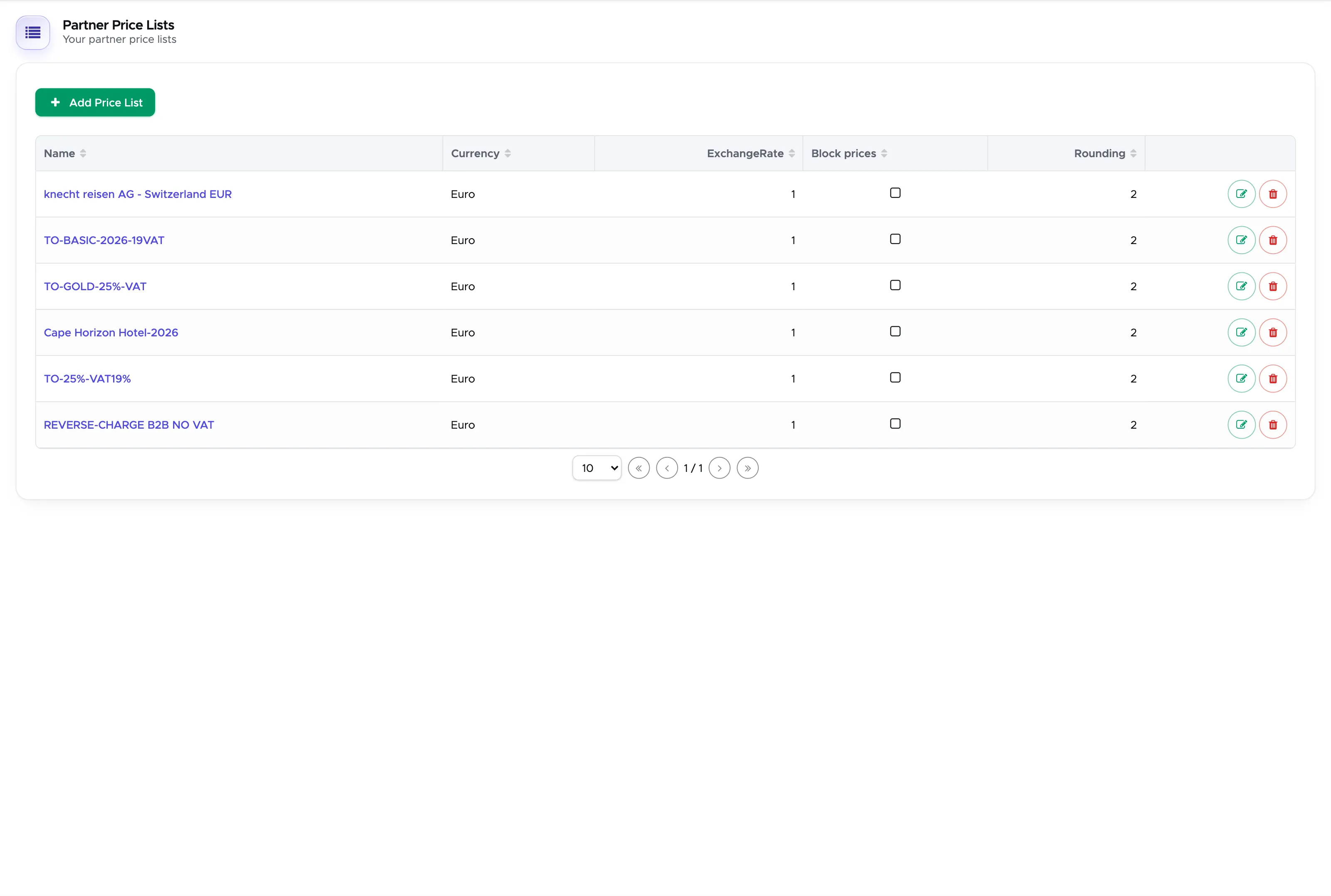
To view the content of the price list click on the price list name.
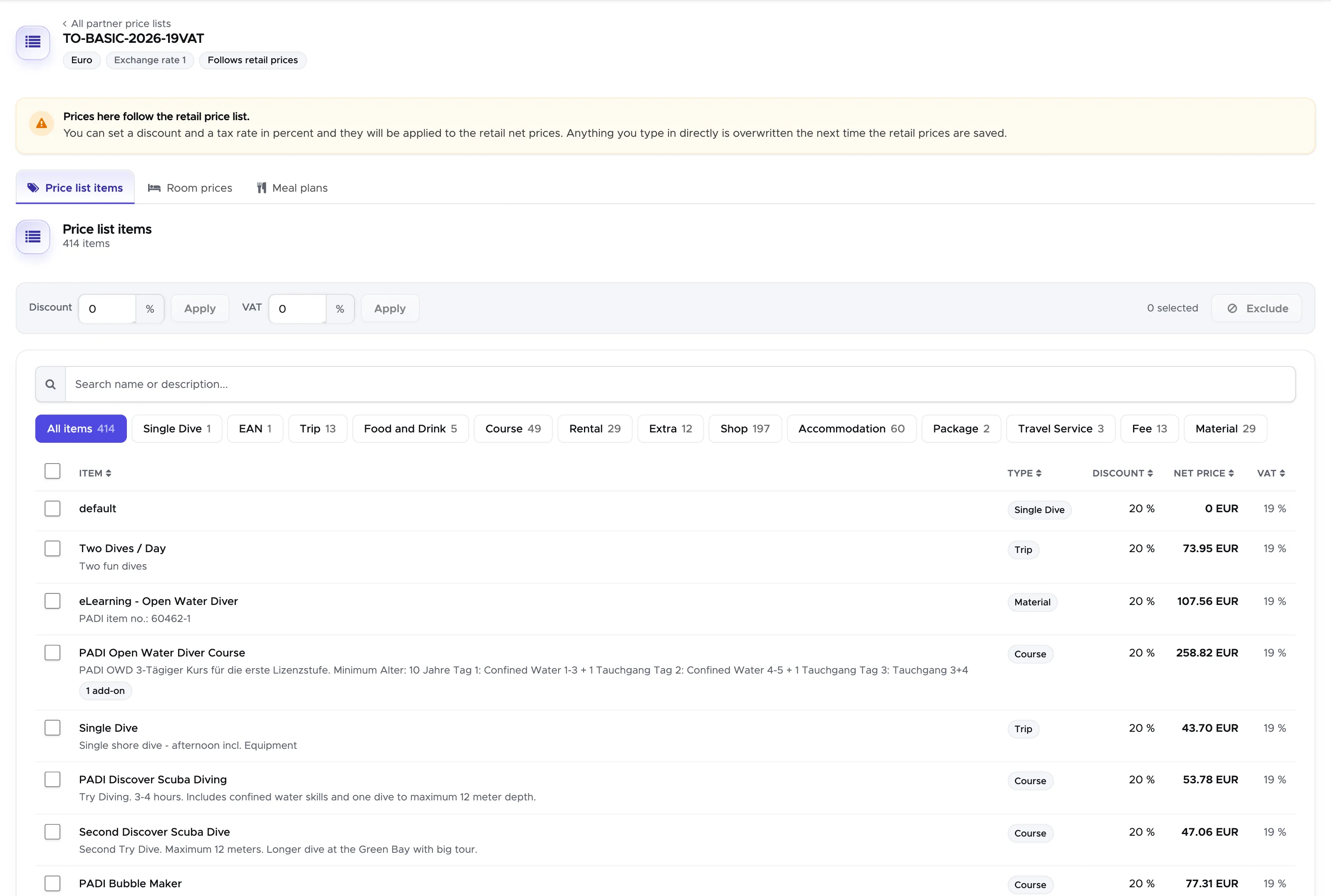
At the top of this page you will find the name, currency and exchange rate that you’ve chosen in the previous step.
Below them you will find a table containing your customer price list converted into your partner’s currency. Initially the prices that you see in this table are the net prices (total price minus sales tax) in your default price list converted according to the exchange rate that you’ve chosen and the rounding of your choice.
Before defining a discount in percentage or typing the partner prices, please consider if it makes sense to list all the items that are currently in your Default Price list. It might be, for example, that you don’t need to list items with type Shop (retail items like a mask, a T-shirt or other) or type Food&Drink in your partner price list. Please identify the price list items that you wish to exclude from your partner price list by ticking their checkboxes and clicking on button Exclude at the right of the toolbar.
You can select them one by one or filter the price list by type and select the results or start typing the name of an item in the search field and select one or more of the search results.
The excluded price list items won’t disappear, but they will be listed in the table Excluded items at the bottom of this page.

In case you’ve made a mistake and excluded the wrong item, click on the arrow button at the end of its row to include the item once again.
Excluded price list items won’t be available for selection in partner quotes and invoices.
Toggle “Block prices” set to off
Section titled “Toggle “Block prices” set to off”If you’ve chosen to leave the Block prices toggle off, the most sensible option to define your partner prices is to apply a discount in percentage and the sales tax (if appropriate).
To apply a discount in percentage to one or more items, use the search field or the type buttons above the table to view the list of items that you wish to modify.
E.g. click on Trip to view the list of trips in your price list.
Select all the items in the list (or only the ones of your choice), write the discount in percentage and click on Apply.
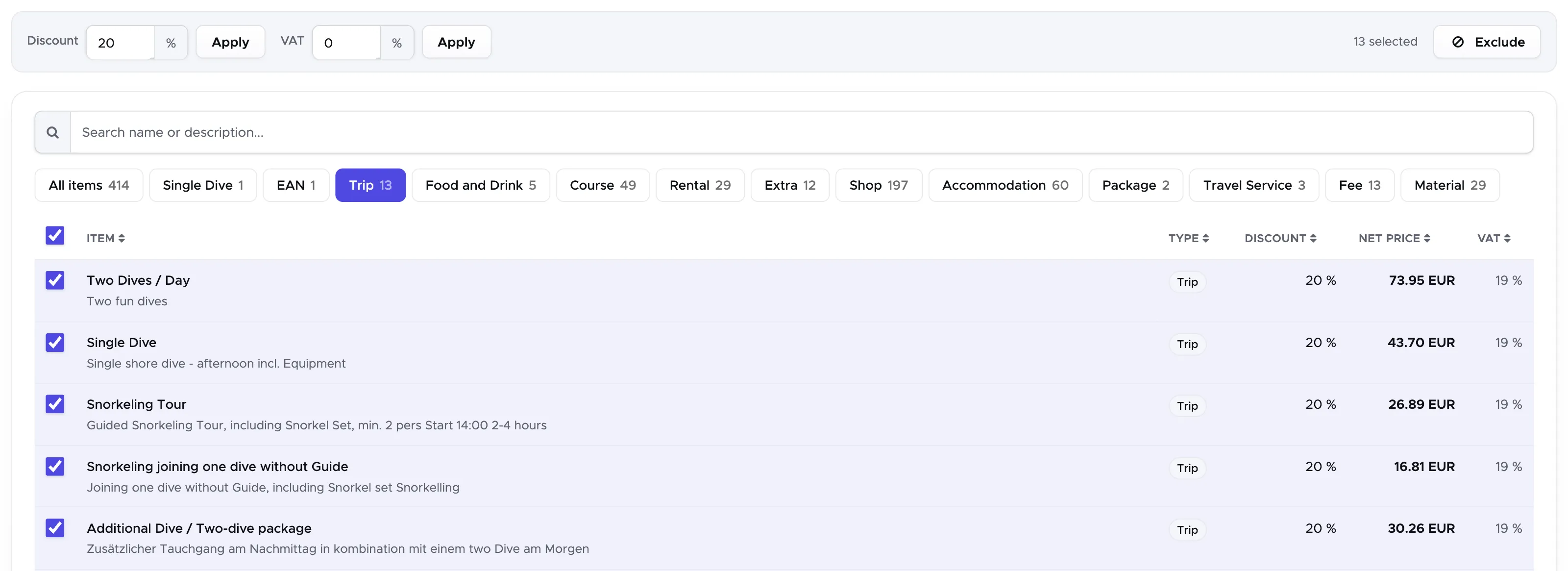
After applying the discount to the selected items, you will see your chosen discount in percentage in column Discount. If you don’t like the prices that you see in column Net price, you can click on a price list item and manually modify the price.
Example: the net retail price of my PADI Discover Scuba Diving is 67.23 EUR.
I clicked on this item name and manually changed the net partner price to 60 EUR.
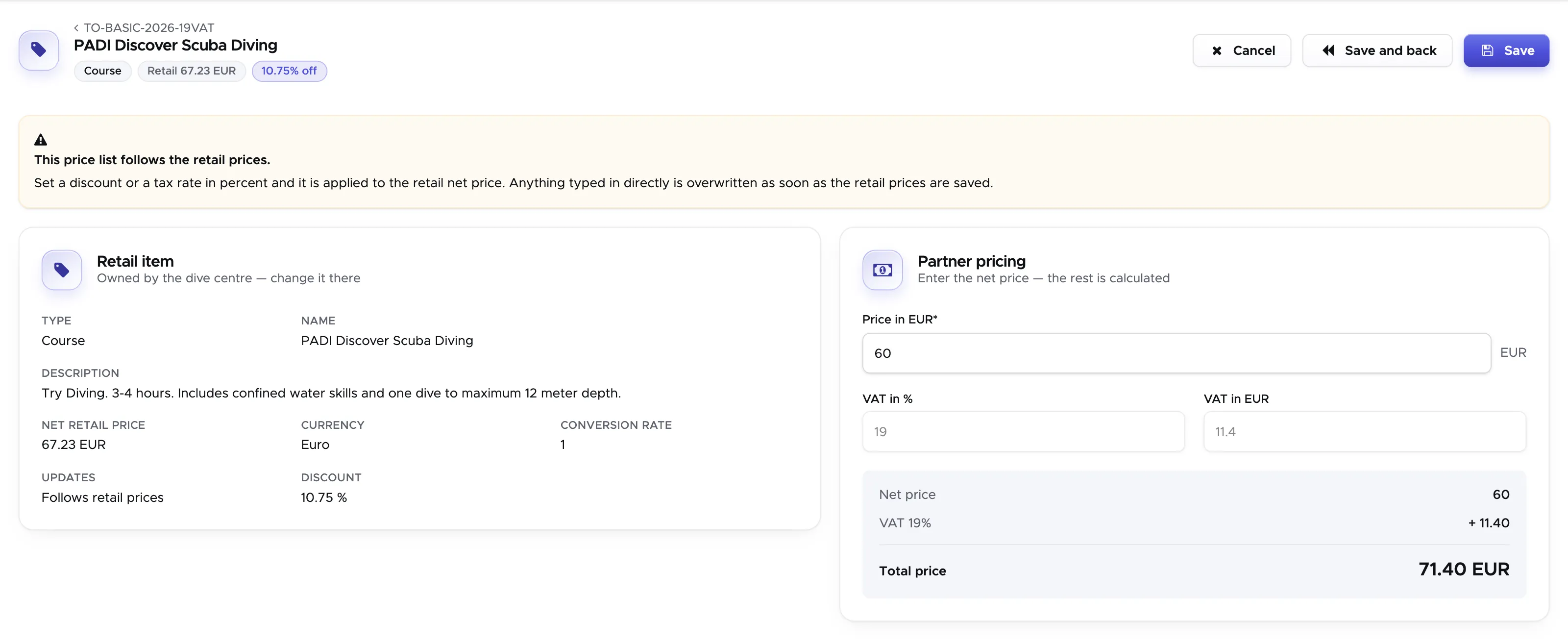
The discount in % for this item was automatically recalculated to 10.75% and it is displayed in the main table as well.
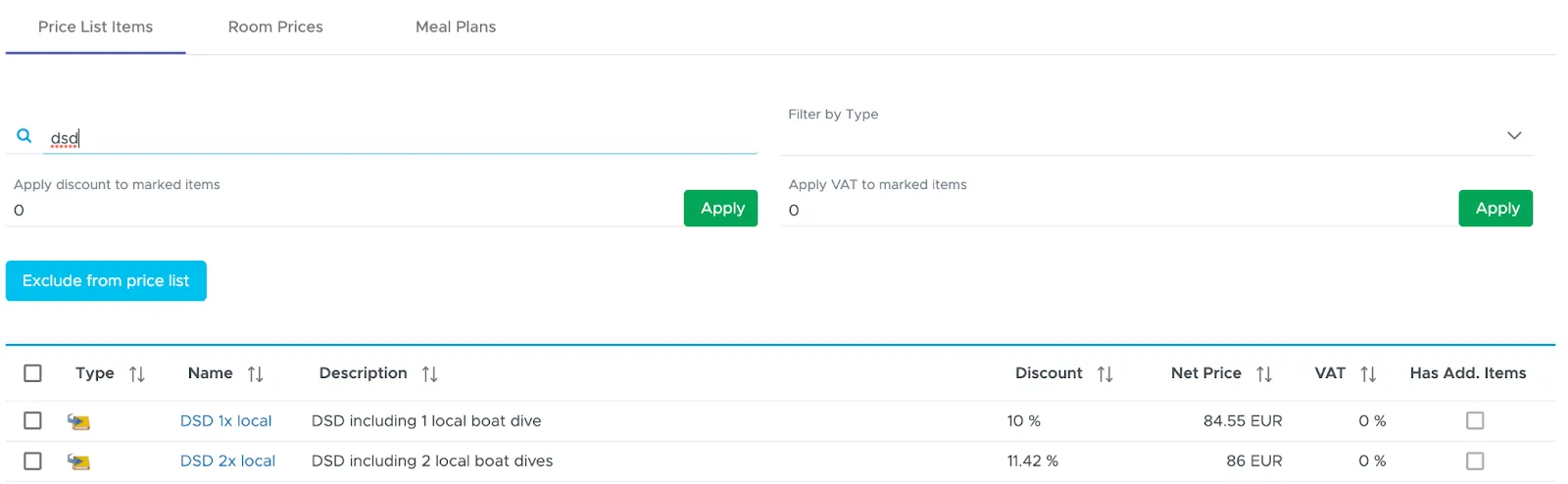
Please consider that there’s no guarantee that the DSD price will remain 86 EUR in this price list: in case the price of this item is modified in the Default Price list, a discount of 11.42% will be applied on the new net retail price. If your aim is to set and keep fixed prices for your partner price list, then please follow the following paragraph Toggle “Block prices” set to on.
Repeat the above steps to define your partner price list.
Similarly to the application of a discount in percentage, you can apply your sales tax (if appropriate), by selecting all or some items, write your sales tax in field “Apply VAT/GST to marked items” and click on button Apply.
After applying the sales tax, in column VAT/GST you will see the tax percentage. The final prices, including your sales tax, will not be visible in the price list table, but only in partner quotes and invoices.
In case of mistakes, please select the items with the wrong discount and re-apply a discount in percentage of 0% to go back to the initial net price. Similarly, in case of wrongly applied sales tax, select the items with the wrong sales tax and re-apply a tax of 0% to go back to the initial values.
Toggle “Block prices” set to on
Section titled “Toggle “Block prices” set to on”If you’ve chosen to turn on the toggle Block prices, you can not only define a discount in percentage for every item in your partner price list, but you can also click on every single item to manually refine the prices and these prices will not be changed in case your Default Price List is updated. E.g. if after the application of a discount you see a price of €54.87 you can click on this item and manually change this net price to €55.
It is recommended to first define both discounts in percentage and sales tax (if appropriate) and then manually refine the single item prices.
To manually change an item price click on a price list item. You will be redirected to the price list item details:
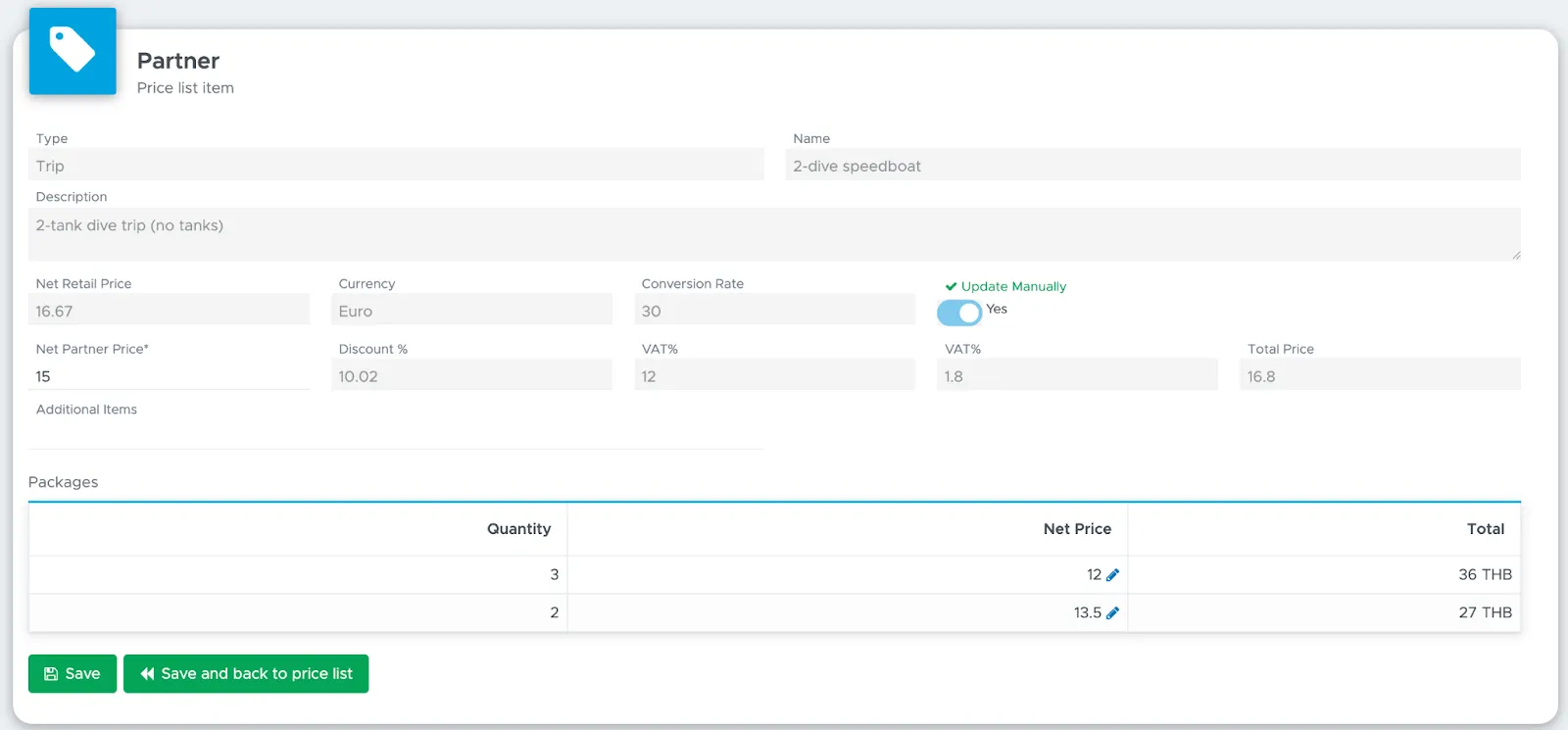
Modify the value in Net Partner Price and click on Save button.
If you wish to change the price for your item packages, you can do so at the bottom of this page in column Net Price. Click on the pencil icon and modify the price.
Assign a Partner Price List to a Partner
Section titled “Assign a Partner Price List to a Partner”Now your partner price list is ready to be assigned to one or more of your partners.
To assign a price list to a partner go to Partners - Partner list, open the Current tab and select the partner of your choice. Click on tab Commissions / Price List. The Partner Price List section is at the top of the tab.

In the selection box select one or more price lists and click on button Update at the top of the page.
Repeat these steps for each current partner.
In case you need to modify the content of a partner price list, you don’t need to assign it to a partner once again.
5.4.1Partner Price Lists - Room Prices and Meal Plans
Section titled “5.4.1Partner Price Lists - Room Prices and Meal Plans”In a partner price list you will notice two additional tabs: Room Prices and Meal Plans.
In these two tabs you can define the prices, discounts and sales tax related to the Accommodation Module. If you choose not to use the Accommodation Module, these two tabs won’t be available.
Before you define your partner prices for rooms and meal plans you need to set up the Accommodation Module. Find more info in chapter Accommodation.
Room Prices
In tab Room Prices you will see your room types, their prices and package prices. As for your partner price list, these prices are originally the net prices of your published rates converted to the currency of the price list.
At the top of the screen you will find a field to define the sales tax. If this needs to be applied to your partner prices, please write a value representing the percentage to apply.

Below this sales tax field you will find all your room types and prices definition as you’ve set them up in the Accommodation Module. In every cell you will see the retail price (“Retail …”) converted into the Partner Price List currency.
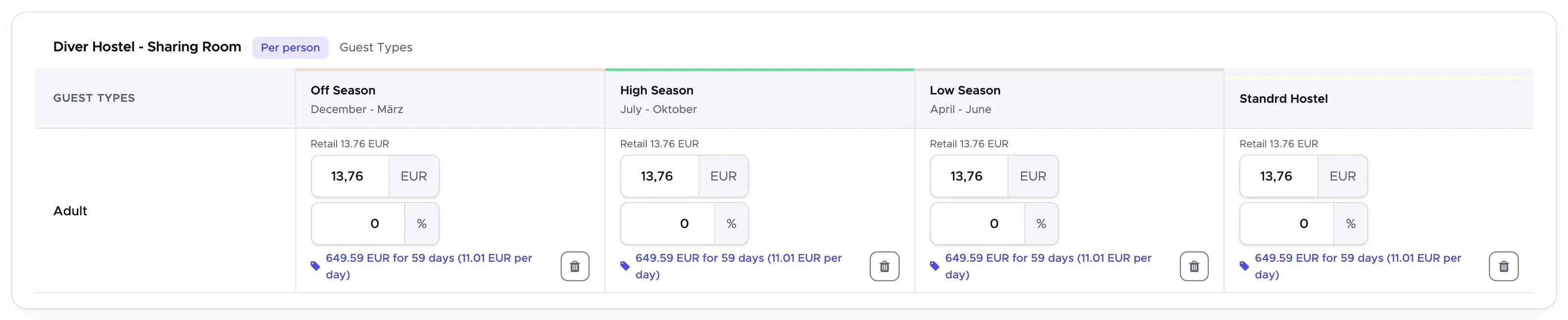
To modify these prices, please consider the same principle applied to the Partner Price List:
-
Toggle “Block prices” set to off - In this case it is recommended only to apply a discount in percentage.
-
Toggle “Block prices” set to on - In this case you can choose to apply a discount in percentage or refine the prices manually.
According to the above, click on the fields containing a percentage symbol to apply a discount in percentage or directly on the price to modify the amount. The TAB key on your keyboard will help you move from one field to the next.
If you apply a discount in percentage, the same discount will be applied to the room packages. If you choose not to offer these packages to your partners, click on the trash bin icon to remove them. However, please consider that the same principle of blocking prices applies to the deletion of a package: if the toggle “Block prices” is off and you delete a room package price, any change to the Room Prices will update the Partner Price List and the room package price will be added once again. If the toggle “Block prices” is on, not only can you delete a room package price, but you can also modify it (pencil icon) and your choice will stay.
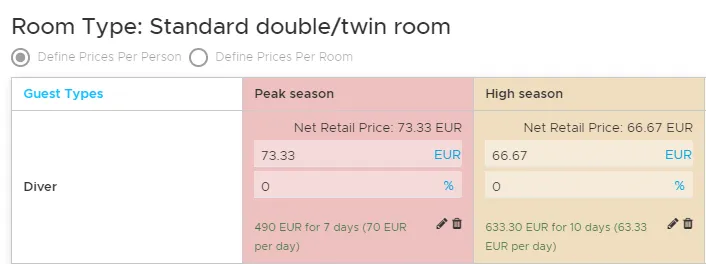
Don’t forget to click on the button Save at the top of the tab to save your changes.
Meal Plans
In tab Meal Plans you will find the same meal plans that you’ve set up in the Accommodation Module. As for the partner price list, the prices that you initially see represent the converted prices in the currency of the Partner Price List.
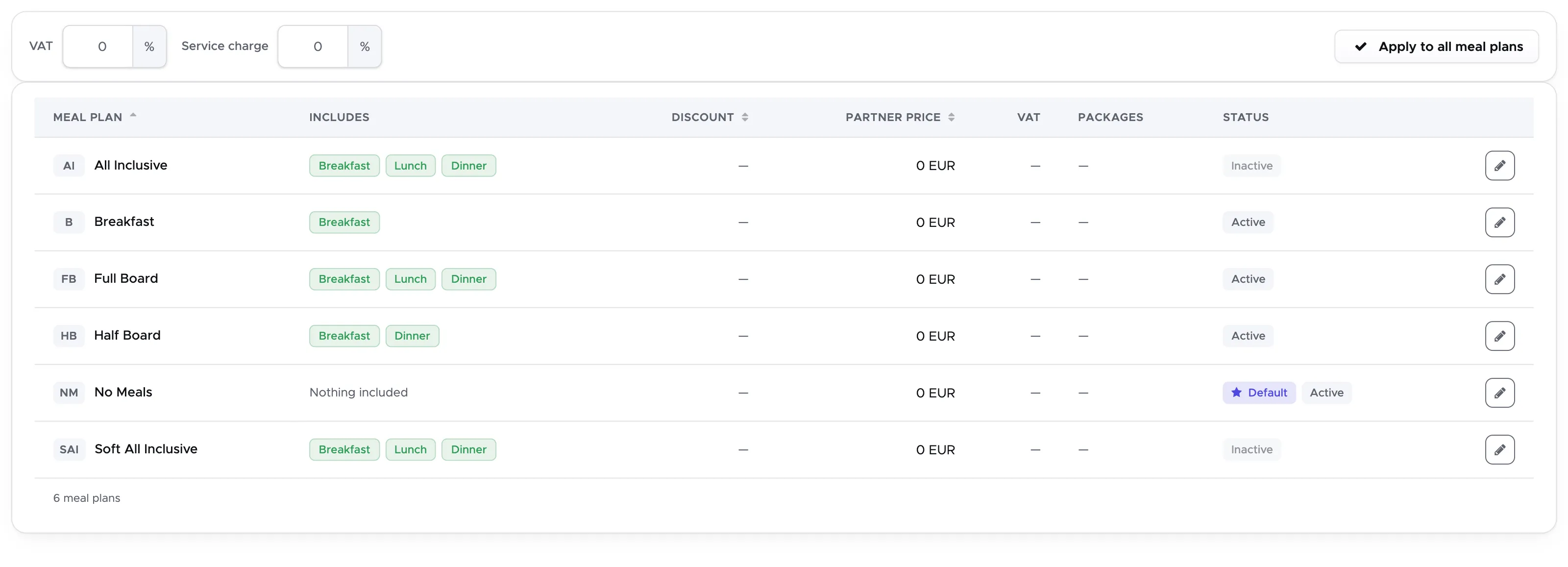
To modify the prices of a meal plan, click on the blue edit icon in the last column. A sidebar will open, showing the prices (converted to the currency of the Partner Price List) and packages that you’ve defined in Room Settings.
According to the same principle described above, if toggle Block prices is off, it is recommended to define a discount in percentage, if toggle Block prices is on, you can choose to set a discount in percentage or define specific prices.
The same discount in percentage defined for the daily rate, will be applied to the existing packages. Click on the button Save to save your changes.
Above the meal plans table you can define the sales tax, if applicable. Please write a value and click on the button Apply VAT/GST. All the meal plans will be updated and you will see this value in column Tax%.
Meal plans cannot be deleted in the Partner Price List.
5.5 Partner Invoices
Section titled “5.5 Partner Invoices”In menu Partners you will find Invoices, which carries three tabs: Open, Closed and Archived.
In these pages you will find only the invoices that were generated through partner price lists. The invoices/credit notes related to agent commissions have not been changed, compared to the previous Geek Divers versions, and you will find them in menu Financial - Agent Invoices (previously called Financial - Partners).
Starting from version 2.0, Partner invoices can be automatically generated once a partner confirms one or more quotes that you’ve sent them. Please read chapter Partner Quote to find out how to create a partner quote.
5.5.1 Open Invoices
Section titled “5.5.1 Open Invoices”Click on Partners - Invoices and open the Open tab to view the list of currently open partner invoices.
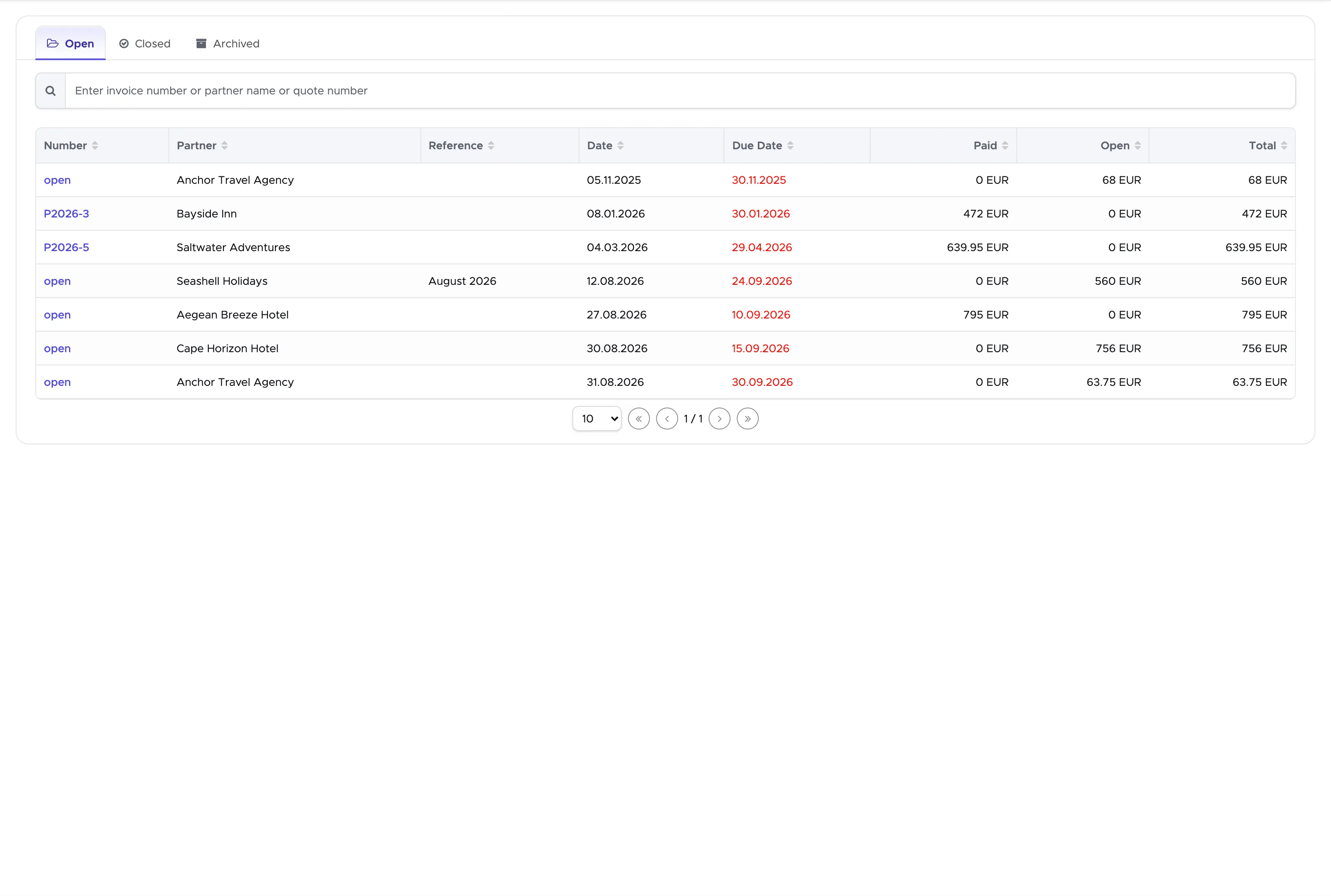
In this table you will find the summary of the invoice information. The Due Date is the date that you initially set when you chose to create a new invoice (more info in chapter Confirm a Partner Quote). This date can be changed within the invoice. If the due date is today or in the past, it will be shown in red in this table.
To view the content of an invoice, click on open.
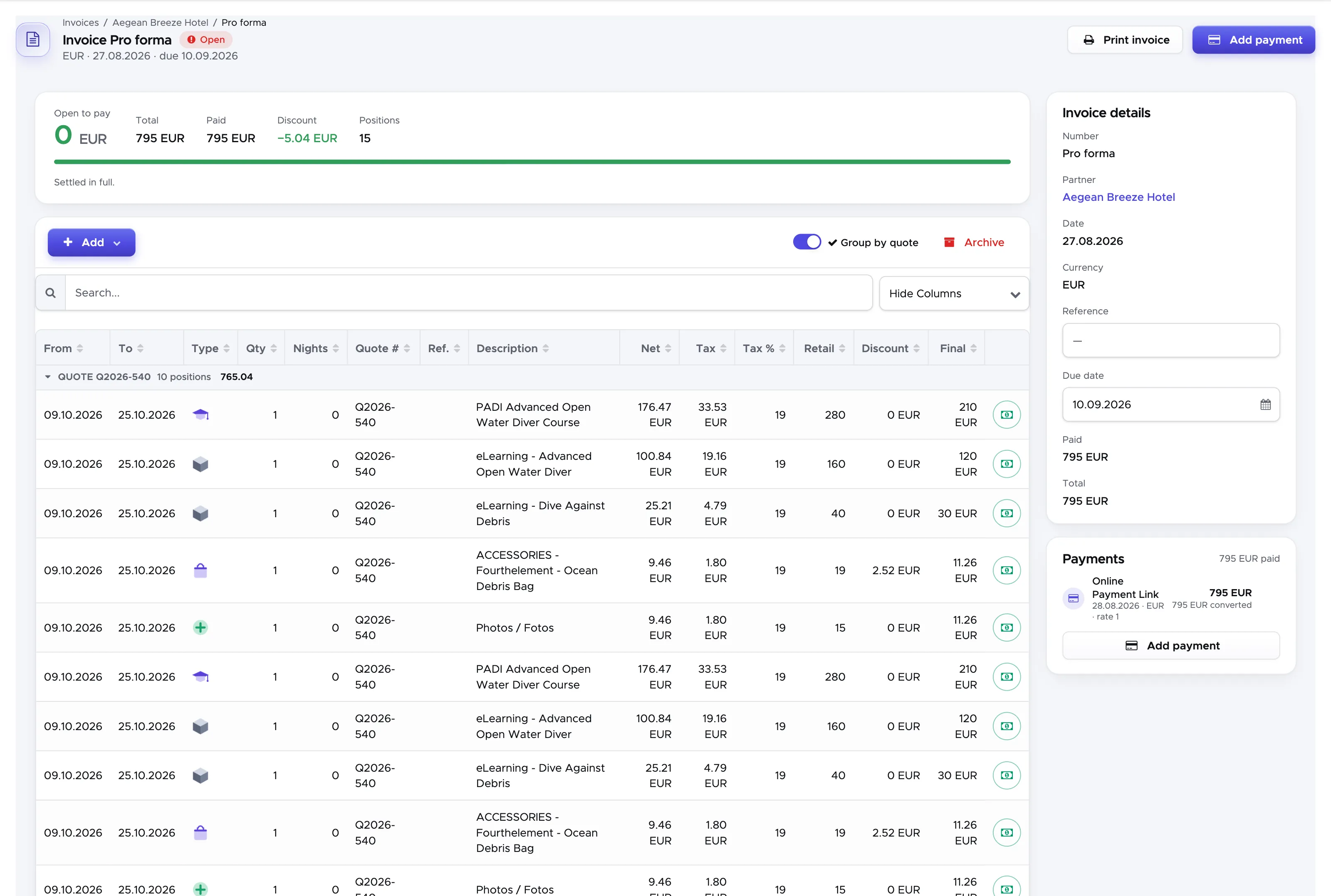
An open invoice doesn’t have an invoice number. The invoice number will be automatically assigned to the invoice when you manually close it, after recording one or more payments.
A partner invoice consists of the balance at the top, the Positions below it, and Invoice details and Payments on the right.
In the balance you will find the open amount (Open to pay), the total amount, the amount paid, the discount and the number of positions. In Invoice details you will find the partner name, creation date, currency, reference and due date.
In Payments you will find a list of all the recorded payments for this invoice. This list might be empty if no payment has been recorded yet.
In Positions you will find the list of items that your partner agreed to buy. If a quote number is written in column Quote #, this means that the position was automatically created when the partner quote was confirmed.
To add positions to a partner invoice you can confirm a partner quote (see chapter Confirm a Partner Quote) or click on button Add above the positions and choose Position from price list.
👀 Important!
Please consider that any position added directly to the Partner invoice will not be considered as a voucher item once the customer checks-in. To make sure that the positions are considered as voucher items, these need to be part of a confirmed quote.
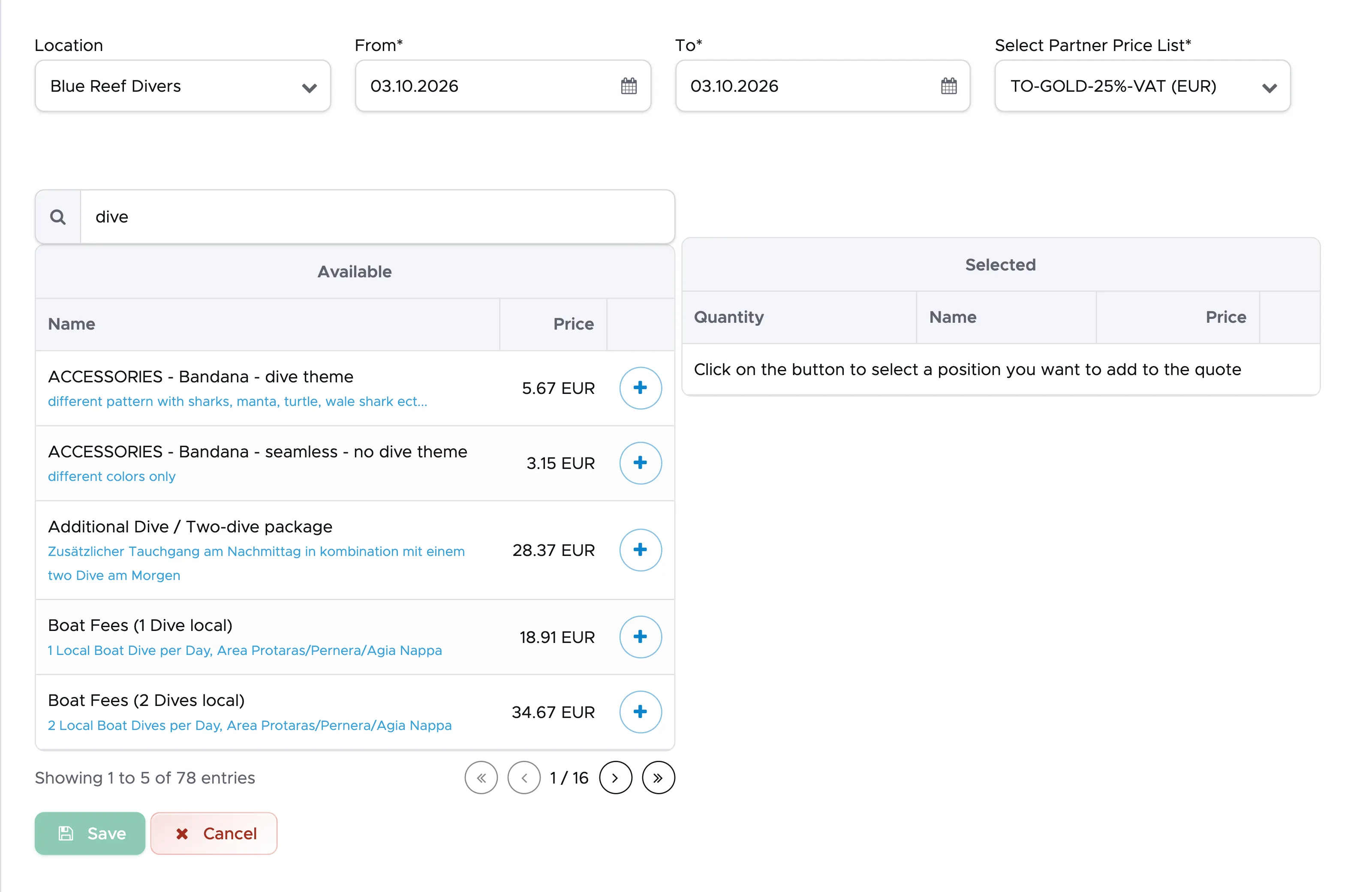
After choosing Position from price list you will see a sidebar. Select the location (if needed), the dates (From and To) and the partner price list that you wish to use (if you’ve assigned more than one to your partner). Please consider that only the partner price lists with the same currency of the invoice will be available for selection.
Search for a price list item or use the paging at the bottom of the list to find the price list item of your choice and click on plus button. You will see the selected items on the right-hand side of the sidebar here you can update the quantity if necessary.
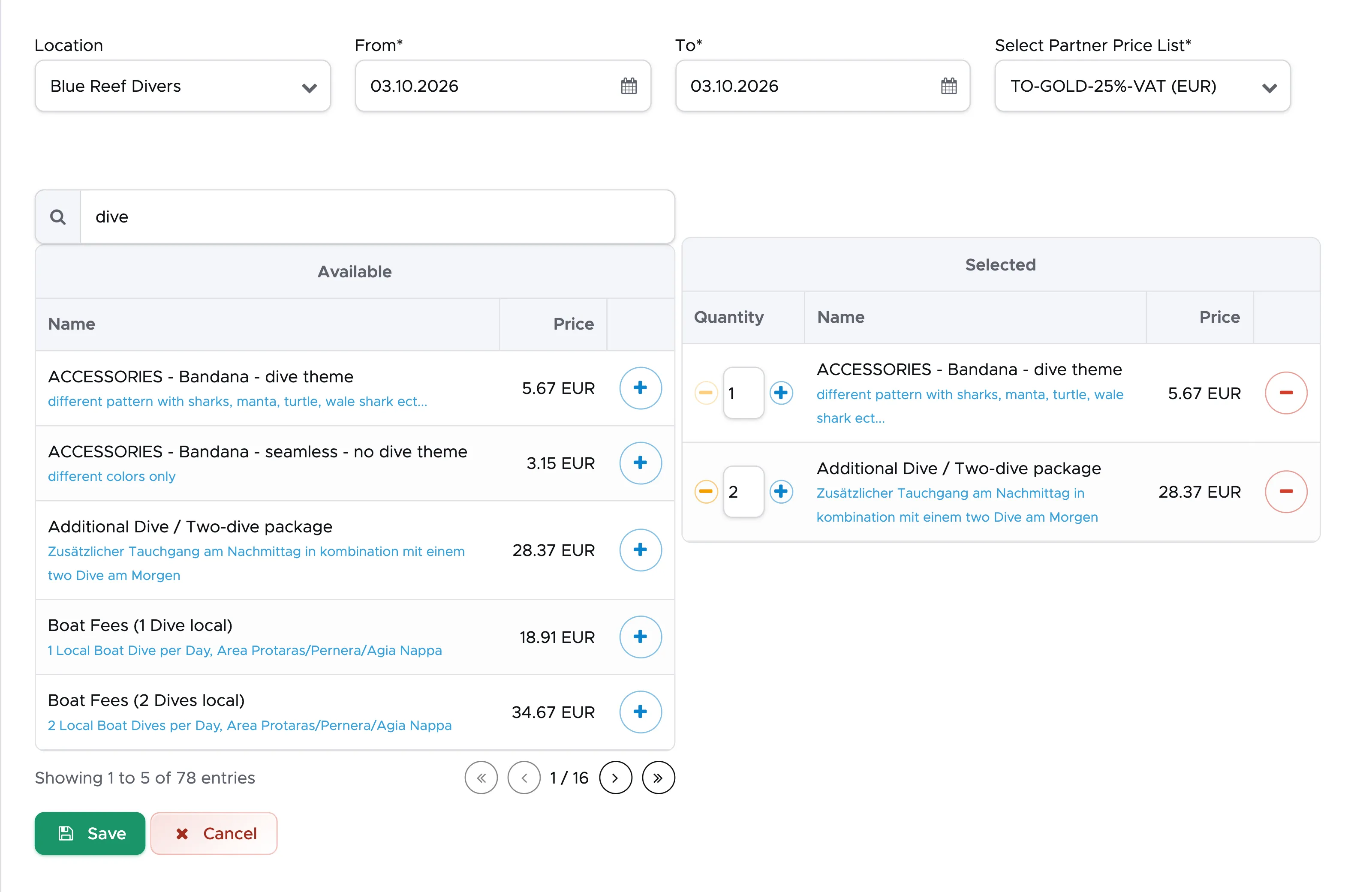
Once you’re satisfied with your selection, scroll down and click on the Save button. The sidebar will be automatically closed and your selected items added to the positions in the partner invoice. In case of mistakes, you can click on the red icon at the end of a position to delete it.
If you wish to add something that is not part of your price list, you can do so by clicking on button Add and choosing Position (manual).
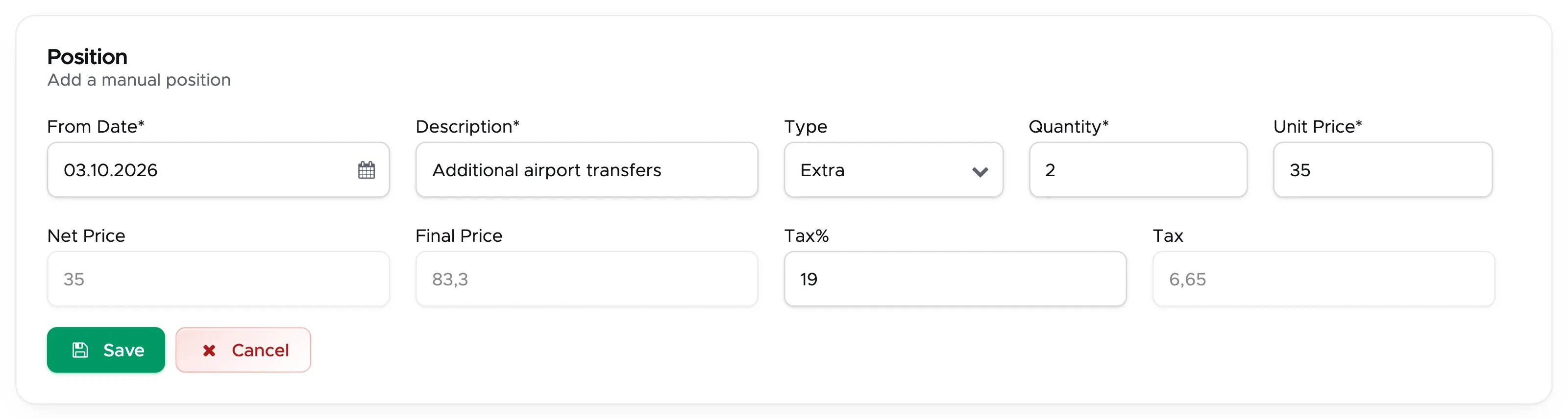
Modify the date (if needed), type a description, choose a type, define the quantity and unit price. If needed, you can add a sales tax in percentage. The sales tax is always applied on top of the net price for partner invoices.
Click on the button Save to add this position to the invoice.
👀 Important!
Please consider that every position added manually to a partner invoice, both with Position from price list and Position (manual), won’t be considered in a customer voucher and it won’t update a quote.
You can record a payment to a partner invoice by clicking on button Add Payment.
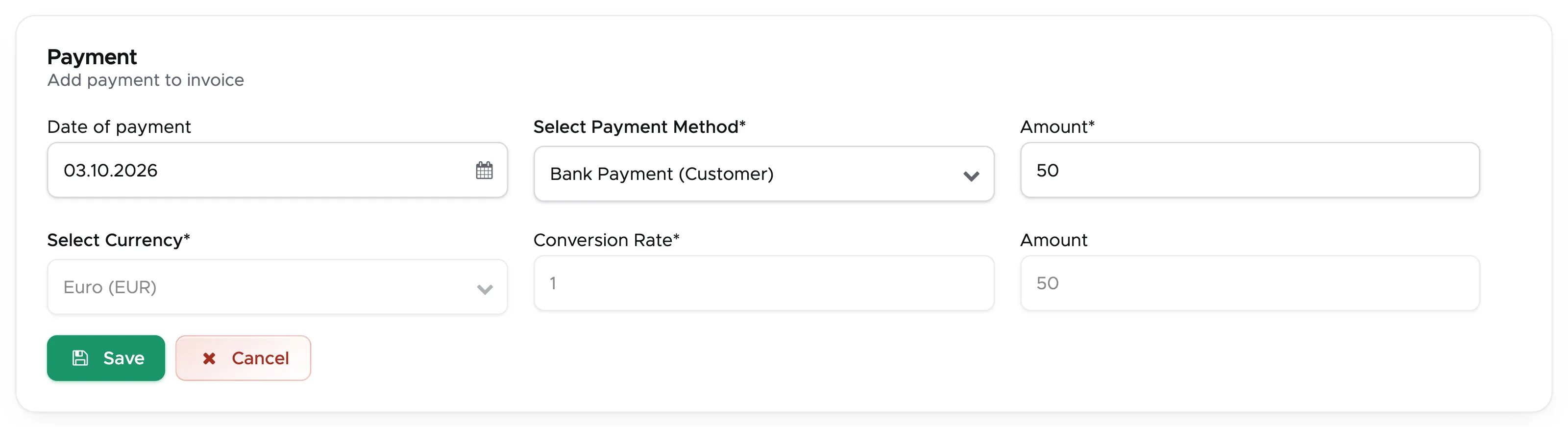
Select the payment date, the payment method and type the amount received either in your default currency or in the invoice currency. Write the correct currency conversion if you record the payment in the invoice currency or 1 if you record it in your location’s default currency. Click on the save button to confirm the payment. The open balance will be recalculated and the payment will be automatically recorded in your cash flow.
At any time you can generate a pdf of the invoice by clicking on button Print invoice at the top of this page.
You can close the invoice at any time by clicking on button Close invoice at the bottom of the page. However, it is recommended to close it after recording a full payment (Open to pay = 0).
5.5.2 Closed Invoices
Section titled “5.5.2 Closed Invoices”Once you click on the button Close Invoice at the bottom of an open partner invoice, a pop-up message will ask you to confirm your choice and if you do, the invoice will be permanently closed.
Closed invoices will disappear from the Open tab and will be available on the Closed tab of menu Partners - Invoices. Closed Invoices are no longer editable, but they can be opened to be viewed and/or printed. Once you manually close an invoice, Geek Divers will assign an invoice number to it.
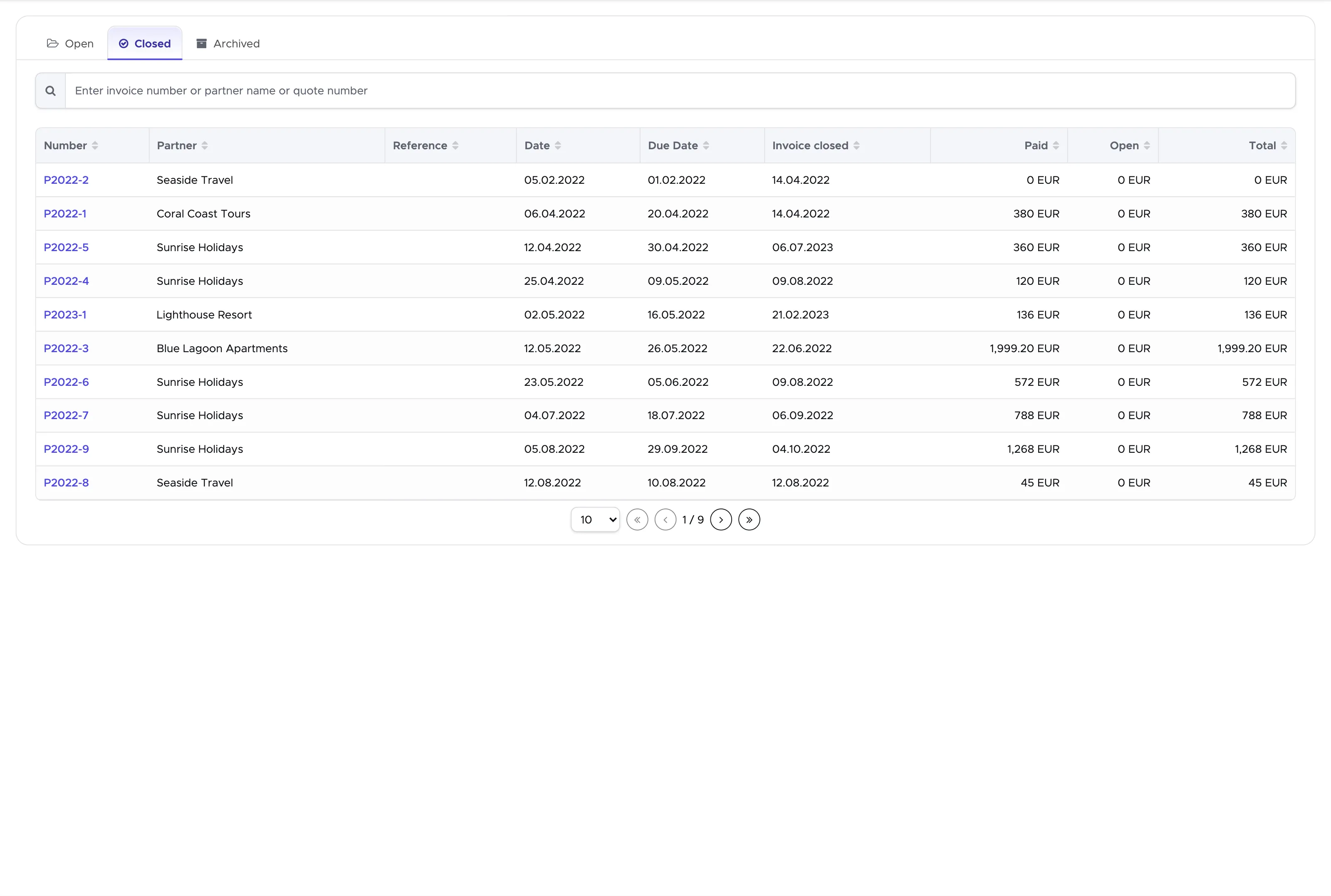
In the paragraph Confirm a Partner Quote you will find some suggestions on how to manually modify a partner invoice in case you need to archive a confirmed partner quote and the content of the quote is part of a closed partner invoice. Both in page Open Invoices and Closed Invoices, you can search by quote number if you need to identify the partner invoice that contains the quote that you wish to archive. If the partner quote is included in an open partner invoice, Geek Divers will automatically cancel the quote positions from the partner invoice (red strike-through). If the partner quote is included in a closed partner invoice, if you wish to refund your partner for the unused services, you might need to identify the closed partner invoice number and the quote positions that Geek Divers cannot automatically cancel. Searching by quote number in Closed Invoices will show you the partner closed invoice that includes the quote that you wish to archive (or that you’ve already archived).
5.5.3 Archived Invoices
Section titled “5.5.3 Archived Invoices”You can archive a partner invoice if the following conditions are met:
-
The invoice is still open.
-
The invoice has no payment positions or the payment positions are deleted.
You will find button Archive at the top right of the positions in the partner invoice and you can successfully archive a partner invoice only if the above conditions are met.
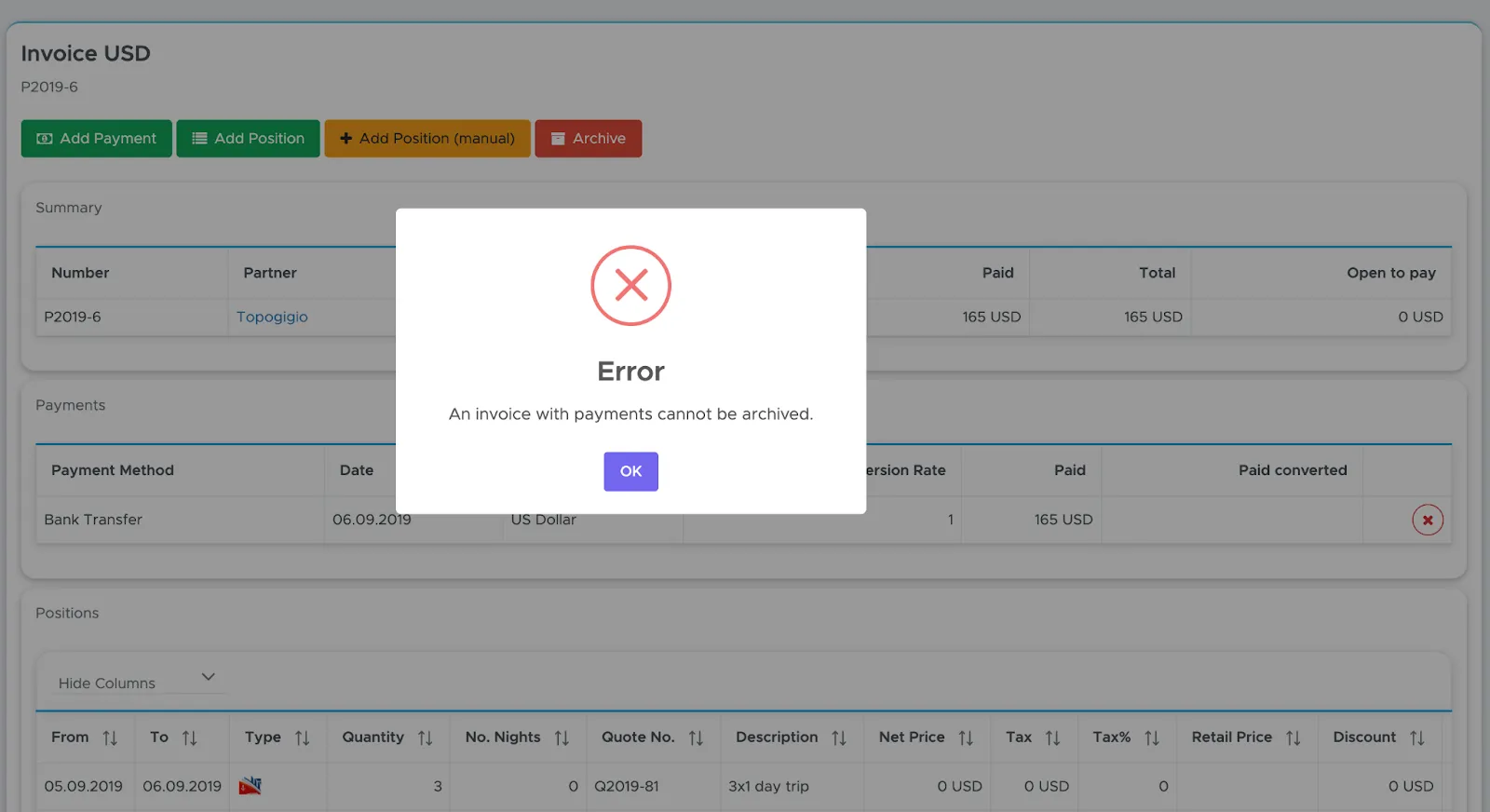
An archived invoice represents either a mistake or a peculiar situation. E.g. The partner has requested and confirmed one or more quotes, but hasn’t paid your invoice or has become unreliable. If you know that you will never receive a payment for this invoice and you’re not willing to close it, archiving it might be a good choice. Please remember that as long as the invoice is still open, it can be considered a pro forma invoice, listing the correct content, but without an official date or invoice number. When you close an invoice, Geek Divers will assign a progressive number to it and therefore it becomes an official accounting document.
You will find your archived invoices on the Archived tab of menu Partners - Invoices.
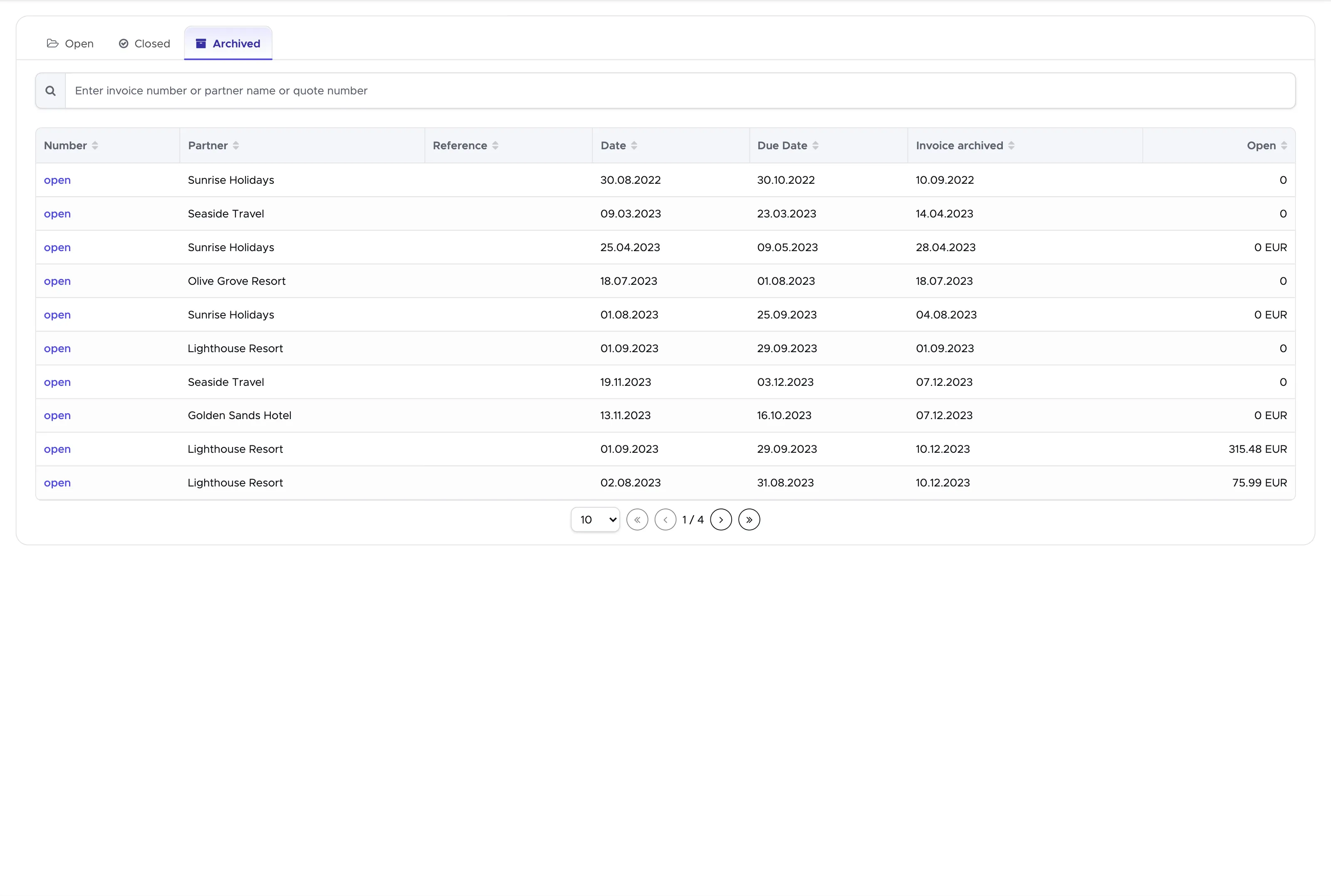
In column Number you will see the word “open”. This allows you to view the content of an archived invoice, but you won’t be able to edit it or close it.