
Customers
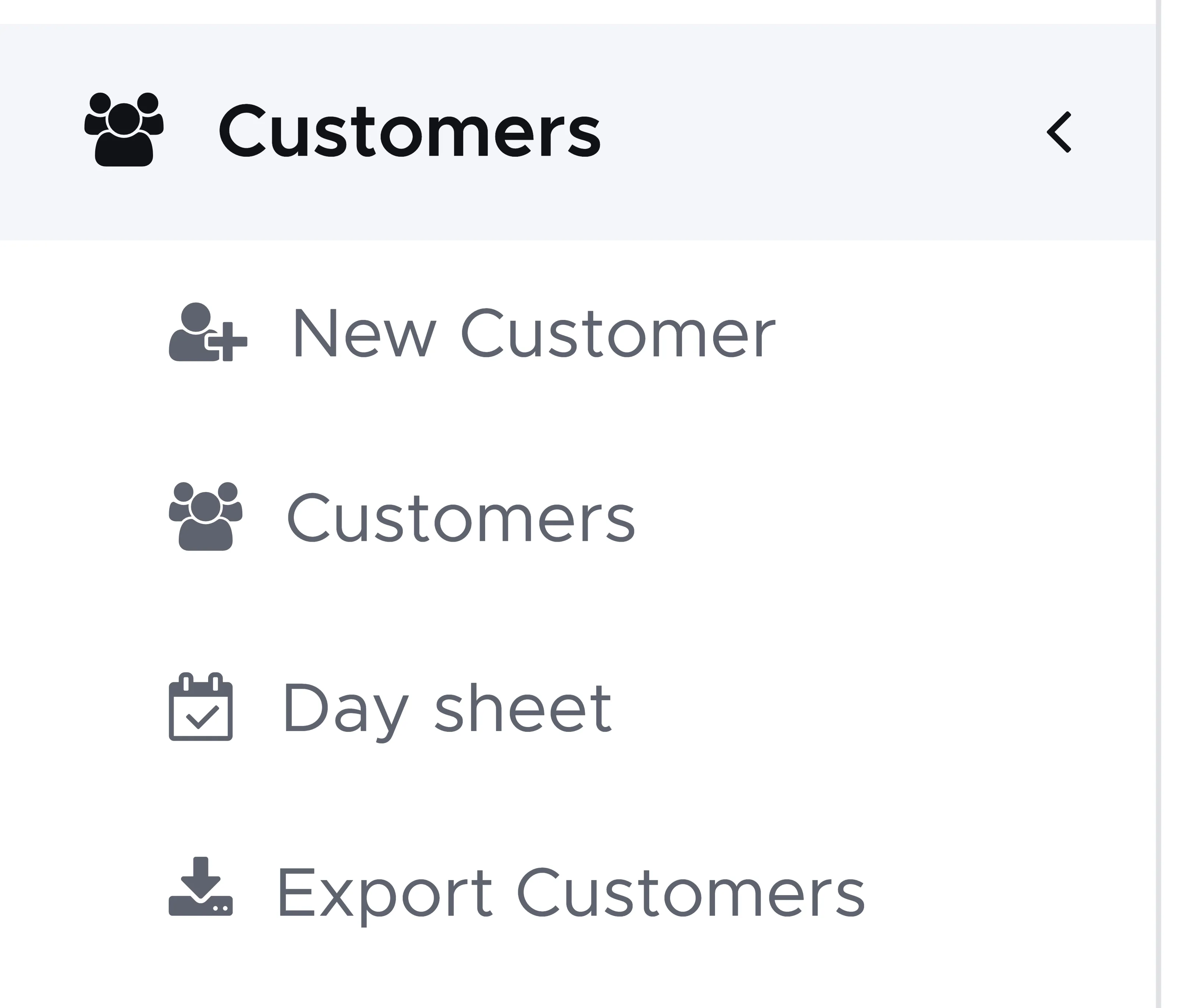
If you click on Customers in the menu on the left, you can see four entries: New Customer, Customers, Day sheet and Export Customers.
-
New Customer - this is the menu to click to manually enter a new customer in Geek Divers as an alternative to the Online registration form.
-
Customers - this opens one list with three tabs:
-
All - here you see all the customers that you’ve entered in Geek Divers in all your locations.
-
Current - these are the customers that have checked in your dive center (your current location) and have not checked out yet.
-
Upcoming (previously a separate menu named Pending Customers) - here you’ll find the customers that are coming to your dive center (your current location) today or in the future.
-
-
Day sheet - one page for a single day: who is arriving, who is leaving and who is in house.
-
Export Customers - here you can export your list of customers to feed to your newsletter contact list or for any other purpose.
7.1 New Customer
Section titled “7.1 New Customer”Click on New Customer and enter the customer’s personal data. The mandatory fields are Name, Last Name, Date of Birth and Email address. If you have no time to enter the remaining information you can do it later or give a tablet to your customer and ask them to enter their personal data through your online registration form. Scroll down and click on button Save.
Customer Merge
Section titled “Customer Merge”Every time a new customer is saved, Geek Divers will check if the same customer (same name, last name and email address - the date of birth could be different) is already in your customer base. If not, a new customer will be created. If there’s a match, Geek Divers will update the customer’s profile with the most recent information. If no new information is provided, the old data will be maintained. This new feature is called Customer Merge and it’s happening automatically in the background. In case of a merged customer’s profile, you will be notified by a new message on the top-right of the screen.

By clicking on this envelope icon, you open the Messages panel, where you will see the name of the customer that has been merged with an existing profile.
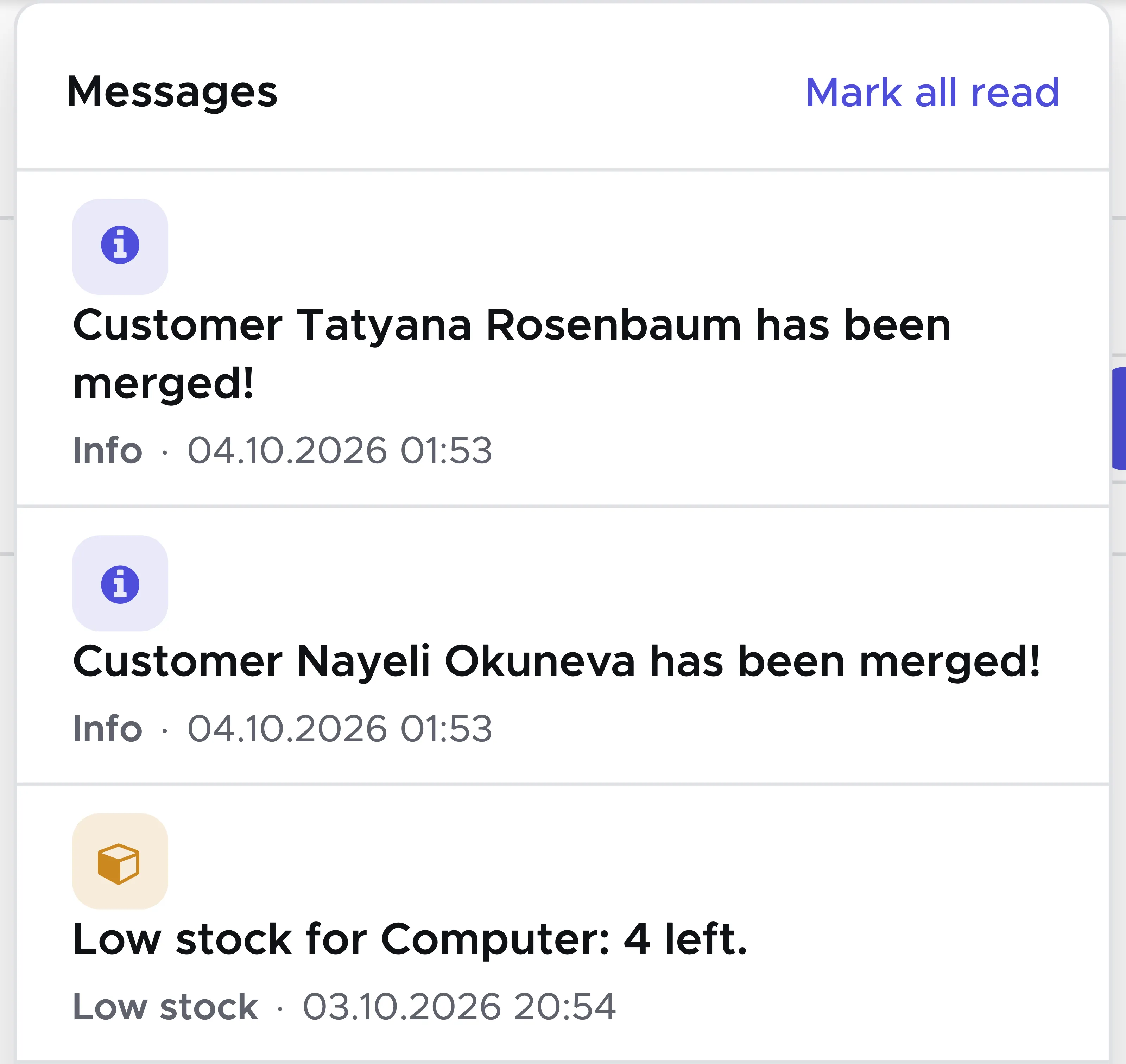
Example:
A customer checks in with the online registration form or they fill out your paper form and one of your staff members clicks on New Customer to enter their data in Geek Divers, without checking that this customer is already in your customer base. They provide a new passport number, but their home address is the same. Geek Divers will not create a new customer in the system, but update the one that is already in your customer base, providing that this customer enters the same name, last name and email address. Geek Divers will update the passport information and leave the home address untouched.
While the existing customer is filling out the online registration form to update their data, it is important that you step out of the customer’s profile in your Geek Divers account (e.g. click on another menu, like Dashboard or Activity Calendar or anything else that is not related to Customers). Once the customer has successfully completed the registration form, you can go back to All Customers and search for their name or last name or email address to find an updated profile. All the activities that you’ve created for this customer, their bill and the assigned equipment will remain untouched.
Records that are close but do not match exactly, such as a typo in the first name, are not merged automatically. You find them, and merge them yourself, under 7.8 Possible duplicates.
Customer’s Tag
Section titled “Customer’s Tag”Starting from version 2.0 you can tag your customers. In the customer’s profile, tab Personal Data, you will find a field named Tags.
You can enter any word of your choice, select it as soon as it appears under the field and view it as a “bubble” in the field.

If you wish to remove a tag from a customer’s profile, you just need to click on the “X” next to the tag.
You can filter by tag on the All, Current and Upcoming tabs of Customers, and on the Current open and Open tabs of Bills. On the top-right of the tables, click on the Tags field and select the tag that you wish to filter by. If you select more than one tag, you will see only customers (or bills belonging to customers) who have all the selected tags ( logical AND).
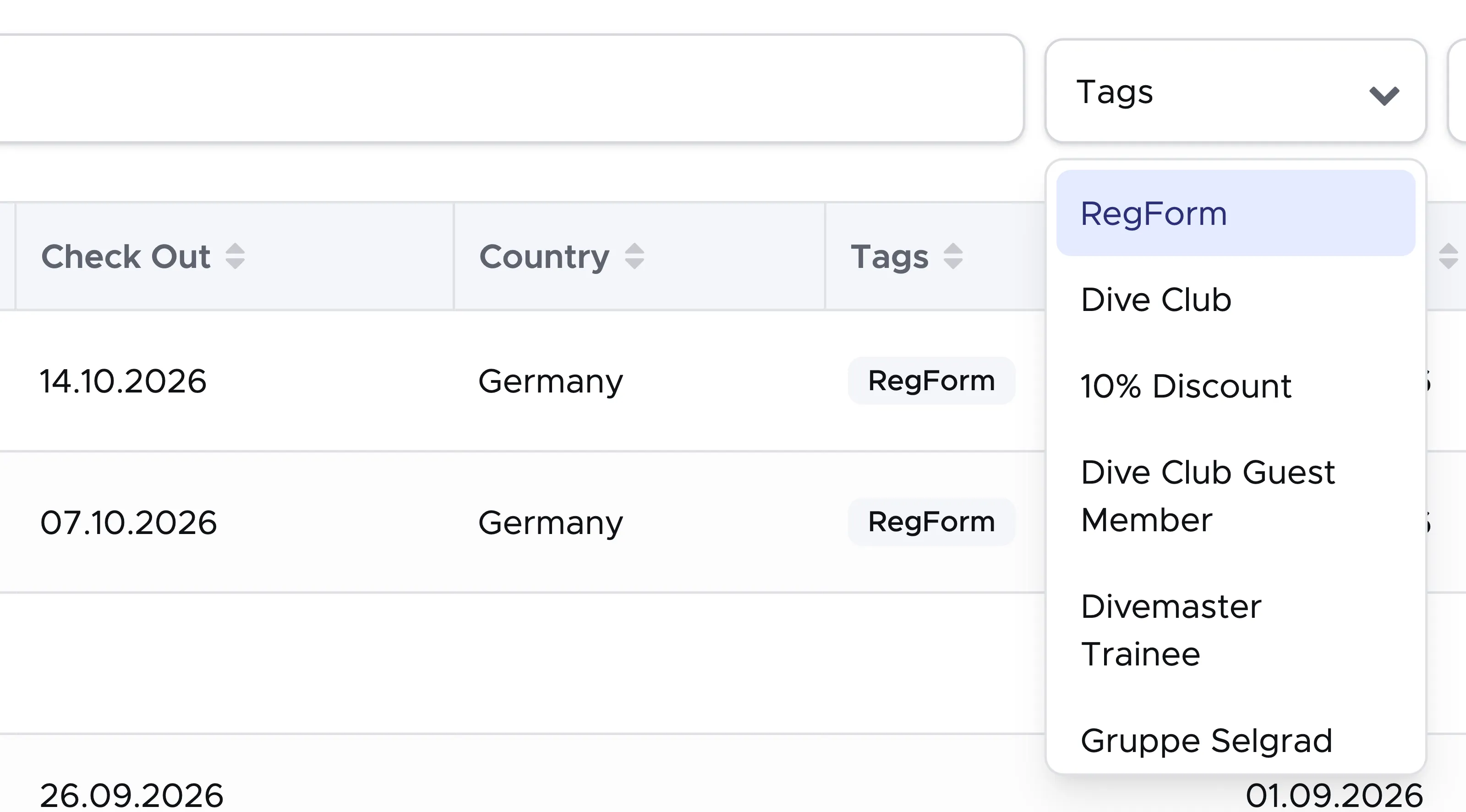
Please consider that all your locations share a common customer base and therefore the tags that you add to a customer in one of your locations will be available in all your locations. Similarly, if you remove a tag from a customer’s profile, this tag will be removed from all the locations.
You can define tags:
-
to specify the customers’ skills (e.g. Good diver),- to remember when the customer is coming (e.g. June2020),
-
to remind the front office of an outstanding balance to settle (e.g. Payment),
-
to remember if the customer is a direct booking (e.g. Direct customer) or if they came through a travel agent (e.g. ABC Travel),
-
for anything else that you might think of.
Please consider that all the customers who use your online registration form will be tagged as “RegForm”. You can remove this tag whenever you like. However, filtering by RegForm in All Customers should provide the list of new customers (or existing customers, but merged) who have recently filled out the onliner registration form.
If you wish to delete tags that you no longer use and make them disappear from the list of tags to filter among in All Customers, Current Customers and Open Bills, please check paragraph Manage your tags.
7.1.1 Diver’s certifications
Section titled “7.1.1 Diver’s certifications”In the customer’s profile, click on Diver’s certifications tab and enter the highest level of certification. If your customer has no diving certifications you can go to paragraph Verify and Check-in below here.
You can enter as many certifications as you wish, by clicking on Add (other) Certification(s).
Enter an approximate number of dives or the real number of logged dives and the date of the last dive.
7.1.2 Verify and Check-in
Section titled “7.1.2 Verify and Check-in”This feature will allow you to check-in your customer and see this customer listed in Current Customers.
In the customer’s profile, go to tab Diver’s Certifications, scroll down and click on the Verify and Check-In button. The same button is also at the top of the customer’s page. Geek Divers will then show a green box, Verified and checked in, with the name associated with your username and today’s date on one line.
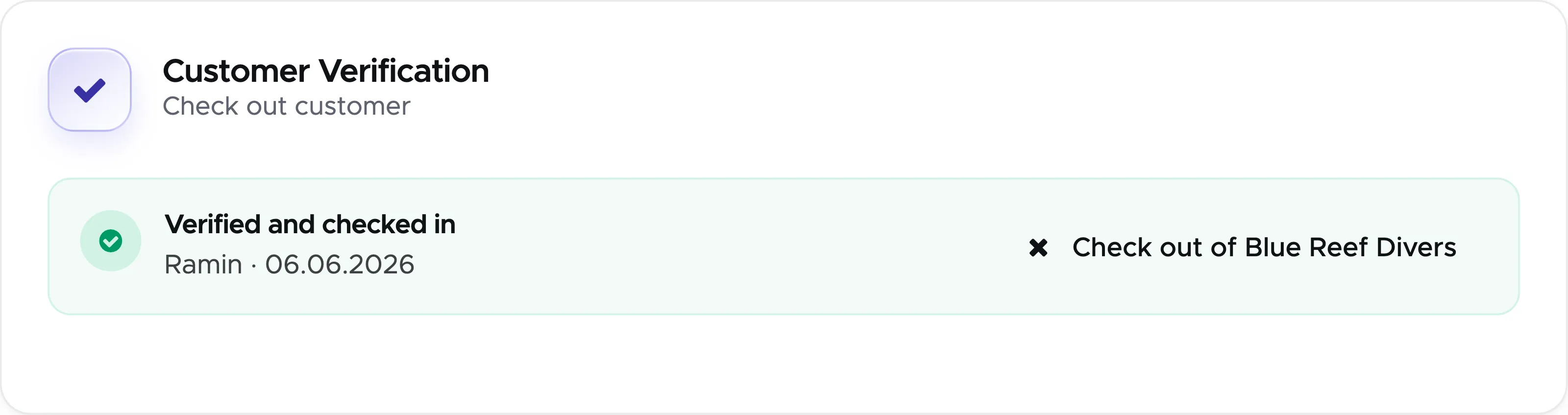
You will now find this customer in Current Customers. Please remember that you should only click the button Verify and Check In when the customer has arrived in your dive center.
Don’t forget to click on the button Update!
7.1.3 Equipment
Section titled “7.1.3 Equipment”In this tab you can enter the box/bag name or number and define the content.
There are two views over the same equipment, switched with the Modern and Legacy buttons at the top of the tab. Modern draws a diver and puts each piece where it is worn, so you can see at a glance what is still missing; Legacy is the table this replaced. Both edit exactly the same data, so it makes no difference which one you use — the choice is remembered in your browser. The same switch is on a staff member’s equipment tab.
Before you start assigning equipment to the customer, please remember to enter a check-in and check-out date if they are not yet there. You can do so in the first tab: Personal Data.
If the customer has previously filled out the online registration form and you’ve chosen to show the equipment section there, you might see the customer’s height, weight and shoe size and which pieces of equipment they will bring. With this data it should be easy for you to write a size in the equipment that they wish to rent.

If the customer has brought their personal equipment you can tick the checkboxes in the Own column of the Legacy view (if they’re not already ticked) and write a non-mandatory description (e.g. brand, model and color). If the customer chooses to leave their equipment in your equipment room for the duration of their stay, you can tick the checkbox “In shop”. This way you can make sure to prepare the complete customer’s equipment before every trip or course.
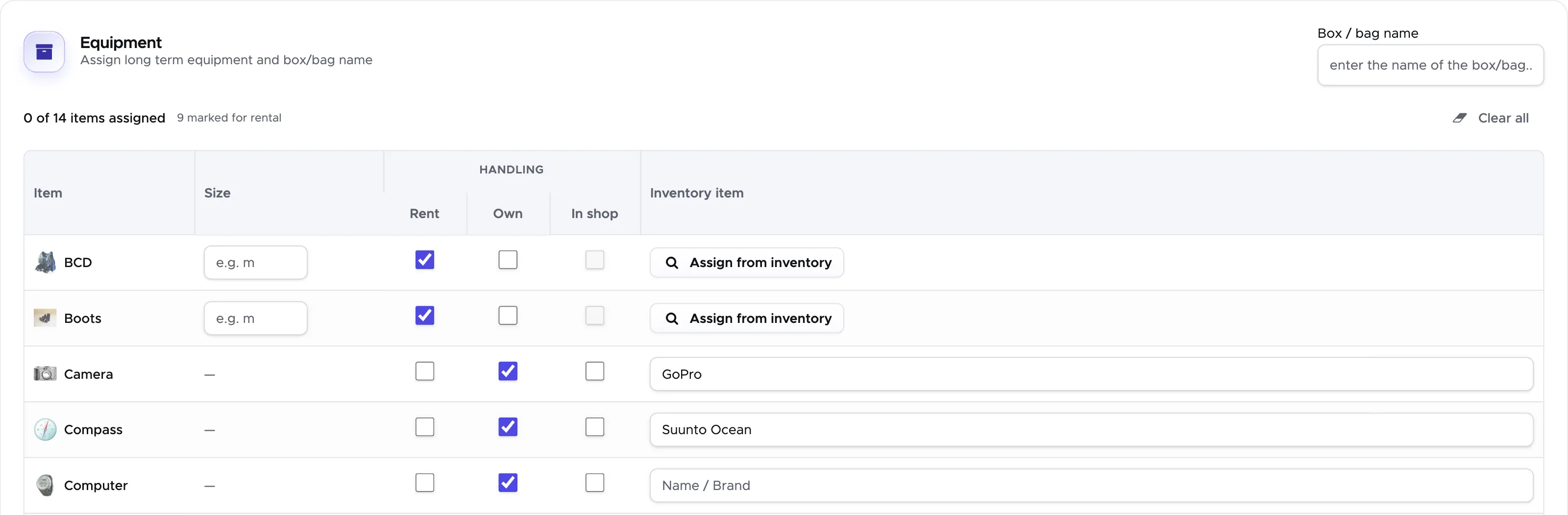
You can assign the equipment by clicking on Assign from inventory. This feature works only if you’ve previously set up your rental equipment. If you haven’t, please go to chapter Equipment to find out how.
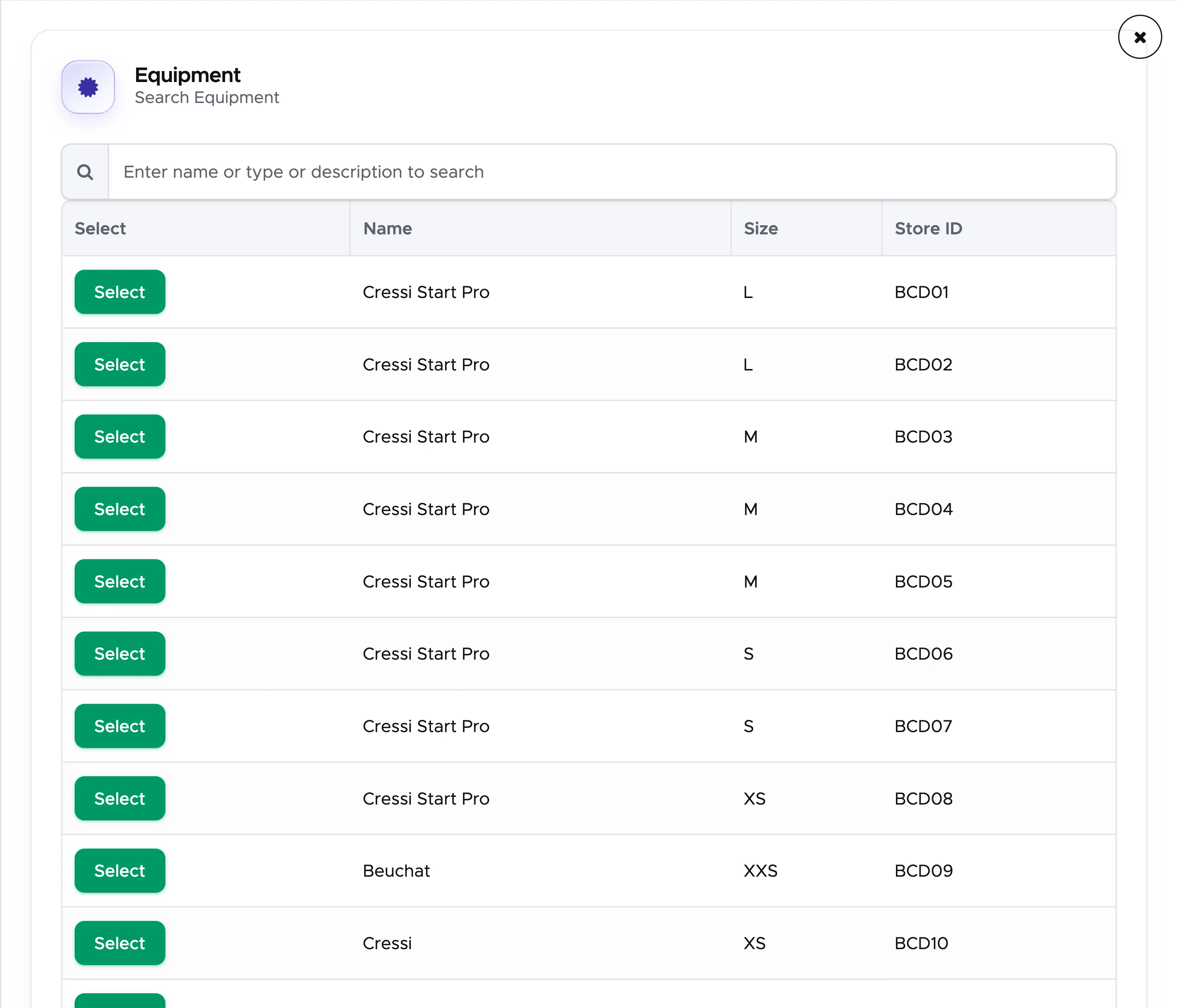
Select the equipment to assign to this customer by clicking on button Select. The equipment that you assign here will be permanently assigned to the customer from check-in to check-out date. If you wish to assign equipment only for one day ( or one trip), you can do so in the Equipment List that you can find in the Trip. Read section Documents to find out how.
7.1.4 Bill/Agent
Section titled “7.1.4 Bill/Agent”Click on the Bill/Agent tab.
7.1.4.1 Bill
Section titled “7.1.4.1 Bill”If you’ve just entered the customer’s data or if the customer just entered their data through the online registration form, you won’t find a bill.
Geek Divers will automatically create a new open bill as soon as you add this customer to an Activity (more on this in chapter Activity).
However, if your customer has only bought retail items from your dive shop, you can add the items and record the payment information by manually creating the customer’s bill. Click on the button Create Bill.

Starting from version 2.0, every new bill won’t have a bill number until you close it. Every bill in status Open will show only the word “open”. You can click on “open” to view the content of the bill. If you’ve set up a bill prefix, you will see just the prefix and you can click it to view the content of the bill.
Within a bill, click on button Add Position (from Price List) or Add Position (manual) to add items to the bill.
Click on Add Payment button to record the payment. Select payment method, currency, add a currency conversion rate, the amount and save the payment. You will find more information about the bill in chapter Customers Bills.
If your customer only sent a deposit, please read the next paragraph.
7.1.4.2 Credit
Section titled “7.1.4.2 Credit”In this section you can view the customer’s Total credit and add one.
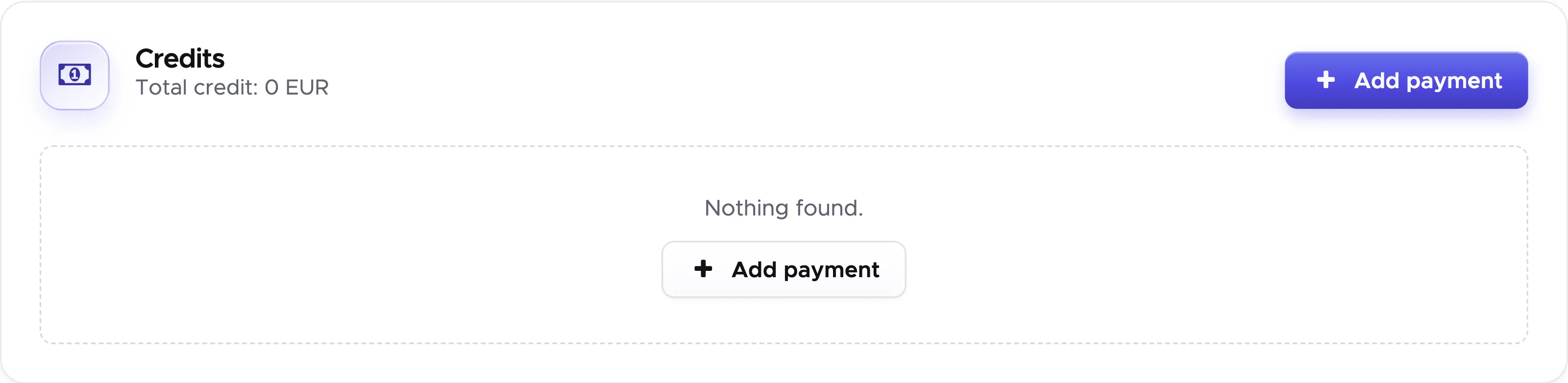
If your customer sends you a deposit or full payment as a confirmation of a quote, you can record the payment here. Click on the Add Payment button, fill out all the information and save the payment. You will see the recorded payment in the list below.
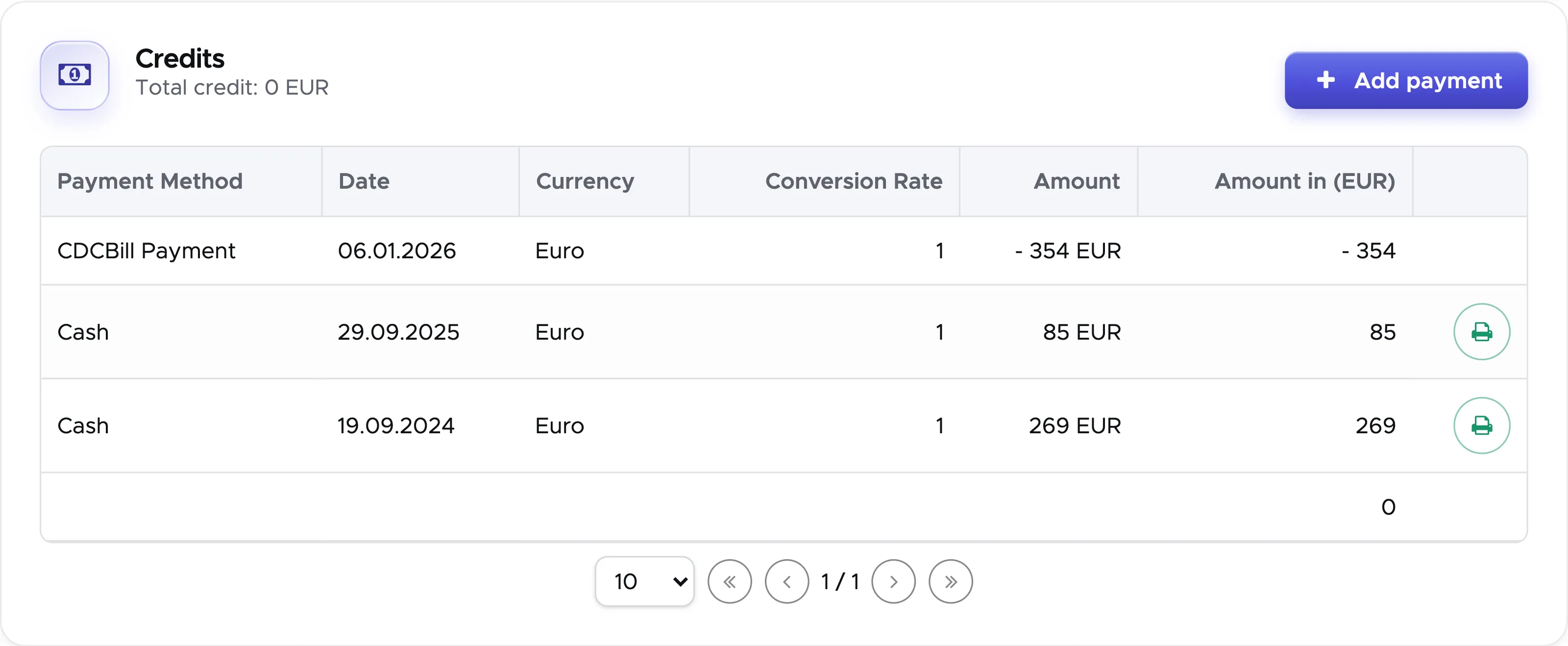
The same payment will be automatically recorded in your cash flow, according to the payment method that you’ve selected and the cost center that you’ve set up in General Settings - Payment methods/Bill Prefix. You can print a receipt of payment by clicking on the green button at the end of the payment row. The button is available only in payment rows, but the printout will include the payment fee, according to the selected payment method.
The Total credit will be updated with the current value. This credit will be visible in the customer bill once they have one.
Please consider that the customer credit is visible in the customer’s profile and available in any location.
In case of mistakes -e.g. You’ve recorded a payment in the wrong customer’s profile - you can’t delete a customer credit. However you can enter a new credit with exactly the same data of the wrong one and add a negative sign before the amount. If I had to fix a mistake in the example above here, I would enter the following:
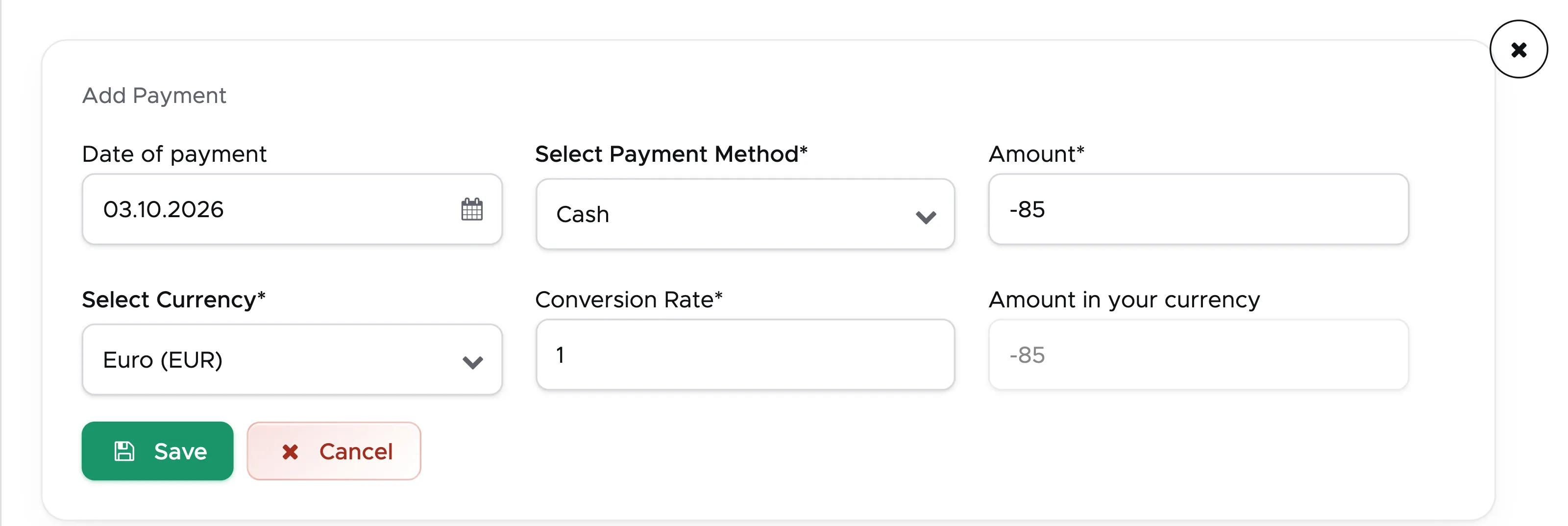
Both payments will be recorded in your cash flow, but they would balance themselves out.
7.1.4.3 Agent
Section titled “7.1.4.3 Agent”In the Bill/Agents tab you can assign an agent to your customer. If you assign an agent here, the agent commission will be calculated on the whole customer’s bill (except fees, course material and food and drinks) once you close it. To assign an agent in this tab, the agent must have an ‘All’ commission (please read Agent Commissions).
Click on button Add agent. A sidebar opens with two lists, Available and Selected. Every entry is an agent together with one of their commissions. Move the agent that you wish to assign to this customer to the Selected list, then click on the button OK.
Please consider that in Geek Divers the word “Agent” means an external partner or a staff member that acts as an agent. Agents will receive an automatically calculated sales commission that you have previously set up.
You can assign as many agents as you wish and you will see them in the Agents card of the tab Bill / Agents.
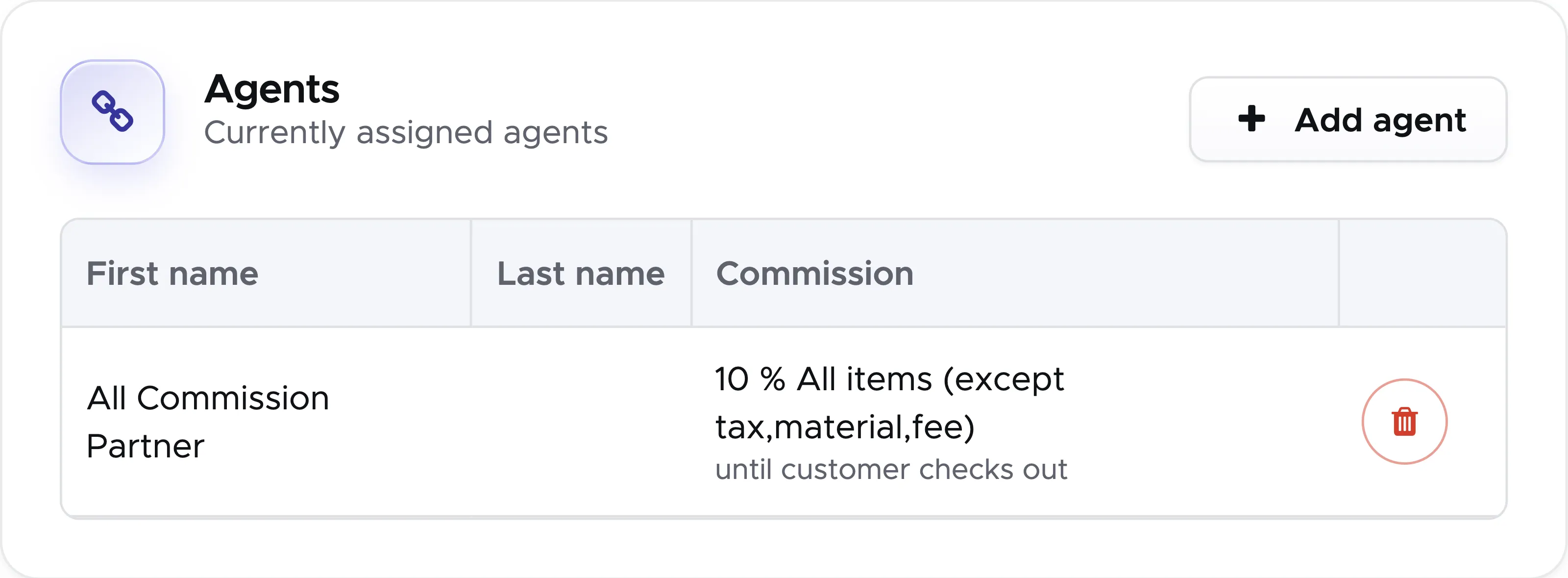
Once the customer’s bill is closed, the agent’s commission will be automatically calculated and written in the agent’s invoice/credit note (more on this in chapter Agents Invoices/Credit Notes) or in the staff member’s payslip.
7.1.5 Activities
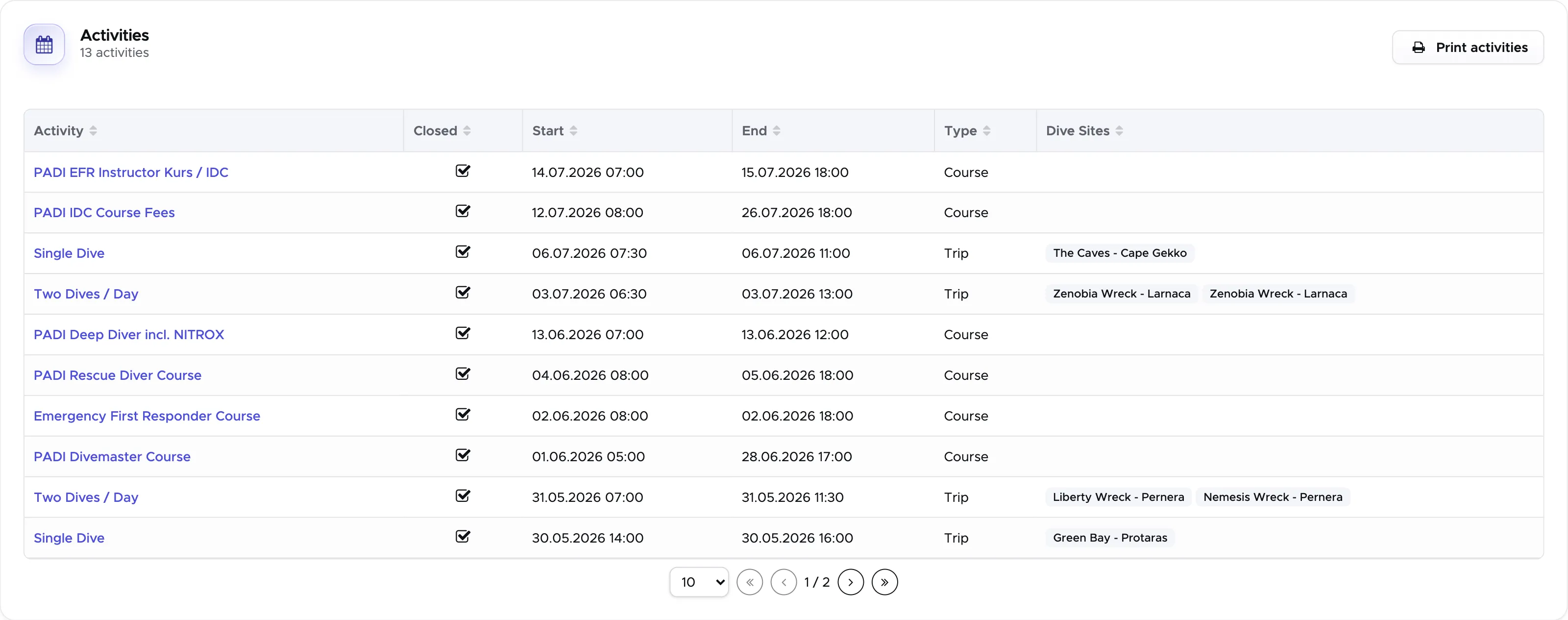
Section titled “7.1.5 Activities”Click on the tab Activities to see what your customer is doing with you.
You can also click on the Activity to navigate to it.
7.1.6 Notes
Section titled “7.1.6 Notes”Click on tab Notes to read the message or comments that your customer might have written in the online registration form. This is the last step of the online registration form: Notes. If you’ve chosen to keep it active, your customer might have shared their allergies or made some special requests. On this page you will see a copy of what they’ve written.
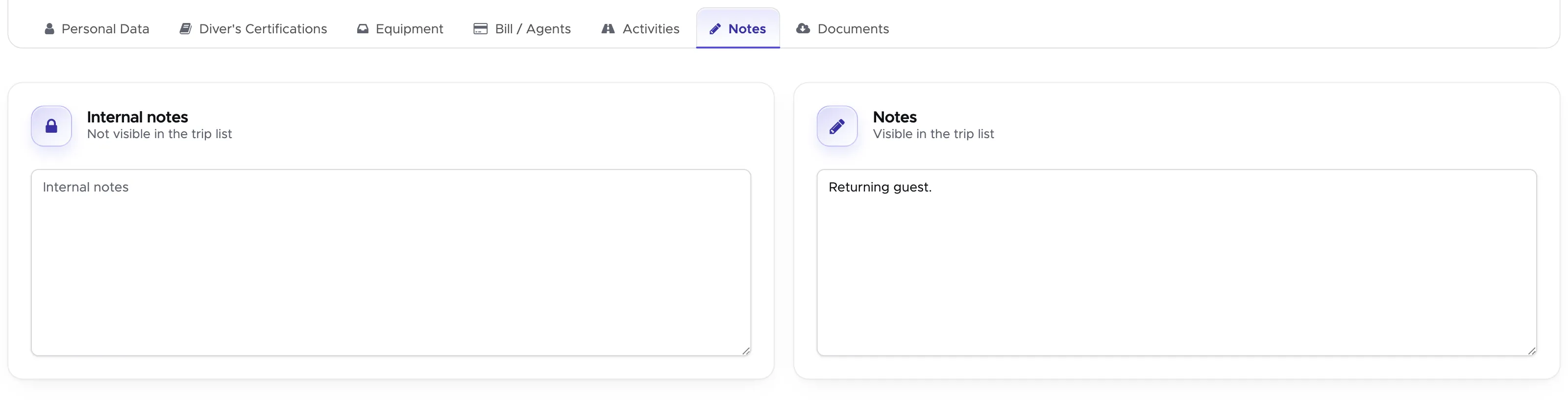
Additionally on this page you will find Internal Notes. This text field is reserved for Geek Divers users: your customers don’t have access to it. You can use it for special instructions and comments about the customer. It is recommended to write the date and the name of the person who writes anything in the Internal Notes.
7.1.7 Documents
Section titled “7.1.7 Documents”Click on tab Documents to manage the documents that you or your customer uploaded to their profile.
Your customer can upload documents (medical form or anything else) from the online registration form if you’ve chosen to keep this section active. Additionally, if you’ve set up and activated section Custom Text, a copy of your custom text with date and signature (if requested) will be uploaded to this page as soon as the customer confirms the online registration form.
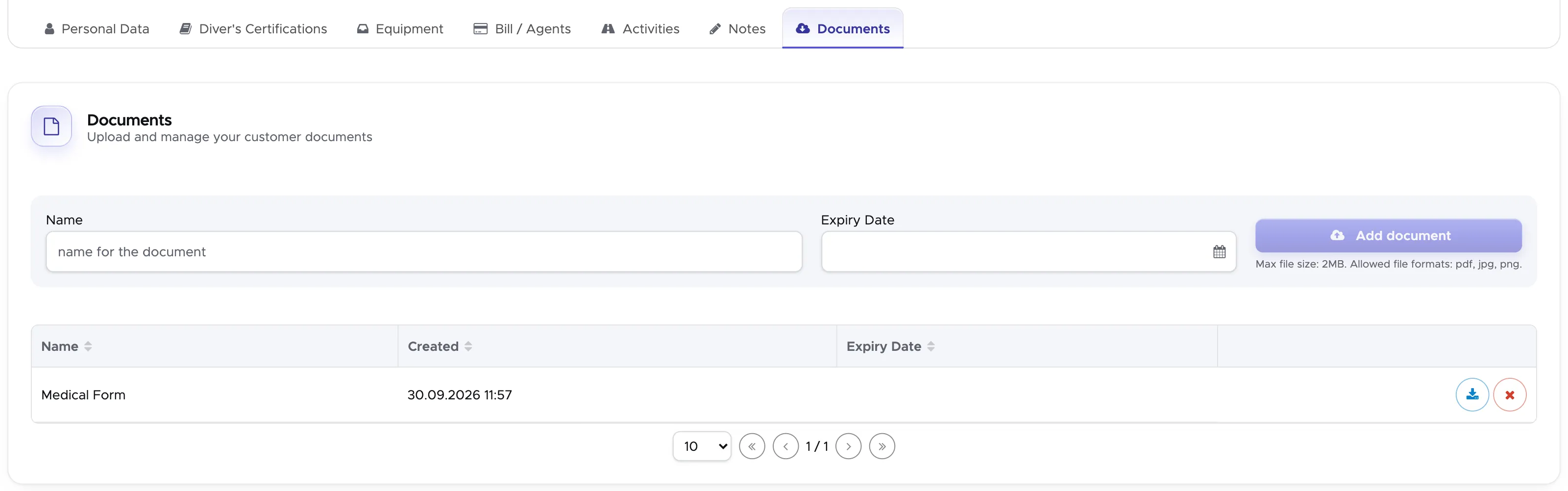
You can download the document by clicking on the blue download button at the end of its row or remove it by clicking on the red button next to it.
If you wish to upload a new document write a name in field Name, an expiry date (this might be useful for medical statements) and click on button Add Document. Select the document from your device and wait a couple of seconds for the upload. Your uploaded document will then be available in the list.
Please consider that the maximum allowed size is 2MB and the allowed file formats are: pdf, jpg and png.
7.2 All Customers
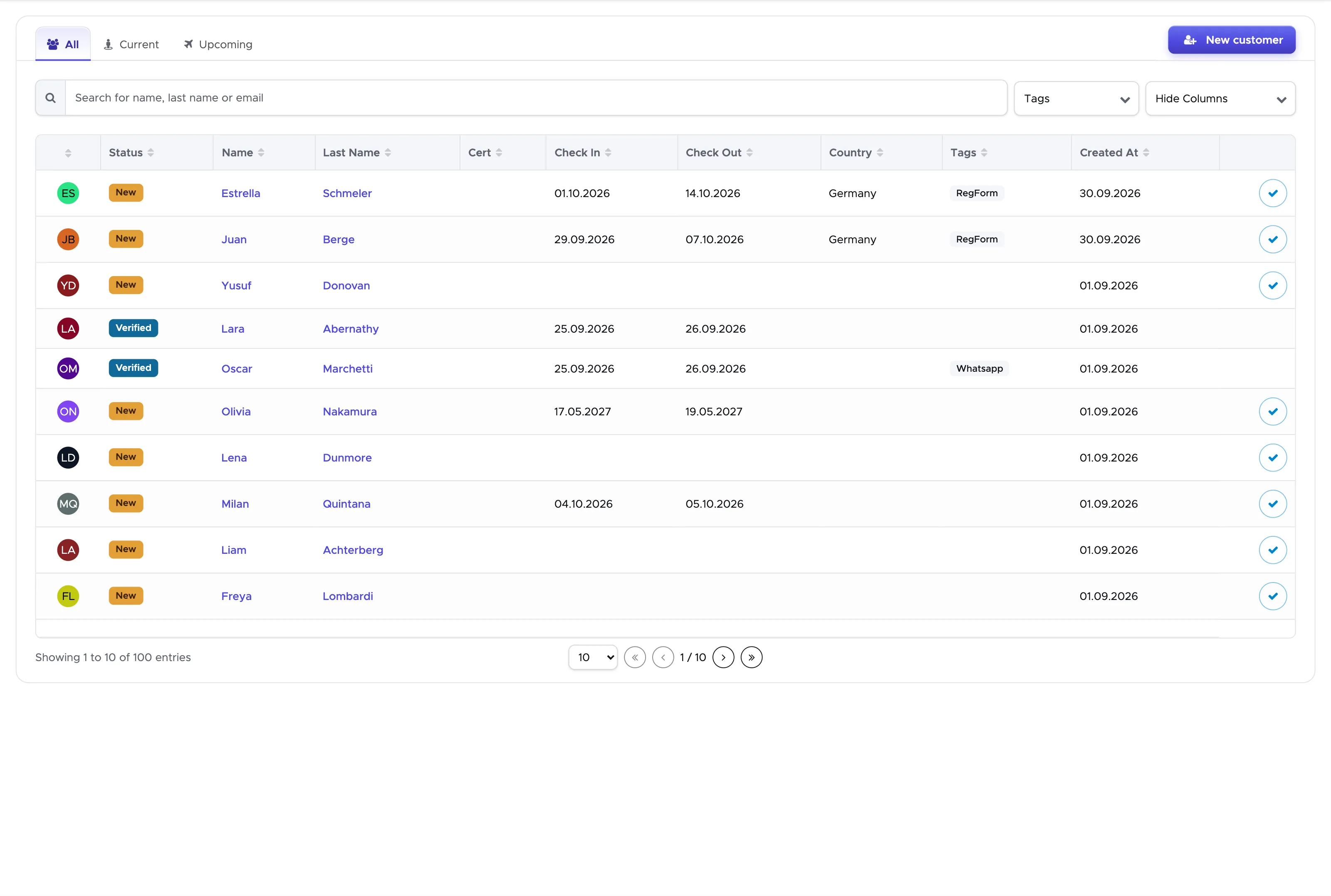
Section titled “7.2 All Customers”Click on Customers - Customers and open the All tab to view all your customers, past and present in all your locations. At the top of the page you’ll see a search string where you can type the customer’s name or last name or email address. As soon as you start typing some characters, you’ll see the search results that match your search. Once you’ve identified the customer that you’re looking for, click on the customer’s name to go to the customer’s profile. Here you can apply changes, print a pdf file with the customer’s data or delete the customer. Please consider that in case you choose to delete a customer, the bills associated with this customer will not be deleted.
Customers have a color-coded status:
-
Green - Checked out - for customers that have spent some time in one of your dive centers and have already left.
-
Blue - Verified - for customers that are currently checked-in one of your dive centers. Please consider that in the All Customers view you will see checked-in customers in any of your locations.
-
Orange - New - for customers that have just been entered in Geek Divers through New Customer or the online registration form.
7.3 Current Customers
Section titled “7.3 Current Customers”Click on Customers - Customers and open the Current tab to view all the customers that are currently checked-in your dive center in the location that you’re currently viewing. Please check the top bar to verify that you are viewing the correct location. At the top of the page you’ll see a search string where you can type the customer’s name or last name or email address. As soon as you start typing some characters, you’ll see the search results that match your search. Once you’ve identified the customer that you’re looking for, click on the card to go to the customer’s details. Here you can apply changes, print a pdf file with the customer’s data or delete the customer. Please consider that in case you choose to delete a customer, the bills associated with this customer will not be deleted.
The status of the customers that you see in Current Customers is always Verified: these are the customers that are currently checked-in the location that you’re viewing.
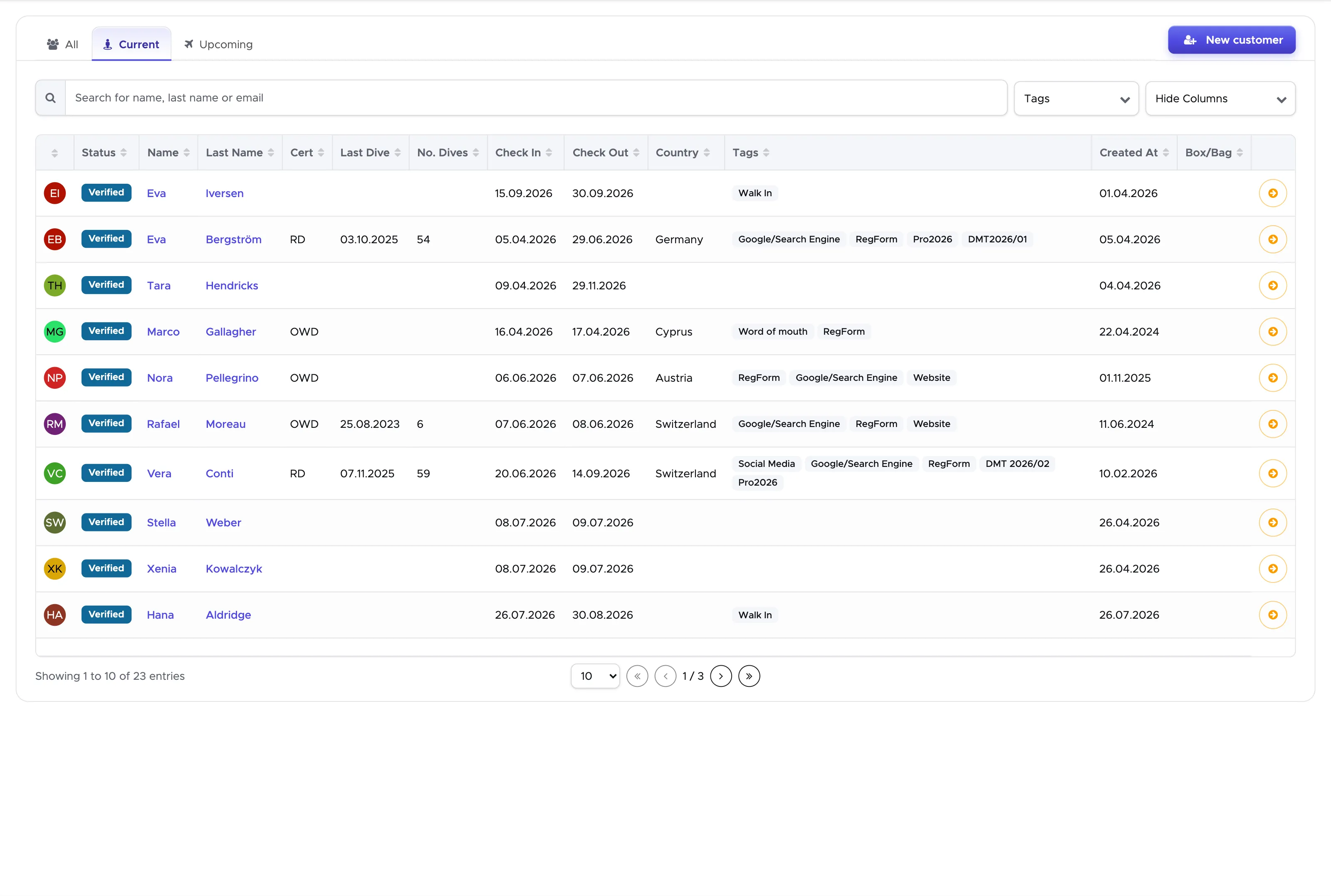
In Current Customers you will find a Check Out button for every customer (orange button on the right-hand side). Normally you don’t need to use this button because a customer is automatically checked-out when you close their bill. However, as a backup solution, you can use this button to check-out the customer and release any assigned equipment and rework their bill later.
Starting from version 1.0.6c the Current Customers table shows more information: date of last dive, number of dives and Box/Bag number. Every column can be sorted according to your preference. Additionally, the check-out date is highlighted in red if it’s today or tomorrow. This can give you a heads up to prepare the bills for the customers that will check out soon.
7.4 Upcoming Customers (previously named Pending Customers)
Section titled “7.4 Upcoming Customers (previously named Pending Customers) ”Click on Customers - Customers and open the Upcoming tab to view the list of customers with a set check-out date in the future in the location that you’re viewing.
At the top of the page you’ll find a search string. You can type the customer’s name or last name or email address to search for a customer. As soon as you start typing some characters, you’ll see the search results that match your search. Once you’ve identified the customer that you’re looking for, click on the name to go to the customer’s details. Here you can make changes, print a pdf file with the customer’s data or delete the customer.
Once you save or update a customer profile, this won’t disappear from Upcoming Customers as it used to do with Pending Customers. The purpose of Upcoming Customers is to give you a better idea of how to plan your activities, knowing that this list of customers are coming. Order by check-in date (click on the column title) to see a tidy list of customers.
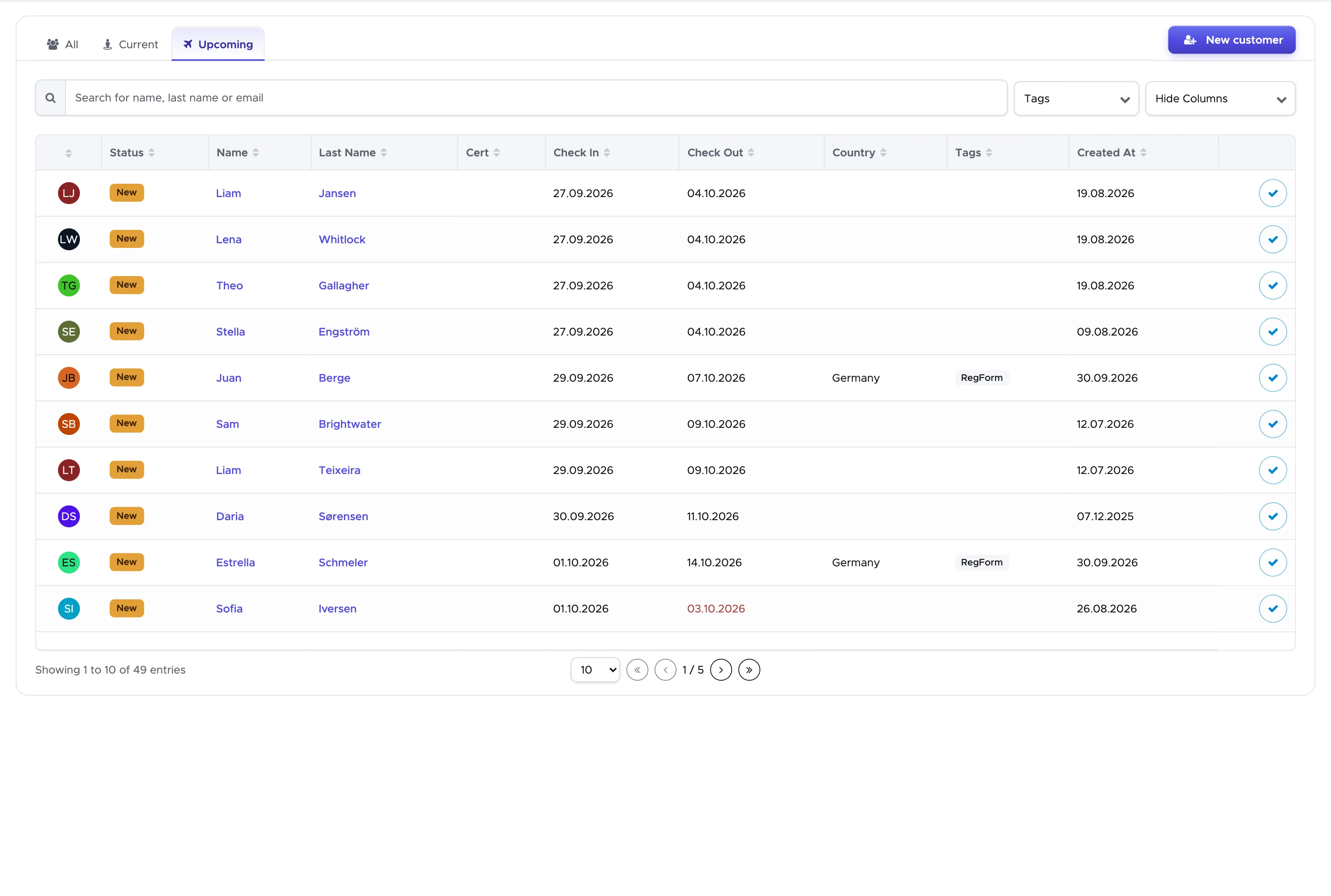
This tab was previously a separate menu named Pending Customers, to identify those customers who used your online registration form and needed to be validated manually. Additionally, before version 2.0, all the customers who used the online registration form were visible in Pending Customers in every location, regardless of the location that they were going to.
The manual validation is now no longer needed because Geek Divers will automatically search for duplicate customers in the system and if one (or more) is found, the information will be merged, keeping the most recent.
Upcoming Customers is now showing you the customers that are coming specifically to your location. As soon as you check them in or when their check-out date is no longer in the future, these customers will disappear from Upcoming Customers and will only be visible in Current Customers or All Customers.
7.5 Export Customers
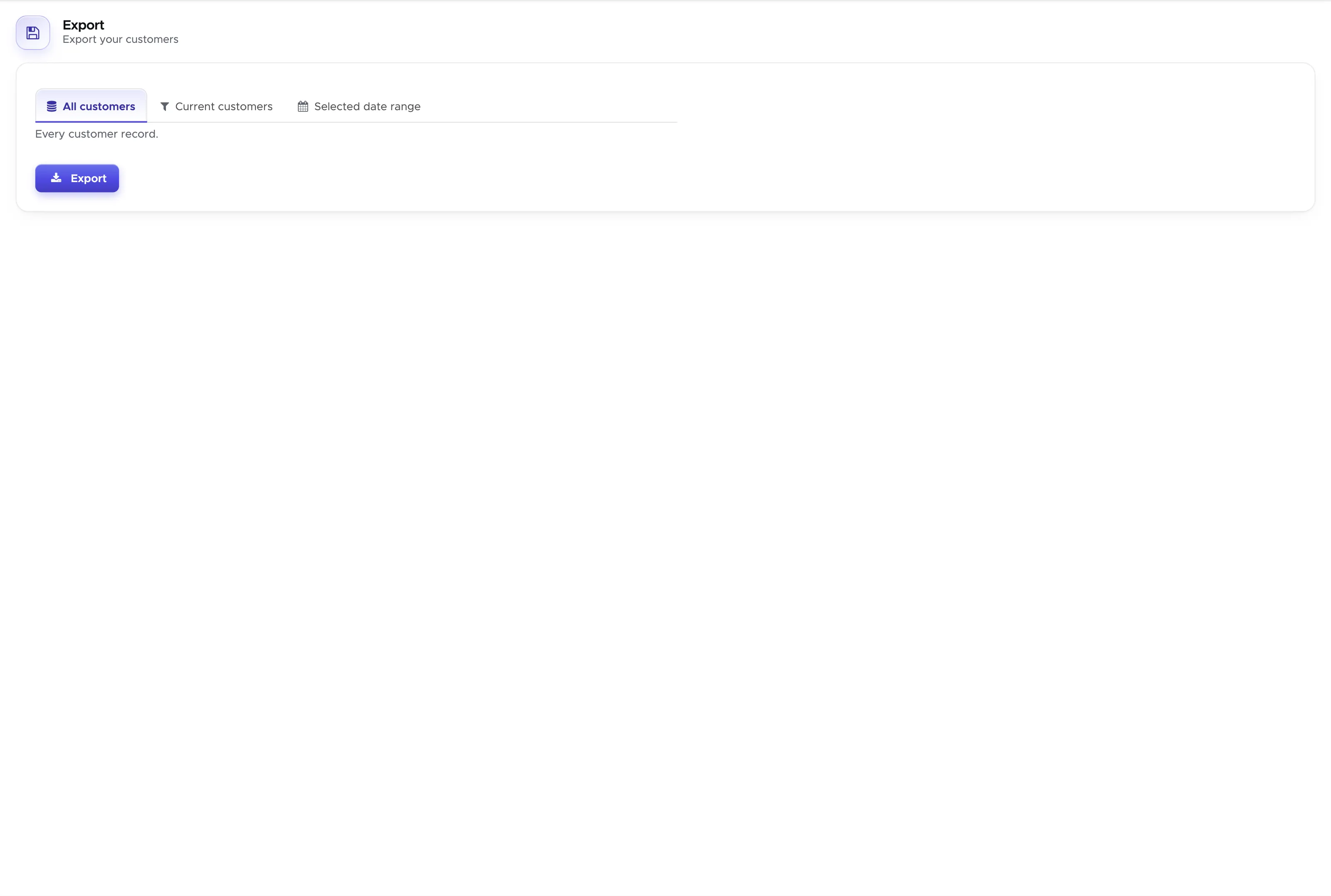
Section titled “7.5 Export Customers”Click on Customers - Export Customers. From this page you can define which customers you want to export to feed into your CRM software. The tabs at the top decide who is included:
- All customers: every customer record.
- Current customers: all your current customers.
- Selected date range: customers with a check in or check out inside the dates you choose.
- Arriving soon, no form: guests who are about to check in and have not filled in the registration form. See below.
On the first three tabs there are two checkboxes, “Agreed to newsletter” and “Agreed to third party offer”. Tick them to export only the customers who gave that consent. Click on the button Export to download the list as a .csv file, containing all the most important information. In the current Geek Divers version you can export customers’ data in 32 columns.
Please consider that if you haven’t set up any text for newsletter or third party offers in your General Settings - Data Protection, you won’t see the check boxes on this page.
Arriving soon, no form
Section titled “Arriving soon, no form”This tab is a reminder list: the guests who check in today or within the next days and have not filled in your online registration form yet. Export it and write to them before they stand at your desk.
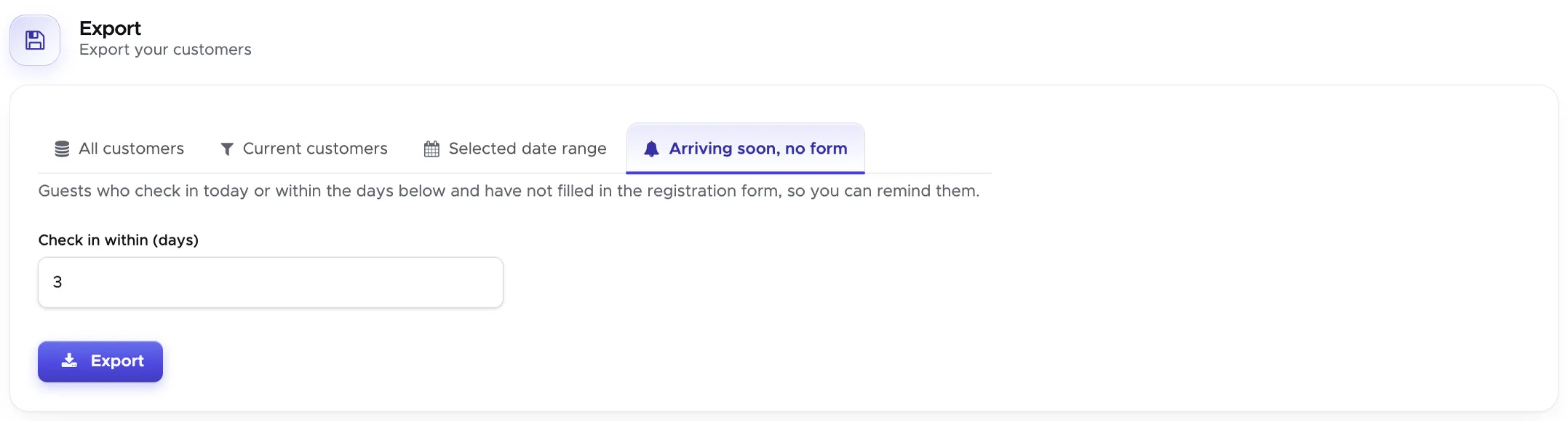
The field “Check in within (days)” starts at 3. Change it to any number between 0 (only today) and 60 and click on Export. The file has the same columns as the other exports, with the soonest check-in first.
Who is on the list:
- A guest who has completed the online registration form is not listed, also when they did it for an earlier visit.
- A customer that your staff entered by hand is listed until they fill in the form.
- A guest that you have already verified is not listed: they have been checked off at your desk.
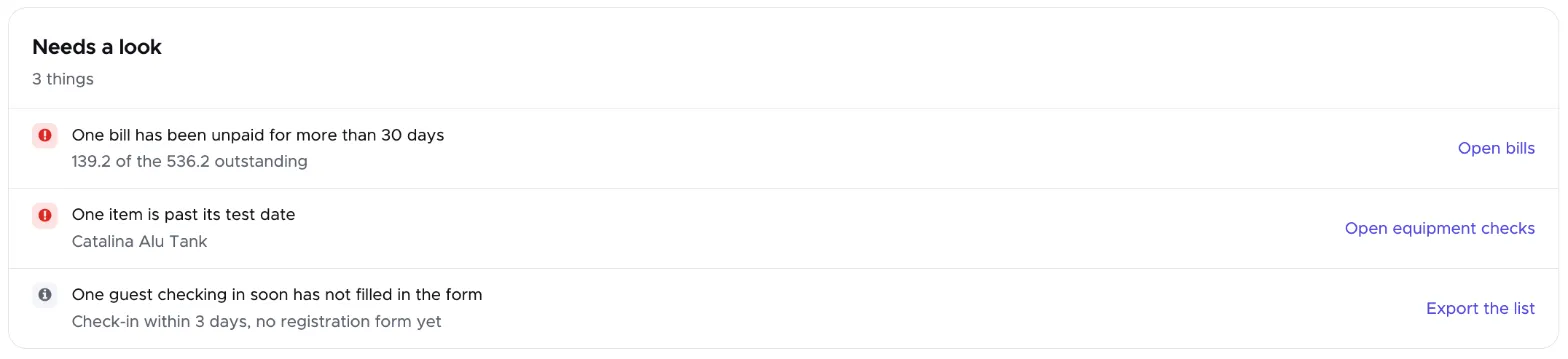
When there is at least one guest checking in within the next 3 days without a form, your dashboard tells you under Needs a look. Click on Export the list to open this tab directly. A user who is not allowed to export customers sees Open registrations instead, which opens the Upcoming customers.
7.6 Import Customers
Section titled “7.6 Import Customers”If you are coming from another system, or you have a list of guests from an operator, you do not have to type them in one by one. Click on Customers and Import.
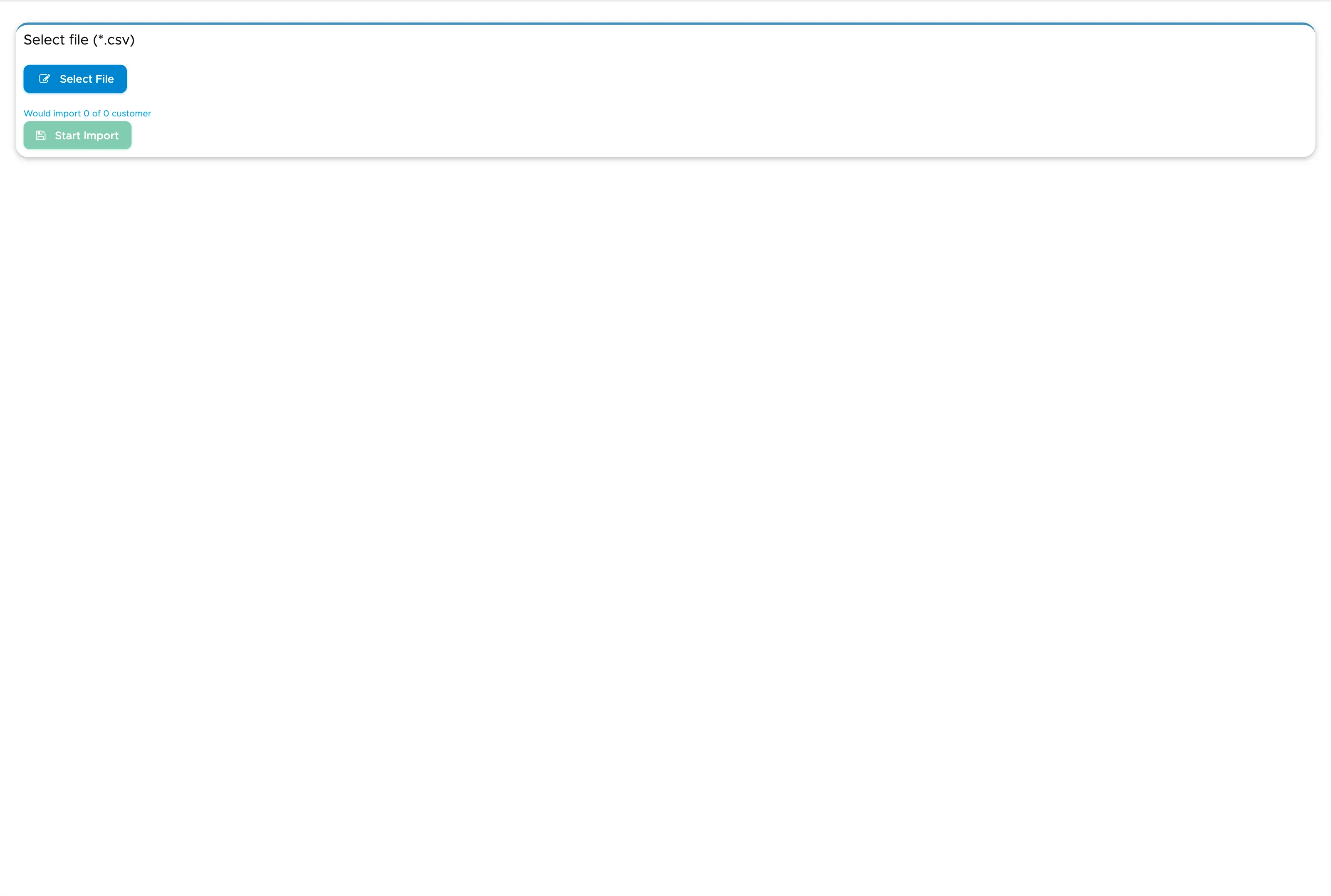
Click on Select File and choose a CSV file. Geek Divers reads it straight away and tells you how many rows it could use - “Would import 24 of 30 customer” - so you can see whether the file was understood before anything is written. Rows it cannot read are the ones missing what a customer record needs, typically a first name, a last name or an email address.
When the count looks right, click on Start Import.
Two things worth doing first: check that your CSV really is comma separated and encoded as UTF-8, or accented names arrive damaged; and import into the location you actually want the customers in, because they land in the location you are viewing at the top of the screen.
7.7 Day sheet
Section titled “7.7 Day sheet”The day sheet is one page for a single day: who is coming, what they need and who has to be told. Click on Customers and Day sheet. It opens on today; the arrows beside the date step a day back or forward.
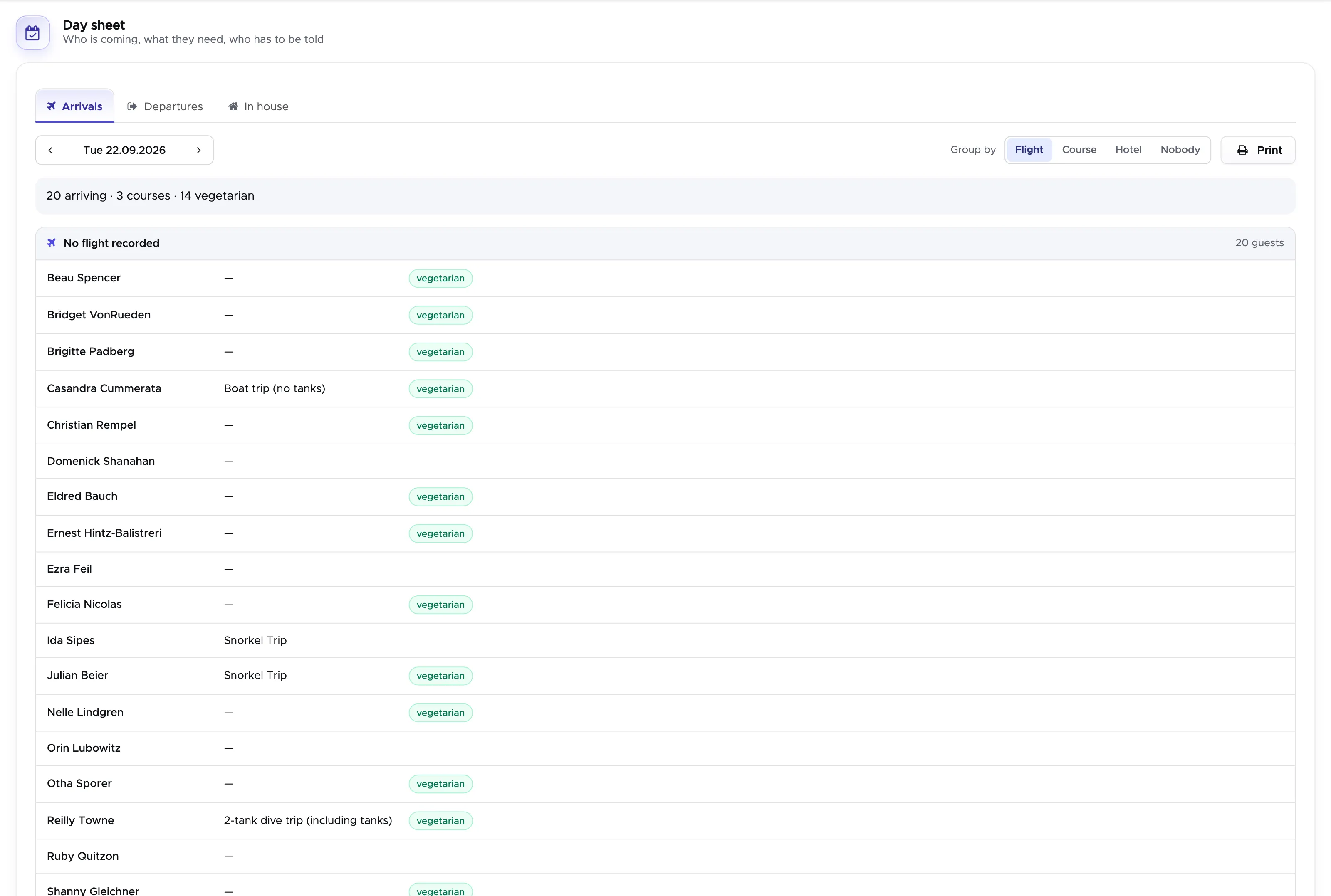
The first three tabs are Arrivals, Departures and In house — the guests who are with you on that day without arriving or leaving on it. The fourth, the Pick-up list, is described below. The line under the tabs sums the day up before you read a single row: how many are arriving, how many are on a course, how many are vegetarian.
Each row names the guest, what they have booked for the day and the notes the desk has to act on, such as a diet. Use Group by to sort the page into the shape of your morning: by Flight, so everyone on the same landing is together and the guests with no flight recorded are in their own group; by Course; by Hotel; or Nobody for one plain list. Print gives you the same page on paper for the desk or the boat.
Arrivals are anchored on the flight, not on the hotel check-in, because the two are routinely days apart: a guest who checked in on the 3rd can still be landing on the 13th. Where no flight has been recorded the check-in date is used instead, so a centre that does not collect flight details still gets a complete list.
Pick-up list
Section titled “Pick-up list”The Pick-up list answers one question for any day: who has to be collected, where and when. It lists every guest who is on a trip or a course that day, across all trips, because one vehicle usually collects guests of several trips. It has nothing to do with check-in: step to any day and you see that day’s activities.
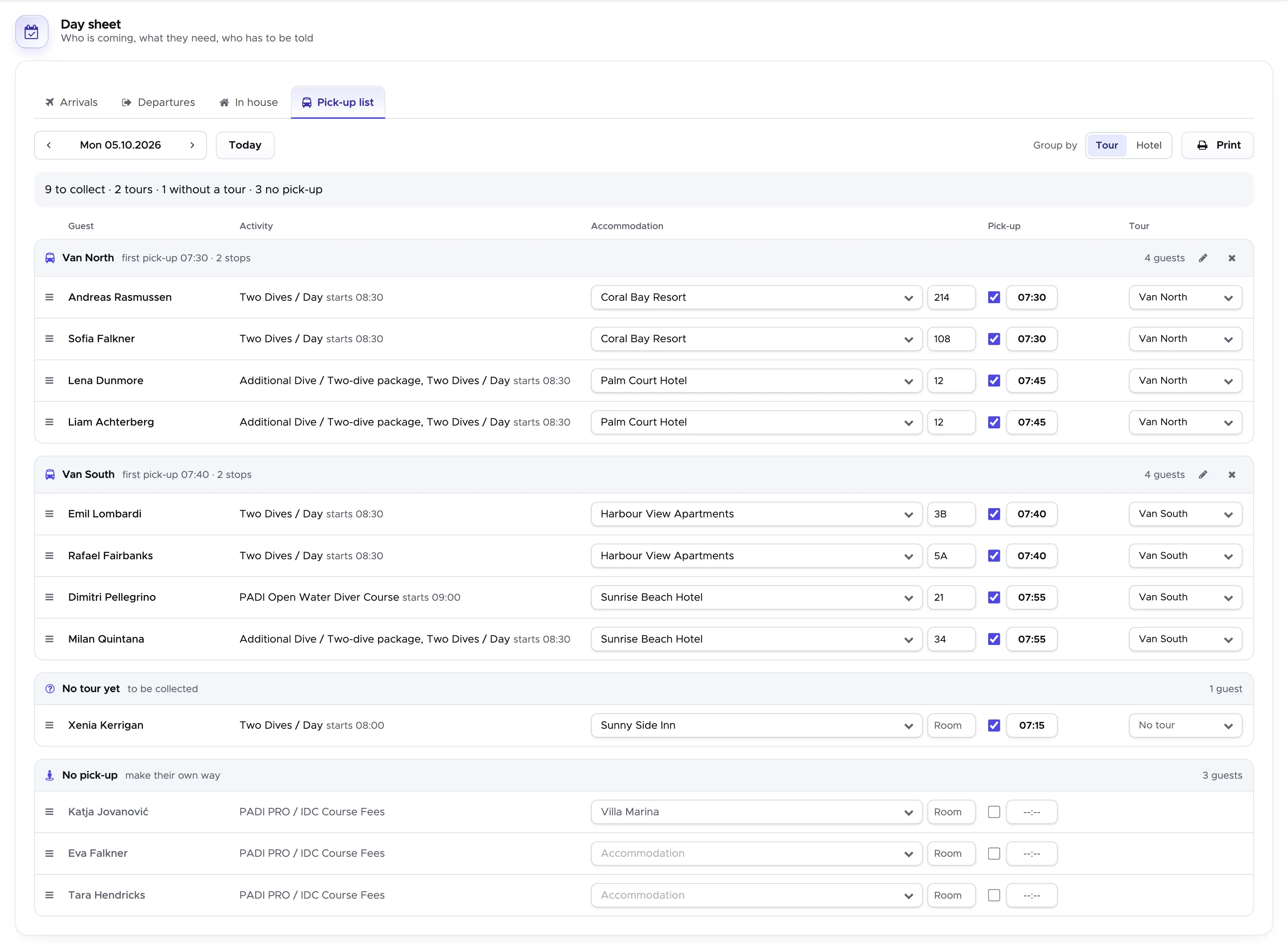
Each row shows the guest, what they are booked on and when it starts, their accommodation and room, the pick-up time and the tour. Everything except the activity can be changed right in the row:
- Accommodation and room. Type them in, or pick one of the hotels already on that day’s list so the same hotel is always spelled the same. This is saved to the guest, so the customer screen and the trip lists show it too.
- Needs a pick-up. The tick in front of the time. Guests without it are listed under No pick-up. If you untick a guest their time stays in the field, so nothing is lost when you tick them again.
- Pick-up time. The same time you see in the trip list of the trip: change it here or there. A guest who has a time counts as a pick-up, also where the “Pick up” column of the trip list is hidden.
- Tour. Which vehicle or route the guest rides on, for the days you send more than one. Choose a tour in the row, or New tour… to name one - North, Van 2, whatever you call it. The names you used lately are offered again on the following days.
Group by has two readings here:
- Tour is the sheet for the driver: one block per tour, in the order of the pick-up times, followed by No tour yet and No pick-up. You can drag a guest by the handle at the start of the row onto another tour, onto No tour yet, or onto No pick-up. The pencil in a tour’s header renames it for everyone on it that day, the × takes everyone off it.
- Hotel is for planning: one block per hotel, earliest pick-up first. Whole hotel… in a block’s header puts everyone staying there on one tour in a single step.
Print gives you the list as it is grouped, so each driver can be handed their own block.
The guests of a trip that has been closed can still be put on a tour, but their pick-up and time can no longer be changed, the same as in the trip itself.
7.8 Possible duplicates
Section titled “7.8 Possible duplicates”A returning guest is merged into their existing record when name, last name and email address match (see Customer Merge). Records that are close but not identical stay separate: a typo in the first name, a second registration under a nickname. The Possible duplicates page finds them for you.
Click on Customers - Customers, open the All tab and click on the button Possible duplicates.
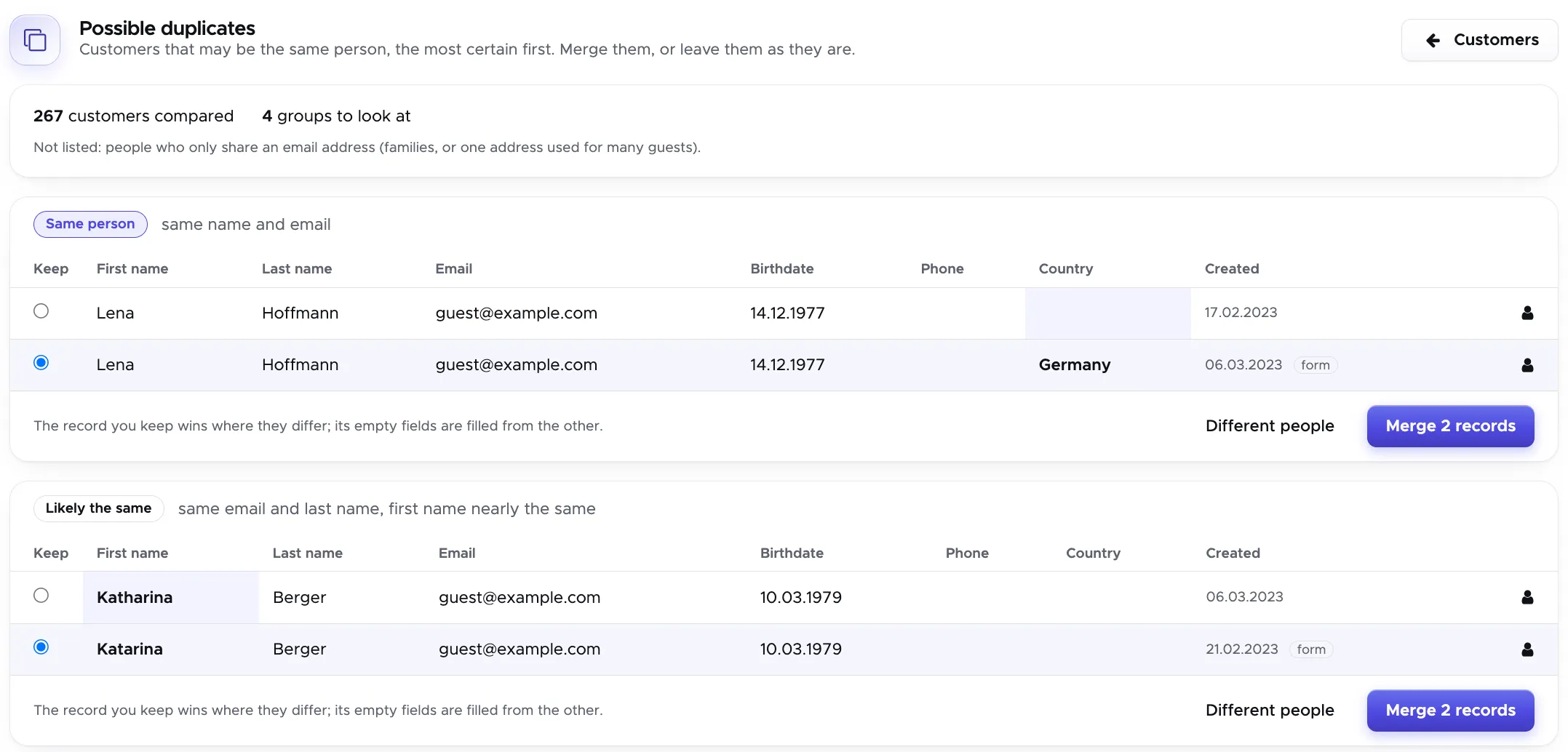
The line at the top says how many customers were compared and how many groups there are to look at. The groups are sorted, the most certain first:
- Same person: same name and email.
- Likely the same: same email and last name, first name nearly the same.
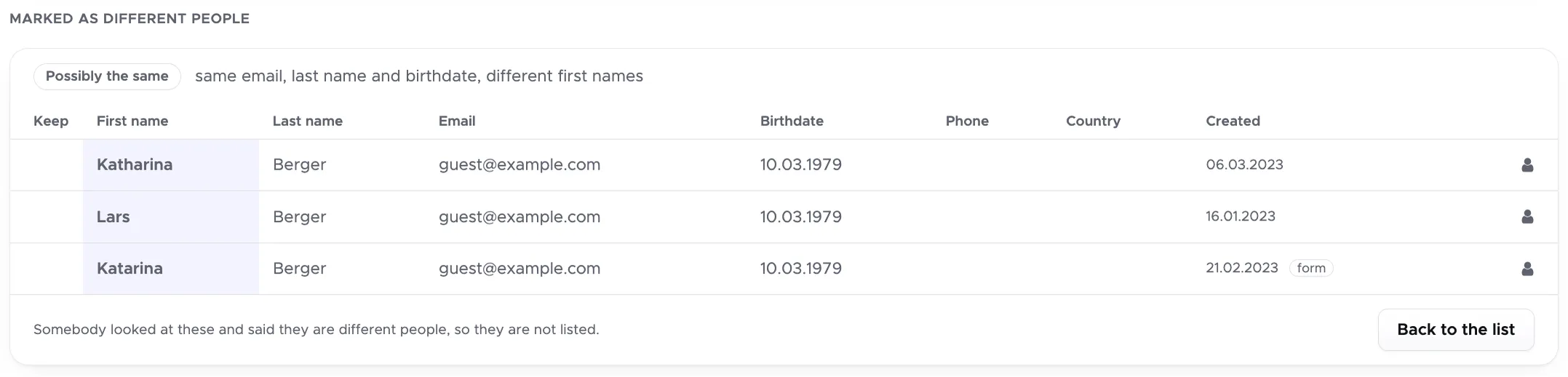
- Possibly the same: same email, last name and birthdate, different first names.
People who only share an email address are not listed. They are usually a family, or one address that was used for many guests.
In every group the fields in which the records differ are highlighted. The tag “form” marks a record that the guest filled in on the registration form. Click on the person icon at the end of a row to open that customer beside the list.
Merge. Geek Divers suggests which record to keep and highlights its row. Choose another one in the column Keep if you prefer, then click on the Merge button, which says how many records it merges. A pop-up asks you to confirm: the records become one customer, the record you keep wins where they differ and its empty fields are filled from the others. Bills, bookings and trips move with it. A merge cannot be undone.
In a group of three or more records, click on Leave out beside a record that does not belong to the same person. Only the others are merged.
Different people. If the records of a group belong to different people, e.g. a father and a son who share an email address, click on Different people. The group leaves the list and does not come back the next time the page is loaded.
It is not lost. The line at the top counts the groups that were marked as different people. Click on Show beside that number to list them below the others, and on Hide to fold them away again.

Each of these groups has a button Back to the list, in case the answer was wrong: the group is then one to look at again.
👀 Important!
If a trip with one of the merged customers is open in another browser tab while you merge, that tab can no longer save the trip. It answers “This event has been changed while you were working on it. Please reload to continue.” Reload the trip and make your change again. This protects the merge: the old tab would otherwise bring back the record you have just merged away.