
Equipment
In this section you can list all your rental equipment, your boats/cars/vans and safety equipment. During the initial setup of Geek Divers it is important that you enter at least your Transportation as this will be used to set up an Activity type Trip.
Within menu Equipment you will see New Equipment and Equipment. Equipment carries three tabs: All, Checks and Calendar.
6.1 New Equipment
Section titled “6.1 New Equipment”In the menu on the left, click on Equipment and New Equipment.
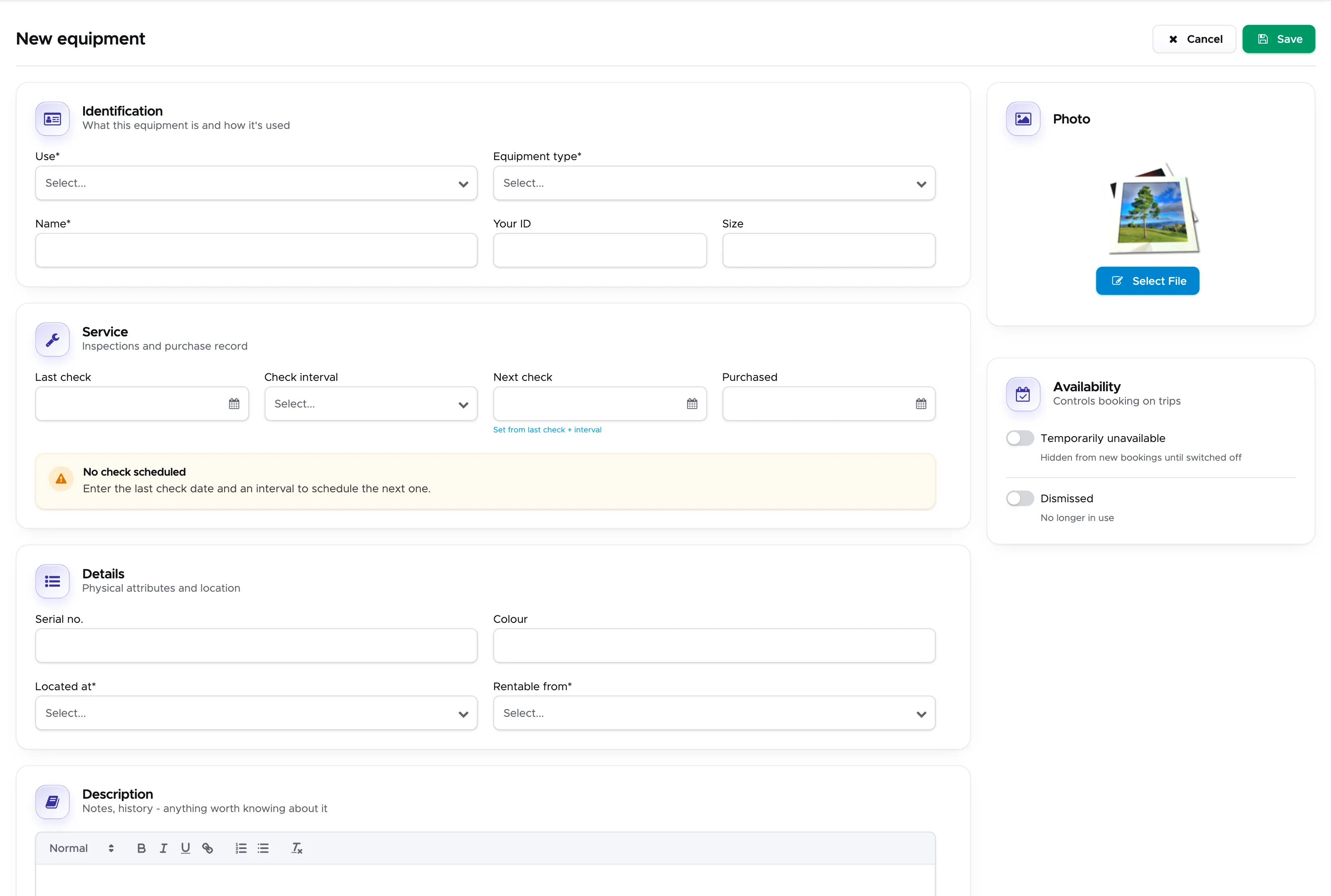
Select the use and the equipment type from the drop-down menus, type a name, enter the purchase date and the date of last check. Define the period between checks in the Check Interval drop-down menu.
Write a size (if appropriate), type your internal ID, the serial number (if appropriate) and the color.
In the text box at the bottom you can add any kind of comment or description about this piece of equipment, including the latest check report.
At the bottom of this page you will also find a Dismissed checkbox that you can tick if you decide to dismiss this piece of equipment. You will still see it in the system, but it won’t be available to be assigned to a customer. The ‘Temporarily unavailable’ is for your convenience, in case a piece of equipment is being serviced and not available for a few days.
If you wish, you can add a picture by clicking on the Change Picture button.
Once you’re ready you can scroll down and click on button Save.
6.2 Copy Equipment
Section titled “6.2 Copy Equipment”At the top of the equipment page, next to the button Save, you will see a Copy button. You can copy this piece of equipment and change any of the information. E.g. size, internal ID and serial number. This way you only need to click on New Equipment to create one BCD, one pair of fins, one tank…etc. If your rental BCDs are all the same, you only need to create one and copy it several times (changing size and internal ID).
You can view all your rental equipment by clicking on Equipment and Equipment, on the All tab.

To view more details or to modify the equipment data, click on a name (in blue) and you will be redirected to the equipment details. Don’t forget to click on the Save button if you make any changes!
6.3 Transportation
Section titled “6.3 Transportation”In the menu on the left, click on Equipment and New Equipment.
Select Transportation from the Use menu and choose a type (a boat or a vehicle) from the Equipment type menu.
Enter a Name and Capacity, as well as the date it was purchased, the date of the last check, the Check interval, the Tank capacity (if appropriate), your internal ID (Your ID), the Serial no. and colour. In the text field below you can enter any note. You can also change the predefined picture if you wish.
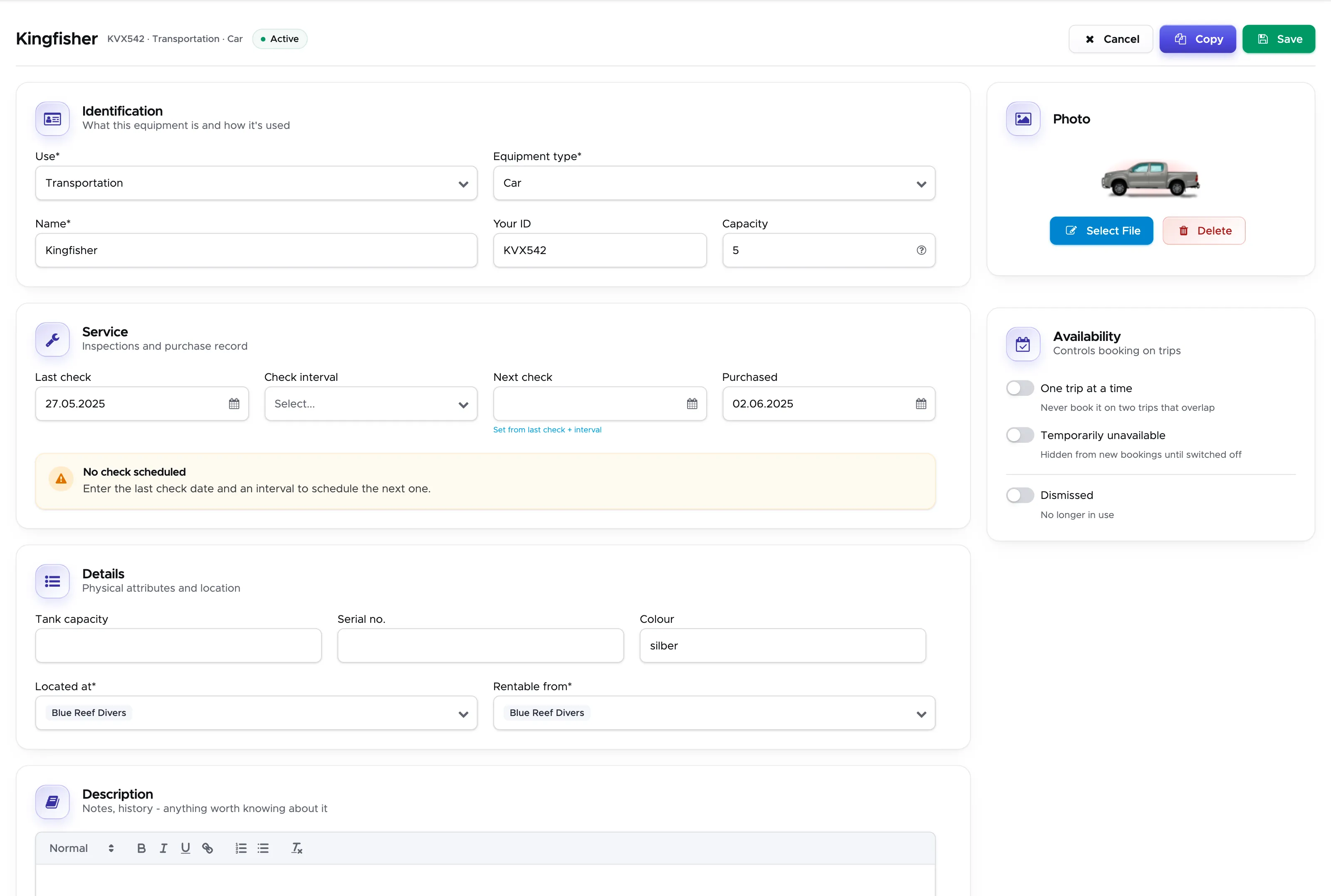
Once you’re ready, click on the Save button at the top of the page.
6.4 All Equipment
Section titled “6.4 All Equipment ”Click on Equipment - Equipment and open the All tab to view the complete list of your equipment. Starting from version 1.0.6 this page will show a table containing all your equipment.
Starting from version 2.0 you will find all your equipment in all your locations. A column “Is in” will show you where the piece of equipment is. In column Name you will find the equipment name in blue and clickable if you’re currently in the same location as the equipment. If you wish to view or edit a piece of equipment in a different location, you will need to switch to the All tab of that location.
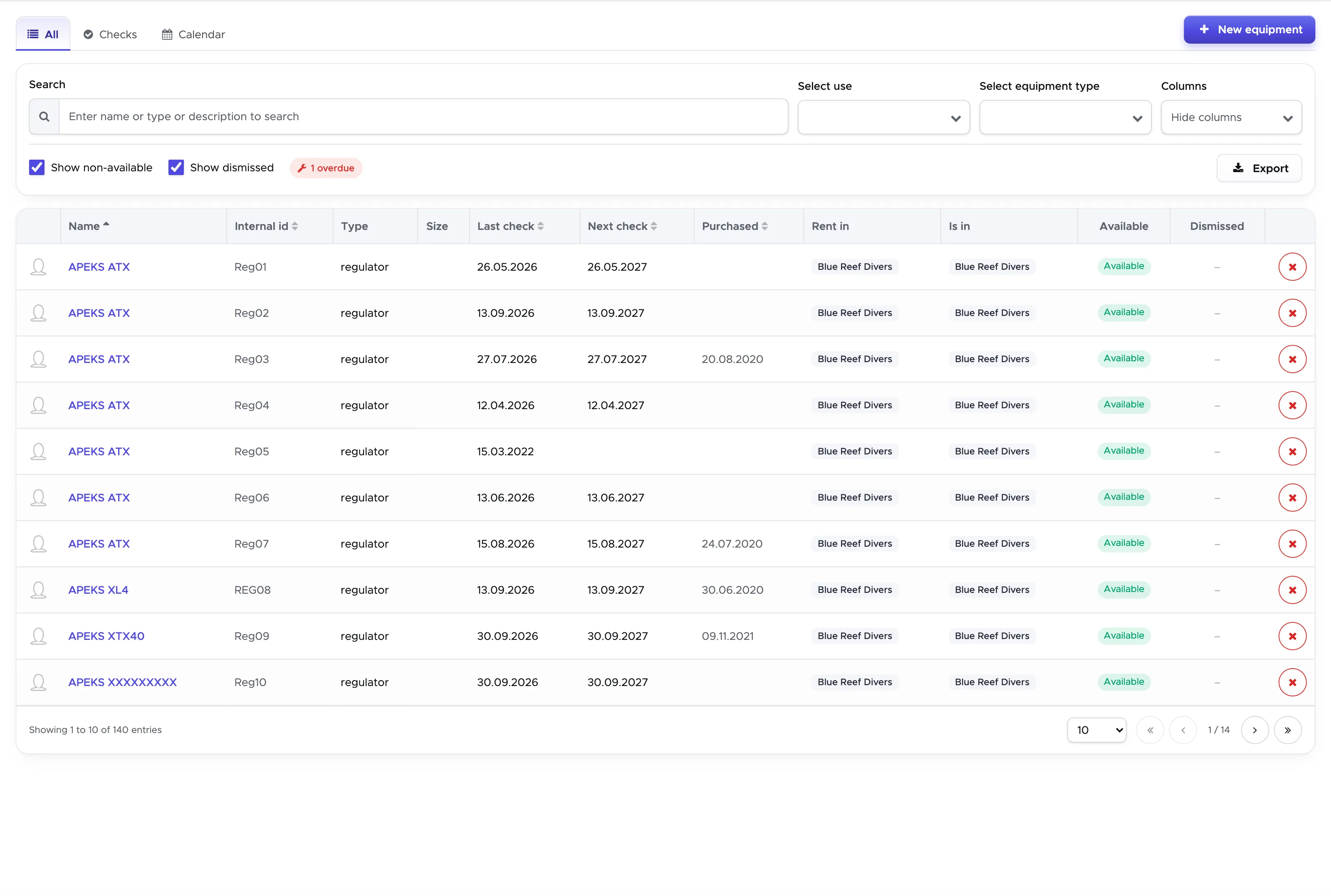
At the top of this page you can either search for a specific piece of equipment or use the filters “Select Use” and “Select Equipment-Type. You can also click on the names of the columns to sort them.
Once you are satisfied with the content of this list and how it is sorted, you can scroll down and click on button Export.
6.5 Equipment Calendar
Section titled “6.5 Equipment Calendar”Starting from version 1.0.6 you can choose to assign the equipment to the customer for the whole stay (from check-in date to check-out date) or just for the duration of a trip. You can assign the equipment for the whole stay in the customer’s tab Equipment (more on this in chapter Equipment) or for the duration of a trip in the Trip List or in your Custom Made Trip List (more on this in section Documents).
Either way you will see if a piece of equipment is available or busy in the new Equipment Calendar.
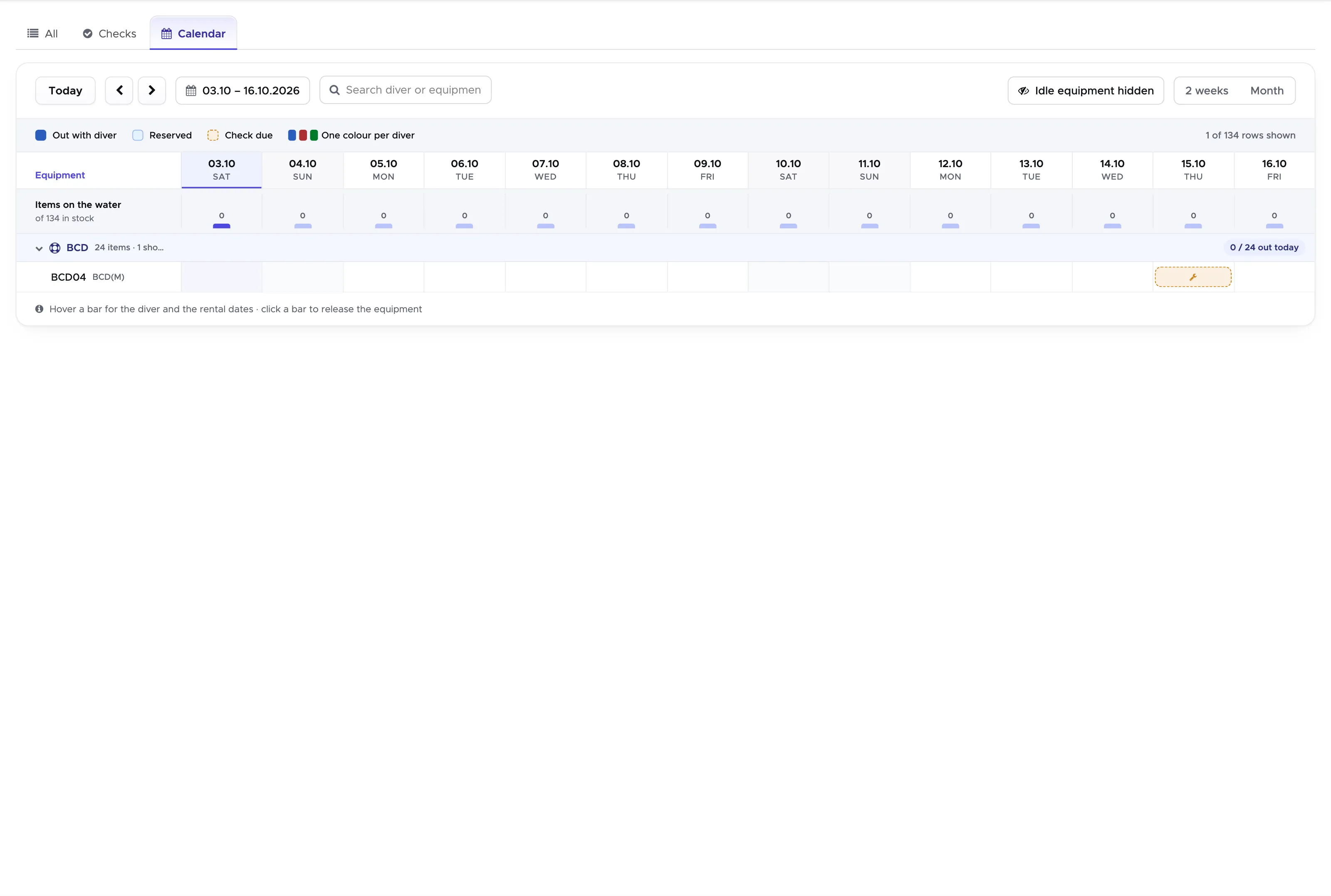
If you move your mouse over a block in the calendar a tooltip will show you the name of the customer whom the equipment is assigned to for a specific interval of time. You can choose to view the equipment calendar for two weeks or for a month using buttons “2 weeks” and “Month”.
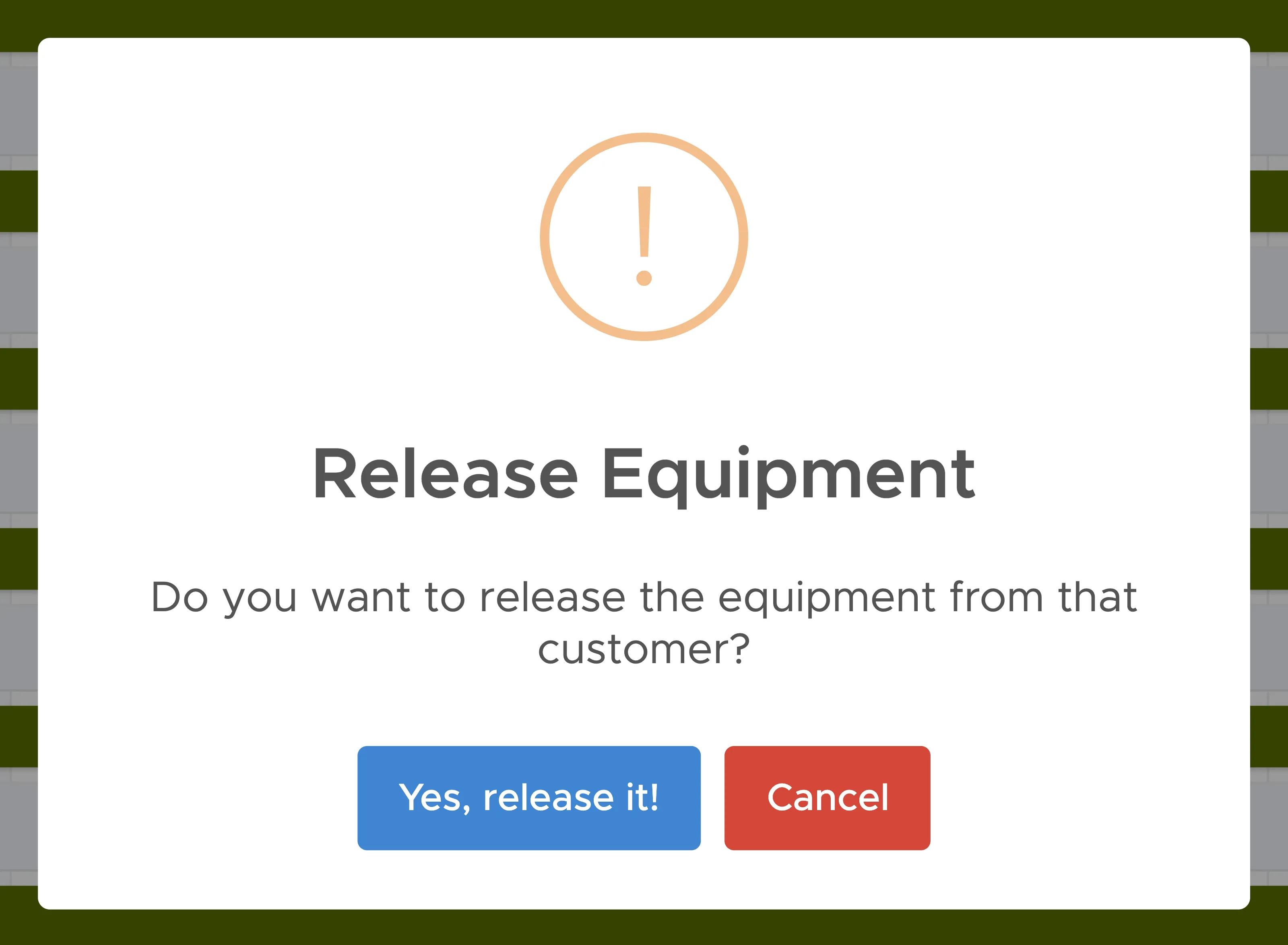
If you click on a block in the calendar a pop-up message will ask you if you wish to release the equipment.
6.6 Equipment Checks
Section titled “6.6 Equipment Checks”Every piece of equipment can be checked on a regular basis and Geek Divers keeps the history of those checks. Click on Equipment - Equipment and open the Checks tab.
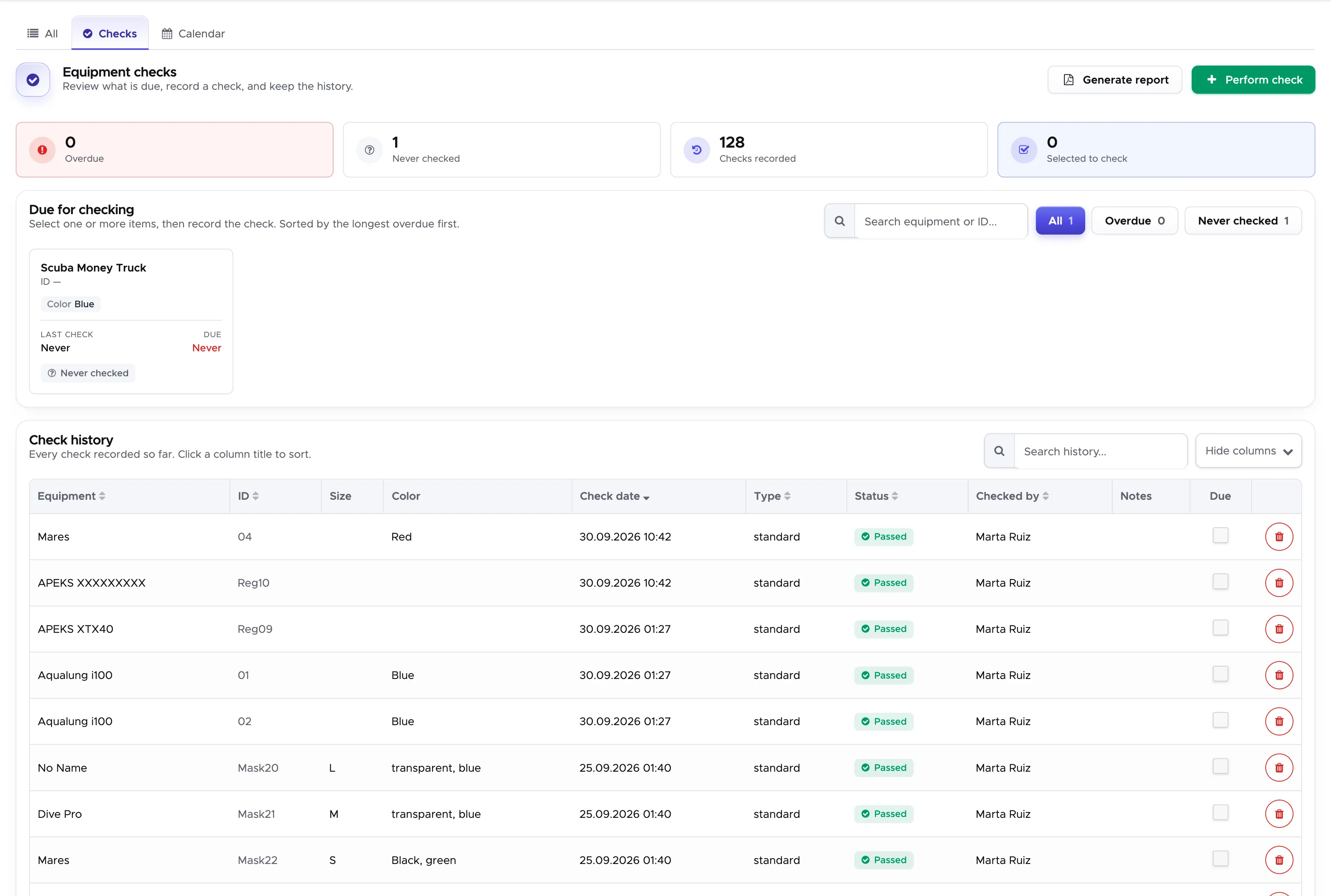
How often a piece of equipment needs checking comes from its own Check Duration, which you set when you create or edit it (see chapter New Equipment). Geek Divers takes the date of the last check, adds the check duration and shows you what is due.
At the top of the page four counters tell you where you stand:
- Overdue - equipment whose next check date has already passed.
- Never checked - equipment that has never been checked at all.
- Checks recorded - how many checks you have logged.
- Selected to check - how many items you have picked for the next check you are about to record.
Under Due for checking you will find one card per piece of equipment, sorted with the longest overdue first. Every card shows the internal ID, the size and colour, the date of the last check, the date the next one is due and by how long it is overdue. Use the search field to find a specific piece by name or ID, and the All / Overdue / Never checked buttons to narrow the list down.
6.6.1 Record a check
Section titled “6.6.1 Record a check”Click on one or more cards to select them, then click on the button Perform check.
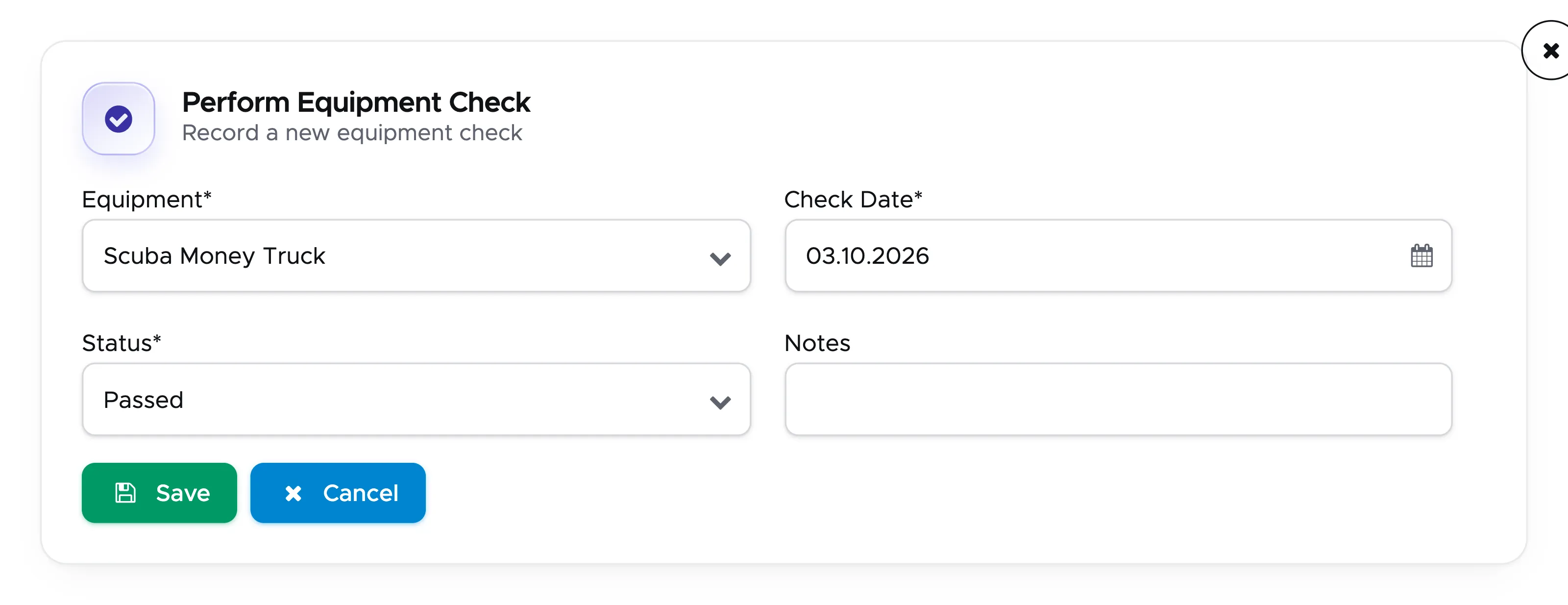
- Equipment - the piece you are checking. When you have selected several cards this field is hidden: the same check is recorded for all of them at once.
- Check Date - the day the check was carried out. It does not have to be today.
- Status - Passed, Failed, Needs Repair or Pending.
- Notes - anything you want to remember about this check.
- Hydro Test and Visual Test - these two only appear when the equipment you are checking is a tank.
Click on Save. Geek Divers will then ask you whether this piece of equipment should be marked as unavailable or dismissed. Choose Mark Unavailable to take it out of service for now, Mark Dismissed to retire it for good, or No change to leave its status exactly as it is.
Once the check is saved the piece of equipment disappears from Due for checking, the Overdue counter goes down and Checks recorded goes up. The next check is due one check duration later.
6.6.2 Generate report
Section titled “6.6.2 Generate report”The button Generate report at the top of the page produces a printable list of your equipment checks, which is what you want when an authority or a franchise asks you to prove that your rental gear is serviced.