
Activity
An Activity in Geek Divers is any kind of activity that you organize for and with your customers. It could be a trip or a course, you can add as many customers as you wish and assign staff members who will take care of them. Setting up an Activity will help with your planning and Geek Divers will automatically calculate your customers’ bills, your staff payslips and your agents’ commissions. It is important therefore that you create an Activity for everything that you do with your customers, whether it’s a course, a dive trip, a car or boat transfers, a snorkeling tour or any other service that you offer.
When you save an Activity with customers and any extra charge:
- customers’ bills will be updated with the charges according to the prices in your price list.
When you close an Activity:
-
your staff payslips will be updated with their diving commissions and
-
your staff payslip and your agents credit notes will be updated with their sales commissions.
So if you’re wondering if you need to set up an activity for a specific service, ask yourself the following questions:
-
Should my customers be charged for this service?
-
Should my staff members receive a commission for this service?
-
Should my agents receive a sales commission for this service?
-
Is it important that I have a record of the service that we’ve provided?
If you’ve answered “yes” to at least one of the above questions, then you definitely need to set up an activity in your Activity Calendar.
Below here you’ll see how it works.
8.1 Activity Calendar
Section titled “8.1 Activity Calendar”To set up an activity in Geek Divers the easiest way is to click on menu Activity and choose Activity Calendar. Choose the type of view that you prefer (Day, Week or Month) and move left or right with the arrows to display the right time frame for the activity that you wish to set up.
In your activity calendar you’ll see columns with days and rows with hours. Every row represents 30 minutes. If you haven’t done it yet, please set your calendar start and end time in General Settings - Activity Calendar.
👀 Important!
Your Activity Calendar displays the activities that you’ve set up in your dive center according to the time zone that you’ve specified in General Settings . If you are currently in a different time zone and your device (laptop, tablet, phone) shows the correct time according to where you are, you might see your activities shifted to an apparently wrong time. Before modifying the start and end time of all your activities, please consider the time difference between your current time zone and your dive center time zone. You could quickly check if everything looks alright by changing your device time to your dive center time zone.
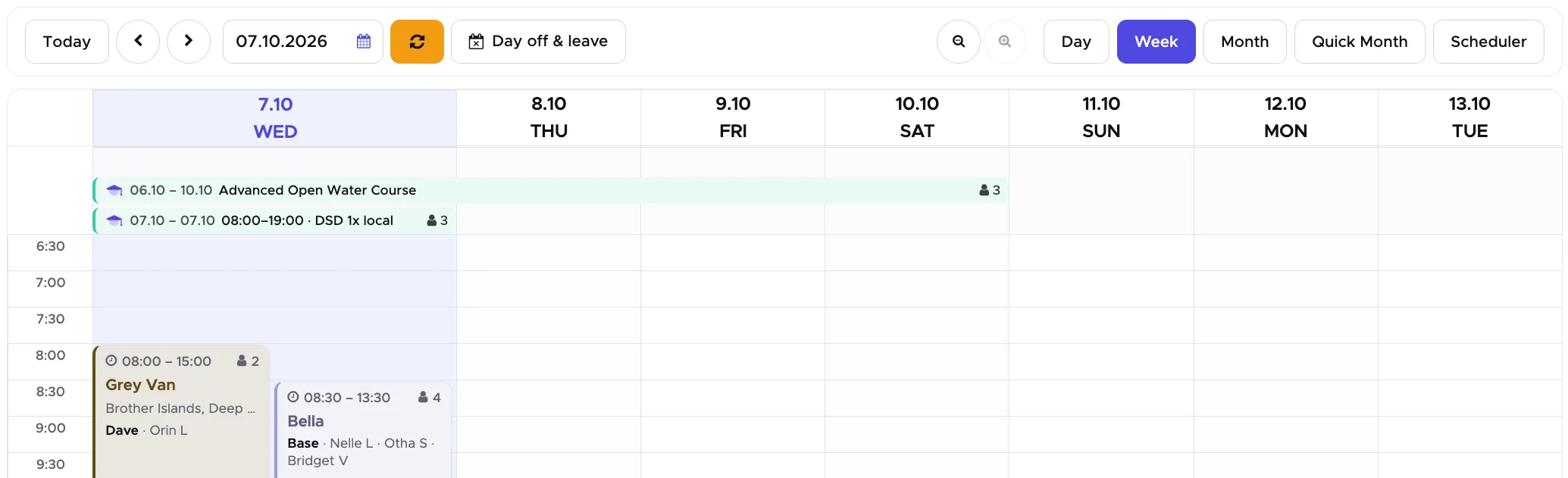
A course that runs over several days is not a card in the schedule. It is a bar in the strip above it, from its first day to its last, with the number of students at the end. A course of a single day is a card at its time, beside your boats. If you would rather see your one-day courses in the strip as well, switch on “One-day courses in the top strip” in General Settings - Activity Calendar. They are then shown there with their time in front of the name.
Starting from version 2.0, you will see confirmed quotes at the top of the Activity Calendar: in the Week and Month views a day with confirmed quotes shows a badge with an anchor icon and a quote number under the day heading.
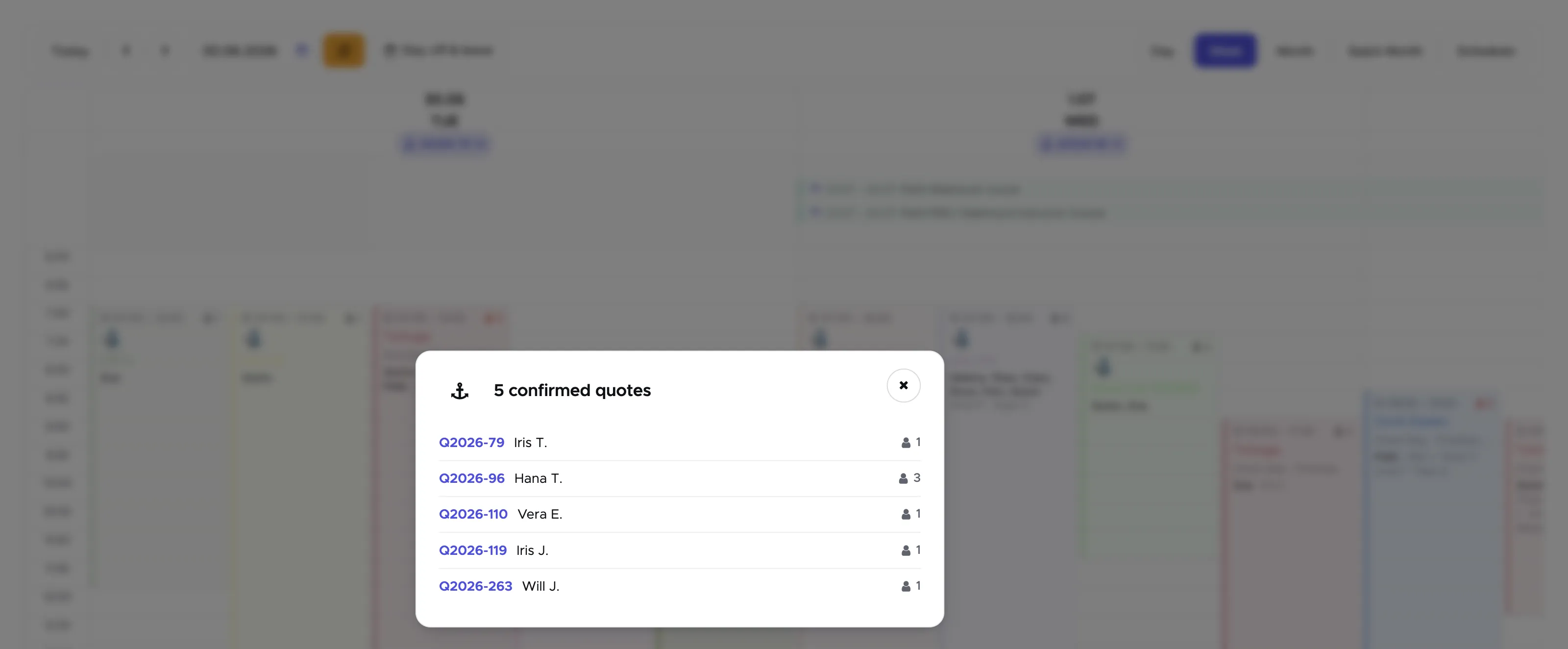
If you don’t see the badge it’s because there’s no confirmed quote for that day. Click on the badge to open the pop-up. Here you will find all the quotes that are confirmed for that day. Next to every quote number you will see either the customer’s name or no name, if the quote is a partner quote. The people icon at the end of the line shows how many customers are included in the quote.
You can click on the quote number to view its content in a sidebar.
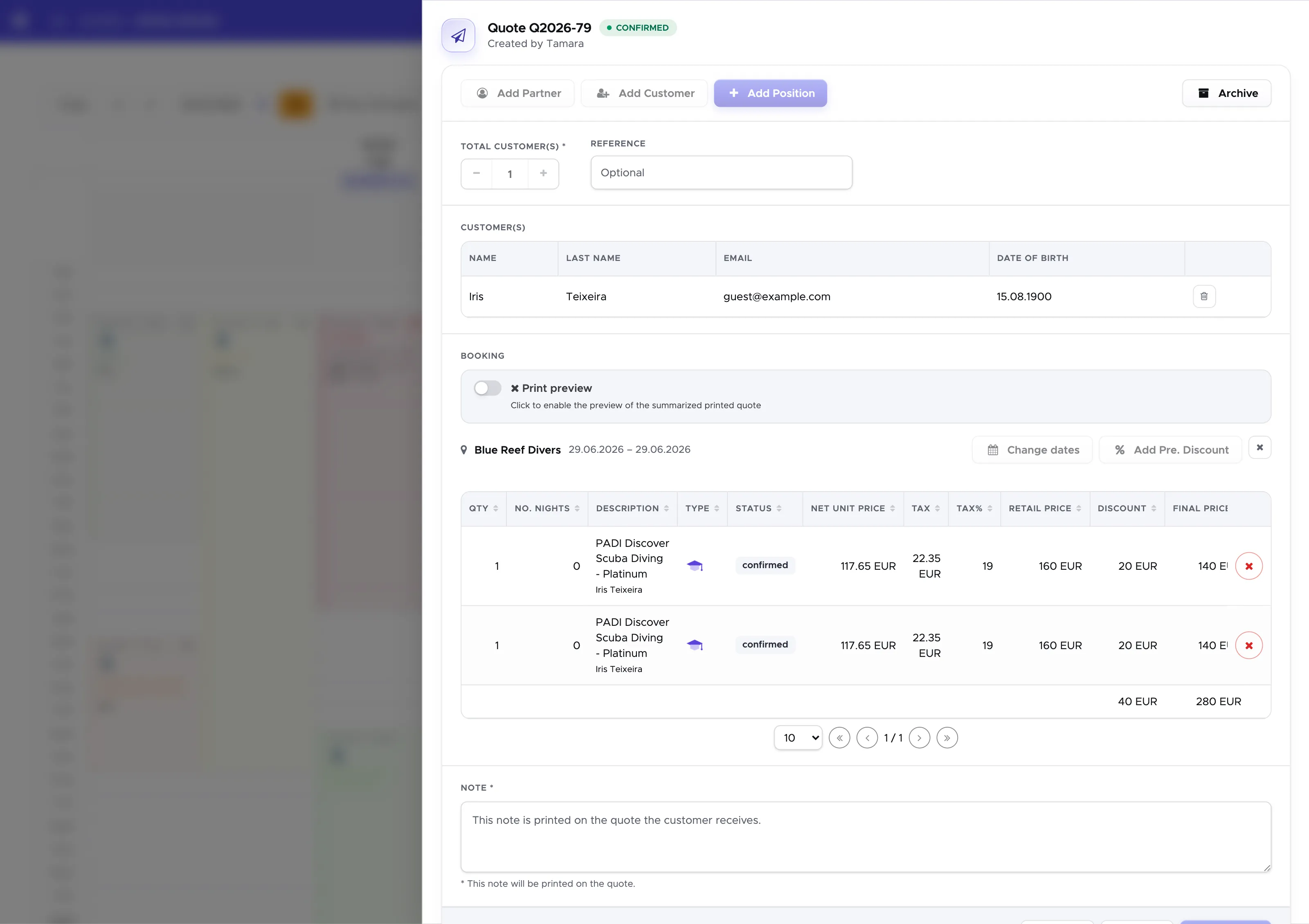
By viewing the content and considering the status of every quote position, you should get an idea of how to plan your activity calendar accordingly. The status of each quote position will be updated automatically once the confirmed quote is applied as a voucher in the customers bills.
You will find more information about the meaning of each status in chapter Booking. What you need to know in the Activity Calendar is very simple:
-
Confirmed and Voucher → if they are trips or courses, they need to be planned for these customers.
-
Applied → these activities have already been planned for these customers.
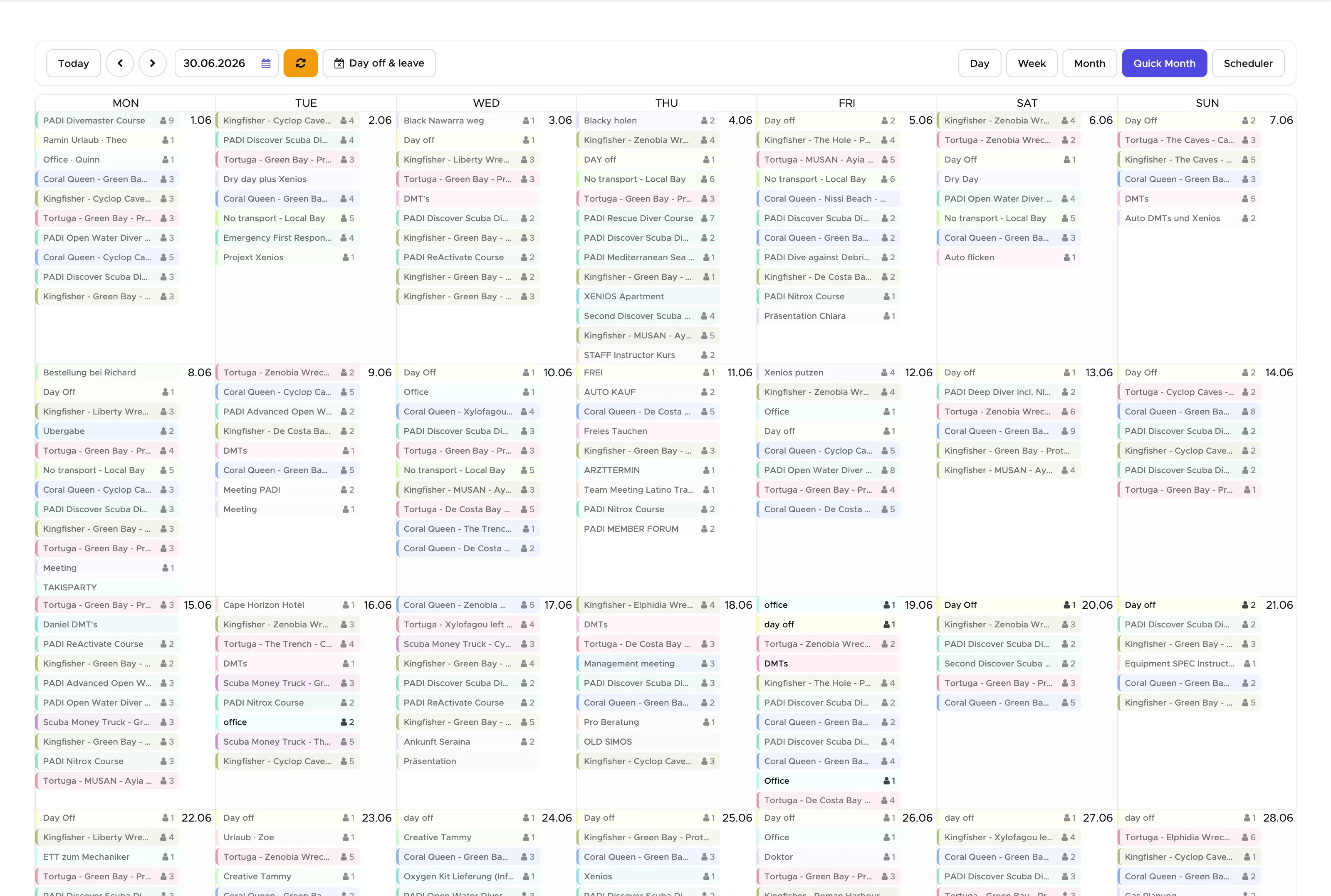
Additionally, starting from version 2.0, you will find a Quick Month view. This view is read-only and it’s meant to give you an idea of which ones are your busiest days and which ones are the quietest ones.
Starting from version 2.1 you can now click on the events to open the activity.
8.2 New Activity
Section titled “8.2 New Activity”Click on the calendar on a day and time representing the start date and time of the activity that you wish to set up. You will see a pop-up asking you which type of activity you wish to use:
Select a type and click on the OK button.
According to your choice you’ll find instructions in the paragraphs below here.
8.2.1 New Trip
Section titled “8.2.1 New Trip”A trip in Geek Divers represents any outing with your customers - a dive trip, a snorkeling trip, a shore dive, a day out on the boat, a transfer service, a special tour, and so on.
Choosing Trip in the calendar pop-up opens the Trip Builder, which walks you through everything one trip needs, from the departure time to the paperwork you print before you leave the pier. You can also reach it from the menu Activity and New Trip, or by clicking the pencil of a trip on the Planning board.
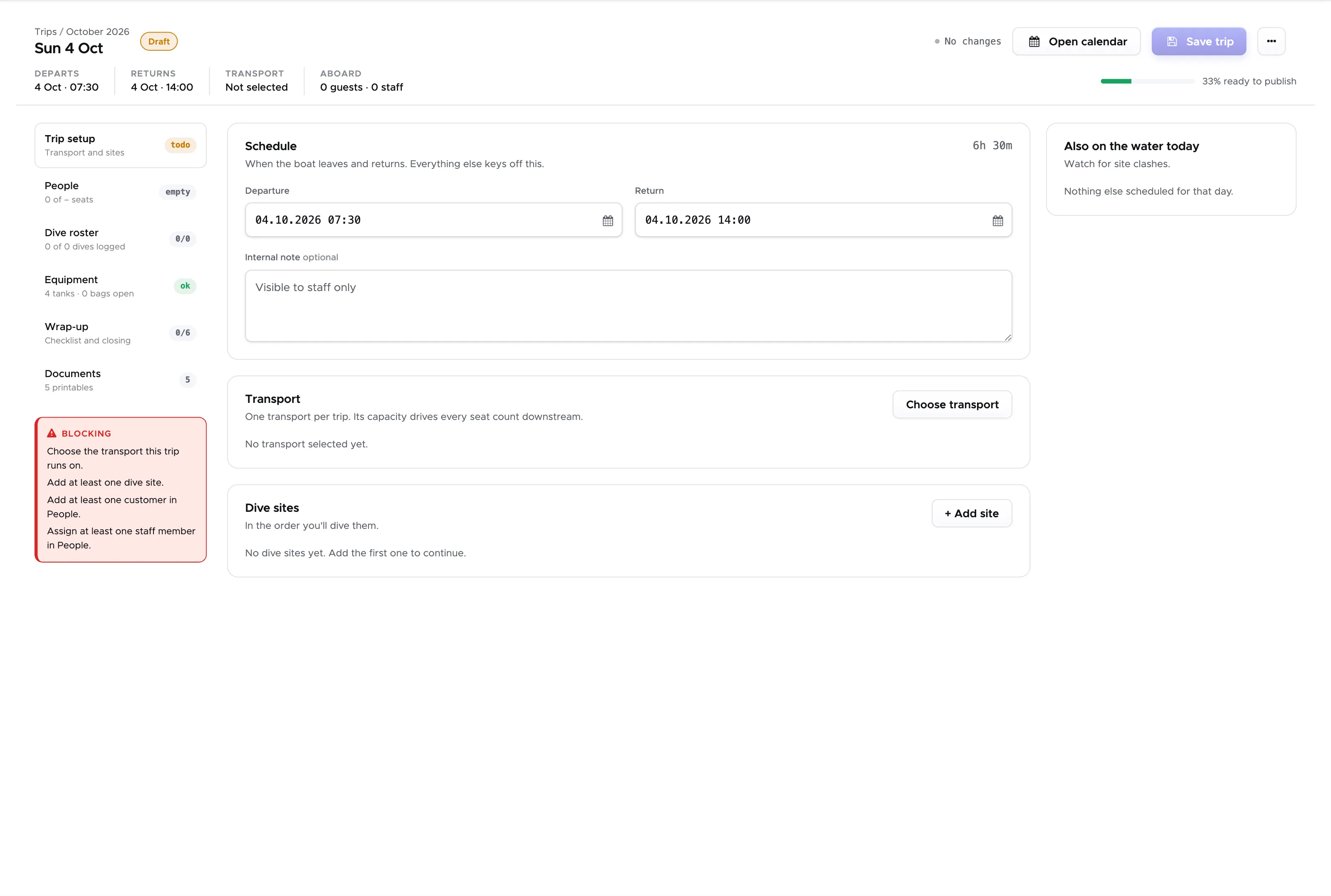
It is the same trip you see in the Activity Calendar and on the Planning board - only the view is different, so you can build a trip here and check it there.
At the top you will find the day of the trip, its status, when it departs and returns, which vessel it runs on and how many guests and staff are aboard. On the right a bar tells you how ready the trip is to be published, and a red panel lists exactly what is still missing - typically the vessel, at least one dive site and at least one customer.
The trip is divided into six sections, listed down the left-hand side. Each one carries its own progress, so you can see at a glance what still needs doing.
8.2.1.1 Trip setup
Section titled “8.2.1.1 Trip setup”Schedule - when the boat leaves and returns. Everything else keys off these two times, and the duration is shown next to them. The internal note is visible to your staff only, never to a customer.
Transport - one vessel per trip. Its capacity drives every seat count in the sections below.
Dive sites - the sites you are going to, in the order you will dive them.
8.2.1.2 People
Section titled “8.2.1.2 People”People are organised in groups, and a group can hold guests, the staff teaching or guiding them and the crew running the boat. The header of the section counts the seats you have used against the capacity of the vessel you chose.
8.2.1.3 Dive roster
Section titled “8.2.1.3 Dive roster”The roster is built from the people and the dive sites you entered, so add those first. Here you record who actually dived where, which is what feeds the number of dives on a customer’s profile.
8.2.1.4 Equipment
Section titled “8.2.1.4 Equipment”Geek Divers calculates the tanks to load from the number of divers multiplied by the number of dives, and counts air and EAN separately. For each you can add spares and say how many are already on board, and the sum is spelled out for you - for example, 12 needed minus 4 on board plus 2 spare equals 10 to load. You can also tick a spare bag and a first aid kit.
This is also where you hand out rental gear. Assign equipment gives you one row per guest; if you filled out the sizes a customer wants in their profile, tab Equipment, you will see those sizes in brackets and can pick the actual piece from the drop-down. Gear assigned here is held for the duration of the trip and released when it ends. To lend gear for a guest’s whole stay instead, assign it in their profile rather than here.
8.2.1.5 Wrap-up
Section titled “8.2.1.5 Wrap-up”A checklist for after the trip: roll call, the boat debriefing, empty tanks returned to the fill station and tanks left on the transport for tomorrow.
Ticking everything does not close the trip. Closing is a deliberate step of its own, and it locks the trip for good.
8.2.1.6 Documents
Section titled “8.2.1.6 Documents”The printables for this trip - the lists you take with you - are built from the people on the trip, so they only appear once you have added somebody. There are five:
- Activity summary - the trip at a glance, with the emergency contacts from your Company Information.
- Dive roster - your groups, the staff leading each one, and the dives themselves. After the dives you record Time In, Time Out (or Time In and dive time), Depth, EAN% and Air In/Air Out here. Before printing you can choose landscape and whether to include a Signature column.
- Custom trip list - the columns you assembled yourself.
- Trip list - the standard per-customer columns.
- Equipment list - the gear the trip needs, including the tanks to load.
The columns of all four lists are yours to choose, in UI Settings. Each one prints to a pdf.
Some columns can be in both the Trip list and the Custom trip list: Pick up, Pick up time, Drop off, Paperwork, Accommodation and Room. They are one and the same value. Type a pick-up time into either list and the other one shows it straight away. The same times appear on the Day sheet’s Pick-up list, where you see the pick-ups of all trips of a day together.
Click on Save trip when you are done. As with the Planning board, the indicator at the top tells you whether anything is still unsaved.
8.2.2 New Trip (legacy)
Section titled “8.2.2 New Trip (legacy)”The older trip screen is still there, at Activity - New Trip (legacy). Nothing else opens it: the calendar pop-up and Activity - New Trip both go to the Trip Builder.
It edits exactly the same trip. A trip you build in one you can open in the other, so nothing is trapped in either view. The screen is a four-step wizard - Transportation/Dates/Dive sites, then the selection of a trip or a course, then Extra, then Reports/Summary - where the Trip Builder puts the same work in six sections down the side.
Everything it does is described above under 8.2.1 New Trip. Use it only if you already know it and prefer it.
8.2.3 New Course
Section titled “8.2.3 New Course”In the Activity Calendar click on a day at the time your course should start. In the pop-up select New Course and confirm. Alternatively you can click on the menu Activity and New Course.
Geek Divers will take you to the list of all your price list item types Course (with a book icon).
Select a course by clicking on it. You will be directed to the activity planning page.
Click on the calendar icons to modify the start and end dates and times.
The description that you see underneath the dates, is the same that you wrote in your price list.
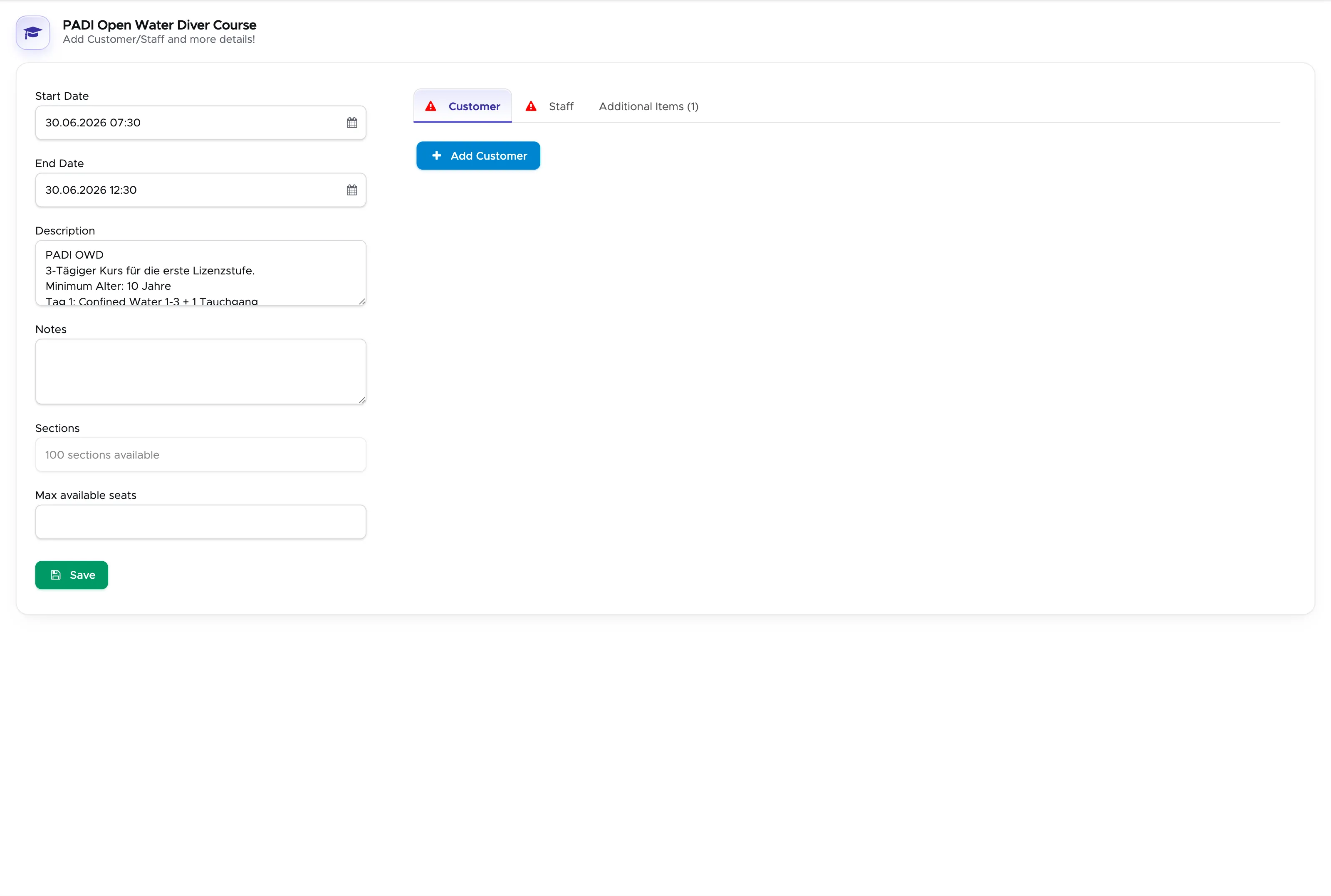
Click on the “Add Customer” button to select the customers who are joining this course. You will see all “current customers” automatically. If you want to add a customer that is not current right now, you can just start typing the name in the “search customer” field and select it from the list. Confirm your selection by clicking on the button “Select”.
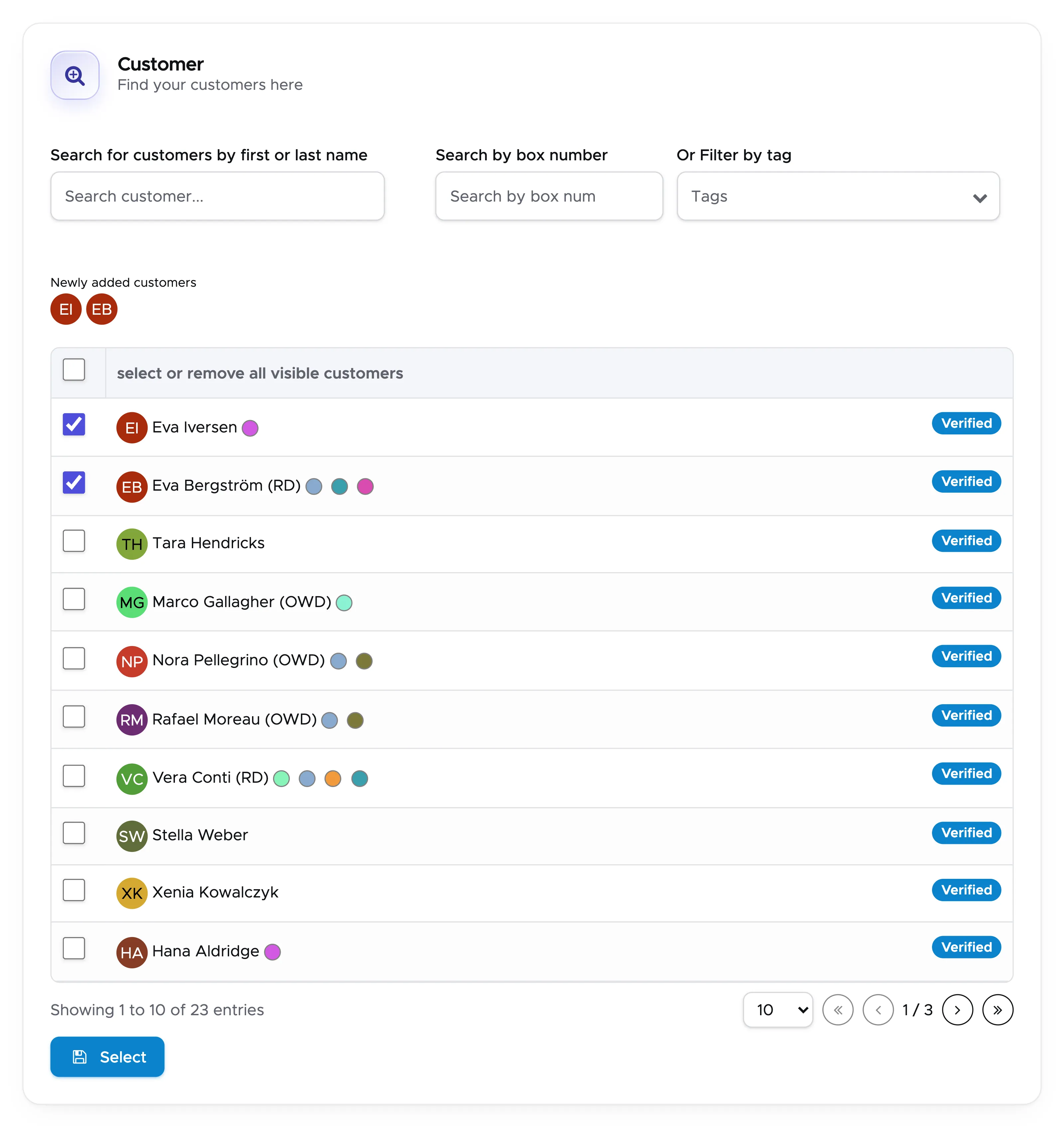
The customers who join a course will be charged according to your price list for the course and in their bills you will see separate lines for the course and the extra charges.
Now click on the Staff tab and click the button “Add Staff”

Tick the staff members who will teach this course and click on the button “Select”. Next to a name you see what that staff member is already planned for during the course (another activity or a day off).
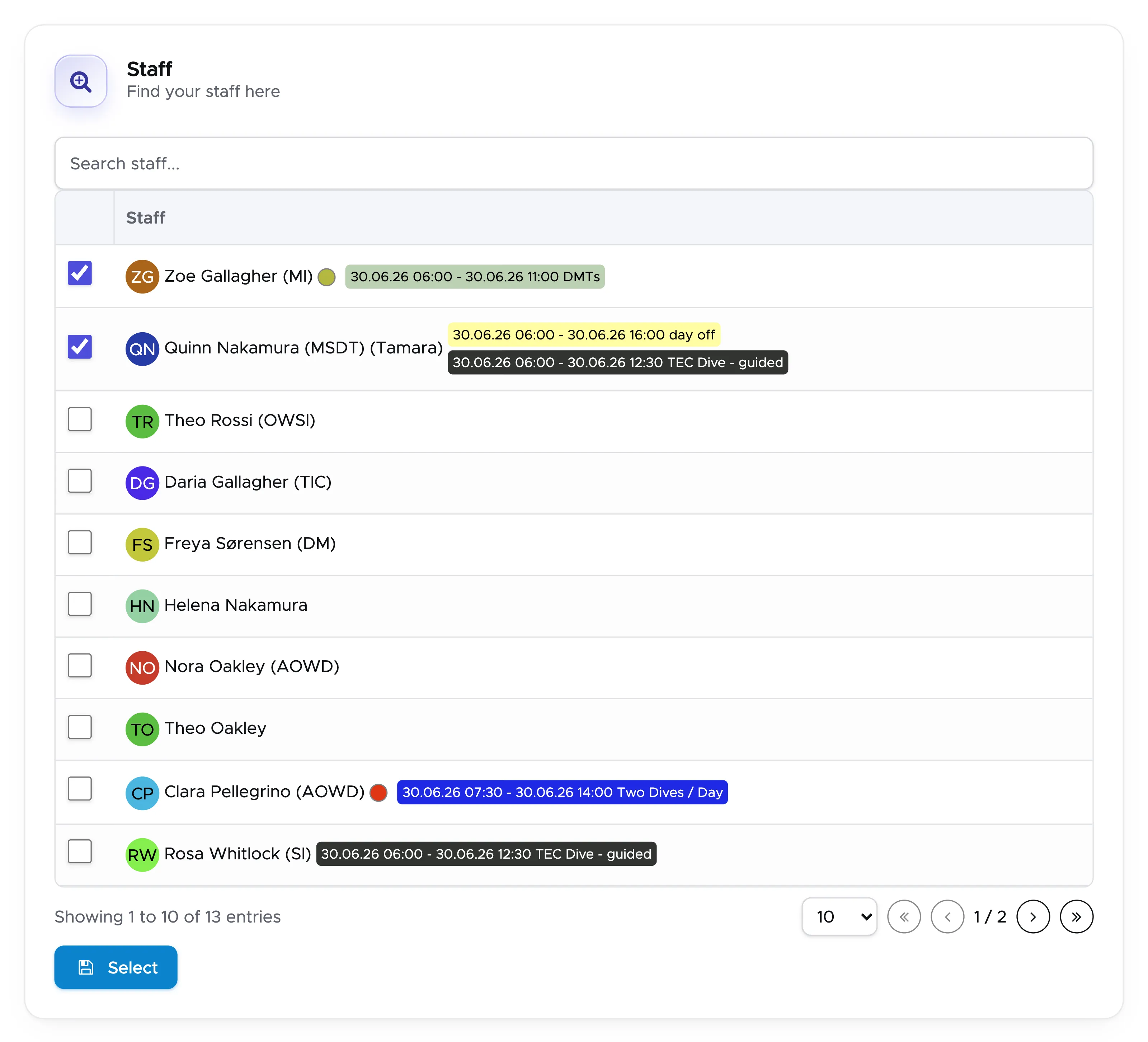
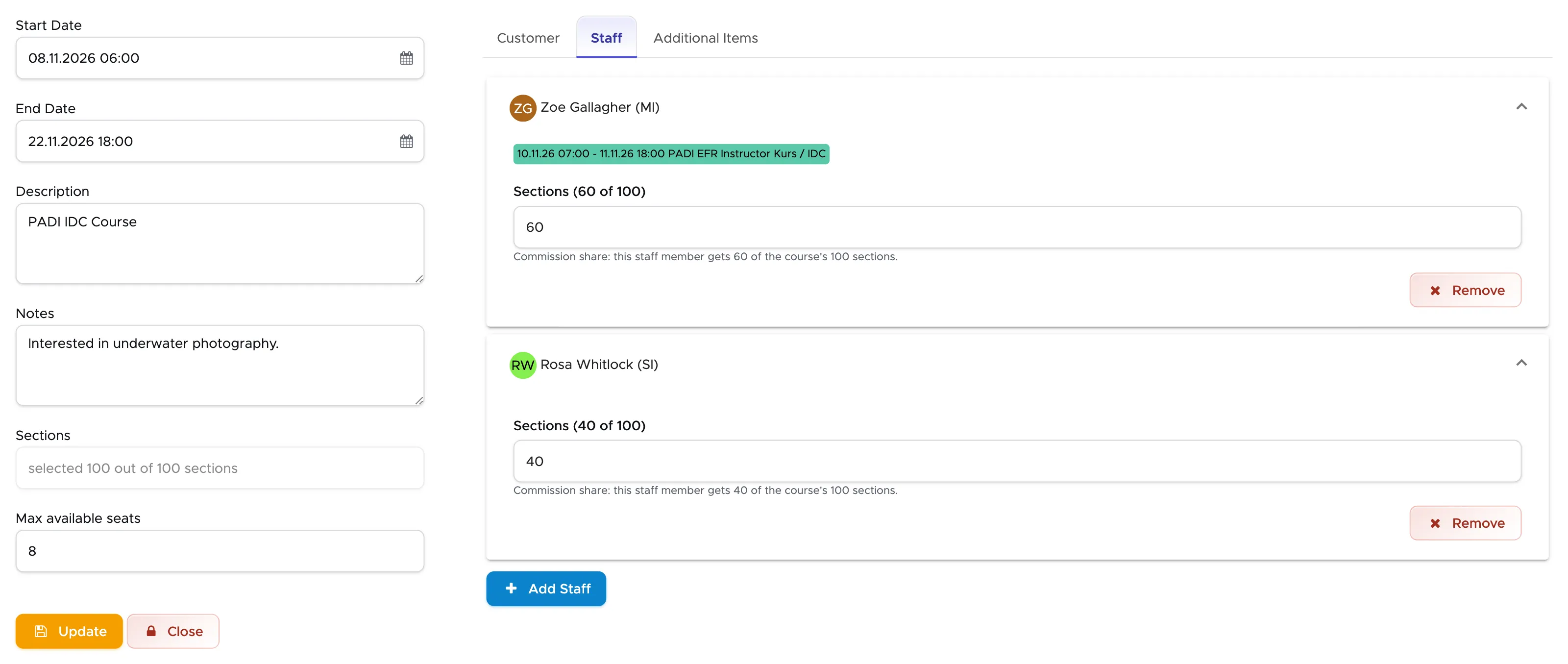
In the example below two instructors teach a PADI IDC course.
Because this course is divided into 100 sections in the price list, every staff member’s card shows “Sections (n of
100)”, where n is the number you enter. In the example the first instructor will teach 60 sections and the second 40.
It’s important that you write the number of sections if you choose more than one staff member or each of them will receive the full commission for the course even if they taught only a part of it.
If you choose only one instructor you can skip the sections part. If you haven’t defined the number of sections in your price list, please go back to chapter Price list item type Course of this user guide and read the explanation in Sections.
You can edit this part later, as long as the course is open.
If you need to select any extra charges for all the customers joining this course, click on tab “Additional Items”.
Here you see all the extra charges that you have already added to your price list.
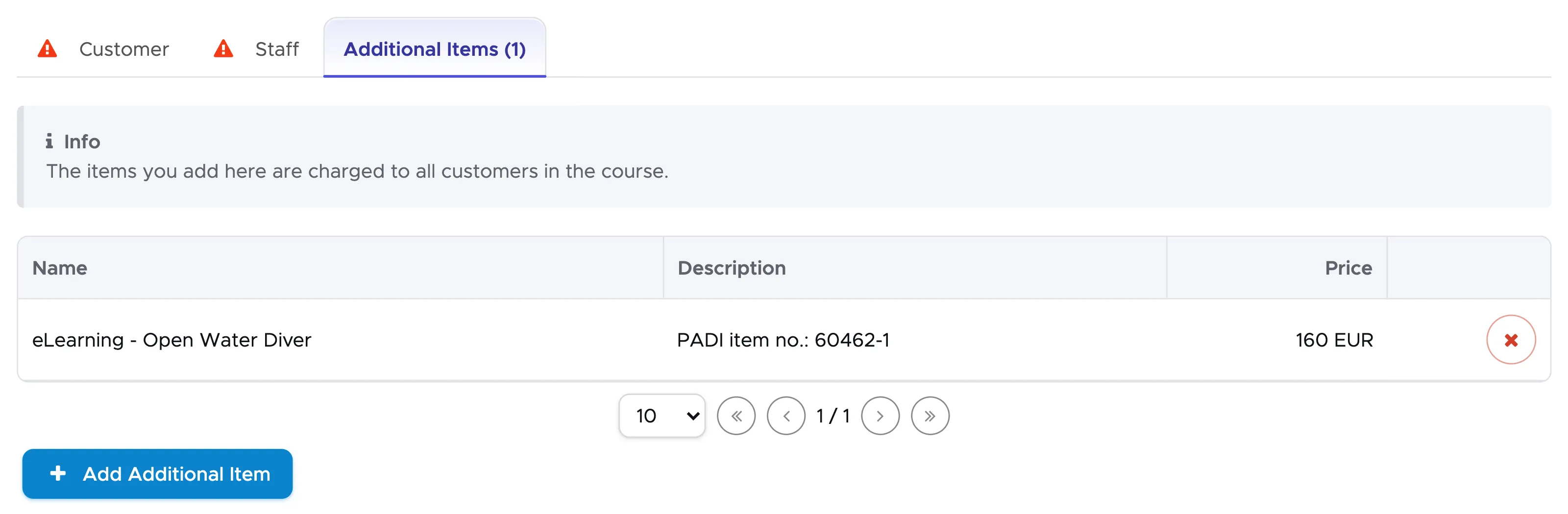
Select any additional costs (if appropriate). If extra charges are already included in your price list item, you will see them already selected. E.g. “eLearning - Open Water Diver” is already selected in the picture above.
Don’t forget to click on the button Save!
8.2.4 New Task
Section titled “8.2.4 New Task”A task can be used for internal reminders, staff meetings and anything else that you need to pin to your Activity Calendar.
Go to your Activity Calendar and click on a day and time. From the pop-up choose Task and click on Ok.
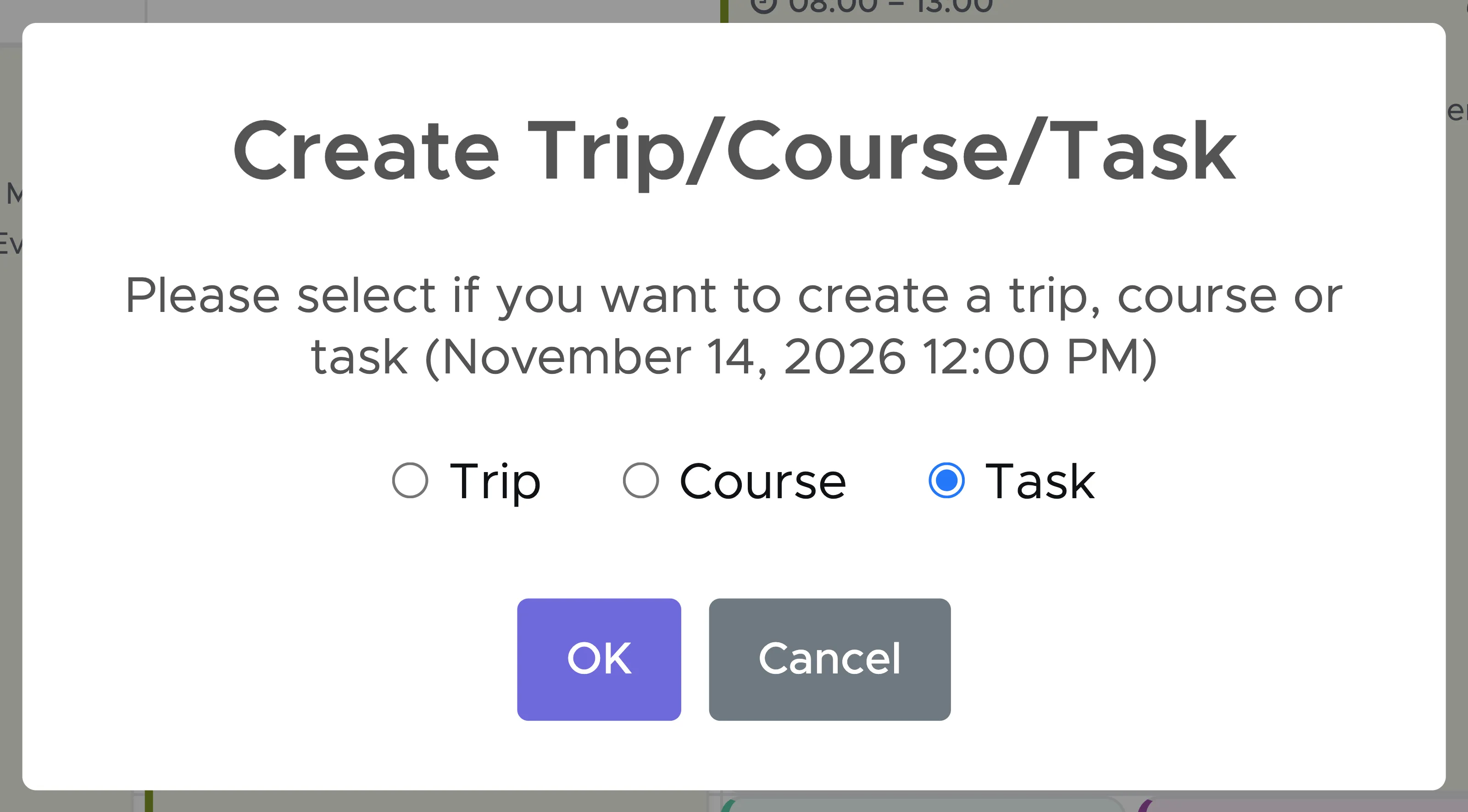
A sidebar will be opened on the right-hand side of your screen.
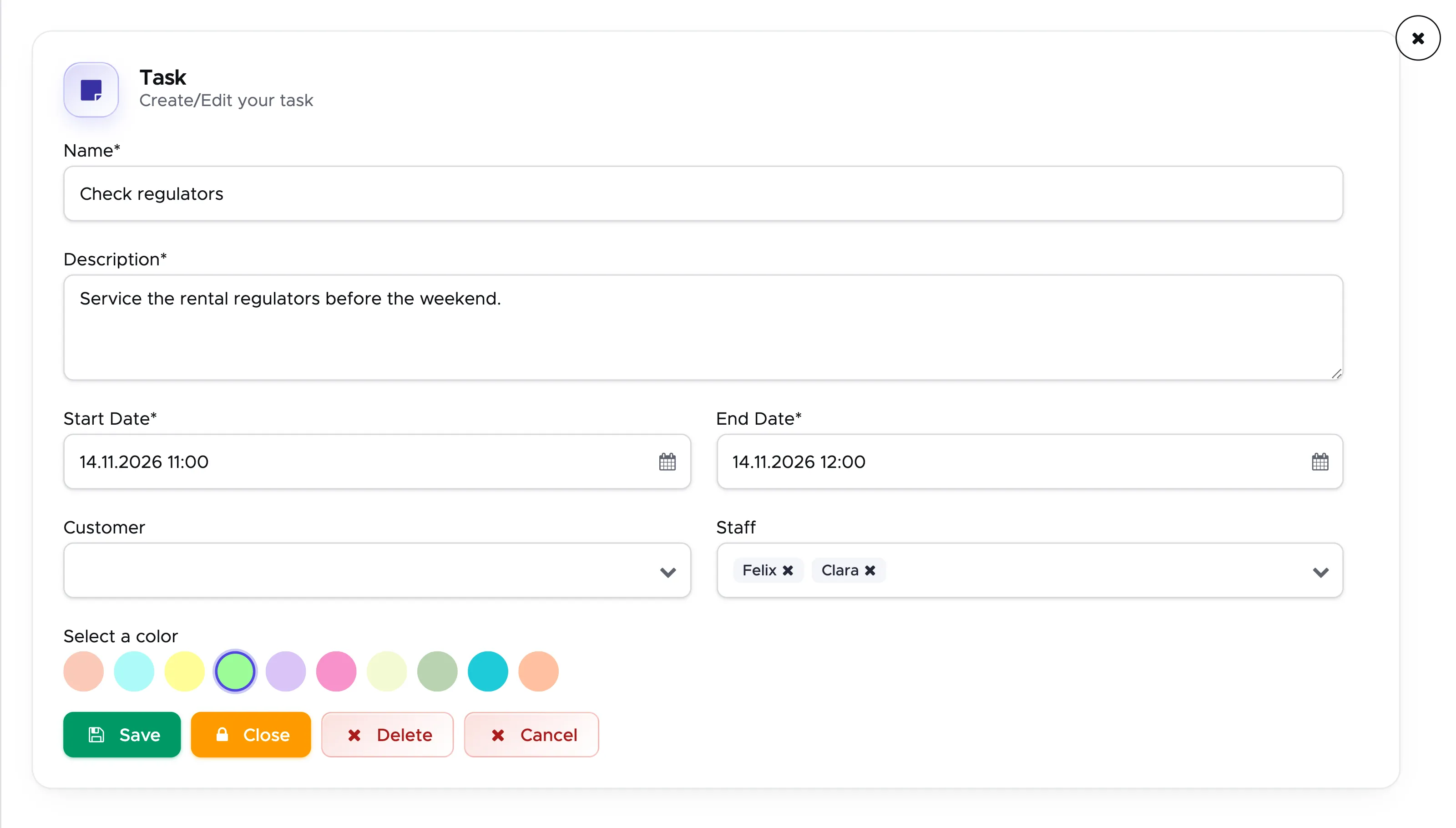
Enter a name and description for this task. The Start Date is the date and time taken from where you clicked in the calendar. The End Date is one hour later. You can change one or both of them by clicking on them and selecting a different date/time.
If you wish, you can add staff members and/or customers to this task. In the field Staff start typing the name or last name of your staff members and Geek Divers will find them. If needed, do the same in the field Customer.
Select a color that will be used to display this task in the activity calendar and click on button Save. The task will be created and added to your activity calendar.
If the task is set for one hour, you might not see the full content of it. Click on the pin icon to open a pop-up that will show you the content of this task.
If you wish to edit the task click on the pencil icon. Make your changes and click on button Save.
Please consider that a task will not automatically update bills or payslips. Think of it as a note pinned to your calendar.
To move a task to another day or time, drag it there. Hold the Option key (Alt on Windows) while you drop it to copy it instead. See 8.2.6 Copy / Move an activity.
8.2.5 Activity pop-up and activity notes
Section titled “8.2.5 Activity pop-up and activity notes”A new activity pop-up has been introduced with version 2.0.
From the Activity Calendar click on a trip picture or on a course to view the pop-up.
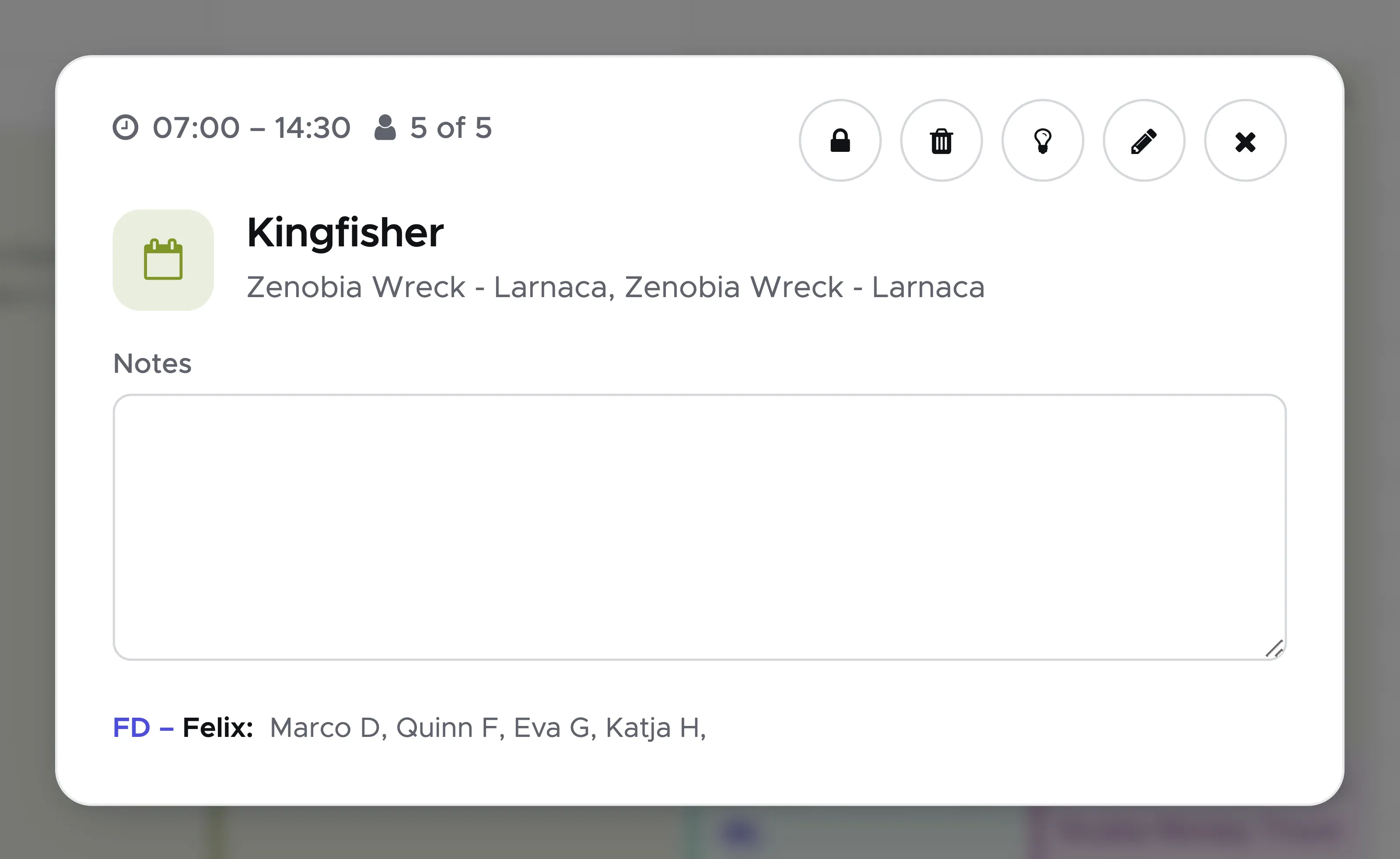
At the top of the pop-up you will find:
-
The activity start and end time.
-
A people icon, the total number of people currently in the activity and the maximum capacity (only in trips) that depends on the chosen transport or on the limitations due to the chosen dive sites (whichever is smaller).
-
A padlock icon to close the activity (a pop-up message will ask you if you’re sure).
-
A trash bin icon to delete the activity (a pop-up message will ask you if you’re sure).
-
A lightbulb icon (only in trips) to access the Trip Quick Edit feature.
-
A pencil icon to edit the activity. A trip opens in a sidebar over the calendar, a course on its own page.
-
An X icon to close the pop-up.
Right below you will find the default icon or picture of the transport selected for this activity and the dive sites.
In the middle of the pop-up you will find the activity notes. You can edit the notes directly in the pop-up or you can click on the pencil icon to edit the activity and you will find the notes there as well.
Below the notes you will see the group(s) in the activity.
Every group is introduced by the abbreviation that you’ve chosen in your price list in blue font. If you haven’t set up an activity abbreviation or if you wish to change it, check chapters Price list item type Trip and Price list item type Course.
The names in bold are your staff members and the remaining names are your customers.
8.2.6 Copy / Move an activity
Section titled “8.2.6 Copy / Move an activity”Starting with Version 2.1, you will be able to simply drag and drop an activity to copy or move it.
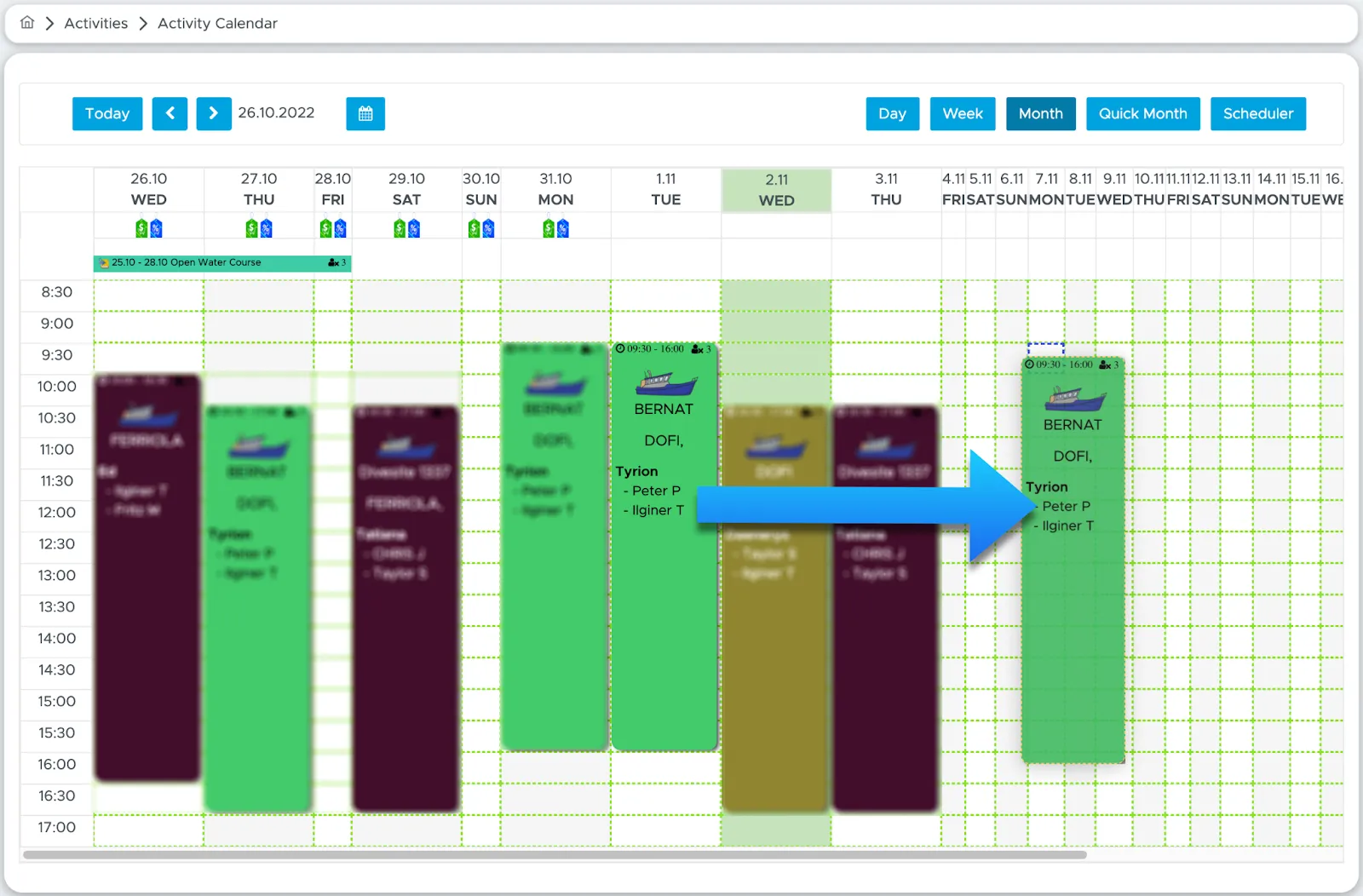
Geek Divers now will ask you if you want to move or copy that activity.
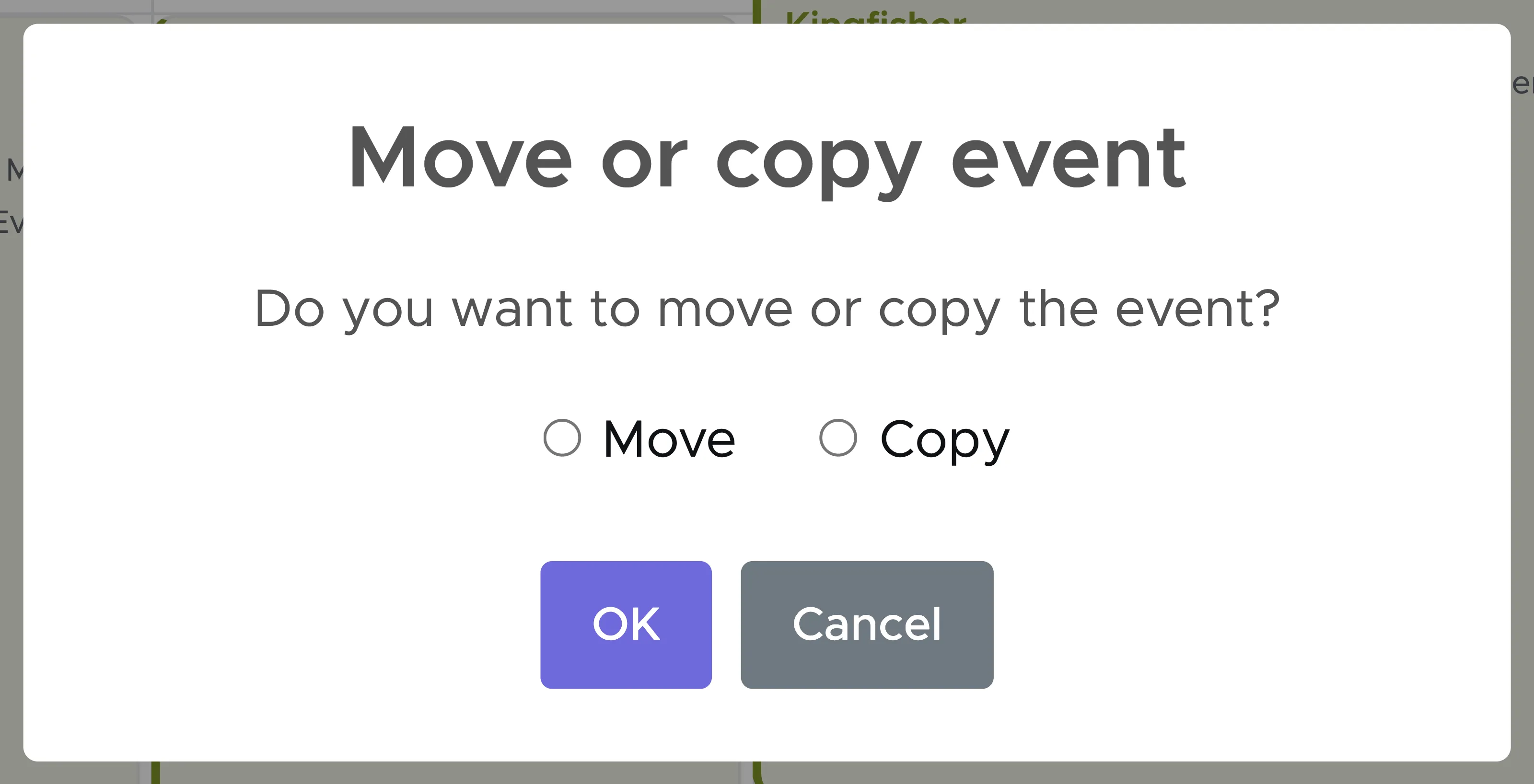
If you choose “Copy”, Geek Divers will ask you if you want to copy everything, or just the activity.
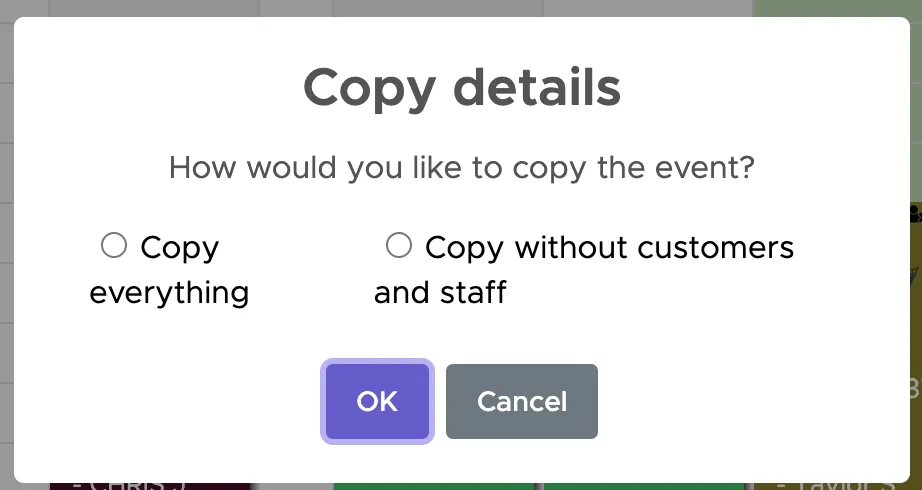
As soon as you make a selection, Geek Divers will copy or move the activity.
A task can be dragged as well, and for a task there is no question to answer. Drop it on another day or time and it moves there, keeping its length. Hold the Option key (Alt on Windows) while you drop it and it is copied: the original stays where it was. A message confirms “Task moved” or “Task copied” with the new date and time.
A task of a day or more sits in the strip above the schedule. Drag it to another day in that strip: it changes its day and keeps its time. A closed task cannot be moved, but it can be copied, and the copy is an open task again.
8.2.7 Course checklist and staff jobs
Section titled “8.2.7 Course checklist and staff jobs”Open a course and click on the tab Tasks. It has two parts, the Student checklist and the Staff jobs.
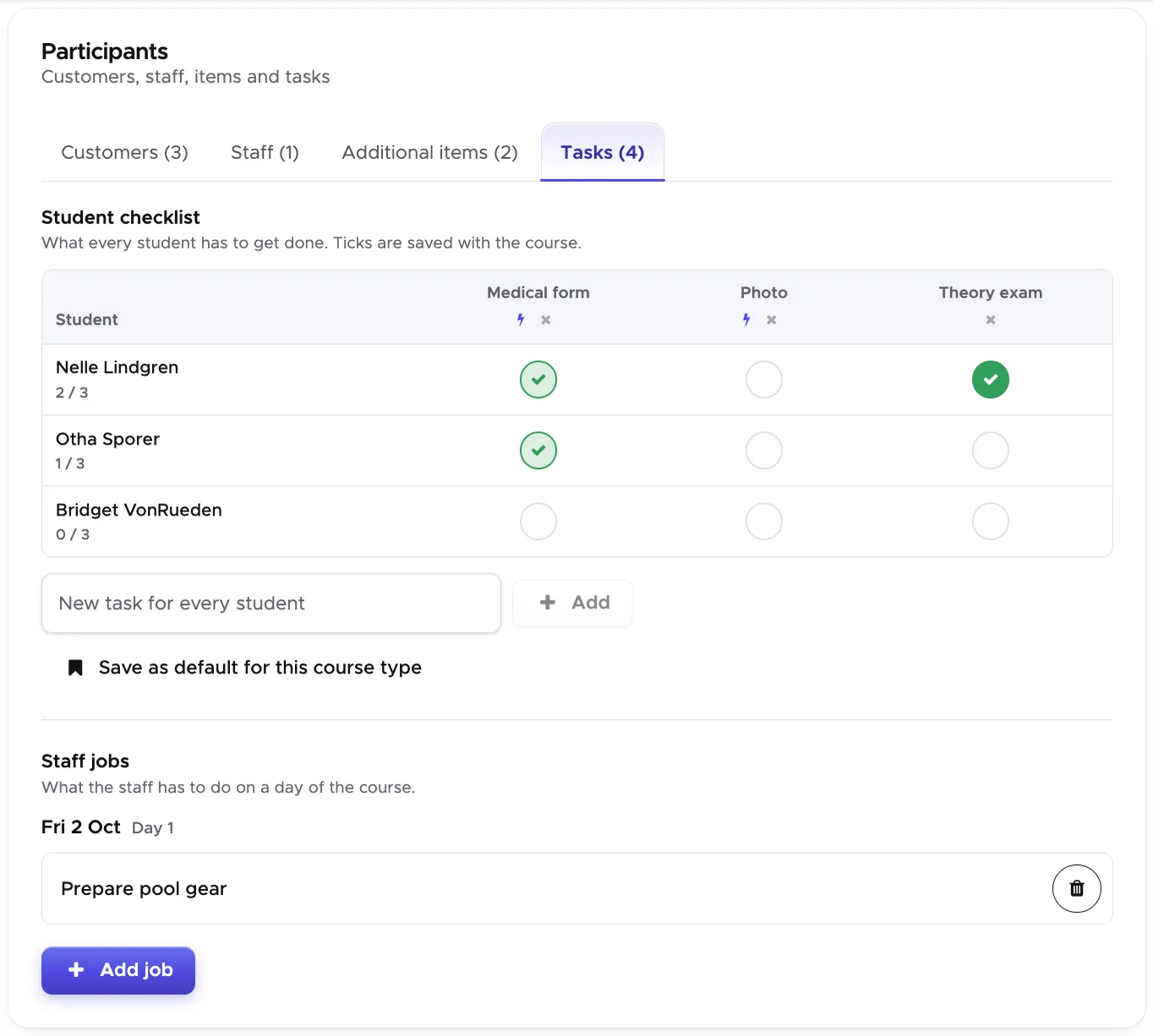
Student checklist is what every student has to get done. Every task is a column and every student is a row. Click on a circle to tick a task for a student, and click again to take the tick away. Under each name you see how far the student is, e.g. 2 / 3.
A task with a lightning icon ticks itself from the customer’s record and cannot be clicked: Medical form is ticked when the customer’s documents hold a medical form, Photo when the customer’s profile has a photo.
To add a task to this course, type it in the field “New task for every student” and click on Add. The x under the name of a task removes it from this course, together with its ticks.
A new course starts with the checklist of its course type, which you set up in General Settings - Course Checklists. What you change on the course only applies to this course. If the list of this course should become the standard, click on “Save as default for this course type”: new courses of that type then start with it.
The ticks and the tasks are saved with the course, so don’t forget to click on the button Update.
A student who joins the course later starts with an empty row. The same is true for a student who was taken off the course and added again.
Staff jobs are what your staff has to do on a day of the course, e.g. “Prepare pool gear”. Click on Add job, choose the date, type the job and, if you wish, select the staff members and the students it is for. The jobs are listed day by day. Click on the bin icon to remove one.
Once a course is closed, the Tasks tab is read-only.
8.3 Modify a Trip or a Course
Section titled “8.3 Modify a Trip or a Course”As long as you don’t close an activity, you can still modify most of its components. To do so, in the menu on the left, click on Activity and Activity Calendar.
Feel free to choose the Day, Week or Month view to locate the Activity that you wish to modify. For trips, click on the picture at the top of the activity block.
This will open a pop-up that shows the details of the existing activity. Click on the pencil icon to view or modify the current activity.
A trip opens in the Trip Builder in a sidebar over the calendar; the button “Full page” in its header takes you to the trip’s own page. A course opens on the course page, the same that you’ve used to create it.
What you can modify:
- Dive sites ( for trips only): add, remove dive sites and change the number of times your customers went to a specific dive site.
- Additional charges: add or remove additional charges for the Activity.
- Customers: add or remove customers who joined the Activity and reorganize the groups.
- Staff: add or remove staff members who joined the Activity and reorganize the groups.
- Modify the number of sections that a staff member has taught during a course.
- Add one or more agents to the customers.- EAN: add or remove the EAN checkbox (for trips only).
- Add or remove additional charges for one customer.
- Modify the number of dives that a customer has done (for trips only).
- Modify the number of dives that a staff member has done (for trips only).
You cannot modify the Activity type. If you’ve created a trip, the trip cannot be turned into a course and vice versa: if you’ve created a course, the course cannot be turned into a trip. If the course or trip didn’t happen, you can click on the trash bin icon of an activity pop-up. No customer will be charged and no staff member will be remunerated for a deleted activity (according to the set up commission model).
You cannot add customers or staff members to a saved course within a trip. However, you can remove a customer or a staff member from a course added to a trip. This change will not affect the course that you’ve set up. To permanently remove a customer or a staff member from a saved course you need to edit the course.
8.3.1 Add/Remove Dive Sites
Section titled “8.3.1 Add/Remove Dive Sites”In the menu on the left, click on Activity and Activity Calendar and locate the activity that you wish to modify. For trips: click on the picture to open the pop-up and choose the pencil icon. Please note that there are no dive sites in a course. This is because you could set up a dry course or a regular one that includes dives. At a certain point of the course you will add the whole course to a trip for the training dives.
For Trips {id=“for-trips_4”}
Section titled “For Trips {id=“for-trips_4”}”If you wish to remove a dive site, scroll to the bottom of the page and click on the “X” next to the dive site of your choice.
If you wish to add a dive site, select the dive site of your choice from the drop-down menu. Please remember that any change to the dive sites will affect the Dive Roster and the data that you’ve already entered.
Before leaving the Trip, don’t forget to click on the button Save!
8.3.2 Add/Remove Customers and Staff members
Section titled “8.3.2 Add/Remove Customers and Staff members”In the menu on the left, click on Activity and Activity Calendar and locate the activity that you wish to modify. Click on the Activity picture to open the pop-up and choose the pencil icon.
For courses {id=“for-courses_1”}
Section titled “For courses {id=“for-courses_1”}”Click on the tab to see the customers. Open the dropdown menu and click on the “Remove Customer” button.
If you wish to change the selected staff members, click on the Staff tab.
Open the dropdown menu and click on the “Remove” button.
Before leaving the Course page, don’t forget to click on the Update button!
For Trips {id=“for-trips_1”}
Section titled “For Trips {id=“for-trips_1”}”Click on tab Groups.
Select a group by clicking on the Trip/Course name.
Click on a customer on the left to add them to the group or use the search field to locate the customer from All Customer.
Click on the down-arrow of a selected customer to show the button Remove. Click on the button Remove if you wish to remove this customer from the group.
Click on Staff to view your current diving staff members and the staff members assigned to the group.
Click on a staff member on the left to add him/her to the group.
Click on the down-arrow of a selected staff member to show the button Remove. Click on the button Remove if you wish to remove this staff member from the group.
Please note that if you add a course to a trip you can only remove customers or staff members from this group and the changes made in the trip will not affect the course. In this case you cannot add customers or staff members.
If you wish to create a course from within the trip, you are free to select customers and staff members. Once you add the group to the trip, Geek Divers will create a separate course that you can view and modify in the Activity Calendar.
Don’t forget to click on button Add/Update to save the changes to the group in the Trip.
Before leaving the Trip, don’t forget to click on the button Save!
Trip Quick Edit
Section titled “Trip Quick Edit”The Trip Quick Edit feature is very useful if you only need to reorganize the groups in your trip: moving people from one group to another, add/remove people and create new groups. In the Trip Quick Edit you cannot add extra charges or EAN tanks. To do so you need to use the regular Trip Edit feature.
In the menu on the left, click on Activity and Activity Calendar and locate the trip that you wish to modify. Click on the picture to open the pop-up and choose the lightbulb icon (Quick Edit).
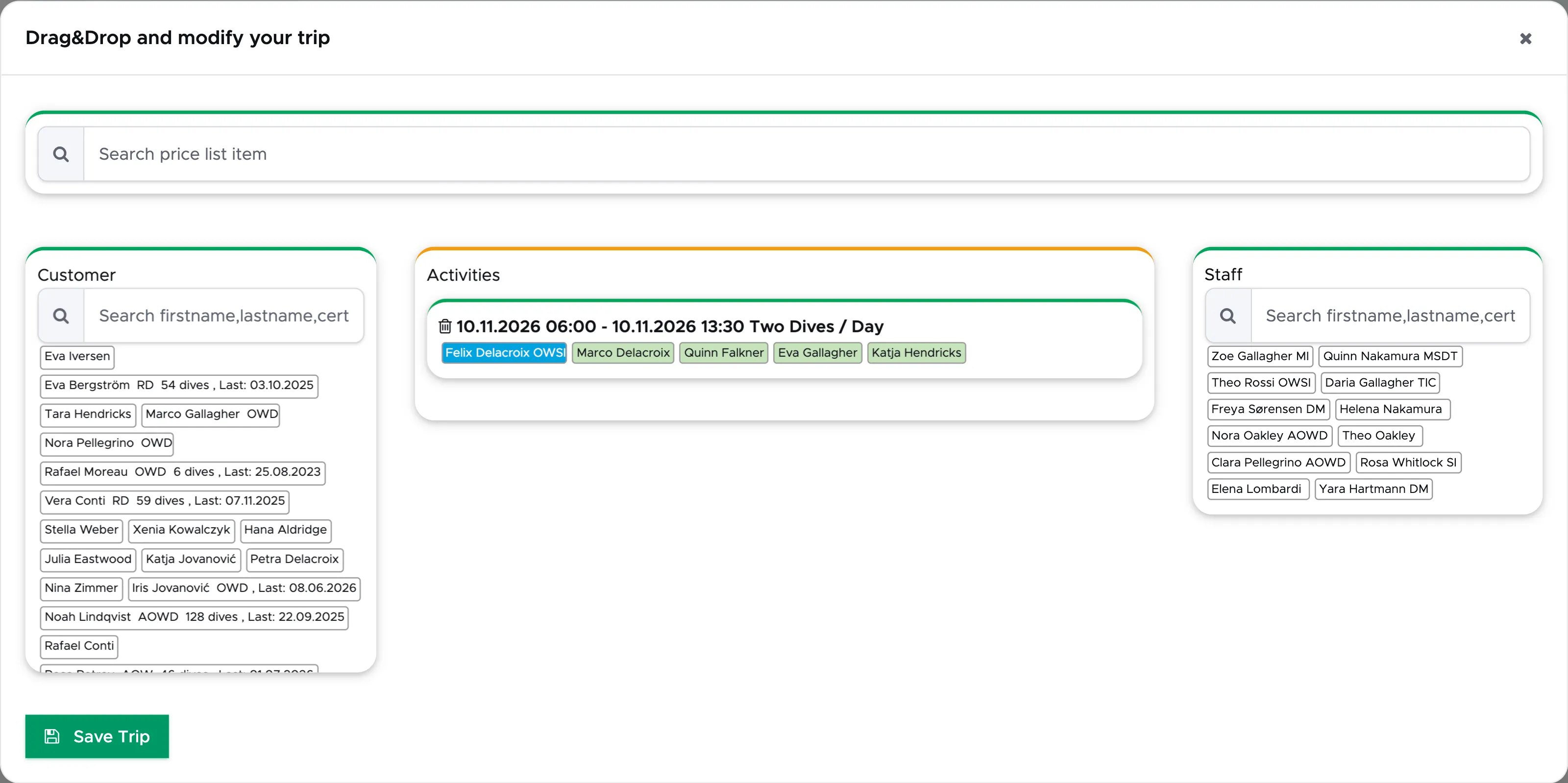
Geek Divers will open a pop-up window that looks like a white board. In the middle, under “Activities”, you will see the groups that you’ve already added to your trip.
The names in light-blue represent the staff members and the names in green the customers.
On the left you will find your current customers that are not yet part of the trip and on the right the staff members.
At the top, in the search string, you can search for the price list item type trip that you wish to use to create another group.
Search for your trip in the search string and drag it in the middle of this pop-up to create another group.
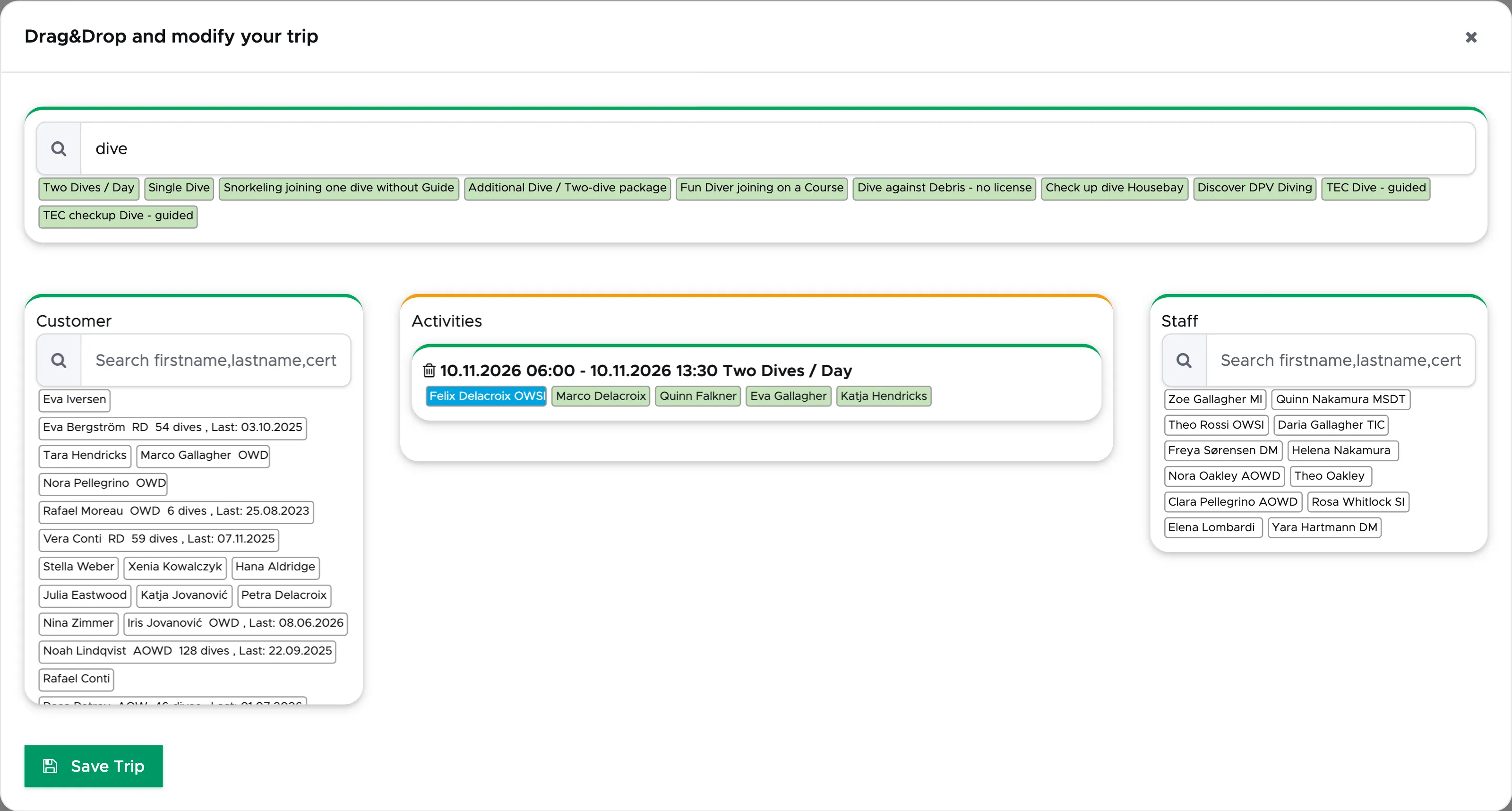
The blue segmented area will show you where you can drop the trip that you’ve chosen to use. Drop it anywhere in this area and you will see a new empty group.
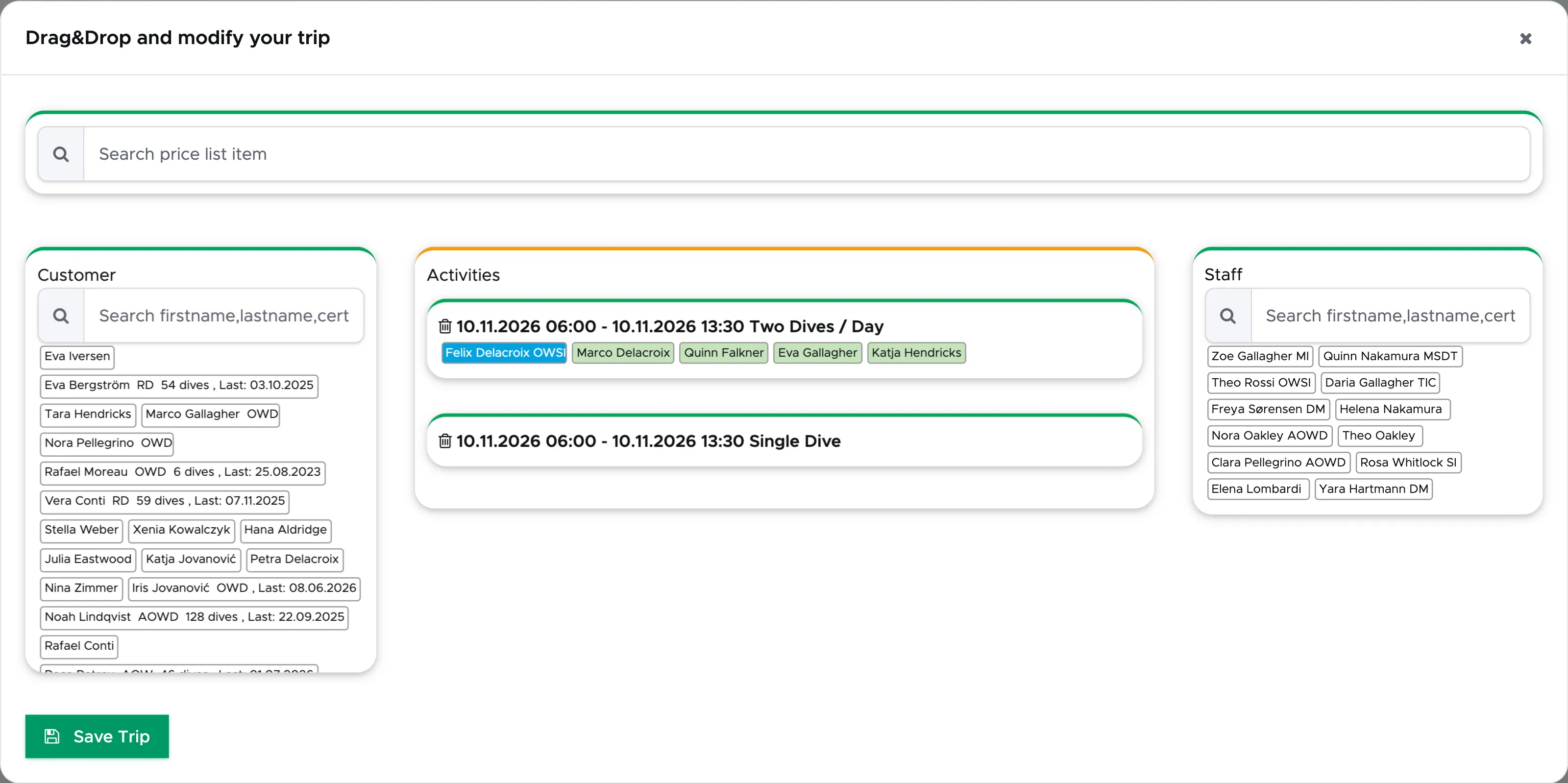
Now drag customers from the left column or from the first group to the empty group that you’ve just created:
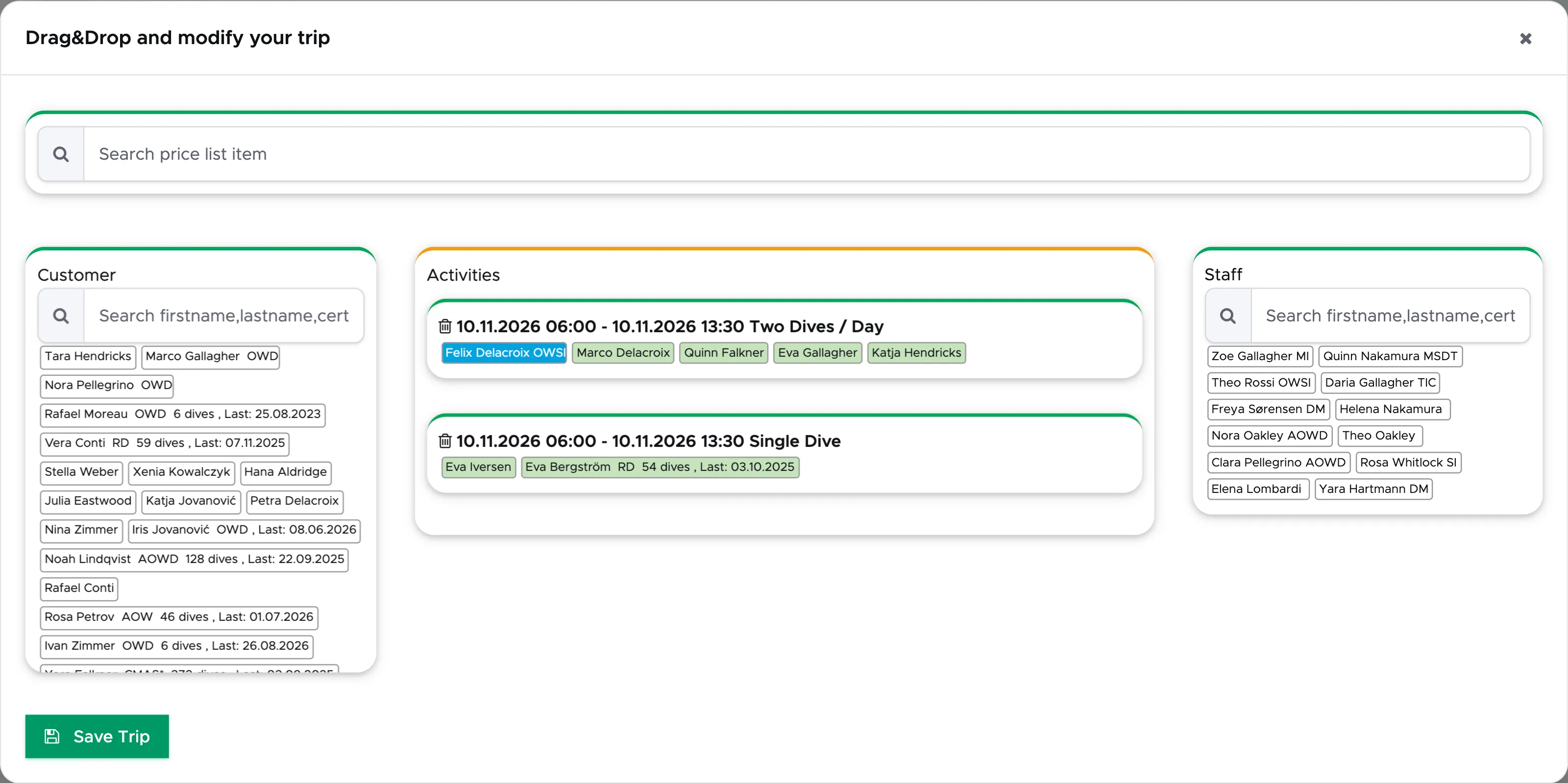
You can create as many groups as you need, rearrange the existing ones and add staff members.
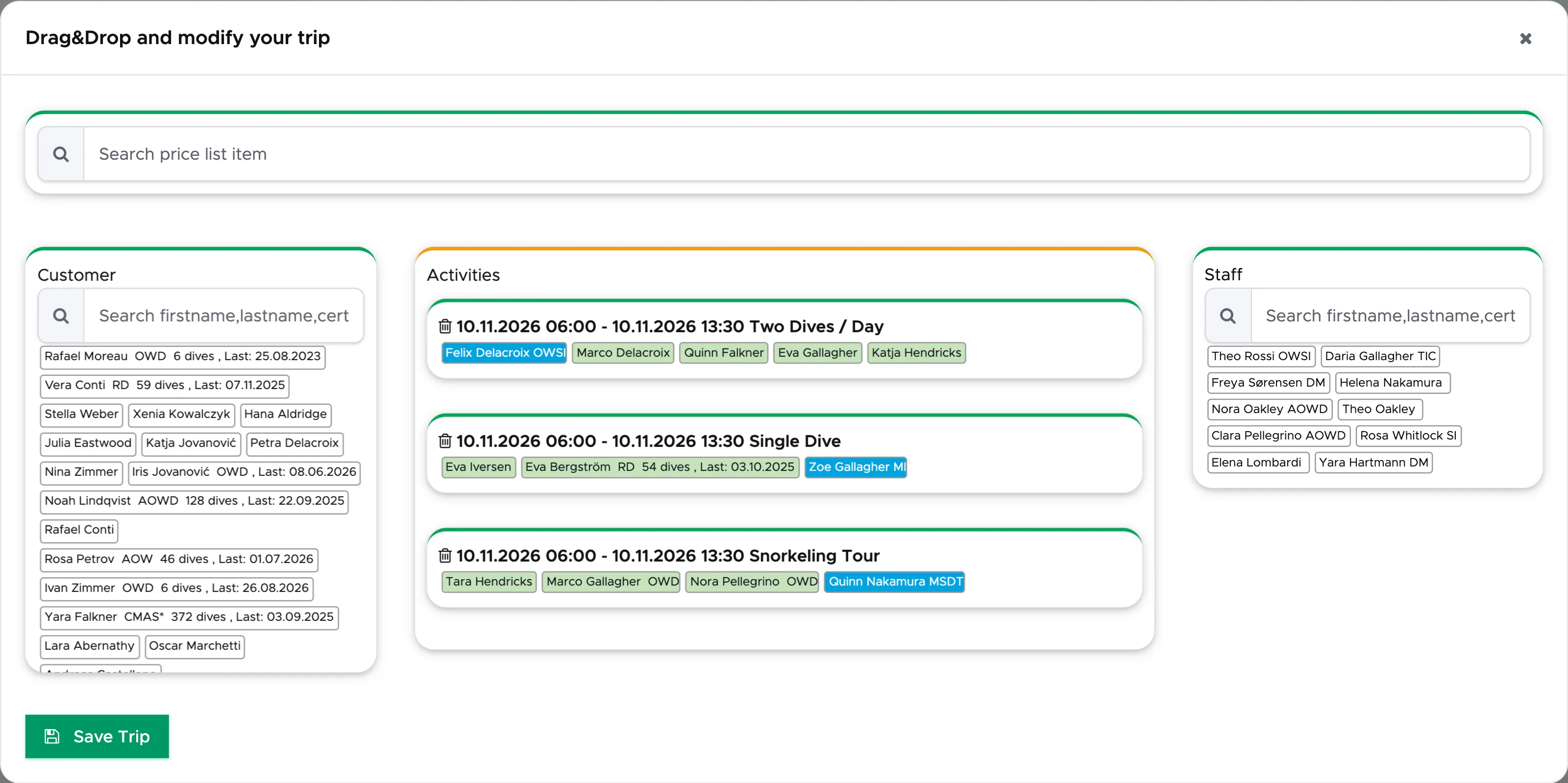
Customers will be shown in green and staff members in blue.
In case of wrong selections or a last-minute change, you can drag customers back to the left column and staff members to the right column.
When you’re done with your quick edit, click on button “Save Trip” at the bottom. The trip in your calendar will show the updated groups.
Please consider that the Quick Edit view is meant to be used only to rearrange groups, customers and staff members in a trip. To change dive sites, transport, times/dates, add courses as a group in the trip, add non-current customers, add extra charges, assign agents or equipment you need to use the regular Edit feature.
Please consider that course groups follow special rules: you cannot add people to course groups in a trip if they are not already part of the course in the calendar.
8.3.3 Modify the number of sections
Section titled “8.3.3 Modify the number of sections”You can add/modify the number of sections only if your price list items are set up with sections. Please check paragraph Sections to read more about Sections. In this chapter you will find a complete explanation about sections for courses. However you can set up sections in price list item types Trip as well.
In the menu on the left, click on Activity and Activity Calendar and locate the activity that you wish to modify. Click on the Activity picture to open the pop-up and choose the pencil icon.
For courses {id=“for-courses_2”}
Section titled “For courses {id=“for-courses_2”}”Click on Select Staff to view the staff members assigned to this course. Delete and type again the number of sections that each staff member worked on. Please consider that you don’t need to write the number of sections in a staff member’s card if you’ve assigned only one staff member to the course as the total number of sections considered is the maximum by default. Sections are meant to be used to share the workload (and the commissions) among two or more staff members. This also means that if two or more staff members are assigned to the same course and you don’t specify the number of sections they’ve actually taught, each staff member will get the full commission for the course once you close it.
Before leaving the course page, don’t forget to click on button Update!
For Trips {id=“for-trips_2”}
Section titled “For Trips {id=“for-trips_2”}”Click on Groups tab.
Select a group by clicking on the trip name. Please consider that if you need to modify the sections of a course you need to open the course from the Activity Calendar.
Click on Diving Staff.
Click on the down-arrow of the selected staff members to view the sections and modify them. Please consider that you don’t need to write the number of sections in a staff member’s card if you’ve assigned only one staff member to the group as the total number of sections considered is the maximum by default. Sections are meant to be used to share the workload (and the commissions) among two or more staff members assigned to the same group of customers. This also means that if two or more staff members are assigned to the same group of customers and you don’t specify the number of sections they’ve actually done, each staff member will get the full commission for the activity once you close it.
Don’t forget to click on button Add/Update to save the changes to the group in the Trip.
Before leaving the Trip, don’t forget to click on button Save!
8.3.4 Add an agent to a customer in an activity
Section titled “8.3.4 Add an agent to a customer in an activity”In the menu on the left, click on Activity and Activity Calendar and locate the activity that you wish to modify. Click on the Activity picture to open the pop-up and choose the pencil icon.
For courses {id=“for-courses_4”}
Section titled “For courses {id=“for-courses_4”}”In every customer card you will see a table with a button “Edit/Assign Agent”. To add an agent, click on this button. A dialog box will pop up with the list of possible agents. If you don’t see any agent it’s because you didn’t create any agent commission for your internal staff members or external partners/agents. Please go to paragraph Agent Commissions to read how to set them up.
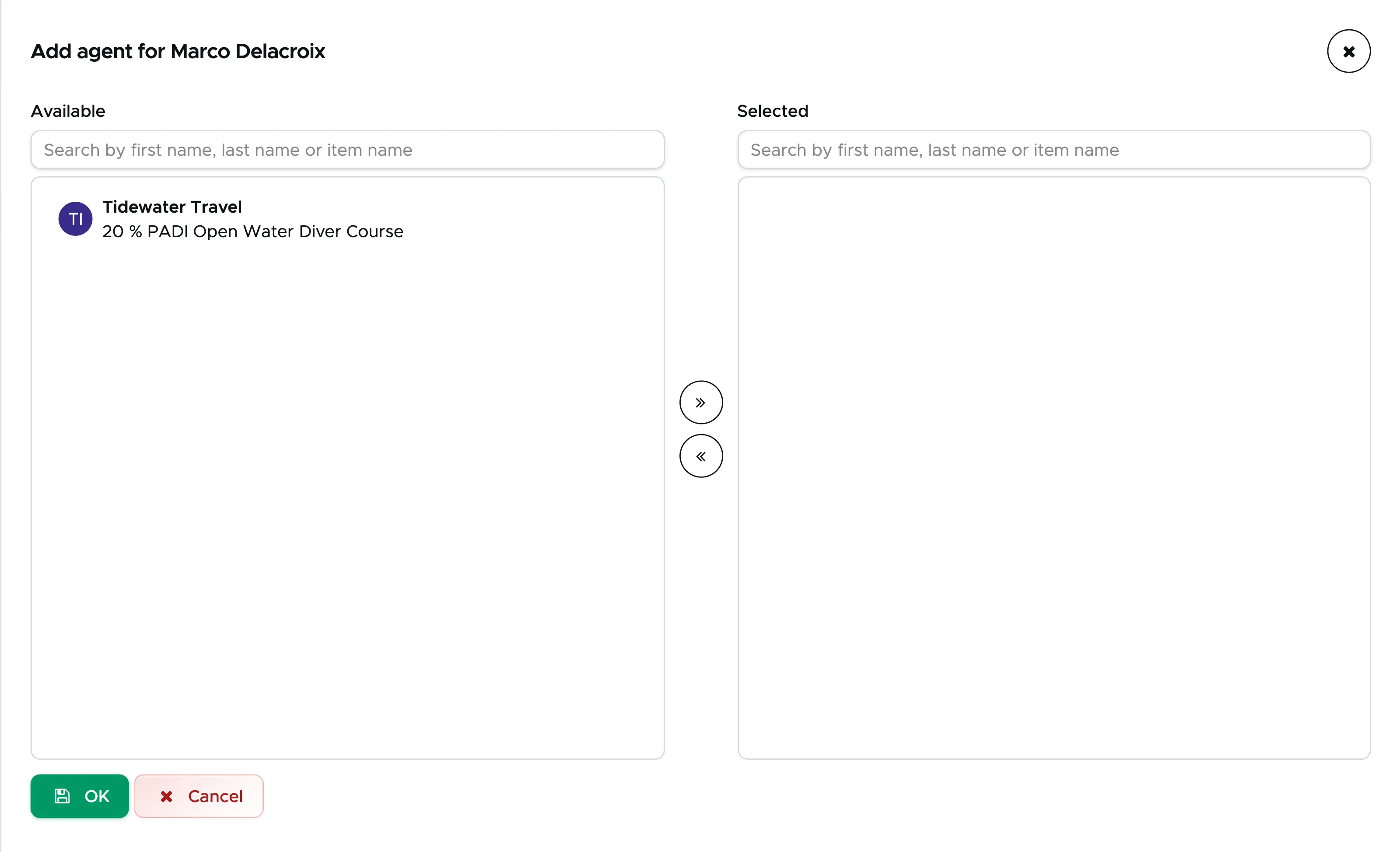
In the dialog box locate the agent and commission that you wish to assign to this customer and move it from the left to the right or click on the arrow button.
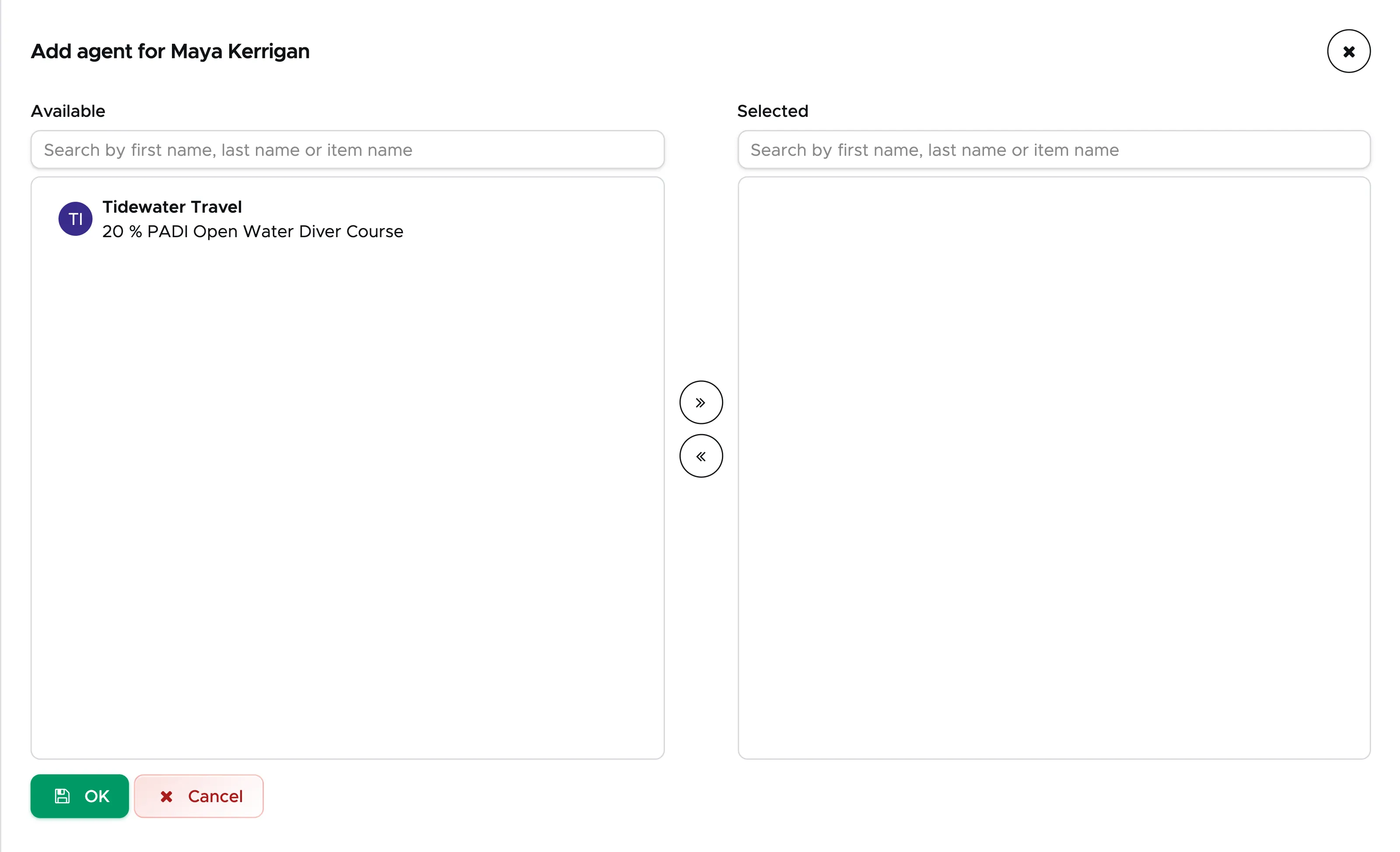
In the example above here the agent Tidewater Travel is available with a 20 % commission on the PADI Open Water Diver Course. Once you move it to “Selected” and close the course, you will see a new line in this agent’s Credit Note with a 20 % commission on this course (excluding fees and course material).
Click on the OK button to save your selection.
In the table you will now see the assigned commission + the agent.
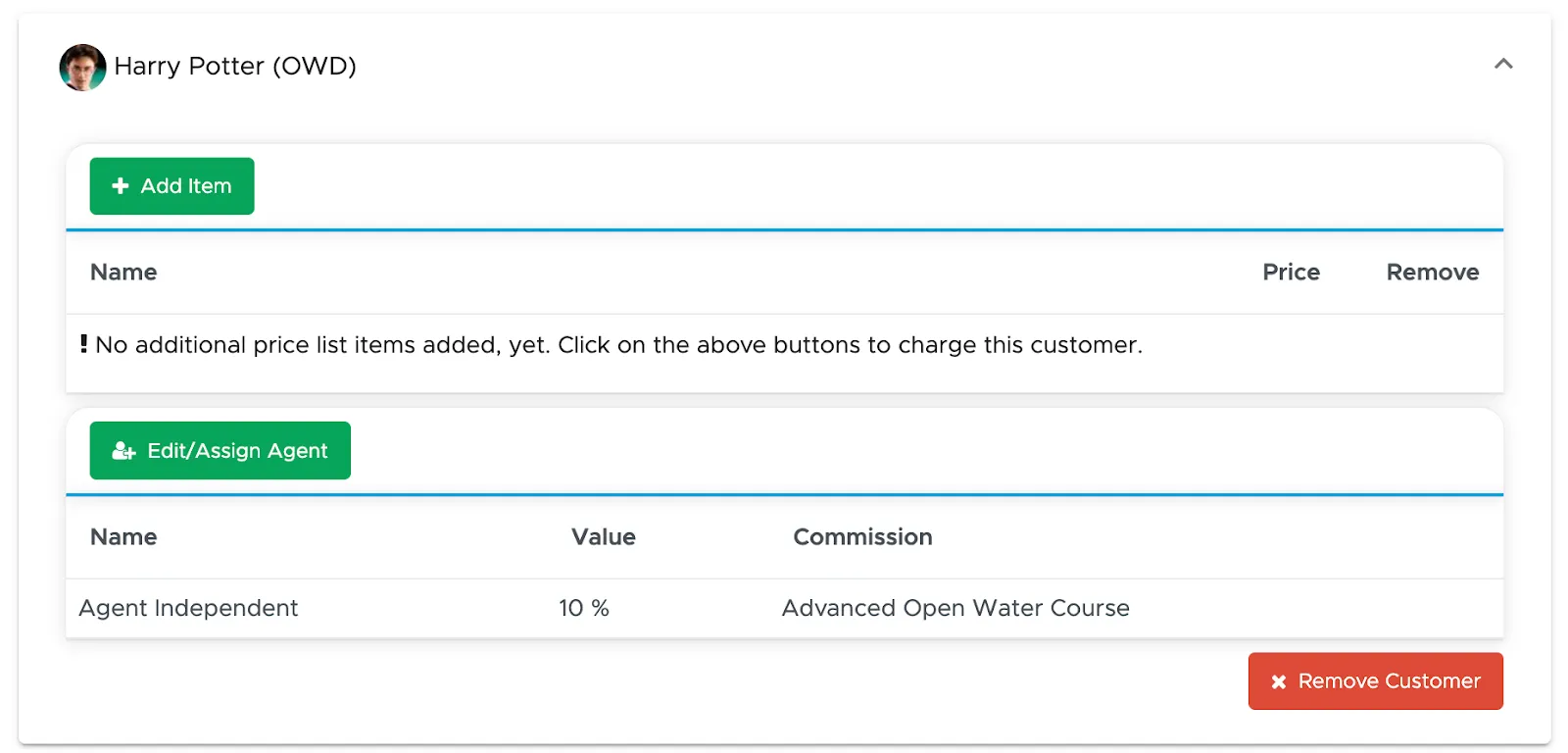
You can always open a Course (still open or already closed), go to the customer card to see which agent was assigned to this customer. If the Course is already closed however you won’t be able to modify it.
If the Course is not yet closed, you can assign more than one agent to a customer by repeating the steps described above here.
Before leaving the Course page, don’t forget to click on the Update button!
For Trips {id=“for-trips_5”}
Section titled “For Trips {id=“for-trips_5”}”The trip opens in the Trip Builder. Click on People. If the trip has more than one group, choose the group first.
Click on the customer that you wish to assign an agent to. A panel opens below the name. Under “Agents” click on the button “Assign agent”. Only customers have this button, staff members don’t. The button opens the same dialog as for courses (see above), for the selection of the agent and the specific commission that you wish to apply.
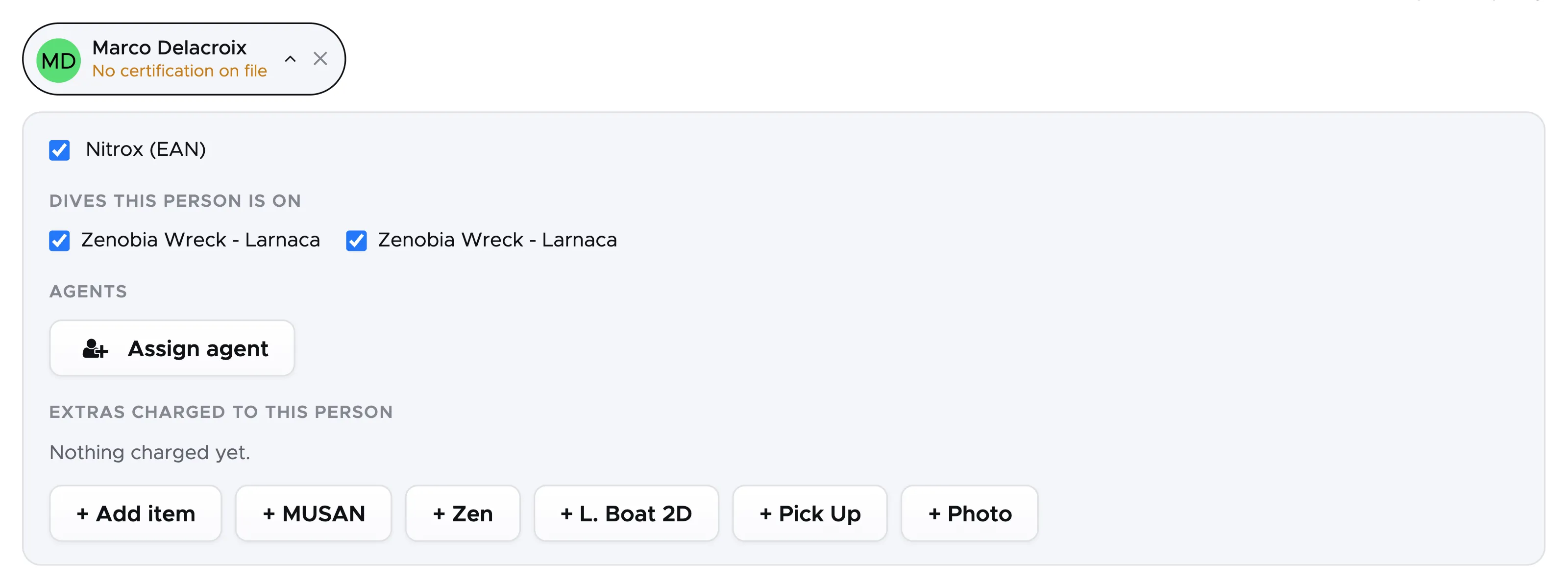
Locate the agent name, select a commission, move it to the right side and click on button OK.
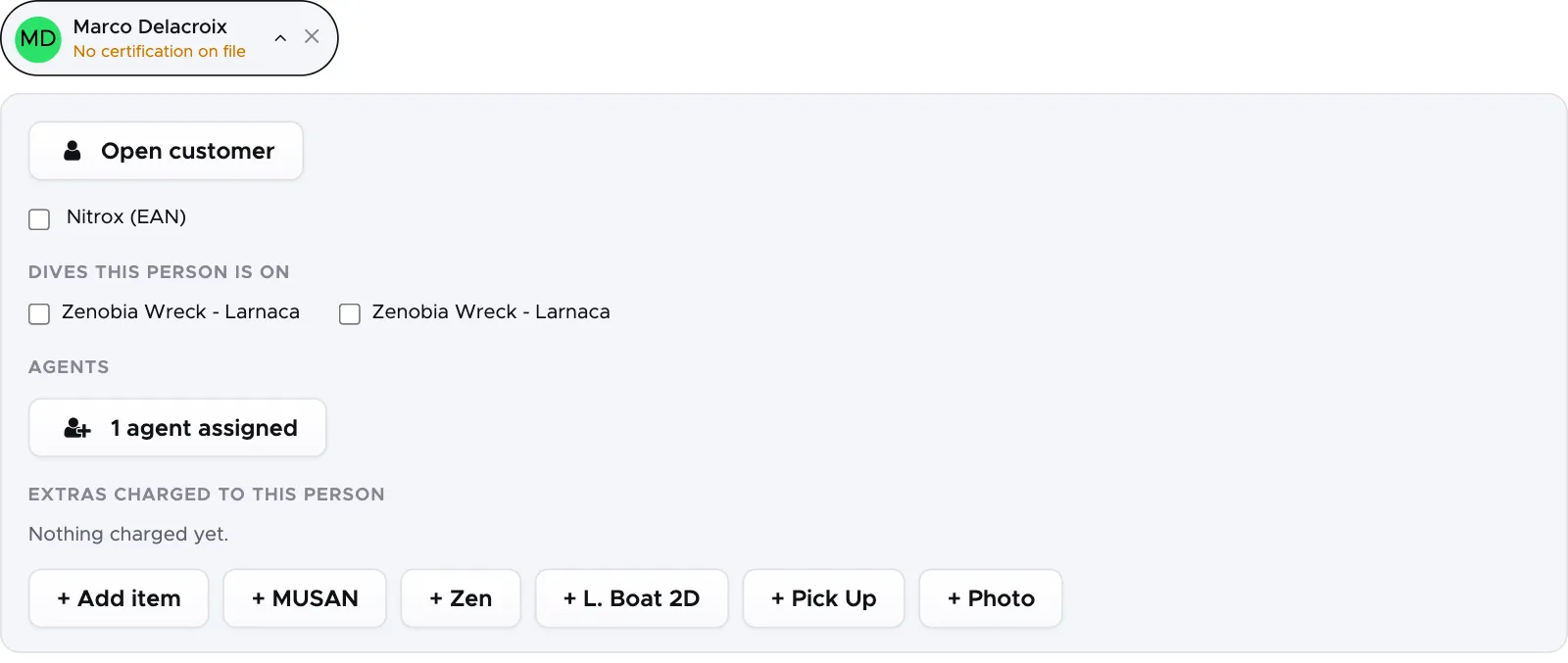
The button in the customer’s panel will now show “1 agent assigned”.
Click on the button again to add another agent to the same customer, or repeat the steps described above here for another customer. If the trip is already closed, the dialog shows the assigned agents but has no OK button.
Before leaving the Trip, don’t forget to click on the button “Save changes”!
8.3.5 EAN
Section titled “8.3.5 EAN”If you don’t offer Nitrox in your dive center, you can skip this chapter.
An EAN checkbox will always be visible in the customer’s card in a trip. Whether you charge an extra fee for EAN or not, it is a good idea to tick the EAN checkbox if the customer chooses to dive with Nitrox because this will be visible in the Dive Roster and in the Equipment List. A check on EAN will also update the number of tanks that you need in every trip (visible in Equipment List Summary). Please consider that you can only select EAN tanks in a trip, not in a course.
In the menu on the left, click on Activity and Activity Calendar and locate the trip that you wish to modify. Click on the trip picture to open the pop-up and choose the pencil icon.
For Trips only {id=“for-trips-only_1”}
Section titled “For Trips only {id=“for-trips-only_1”}”The trip opens in the Trip Builder. Click on People. If the trip has more than one group, choose the group first.
Click on the customer. A panel opens below the name; tick the “Nitrox (EAN)” checkbox.
If you charge extra for Nitrox tanks, the customer’s bill will show the extra fee in his/her bill.
Before leaving the Trip, don’t forget to click on button Save!
8.3.6 Additional charges for a single customer
Section titled “8.3.6 Additional charges for a single customer”If there are additional charges for one customer only, then you can add them on customer level.
In the menu on the left, click on Activity and Activity Calendar and locate the activity that you wish to modify. Click on the Activity picture to open the pop-up and choose the pencil icon.
For courses {id=“for-courses_3”}
Section titled “For courses {id=“for-courses_3”}”Click on the ‘Add Item’ button in the customer card, select one of the available extra charges and click it to confirm your selection.
The customer’s card will show the extra costs in the table:
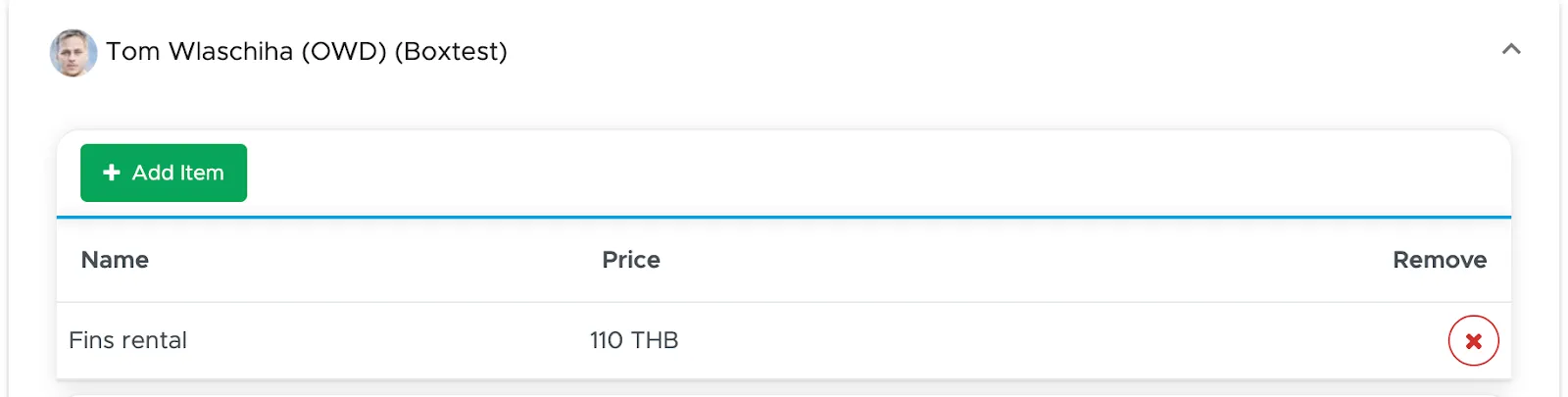
You can add more extra charges by clicking on the “+” button and remove them by clicking on the “X” button.
You will see the extra charges in the customer’s bill in separate bill positions.
Before leaving the Course page, don’t forget to click on button Update!
For Trips {id=“for-trips_3”}
Section titled “For Trips {id=“for-trips_3”}”Click on Groups tab.
Select a group by clicking on the Trip name.
Click on the down-arrow of the selected customer to view and click on the quick buttons and/or on button Add Item.
With a click on a quick button:
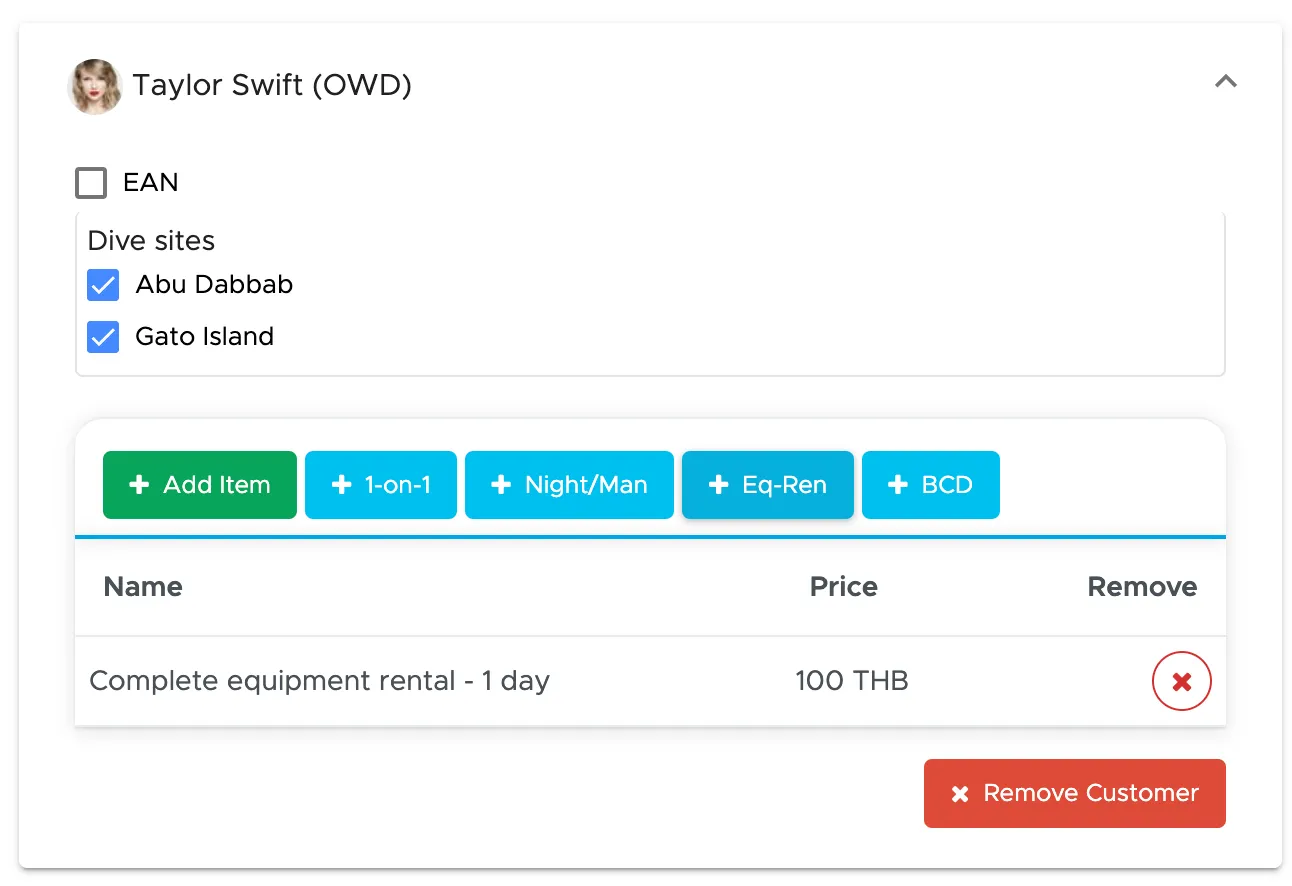
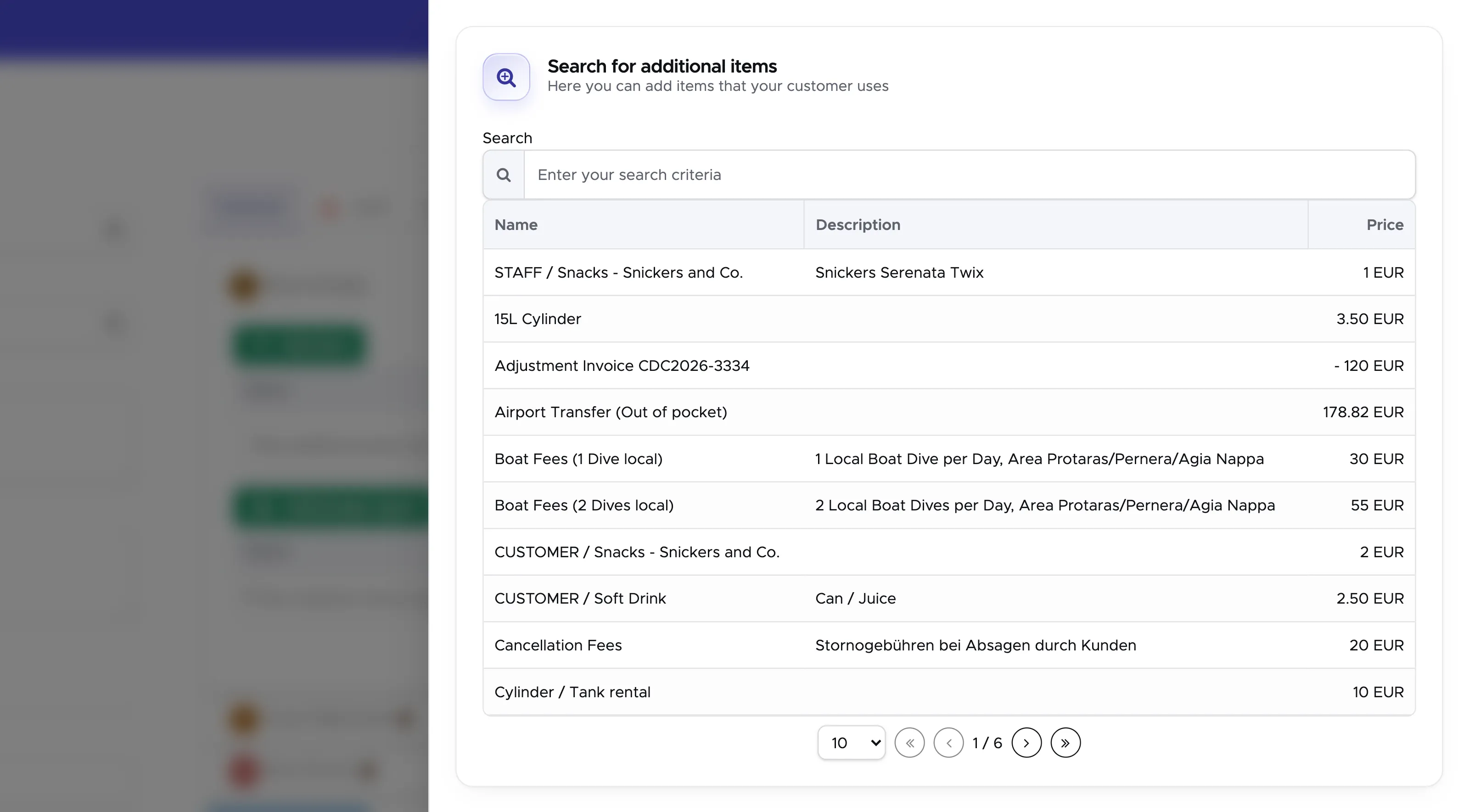
Click on button “+ Add item” to view all the possible additional items:
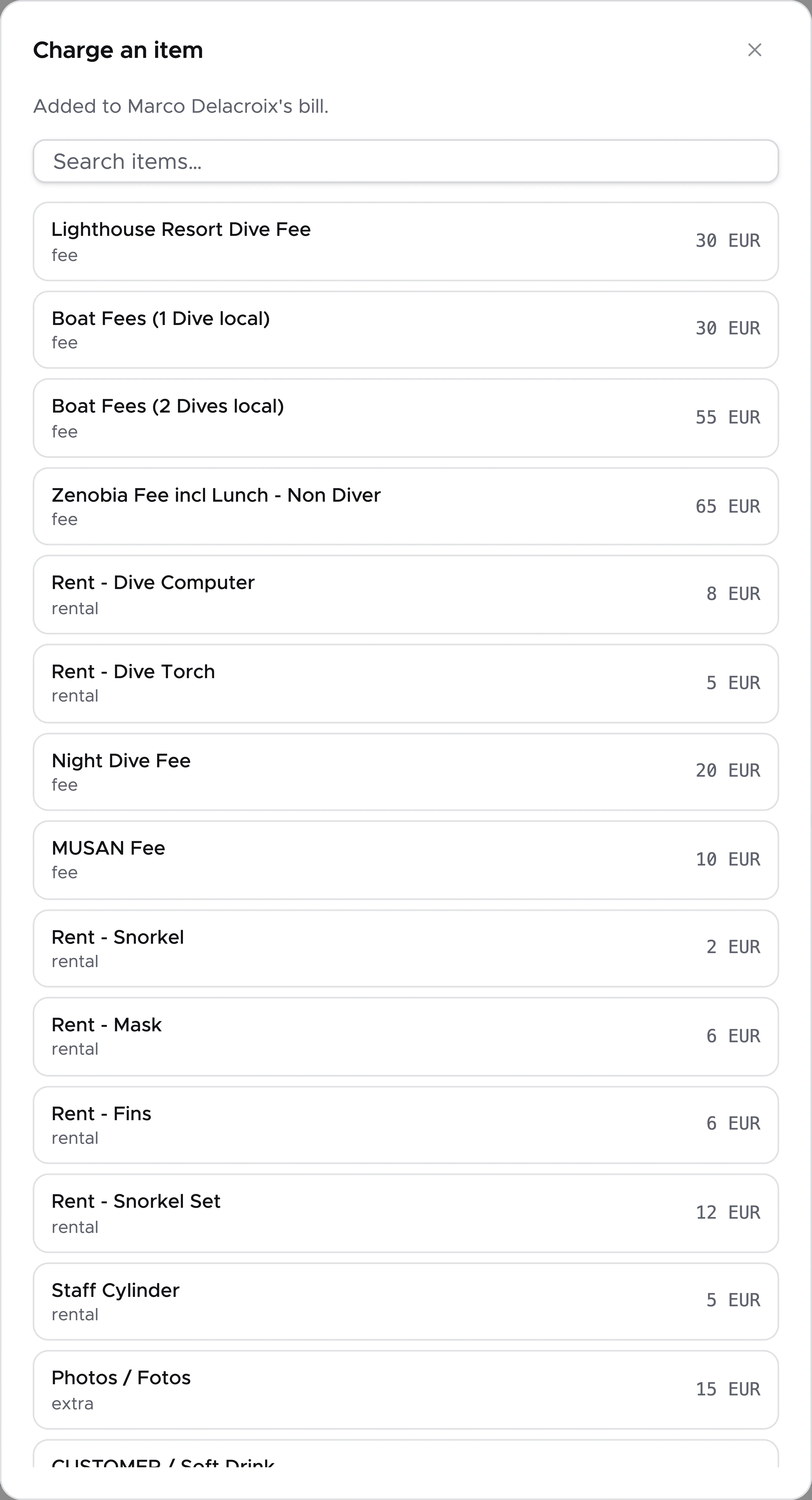
The dialog “Charge an item” shows you all the extra items that you can charge. If not immediately visible, start typing the name of the item in the search field on top. Once you’ve found what you’re looking for, click on it: the dialog closes and the item is listed under “Extras charged to this person” in the customer’s panel.
You can remove the extra charges by clicking on the X button next to each extra charge.
Before leaving the Trip, don’t forget to click on the button “Save changes”!
8.3.7 Modify the number of dives per customer
Section titled “8.3.7 Modify the number of dives per customer”For Trips only
Section titled “For Trips only”If you charge your customers per dive or if your staff members receive their commissions based on the number of dives or the number of tanks, then you need to update the number of dives that they actually did during a specific activity.
If you charge your customers for an Activity (Course or Trip) that includes dives or if your staff members receive their commissions per Activity or per customer or if you charge your customers for every dive listed in the trip, you can skip this paragraph.
Reminder: this paragraph explains how to remove a dive from a customer who decided not to do one (or more) dive(s) in the Trip. If you wish to remove a dive site from the whole Trip, please follow the instructions in paragraph Add/Remove Dive Sites Please consider that this is only valid for Trips.
In the menu on the left, click on Activity and Activity Calendar and locate the activity that you wish to modify. Click on the Activity picture to open the pop-up and choose the pencil icon.
The trip opens in the Trip Builder. Click on People. If the trip has more than one group, choose the group first.
Click on the customer. A panel opens below the name. Under “Dives this person is on” you will see the dive sites selected in your trip and you can untick one or more, like in the picture below here.
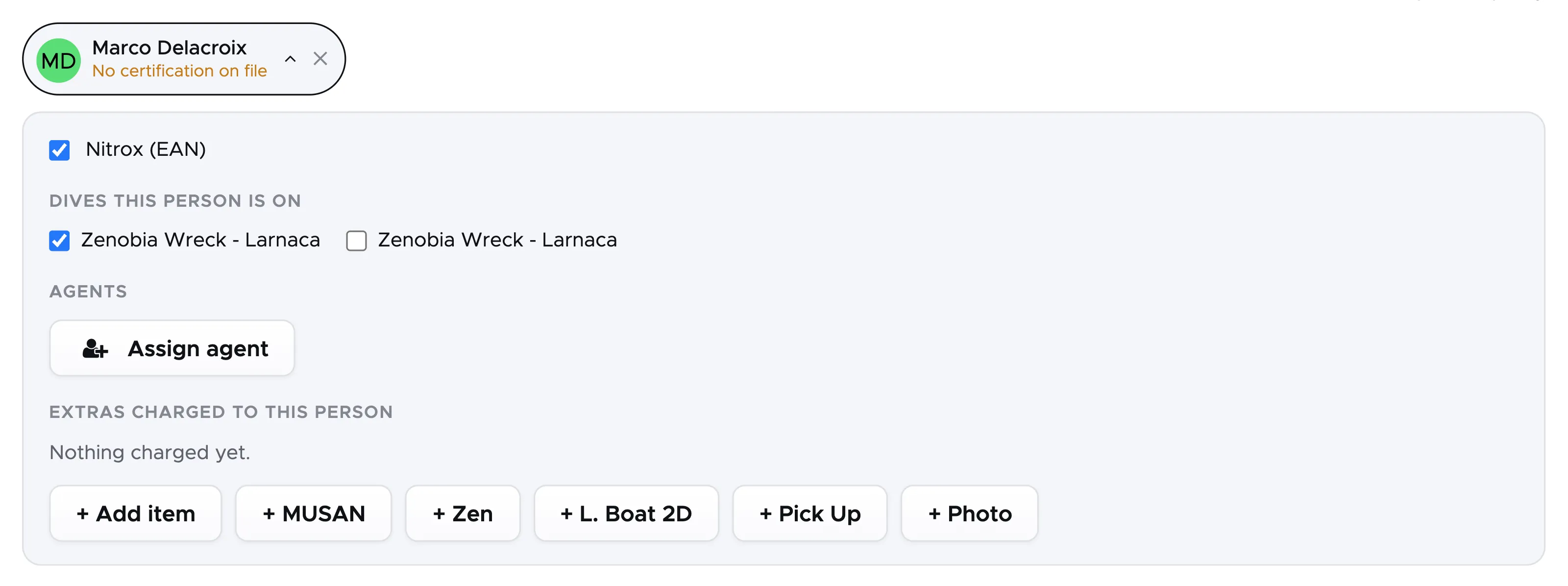
Please consider that if you charge your customers for a Trip that includes the dives, the customer’s bill won’t change automatically just because you deselected one or more dives. On the contrary, if you charge separately for the Trip and for the dives (using the Single Dive price list with or without packages), Geek Divers will automatically remove the charges of one or more dives from the customer’s bill.
If your staff members are paid per dive or per tank, click on the staff member under “Diving staff” and repeat the same steps described for the customer.
Before leaving the Trip, don’t forget to click on the button “Save changes”!
8.3.8 Additional charges for the whole group of customers
Section titled “8.3.8 Additional charges for the whole group of customers”If you need to add/remove extra charges that affect all the customers in a group, you don’t need to apply the extra charges to every single customer.
For Trips
Section titled “For Trips”Click on the pencil icon in the trip pop-up. The trip opens in the Trip Builder. Click on People. If the trip has more than one group, choose the group that you wish to modify.
Under “Extras” you see the extra charges of the whole group: each of them is charged to every customer in this group.
Click on button “+ Add extra” and click on an item in the dialog to apply it to all the customers in the group. Click on the X next to an extra to remove the extra charge for the whole group.
Click on button “Save changes” to confirm your changes.
For Courses
Section titled “For Courses”Click on the pencil icon in the course pop-up.
Click on the tab “Additional Items”.
You can add more items by clicking on the “Add Additional Item” button or remove some by clicking on the “X” button.
The selected charges will be applied to all the customers in the course and you will find them in their bills after you click on button Update in the course.
8.4 Close an Activity
Section titled “8.4 Close an Activity”Once an Activity has happened and you’ve double-checked that everything in it is correct, you can close it. It is actually recommended to close an activity as soon as it’s completed or even before completion if nothing else can change anymore. If a customer wishes to check out and there are still open activities with their name in them, their bill can’t be closed.
To verify the content of an activity before closing it, in the menu on the left, click on Activity and Activity Calendar and locate the activity that you wish to check. Click on the Activity picture to open the pop-up and choose the pencil icon.
Once you’ve verified that the content of the activity is correct or you’ve made the appropriate changes, you will find button Close within a course and button Close Trip within a trip. From the Activity Calendar you can also close a trip or a course by clicking on the padlock icon in the activity pop-up. However you wish to close an activity, you will always see a pop-up asking you if you are sure. Please remember that a closed activity cannot be re-opened or deleted, not even by the Geek Divers support. The Geek Divers support can however suggest the steps to take to manually fix customers bills, staff members payslips and agents credit notes in case an activity was closed by mistake.
In the Activity Calendar, a closed activity is shown with a faded color and a padlock across its card, so that you can tell closed and open activities apart at a glance. A closed course in the strip above the schedule carries a small padlock as well. A trip pop-up will only have a Show icon and Close Popup icon.
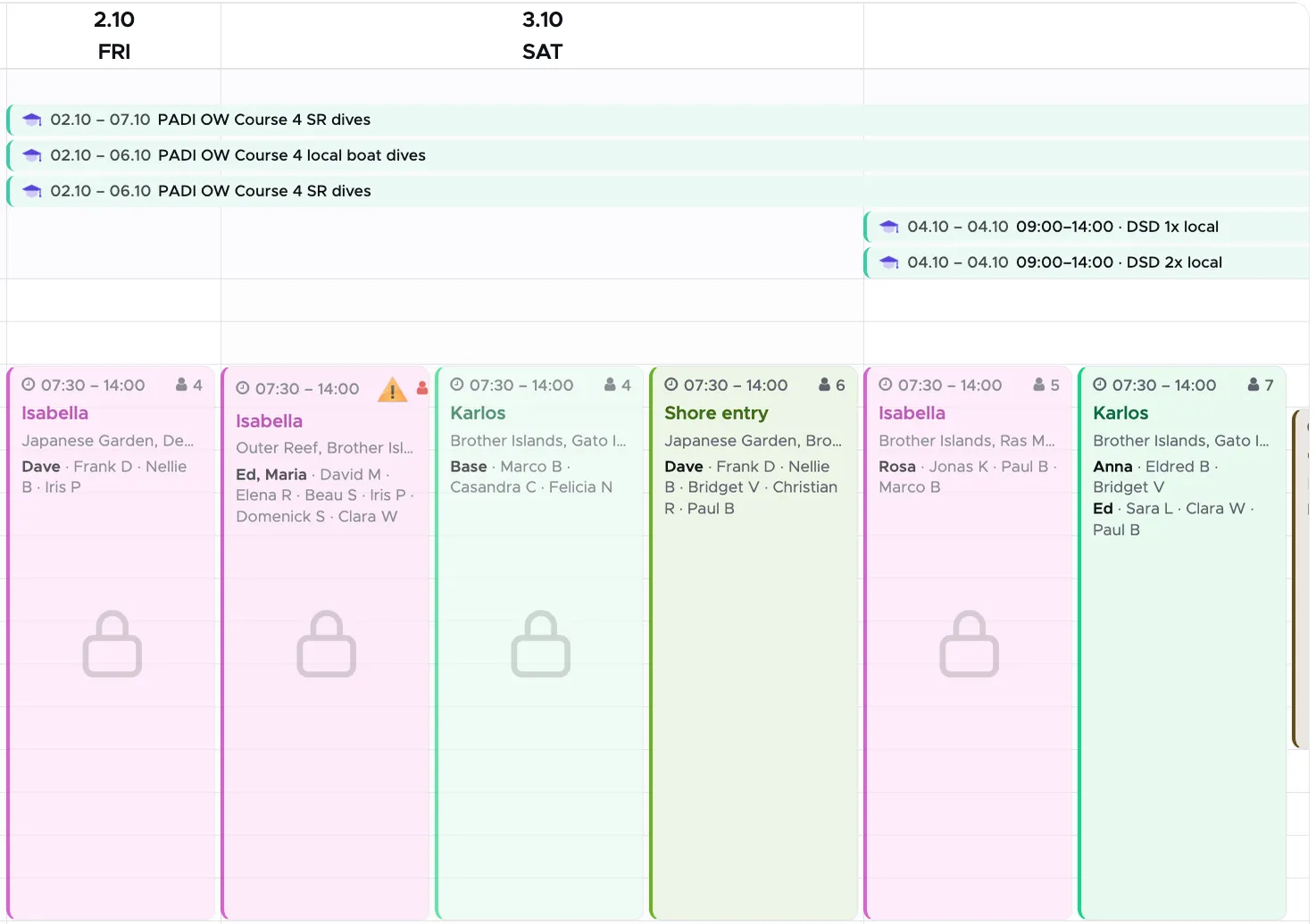
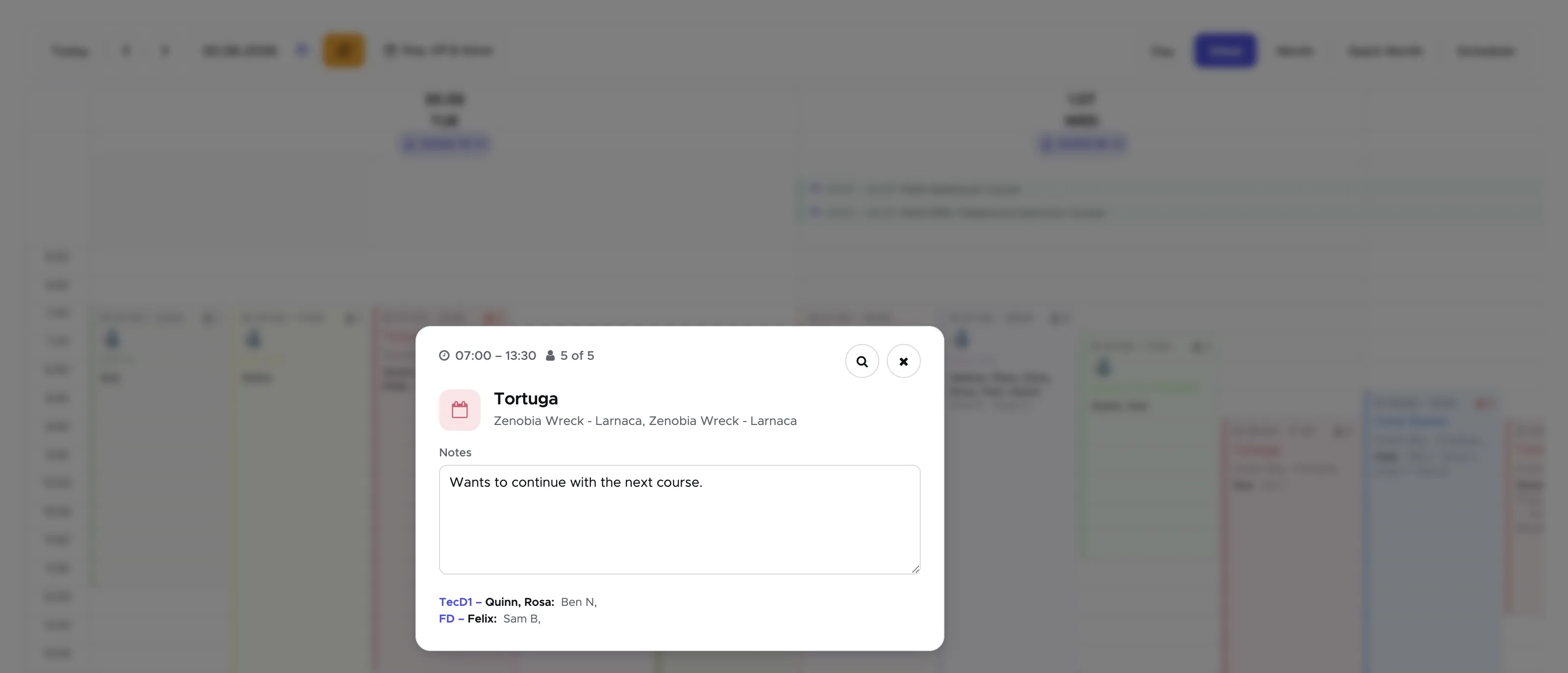
In All Activities a closed course or a closed trip is marked “Closed” and only has the button Open course or Open trip: the buttons to close and to delete it are gone.

Once you close an Activity you won’t be able to modify it anymore, but you can always view its content.
When you close an Activity the staff and agents commissions are calculated and added to the staff payslips and agent’s invoices or credit notes. The only exception is represented by the agent commission based on the whole customer’s bill that will be calculated and added to the agent’s invoice or credit note when the bill is closed and the customer is checked-out.
8.5 View your Activities
Section titled “8.5 View your Activities ”Once you’ve created one or more Activities, you can view them (and modify them if they are still open) in two separate views in Geek Divers.
All Activities (Deprecated, will not be maintained anymore starting with Version 2.1)
In the menu on the left, click on Activity and All Activities.
In this page you see the Activities that you’ve created as rows, grouped by day. You will find future activities in the Upcoming section with the next one on top, activities that have started but not ended yet in the Ongoing section, and past activities in the Past section with the most recent on top.
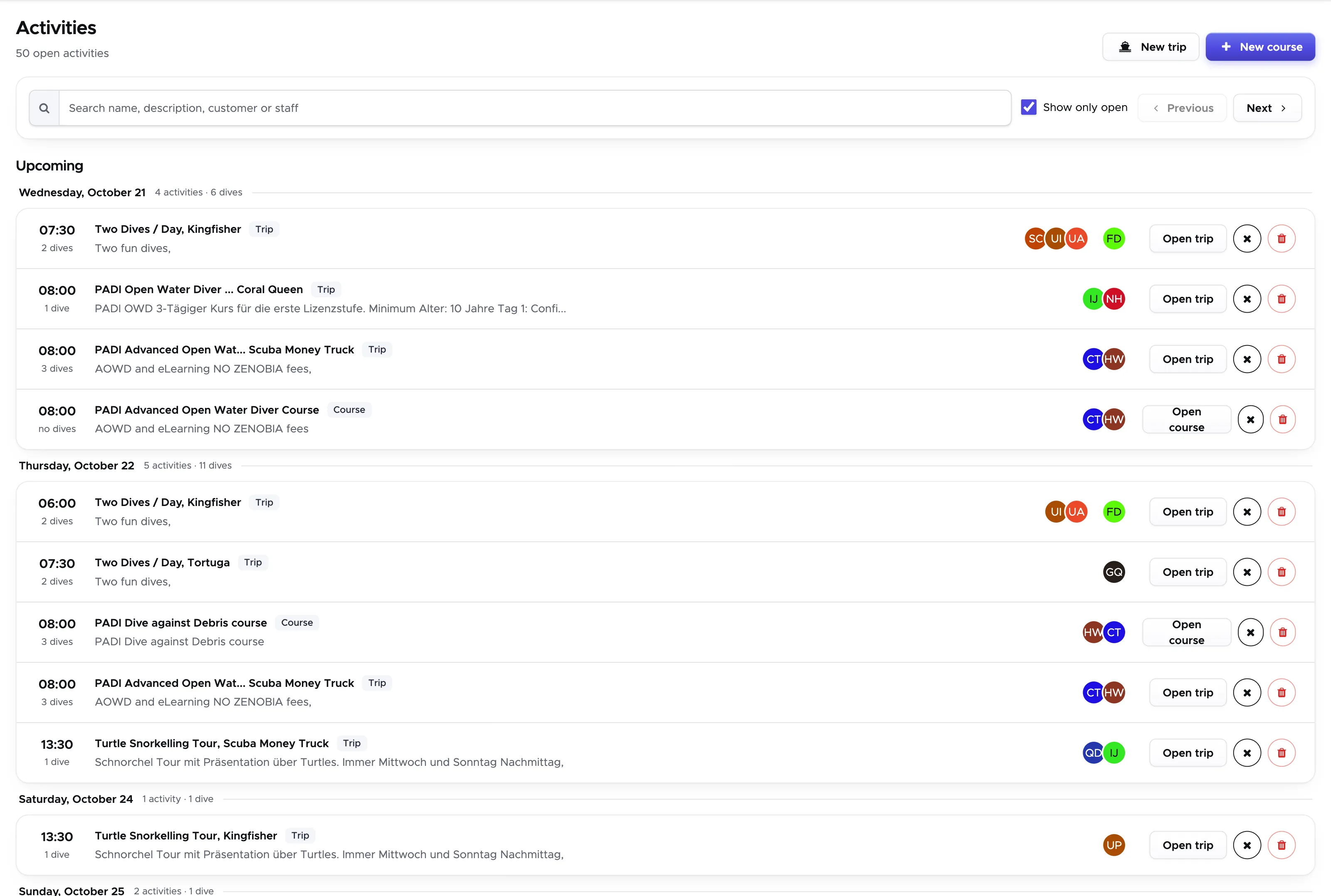
Once you close an activity, it will disappear from this view. Untick the checkbox “Show only open” next to the search field to see your closed activities instead.

Please consider that All Activities page is no longer supported. No new features will be added to this page.
Activity Calendar
In the menu on the left click on Activity and Activity Calendar.
In this page you see a calendar view of all your Activities.
You can choose a Day, Week or Month view for your calendar. A scheduler will show you your transports and when they are busy on a selected day. In version 2.0 a Quick Month view has been introduced as a read-only page (you can’t create, move or close activities there, but a click on an activity opens it).
In each of the above mentioned views you can use the back and forward arrows at the top to go back and forward one day/week/month. Starting with version 2.1 you can also select a date by clicking on the calendar icon.
If you wish to jump to today, you can click on the “Today” button.
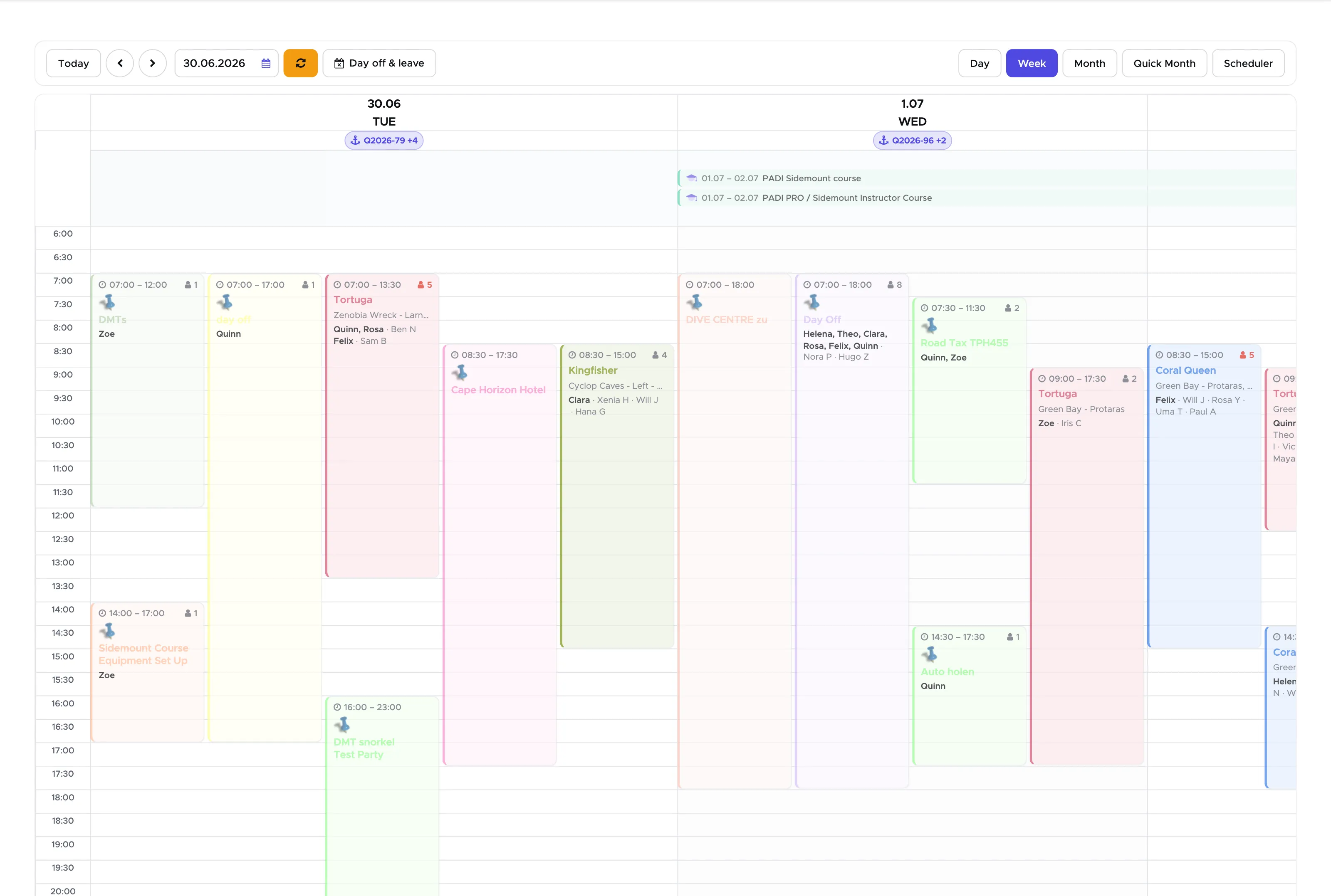
Use your calendar to plan all your activities in the future: set up all your trips and courses, even if you don’t know all the details yet. Remember that as long as a trip or a course is open, you can make any change.
8.6 Planning board
Section titled “8.6 Planning board”The Planning board shows one day at a time and answers the question your team asks every morning: which boat goes where, with whom, and who is not on anything yet. Click on Activity and Planning.
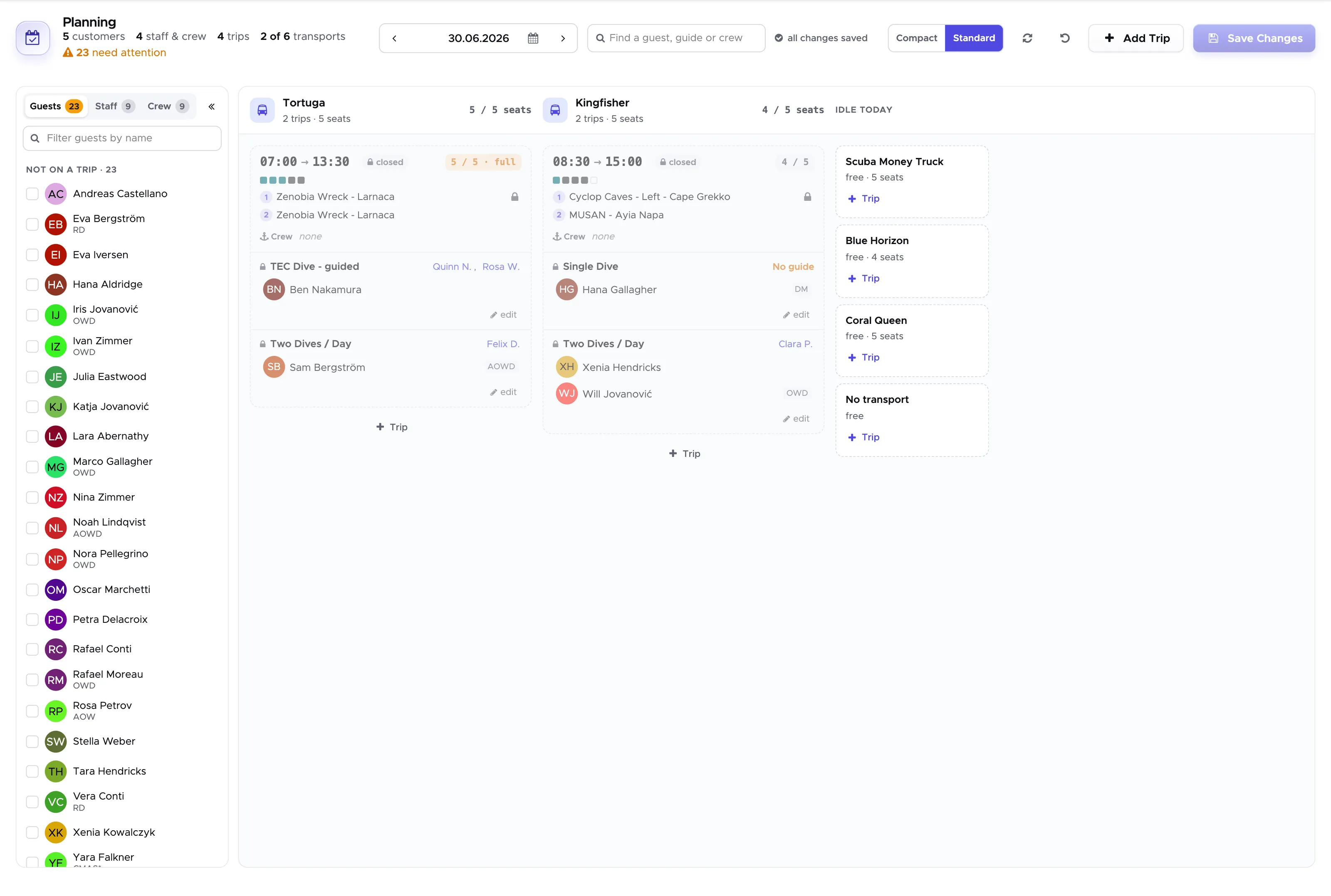
Use the arrows on either side of the date, or click on the date itself, to move to another day.
Each column is one of your transports and each card in a column is a trip. A column header tells you whether the transport is free or how many trips it carries, and a bar shows how many of its seats are taken. Staff do not take a seat: only customers count against the capacity of the transport.
The five counters at the top are all read off the board itself:
- customers booked and staff assigned - everybody on the day, across all transports.
- trips - how many trips are planned.
- transports in use - how many of your transports are carrying at least one trip.
- needs attention - the things you should resolve before saving: transports carrying more customers than they seat, trips with no dive site, and customers who are at the centre but on nothing.
8.6.1 The unassigned customers tray
Section titled “8.6.1 The unassigned customers tray”Under the counters you will find a tray listing the customers who are checked in at your centre today but are not on any trip and not on any course. Drag a customer out of the tray and onto a trip to put them on the boat.
8.6.2 Moving things around
Section titled “8.6.2 Moving things around”The board is built for dragging:
- drag a trip onto another transport to swap boats,
- drag a customer or a staff member onto another trip,
- drag a column header sideways to set your own order of transports. Geek Divers remembers the order for you; the button reset order puts it back.
8.6.3 One boat, one destination
Section titled “8.6.3 One boat, one destination”If you drag a trip onto a boat that is already out at the same time, Geek Divers will offer to put your group on the departure that is already going, rather than sending the same hull to two different dive sites at once. If you accept, the group you dragged takes the dive sites of the trip that is already there.
This only applies to a boat, a van, a bus or a car. A pool, a classroom or shore diving can host several groups at the same time, so those are never questioned.
8.6.4 Adding a trip and saving
Section titled “8.6.4 Adding a trip and saving”Click on add trip in a column to add a trip to that transport - the transport is already selected for you - or on add trip at the top of the page to choose it yourself. Set the start and end time, the transport and the activity from your price list, and click on Save.
Nothing on the board is stored until you click on save changes, and the indicator next to the date always tells you whether you have unsaved changes. A trip without a dive site cannot be saved: Geek Divers will ask you to pick one first.
The pencil on a trip card opens that trip in the Trip Builder in a sidebar, without leaving the board.