
Payslips (previously Staff Payments)
Geek Divers generates the staff payslips according to the remuneration model that you’ve set up in Staff. Please read chapter Staff commissions/salary if you haven’t done it already.
You can view all your staff members’ payslips by clicking on Financial and Payslips (previously named Staff Payments).
You can also go to Staff - Staff list, open the Current tab, click on the staff member’s card and go to tab Payslip to view all the Open and Closed payslip for a specific staff member.
Either way locate the payslip that you wish to view and click on the staff member’s name to open it.
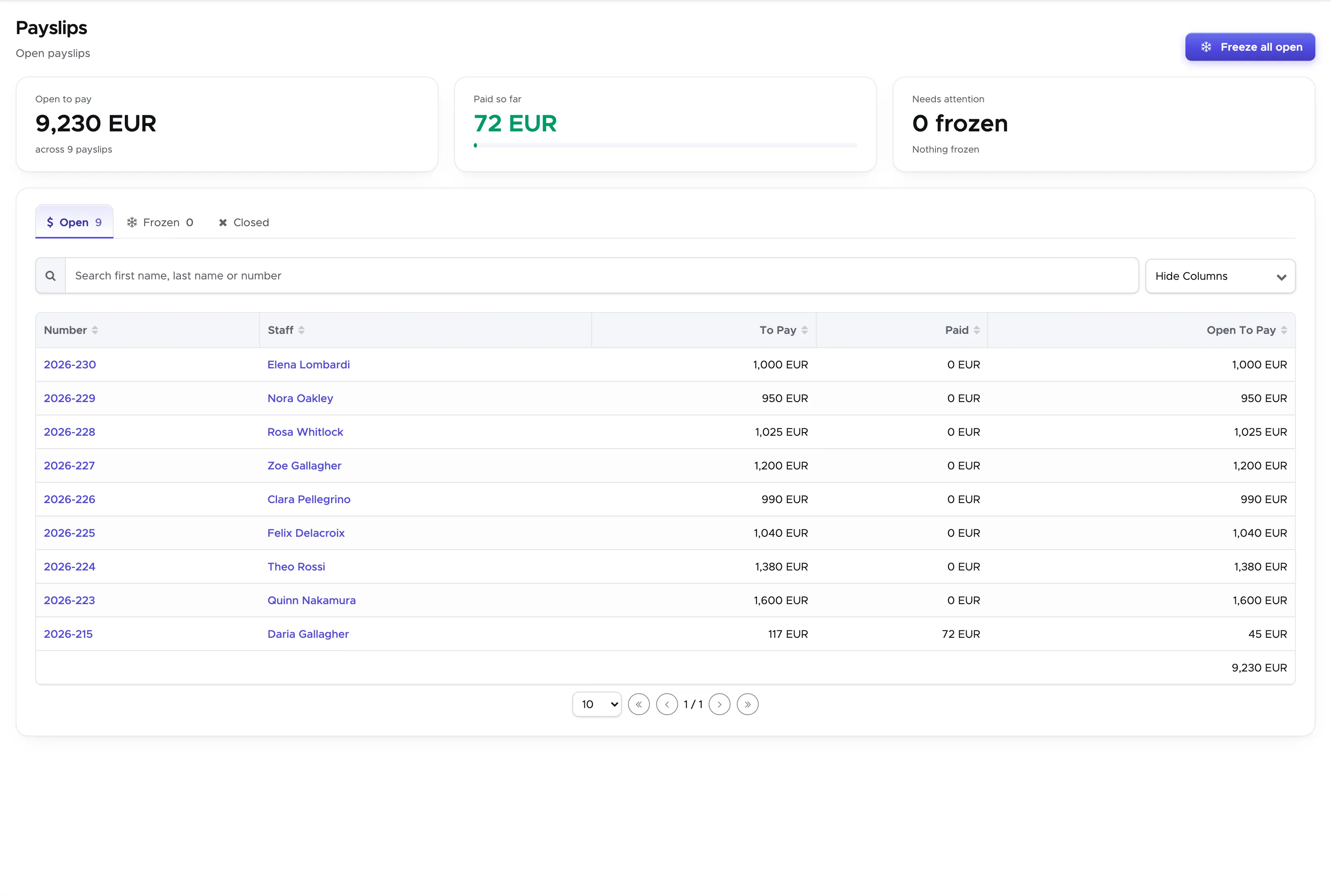
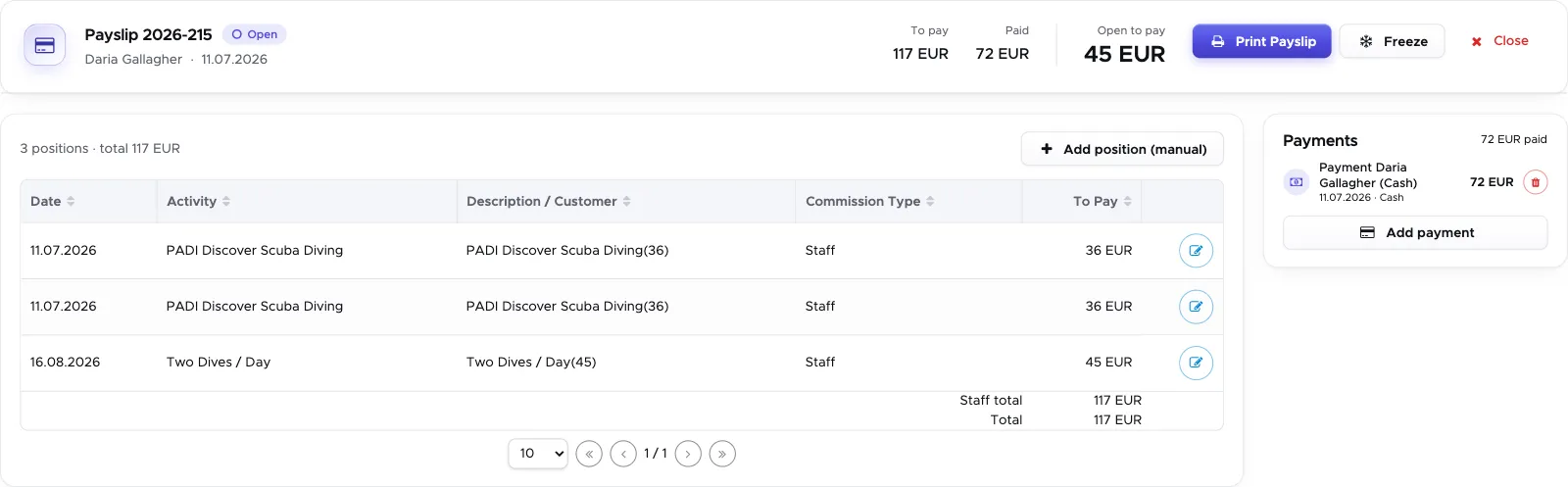
At the top of the payslip you can find a summary: To pay, Paid and Open to pay. Below it are the Positions and, beside them, the Payments.
In the Positions section you will find a list of automatically recorded positions containing the commissions based on the activities that this staff member joined and/or their base salary.
Every position shows the amount in column To Pay. If you wish to make any change to the content of the position, click on the blue edit button at the end of the row. A sidebar will open on the right-hand side of your screen.
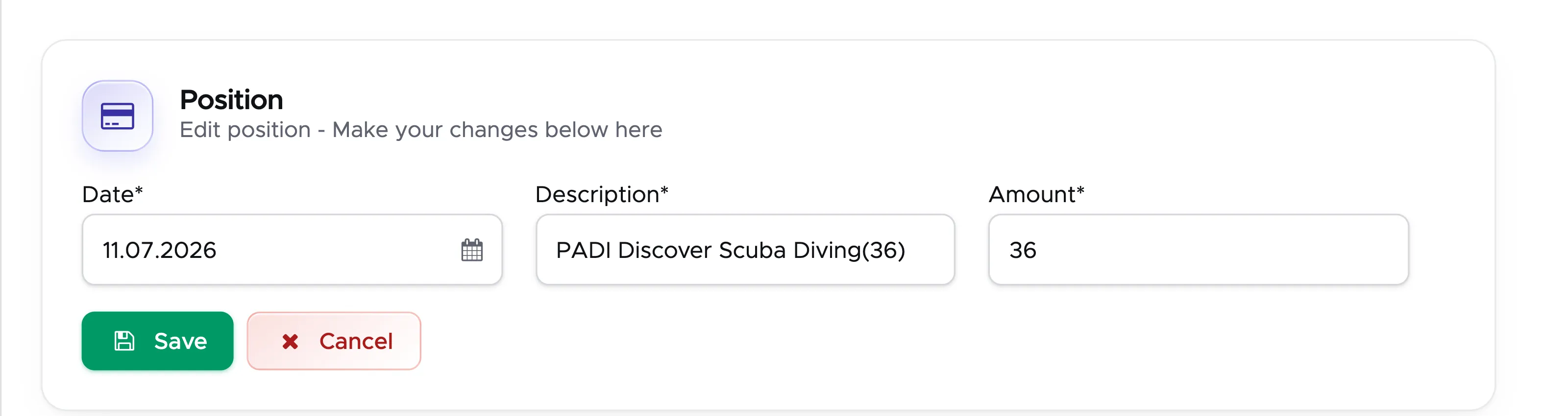
Make your changes and click on button Save to update the position in the payslip. Whenever you make changes to a payslip position, the values written in the summary section will be automatically recalculated.
10.1 Add positions
Section titled “10.1 Add positions”You might need to add extra charges to the payslip or an additional form of income that is not part of Geek Divers automatic calculations.
To do so click on the button “Add position (manual)” above the list of positions.
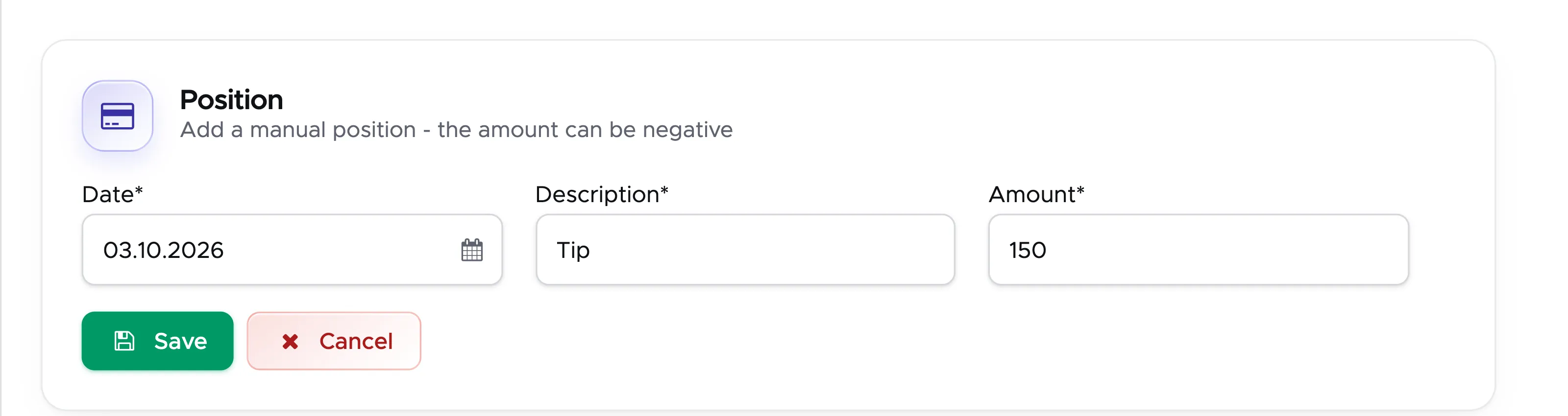
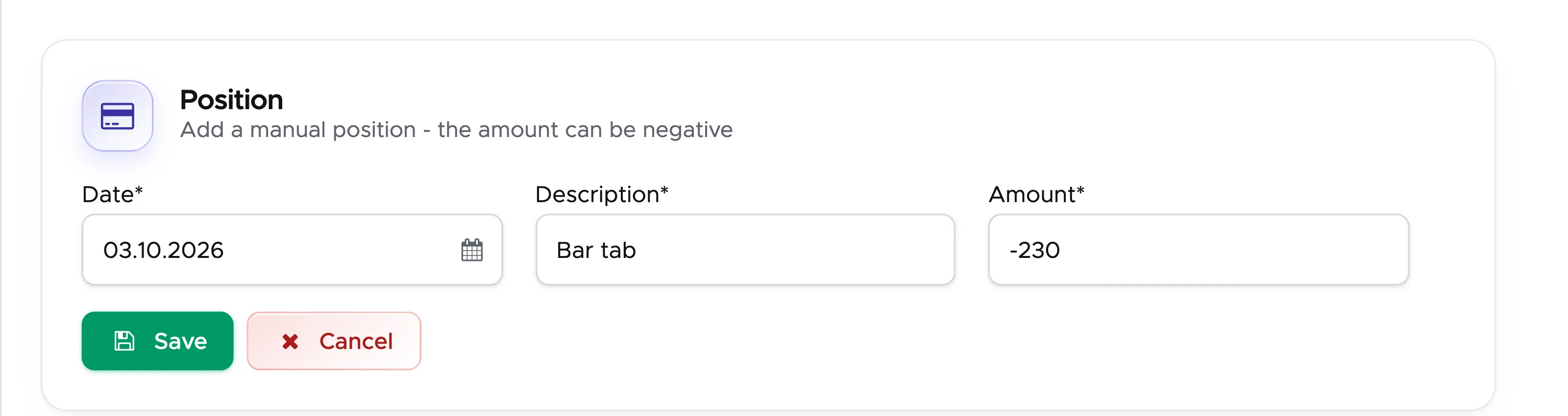
Select a date and type a description. If you are adding an extra charge, remember to use the “-” sign before the amount.
Click on button Save to add the row to the payslip.
The Open To Pay amount is automatically recalculated accordingly.
10.2 Freeze a payslip
Section titled “10.2 Freeze a payslip”In case you have no time to check every single position of a payslip, but you want to close the payslip because today ( or tomorrow) is payday, you can temporarily “freeze” a payslip and work on it later.
Geek Divers won’t add or remove positions from this payslip, but you can still modify it as described in chapter Payslips and Add positions. This feature gives you the flexibility to choose your paydays and freeze all the payslips a few days before or on the same day.
To freeze a payslip go to Financial and Staff Payments, locate the payslip that you wish to freeze and click on the number or the staff member’s name.
Scroll down and click on the button Freeze Payslip. You will find a frozen payslip in the Frozen Staff Payslips section of the Payslips page (menu Financial - Payslips).
Freeze All
Section titled “Freeze All ”In Financial - Payslips you can find a button Freeze all open at the top right of the page. This button will take all the open payslips and freeze them. Please consider that if a staff member already has a frozen payslip, Geek Divers won’t be able to freeze a second one. You need to (pay and) close the frozen payslips before you can freeze a payslip for the same staff member.
If the staff members with frozen payslips receive a base salary, Geek Divers will automatically create new payslips for them under Open Payslips, including the base salary that you’ve defined in Staff Commissions/Salary.
If the staff members with frozen payslips do not receive a base salary, their new payslips will be automatically generated by Geek Divers as soon as you close an Activity that they have joined and for which you’ve set up a commission.
10.3 Record a payment
Section titled “10.3 Record a payment”Click on the Add payment button below the payments to record a payment.
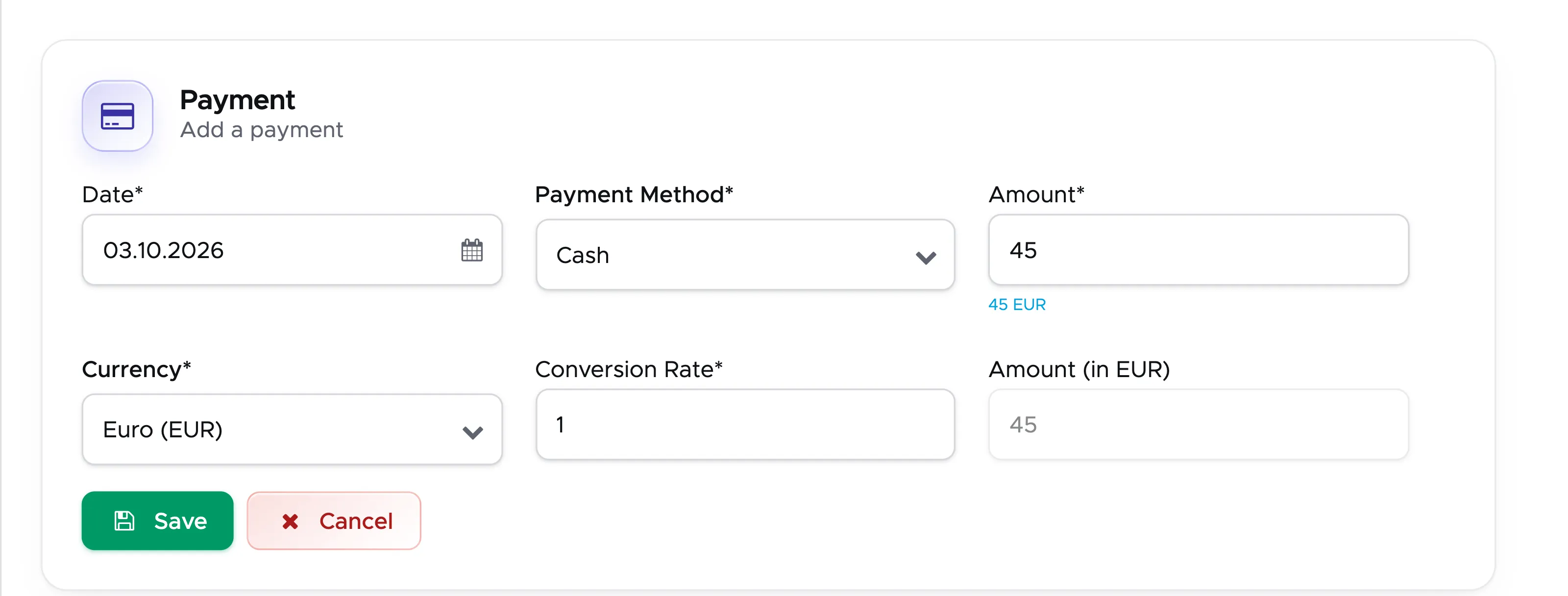
Select a payment method, type an amount and click on Save. Below the amount you can see what is still open to pay. If you wish to change the currency you can do so, but don’t forget to add a conversion rate.
You can use the Add payment button not only to settle a payslip, but also in case one of your staff members asks for an advance payment. By using this feature you can record the date and the amount and leave the payslip open.
In case of mistakes, you can delete the recorded payment by clicking on the red delete button next to the payment. If you delete a payment from a payslip, the payment will be completely deleted from the payslip and from the cash flow.
10.4 Close a payslip
Section titled “10.4 Close a payslip”You can close a payslip whether this is in status Open or Frozen.
In Financial - Payslips, click on the payslip that you wish to settle and close.
To close a payslip click on button Close at the bottom of the payslip.
You will find this payslip in the section Closed Payslips of Financial - Payslips.
If you wish to keep a record of the settled payslips on your hard drive or print/email the payslip for your staff member, click on Print Payslip button at the bottom of the payslip. Geek Divers will generate a .pdf file that you can save locally.
Please consider that closing a payslip is an operation that cannot be reversed.