
Customers bills
There are two ways to view a customer’s bill:
- Click on Customers and Customers, on the All tab (or the Current tab if the customer you’re looking for has not checked out yet) and locate the customer. Click on the customer’s name and on tab Bill/Agent. You’ll find all the customer’s open and closed bills at the top of the page.
or
- Click on Financial and Bills, then choose the Current open tab (these bills belong to the customers currently checked in), the Open tab (all the open bills) or the Closed tab. Search by bill number, customer’s first name or last name.
In either case, click on “open” (if the bill is still open) or on the bill number (if the bill is closed) to open the bill and view its contents.
👀 Important!
Starting from version 2.0, bills won’t be assigned an automatic bill number until you close them. The bill date will be the closing date. For accounting reasons, bills that are not closed won’t be considered to calculate tax and revenue and therefore should not have a number.
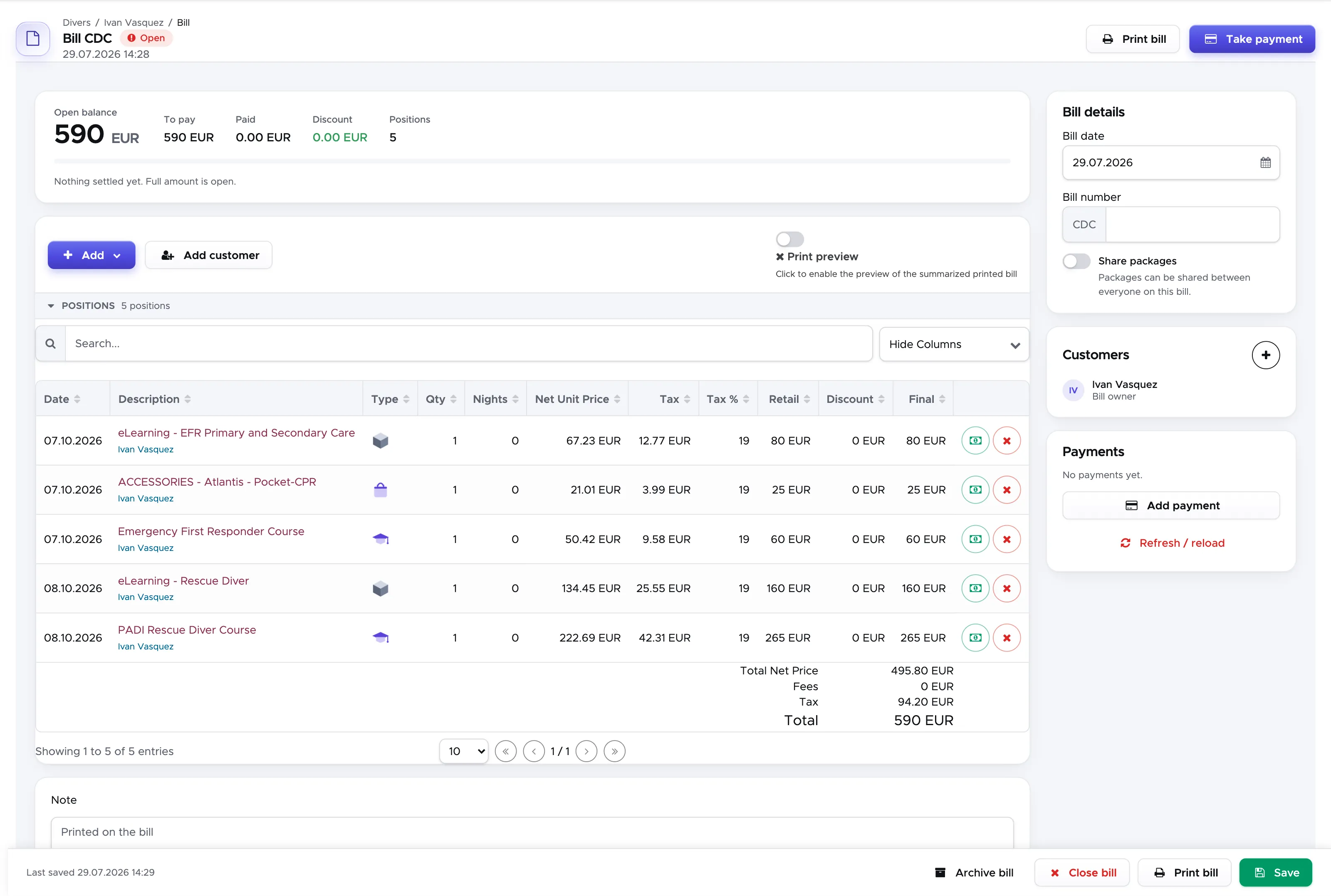
In the bill you can see every Activity that the customer has joined, including additional charges or fees. As soon as you add a customer to an Activity (course or trip) and you save the activity, the bill is updated. If you remove a customer from an Activity, the charges related to that Activity will disappear from the customer’s bill.
In the summary card at the top of the bill you can find the most important numbers in the bill:
-
Open balance - the remaining balance to pay (Open balance = To pay - Discount - Paid),
-
To pay - the total sum of all the retail prices in the bill,
-
Paid - the amount already paid,
-
Discount - the total discount offered in the bill,
-
Positions - the number of positions in the bill.
The bar under the numbers shows how much of the bill has been paid. These numbers are automatically recalculated according to the content of the bill and the recorded payments.
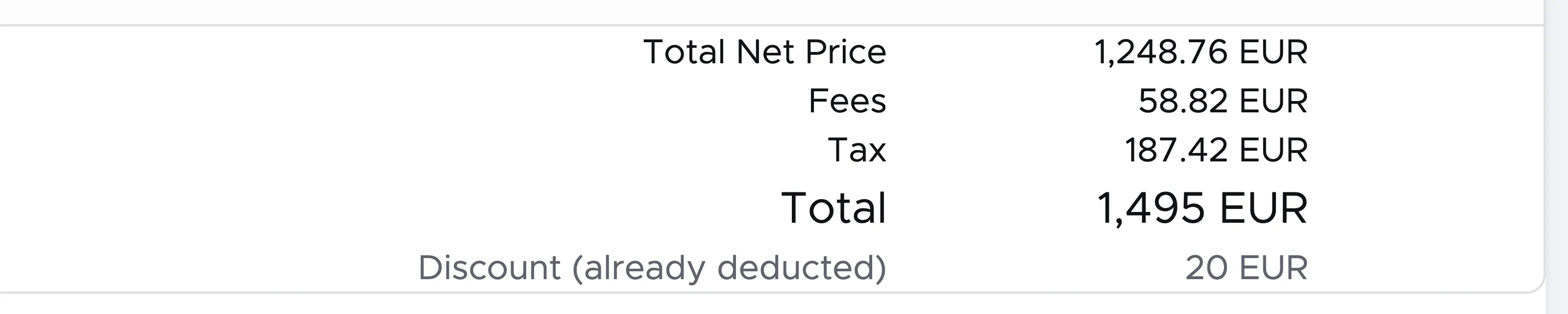
If you wish to view more details, look under the positions table: you’ll find the Total Net Price, Fees, Tax and the Total amount, calculated as the sum of Total Net Price + Fees + Tax. If the bill has a discount, a last line shows it. This discount is already deducted from the figures above it.
👀 Important!
Starting from version 2.0, bill positions will be shown with quantity 1. Columns Net Unit Price, Tax and Retail will show the prices per 1 unit, both in the regular view and in the Print Preview. The values at the bottom of the bill will show you the total of each category.
9.1 Add positions
Section titled “9.1 Add positions”You can add positions to the customer’s bill in four different ways:
-
add an item from the price list,
-
add something completely manually (if the item is not in your price list),- add the customer to a trip or a course in the Activity Calendar,
-
apply a voucher to the customer’s bill.
To add an item from your price list click on button Add above the bill positions and choose “Position from price list”. This feature is useful if you’ve set up your items on sale in the price list and your customer wants to buy a mask, a T-shirt or anything else that you sell in your shop. You can also use it to add accommodation charges if you’ve set up a price list item type = Accommodation in your price list.
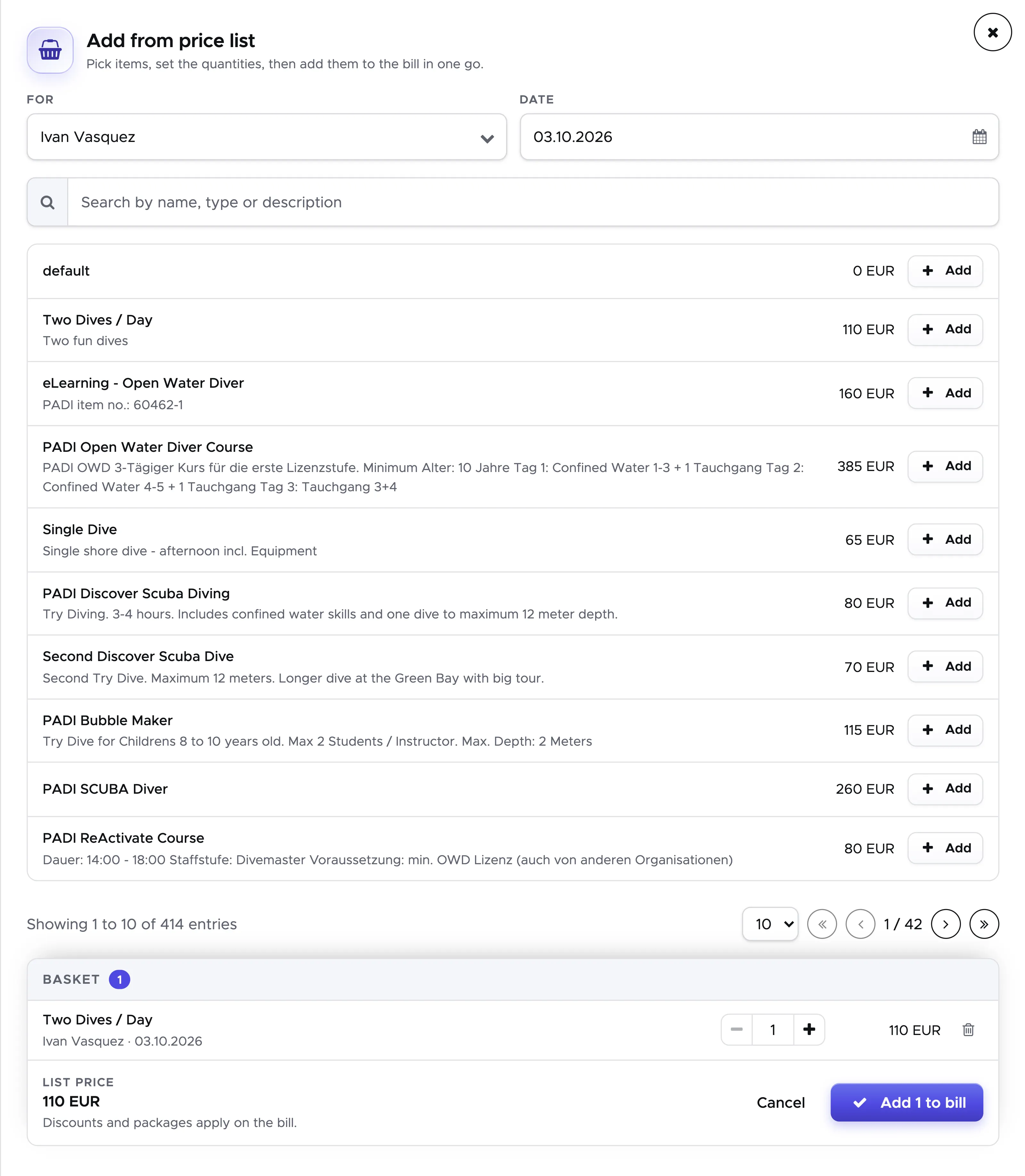
In the sidebar choose the customer in field For and change the date, if necessary. If only one customer is added to the bill, he is already selected. Locate the item that you wish to add to the customer’s bill and click on Add next to it: the item goes into the basket at the bottom of the sidebar. The Add buttons stay disabled until a customer is selected. In the basket you can change the quantity of each item or remove it. When the basket is complete, click on button “Add to bill” and you will see the items in the bill positions, ordered by date.
To add a generic new position to the bill, click on button Add and choose “Position (manual)”. In this case you’re adding something that is not in your price list.
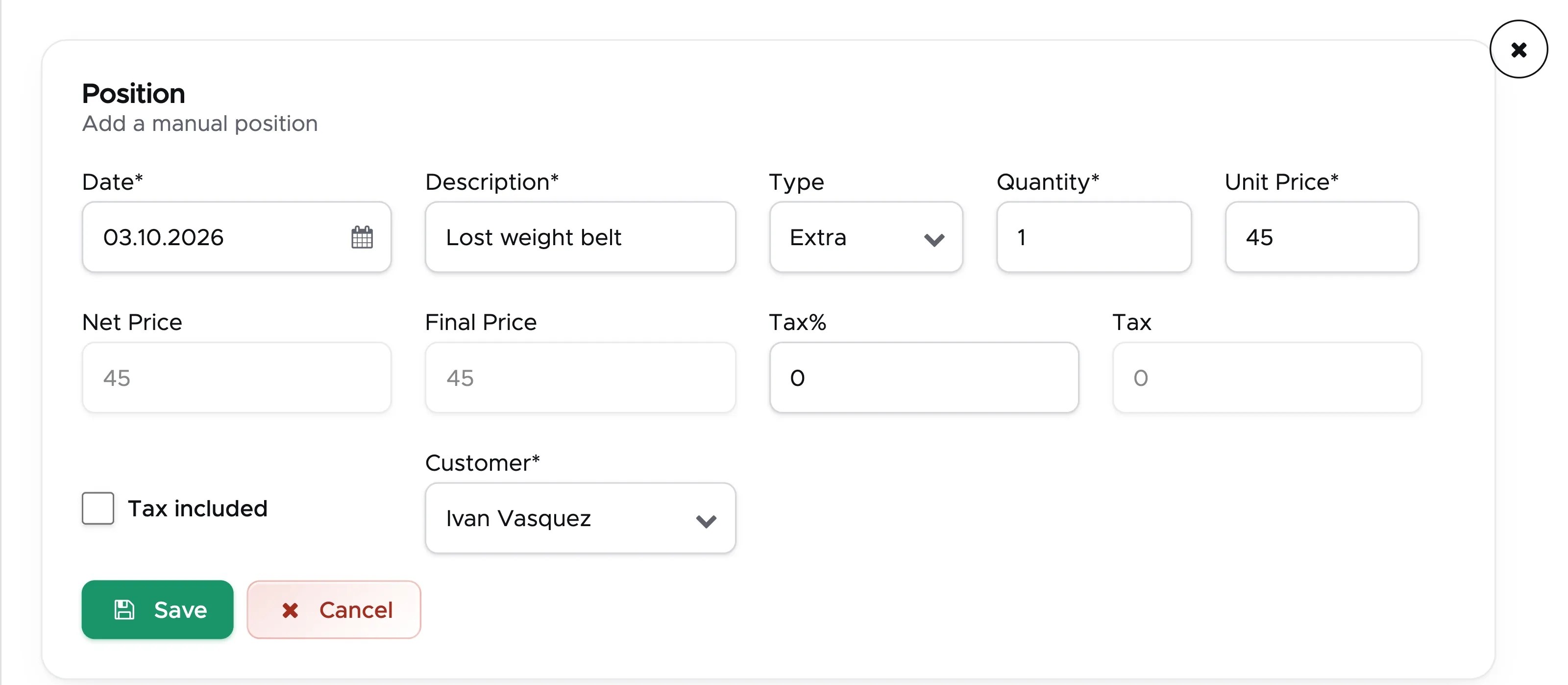
Modify the date, if necessary, type a description, choose a type, update the quantity and unit price. Add the sales tax, if appropriate, select the customer and click on button Save.
This is useful in case you don’t have a specific price list item in your price list. E.g. the customer lost some blocks of lead. Please consider that anything that you add to the bill using this button will be shown in your financial report as type only.
Whenever you add an item or a manual charge to a customer’s bill, the value in Open is automatically recalculated.
To add positions to a customer’s bill you can also add the customer to a trip or a course in your Activity Calendar. Read chapter Add/Remove Customers and Staff members to find out how.
Applying a voucher to a customer’s bill means taking a confirmed quote (by the customer or by one of your travel agents) and copying its content into a customer’s bill. The confirmed quote contains the list of items and/or accommodation that you’ve offered to your customer or partner with the agreed prices and discounts. When you apply a voucher to a bill, some of the items in the confirmed quote/voucher will be automatically added to the bill positions: accommodation (room reservation from the Accommodation Calendar) and meal plan, multi-packages and type Package items.
9.2 Discount
Section titled “9.2 Discount”9.2.1 Manual Discount
Section titled “9.2.1 Manual Discount”You can add a discount (in fixed amount or percentage) to every bill position by clicking on the green button located on the right hand side. The discount will be shown in the Discount column and the Final Price will be updated accordingly. The discount for customers’ bills is always applied on the Final Price.
The green discount button is not available in bill positions that were added manually (Add Position (manual)) and in case a bill position matches a voucher position.
You can also add a discount on the whole bill by clicking on the light-blue Add Discount button at the top of the bill page. Please consider that if you add a discount to the whole bill in percentage, the final price of every bill position in the bill (including fees) will be considered in the calculation of the percentage. The percentage will be calculated on the total sum of all the final prices at that moment in time. Additionally, there won’t be any recalculation of the tax in every bill position. For the above reasons, the Add Discount button at the top of the bill page is not recommended if your services are subjected to a sales tax or if you’ve added one or more fees. In that case, you can add discounts to specific bill positions of your choice.
You can remove a discount that you’ve added to a bill position by clicking on the green button at the end of the position and set the discount back to 0. If you wish to remove a discount applied to the whole bill, locate the bill row with description ‘Discount’ and click on button Delete at the end of the row.
Please consider that the automatic package discounts applied to the items in the bill cannot be removed. An automatic package discount is calculated and applied to the items in the bill according to your price list setup.
9.2.2 Automatic Item Package Discount
Section titled “9.2.2 Automatic Item Package Discount”In case you set up package prices in your price list (e.g. boat trip with packages for 2-3 or more trips, the bill is recalculated automatically, showing the discount in every row.
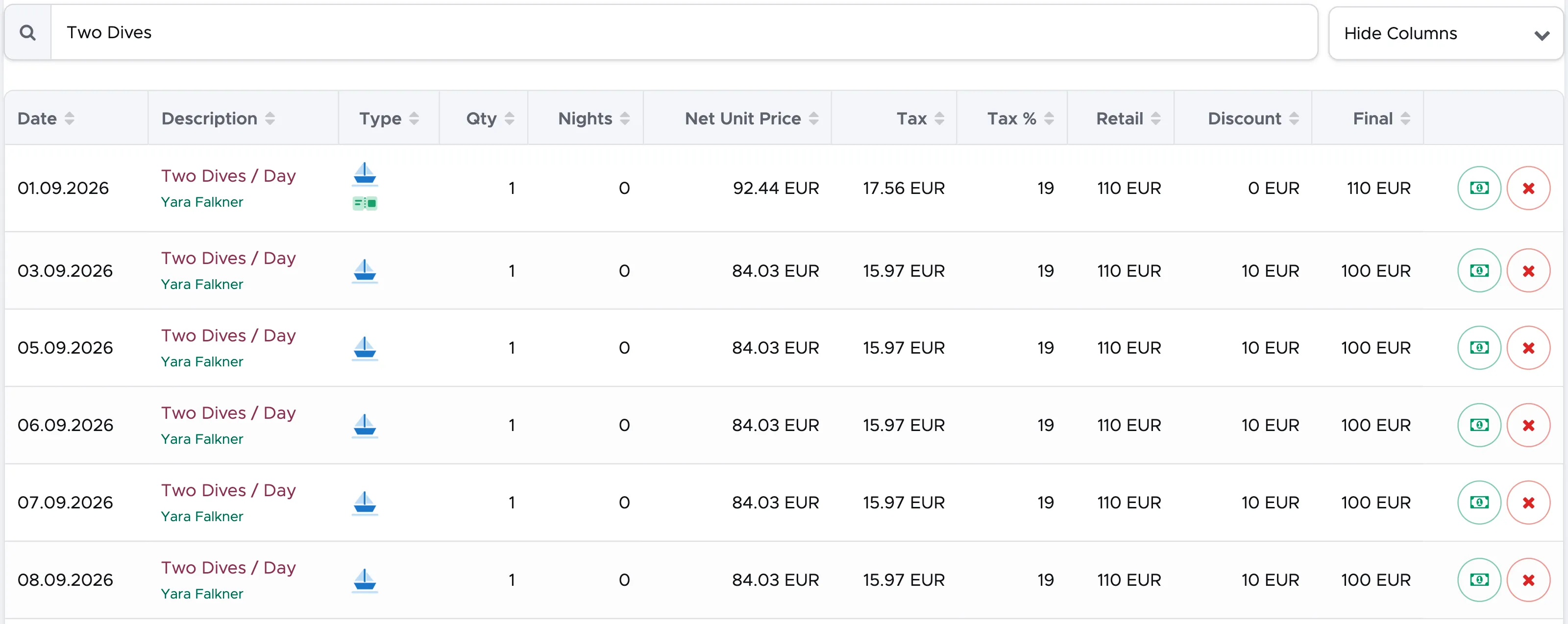
In the example above the first trip is shown with a regular price and the following ones show a discount. This is because in the price list this trip is set up with a package as ‘No Discount Before’.
If this customer then joins an Advanced Open Water course, the course and the additional price list items that you’ve added to the course price, will be shown in the bill. In general, the way you set up your price list will determine what exactly you will see in a customer’s bill.
Starting from version 2.0 and the possibility to add more than one customer to one bill, the automatic item package discounts will be calculated per customer, unless you choose to share the packages.
If you apply a voucher containing some units of an item that is set up with an item package discount, the prices written in the voucher positions will be copied to the bill positions. Please consider that the quoted prices might refer to your “old” price list, before you updated your prices for the season. These were the prices agreed with your customers and they will be automatically written in the bill positions. In the bill, if the quantity of the item with item package discount is greater than the one written in the voucher, the extra quantity will consider your current price list and start from unit 1.
Example: your customer has booked and confirmed 3x 1 day trip.
| 1 day trip | “Old” price list (at the time of the quote) | Current price list |
| Qty 1 | 50 USD | 55 USD |
| Qty 2 | 48 USD | 52 USD |
| Qty 3 | 45 USD | 50 USD |
At customer’s check-in you apply the voucher to the customer’s bill and plan them in the activity calendar. As soon as the customer is planned in the day trips, their bill will be automatically updated and the bill positions will be matched with the voucher positions. Let’s assume that the customer is really enjoying the day trips and chooses to add one more, which you plan in the calendar accordingly.
The customer’s bill will show the following prices:
| Description | Voucher (Y/N) | Price (if the item is set as NDB*) | Price (regular package discount) |
| 1 day trip | Y | 50 USD | 45 USD |
| 1 day trip | Y | 48 USD | 45 USD |
| 1 day trip | Y | 45 USD | 45 USD |
| 1 day trip | N | 55 USD | 55 USD |
| Total | 198 USD | 190 USD |
*NDB=No Discount Before
In the example above, if you wish to offer a discount for trip no. 4, you will need to enter it manually.
9.2.3 Multi-Package Discount
Section titled “9.2.3 Multi-Package Discount ”If in your price list you have a Multi-Package, a message will be prompted whenever the content of the Multi-Package is available in the bill and you can choose to apply it.
The following is the Multi-Package that we will consider for this example:
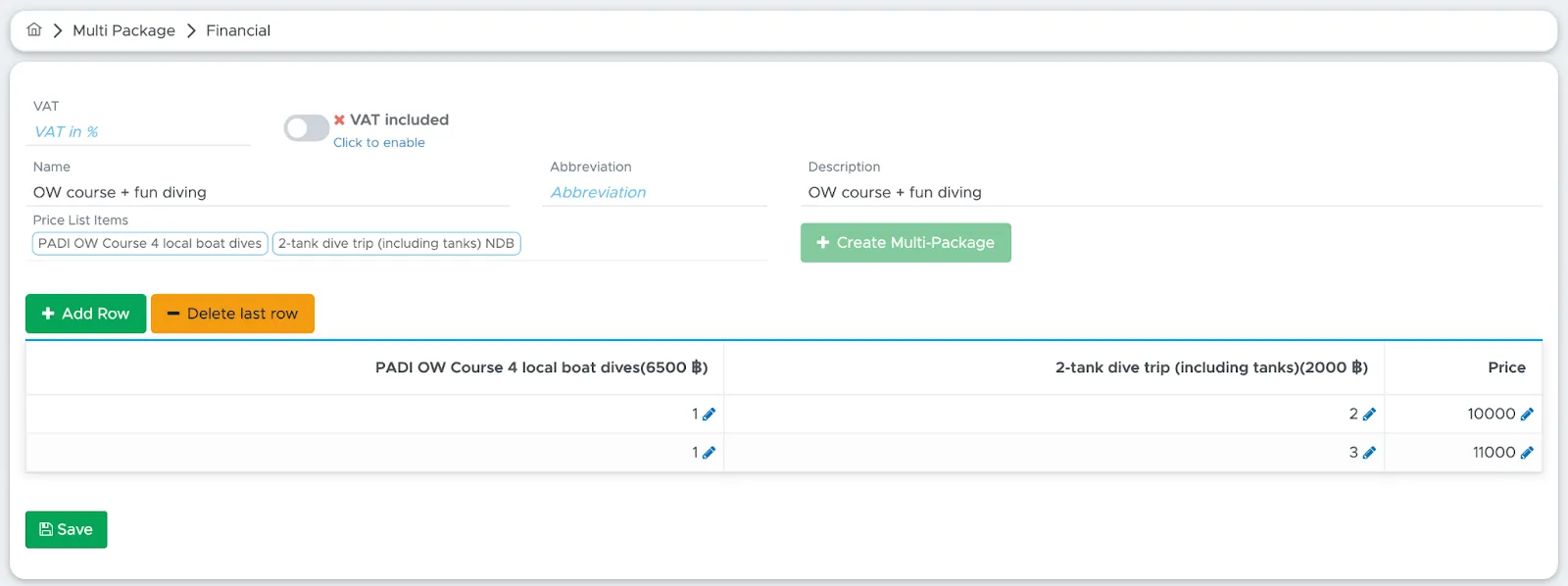
The above Multi-Package offers two combinations of an Open Water course with a 2-tank dive trip:
-
1x OW course + 2x 2-tank dive trips
-
1x OW course + 3x 2-tank dive trips
You can plan both the Open Water course and the dive trips in the Activity Calendar or you can add these items to the customer’s bill using button Add Position (from Price List).
As soon as the items in the bill match the content of one of your multi-packages, you will be prompted with a message “Possible multi-package found!” at the top of the screen.

Click on the button Select Multi-Package and a sidebar will show you the multi-packages that could be applied to this bill.
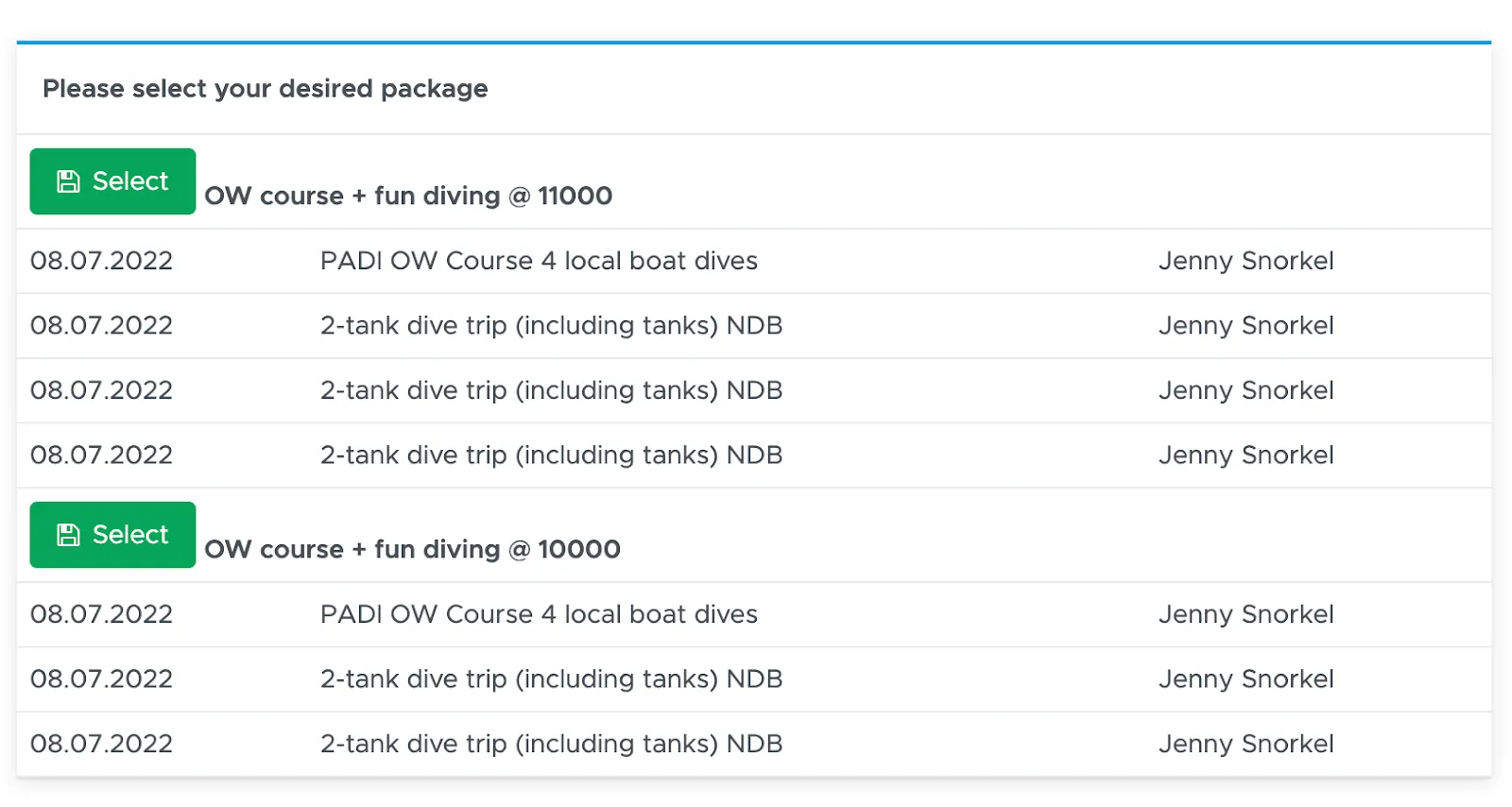
In this example, the customer’s bill contains the Open Water course and 3 fun diving trips, so the sidebar will show both the option with 2 and with 3 trips.
Click on button Select to apply the multi-package of your choice.
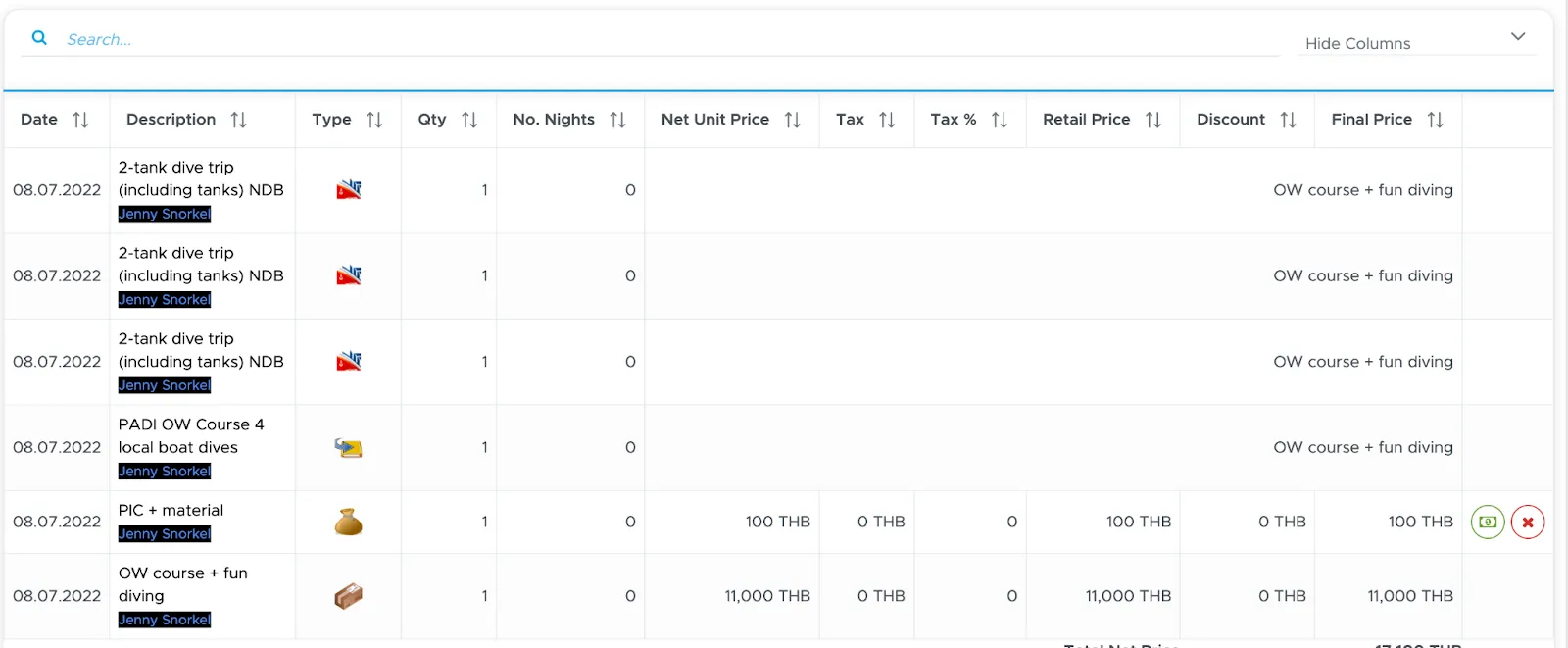
In the bill you will see one additional position with the multi-package price. The bill positions that belong to the package won’t disappear and their prices will be replaced by the package name. Everything that is not included in the package won’t be changed. In the bill summary section at the top, the amounts will be recalculated accordingly.
In case you’ve made a mistake and applied the wrong multi-package, you will now see a button Reset all multi-packages. When you click on this button all the multi-packages will be deleted and the bill positions will return to their original state and prices. You can then click button Select Multi-Package once again to apply the correct one.

In case of a multi-package in the voucher positions, the multi-package will be automatically written in the bill positions as well and assigned to the first customer in the bill. In case the multi-package belongs to another customer in the bill, click the person button at the end of the position, choose the customer in the pop-up and click on Save.
The items that belong to the multi-package, as soon as they are added to the bill (either manually or automatically through the Activity Calendar), will be automatically detected and marked as multi-package items. It is important therefore that the correct customer is assigned to the multi-package item, as well as to each item that belongs to the multi-package.
9.2.4 Discount with price list item type Package
Section titled “9.2.4 Discount with price list item type Package”If you haven’t done it yet, please read chapter Price list item type Package.
If your customer chooses one of your package prices, you can manually add this package to your customer’s bill. If your customer doesn’t have an open bill yet, you can go to the customer’s profile (from either the All or the Current tab) and click on tab Bill/Agents. You will find a button Create Bill. As soon as you click on this button a new bill will be generated for this customer.
Click on the bill and on button Add Position (from Price List). Search for your package item and select it.
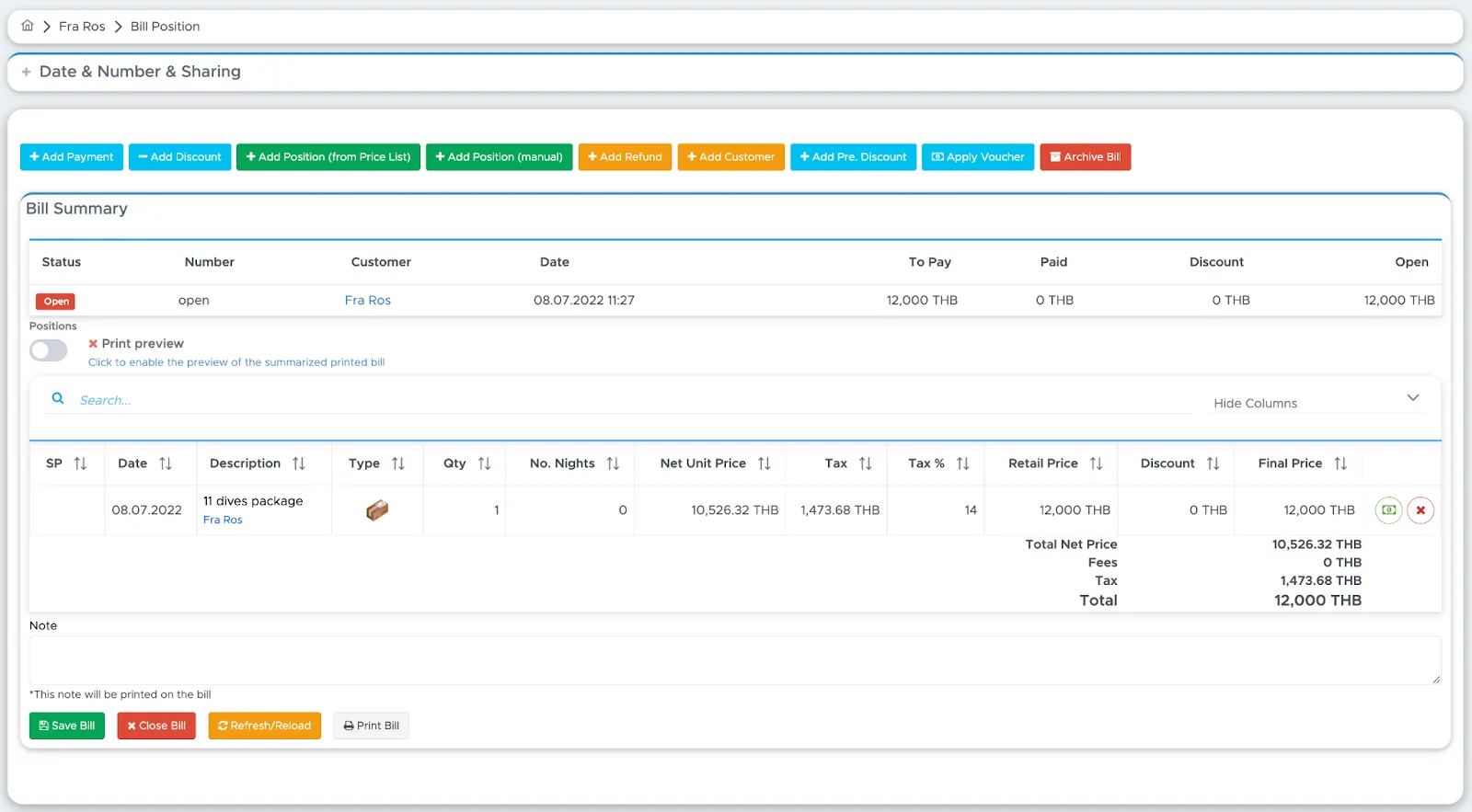
At this point you will plan activities including this customer and they will be added to his bill according to the prices that you’ve defined in your price list.
Before check-out your customer’s bill might look like this:
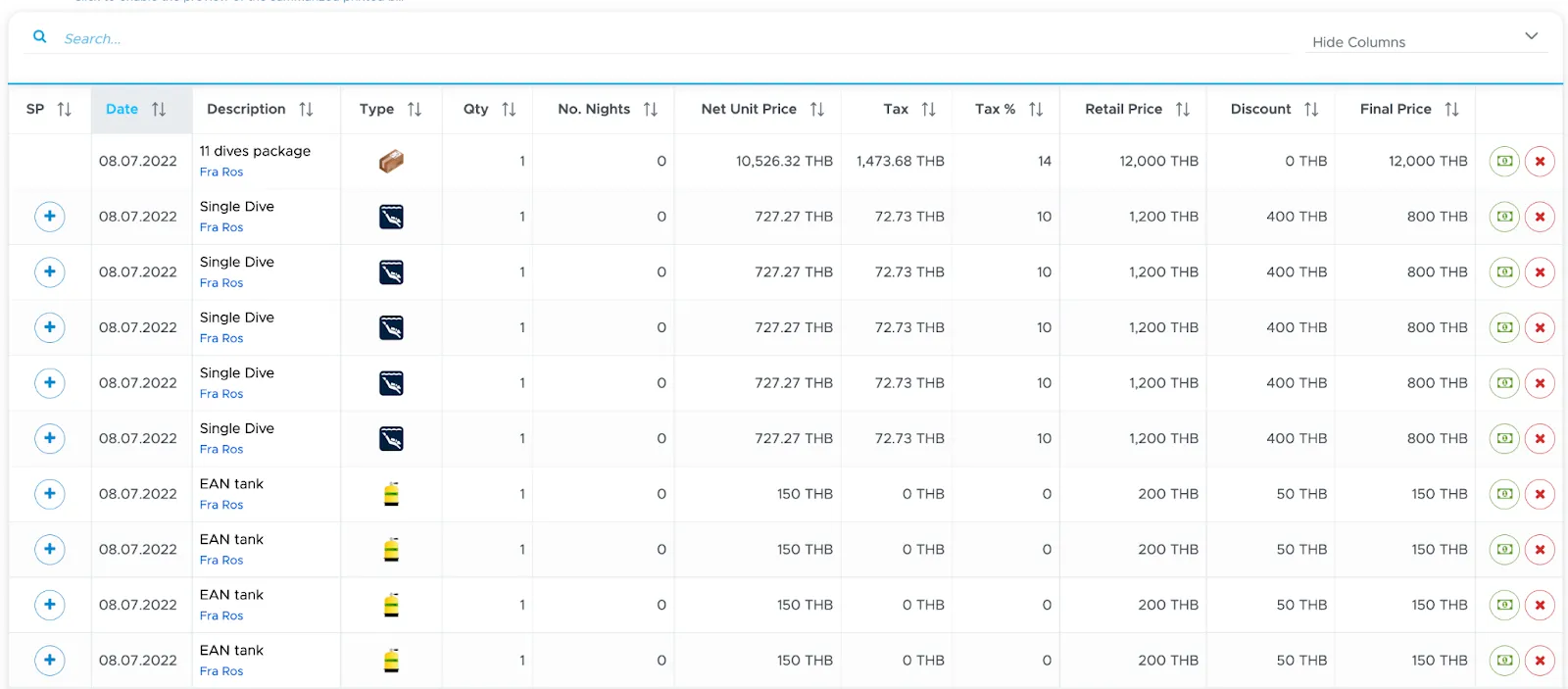
Now this bill includes the package that you’ve manually selected from your price list and every activity that your customer has joined. Most of these bill positions are actually part of your package and they should not be charged separately.
By clicking on the + button in column SP of a bill position and choosing your package in the menu, you can now manually select which bill position you want to include in your package. The bill is saved straight away.
After your selection, the bill will then look similar to the following:
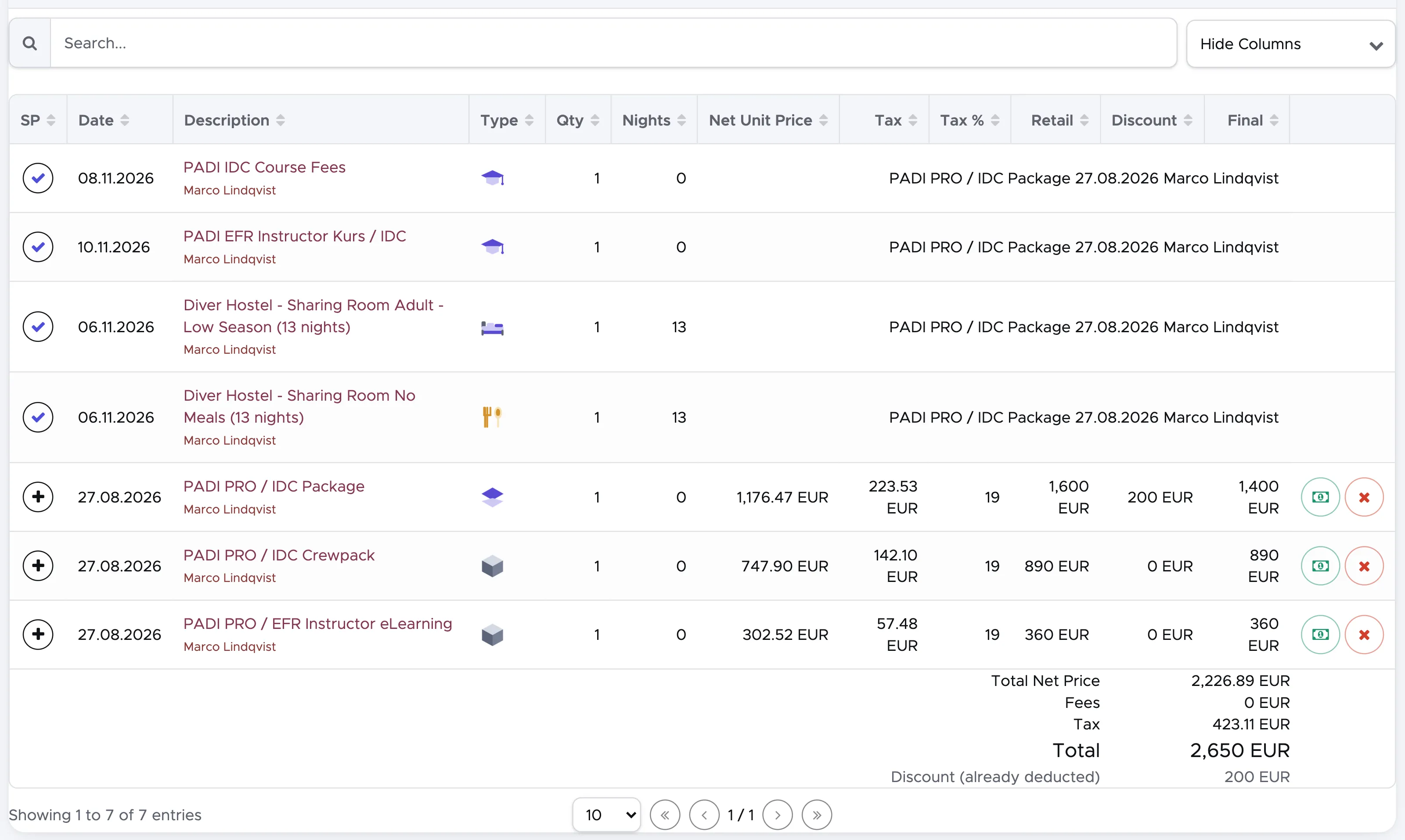
Every line left with the + button will be charged on top of the package, while the lines with a tick are now part of your package and show the name of the package instead of their prices. In case of wrong selection you can click on the tick and choose Remove to extract the bill position from the package.
The amounts in the bill summary are updated according to your selection.
The package item can be added to the bill any time. Whenever you add it to the bill, you will see the + button next to the other bill positions that could potentially be added to the package.
In case of a Package item in the voucher positions, the Package will be automatically written in the bill positions and assigned to the first customer in the bill. In case the Package belongs to another customer in the bill, click the person button at the end of the position, choose the customer in the pop-up and click on Save.
The assignment to the correct customer is only useful to show the correct name in the printed bill. All the bill positions that could potentially be added to the package will show a + button, regardless of the customer they are assigned to.
Bill positions that match voucher positions will not show the + button as they were quoted separately and outside of the Package.
9.2.5 Apply a predefined discount
Section titled “9.2.5 Apply a predefined discount ”If you’ve set up your predefined discounts in General Settings (Predefined discounts) you can apply them to your customers bills.
Click on button Add above the bill positions, choose Pre-discount and tick the checkbox related to the discount that you wish to apply.
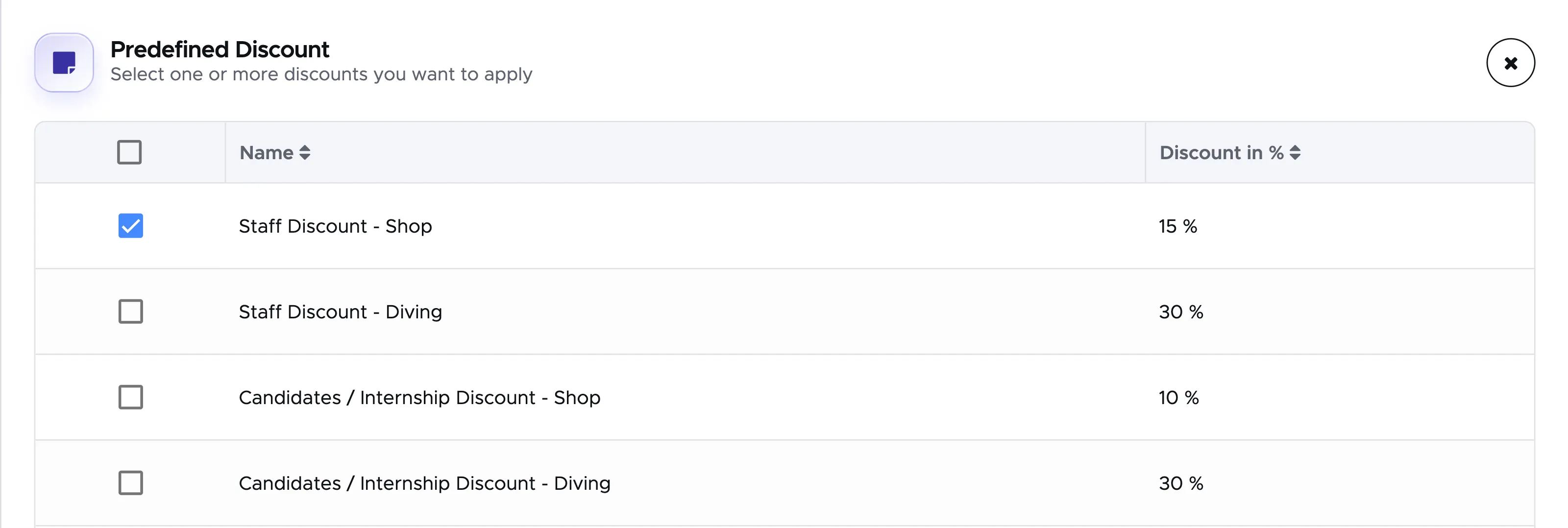
Click on the button Apply Discounts.
You will find the applied discount in the card Predefined discounts, below the bill positions.

All the current and future bill positions that match the definition of your predefined discount will be discounted according to the percentage that you’ve chosen. Please consider that the predefined discounts are always calculated on the final price.
You can apply more than one predefined discount and the system will apply them in the order that you’ve selected them.
If a bill position already has an automatic or manual discount, the predefined discount will be calculated and applied to the discounted final price.
If there’s more than one customer in the bill, the predefined discount will be calculated on all the matching bill positions, regardless of who they’re assigned to.
Bill positions that match voucher positions will be excluded from the calculation of a selected predefined discount to preserve the prices and discounts agreed at the moment of the quote.
If you’ve made a mistake you can remove a predefined discount from a bill by clicking on the bin button. All the bill positions will go back to their original prices before the application of the predefined discount.
9.3 Payment
Section titled “9.3 Payment”To add a partial or full payment to the bill click on button Take payment at the top of the bill, or on Add payment in the Payments card on the right.
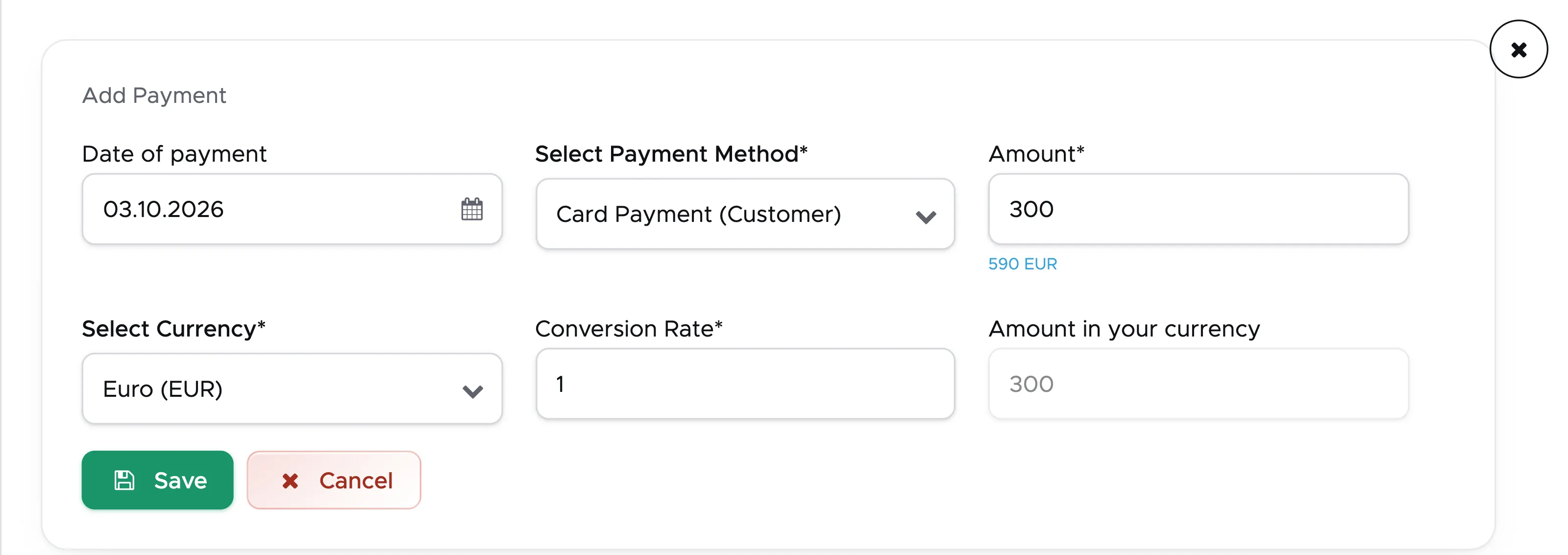
Select the payment method, the currency (the default currency is the one that you’ve chosen in your Settings), the conversion rate (if appropriate) and the amount. If you select a currency that has a conversion rate (as set up in General Settings - Conversion Rates), you will see the conversion rate automatically written. If necessary, you can delete it and type a new one.
If you start recording the payment while the customer is right in front of you, you can use the automatic calculations done by Geek Divers to inform the customer of the correct amount. E.g. in case of payment in another currency, under Amount you will see the Open balance converted to the chosen currency, according to the conversion rate that you’ve typed.
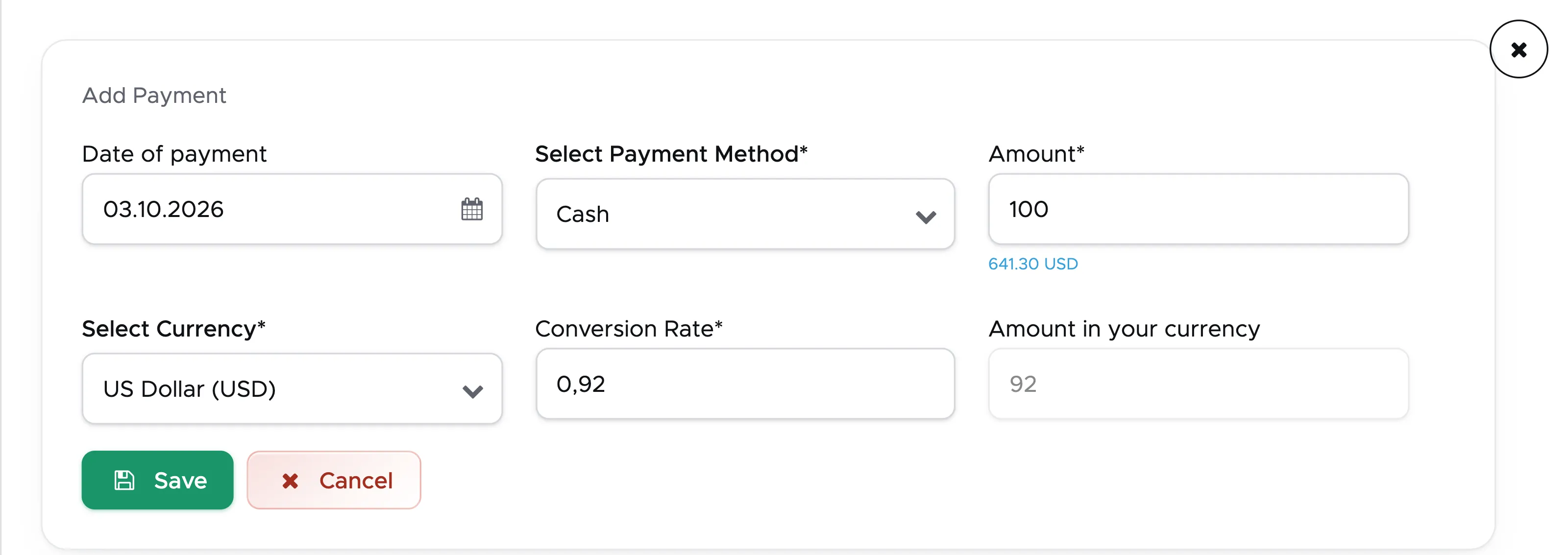
If the payment method has a credit card fee (as set up in your settings), three more fields appear: Fee in %, Fee in currency and Total (fee+amount). As soon as you type a value in Amount, Total (fee+amount) will show you the total amount to input in the credit card machine, including the credit card fee.
You can now click on the button Save. If you’ve added a payment fee to your settings, Geek Divers will calculate it automatically and show two lines in the payments table as soon as you click on Save.

The amounts in the bill summary are automatically recalculated, showing any outstanding balance.
9.3.1 Apply Credit
Section titled “9.3.1 Apply Credit”If you’ve already received a partial or full payment from your customer and you’ve recorded it as Customer Credit, you will see the customer’s open credit in the card Customer credit found at the top of the bill.

You can choose to apply all or part of the credit to the current bill. To do so click on the button Add credit to bill. The button is replaced by a field that asks you the amount of credit that you wish to apply to the bill. Type the amount and click on the button Confirm credit.

The extra field will disappear and you will see the applied credit in the Payments section of the bill. The Current Credit will be recalculated to show the current value. If you’ve applied the whole credit to the customer’s bill, you won’t see the Customer Credit in the bill anymore.
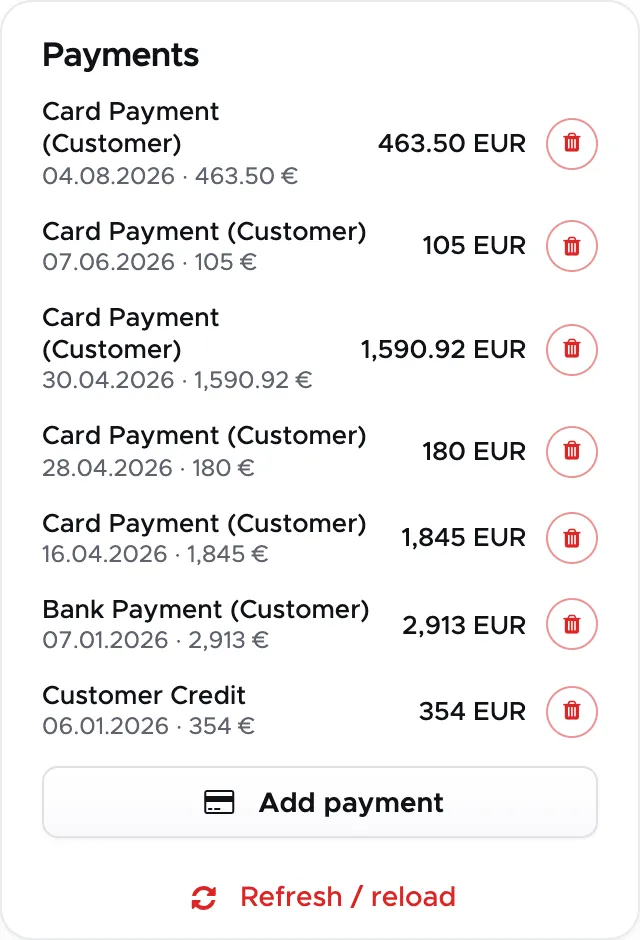
In case of mistakes, you can delete the applied credit that you see in the Payments section. The Customer Credit will then be shown at the top of the bill and you can repeat the steps to apply the credit. The applied credit that you’ve deleted will stay in the bill Payments section and be marked as deleted.
9.4 Add Refund
Section titled “9.4 Add Refund”You can only add a refund if the bill contains at least one payment. The maximum refund value is equal to the total amount paid.
Click on button Add above the bill positions and choose Refund.
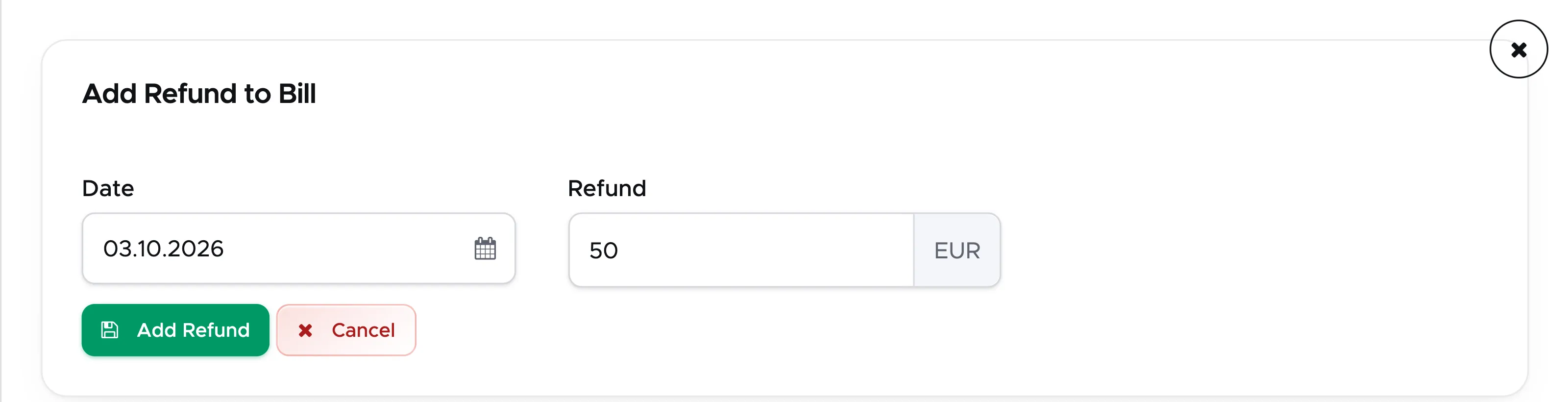
The date is automatically set to today and you can change it by clicking on the calendar icon.
Enter the amount that you wish to refund to your customer and click on the green button Add Refund.

The refund is added to the list of payments and the Open amount is automatically recalculated.
9.5 Apply Voucher
Section titled “9.5 Apply Voucher”Starting from version 2.0 and with the introduction of the Booking Module, you can manage all the quotes that you offer to your customers and partners. A confirmed quote will be automatically considered a voucher for the customer. It’s your choice to ask for a deposit or full payment of a confirmed quote before the customer arrives or at check-in.
If the customer claims to have a voucher, you don’t necessarily need to see proof of it. If the voucher was generated from a customer quote, you only need to know the name of the first customer that was attached to the quote. If the voucher was generated from a partner quote, you need to know the name of the partner who requested the quote (e.g. Travel ABC) and the list of services purchased by the customer. Click on button Add above the bill positions and choose Voucher to view the content of the voucher.
👀 Important!
Please make sure that your customer has a correct check-in date or Geek Divers won’t find any matching confirmed quote. Currently Geek Divers has a tolerance of ±5 days on the check-in date.
9.5.1 Voucher from a customer quote
Section titled “9.5.1 Voucher from a customer quote”Click on button Add and choose Voucher. If the customer checks-in with a voucher because they have requested and confirmed a quote, in the sidebar you will see the content of the confirmed quote.
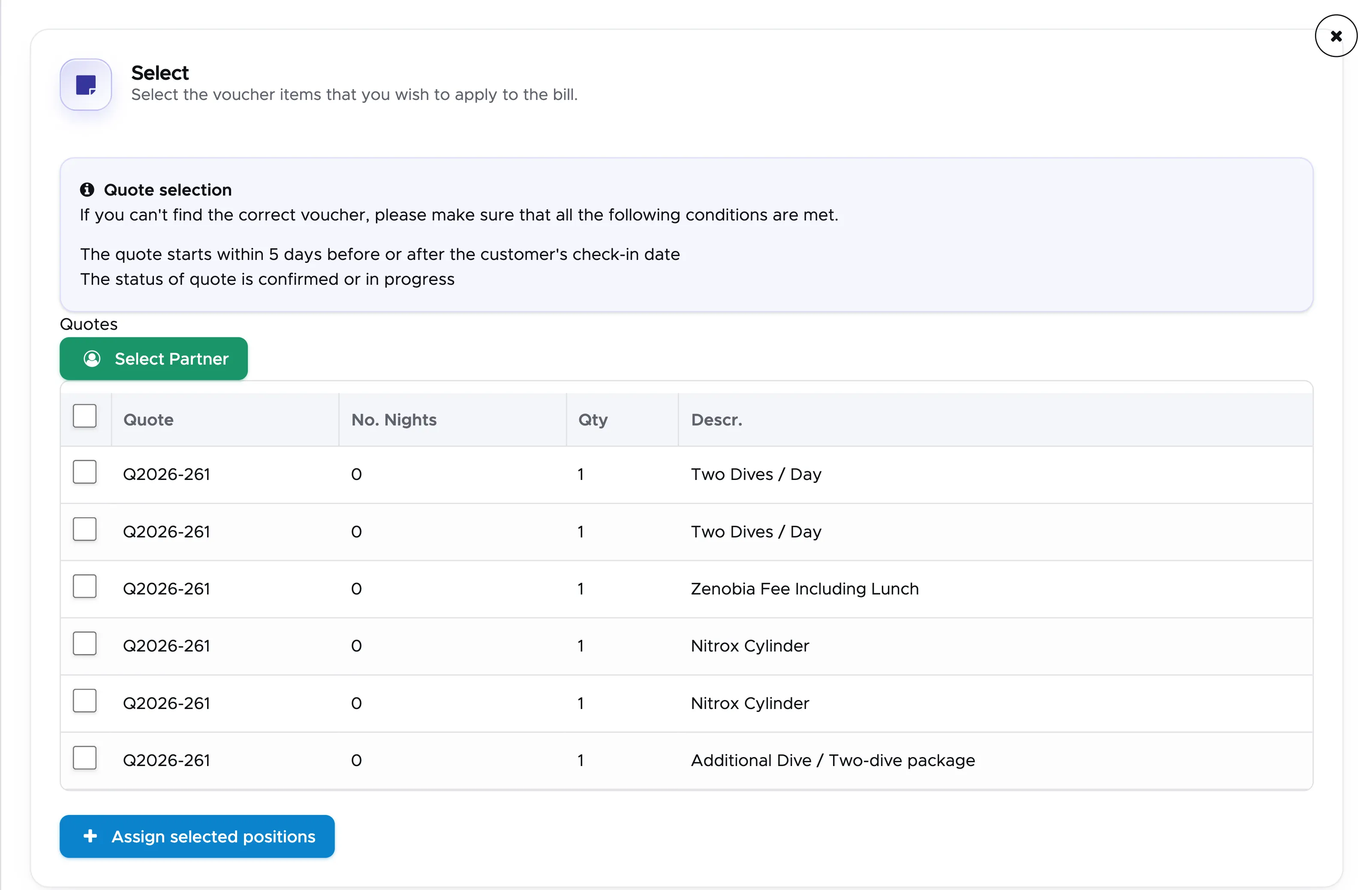
Select all or some of the items by clicking on the checkboxes next to each position or the checkbox at the top and click on button Assign selected positions.
The sidebar will automatically close and all the selected positions will be added to the bill in the group From vouchers, above the bill positions.
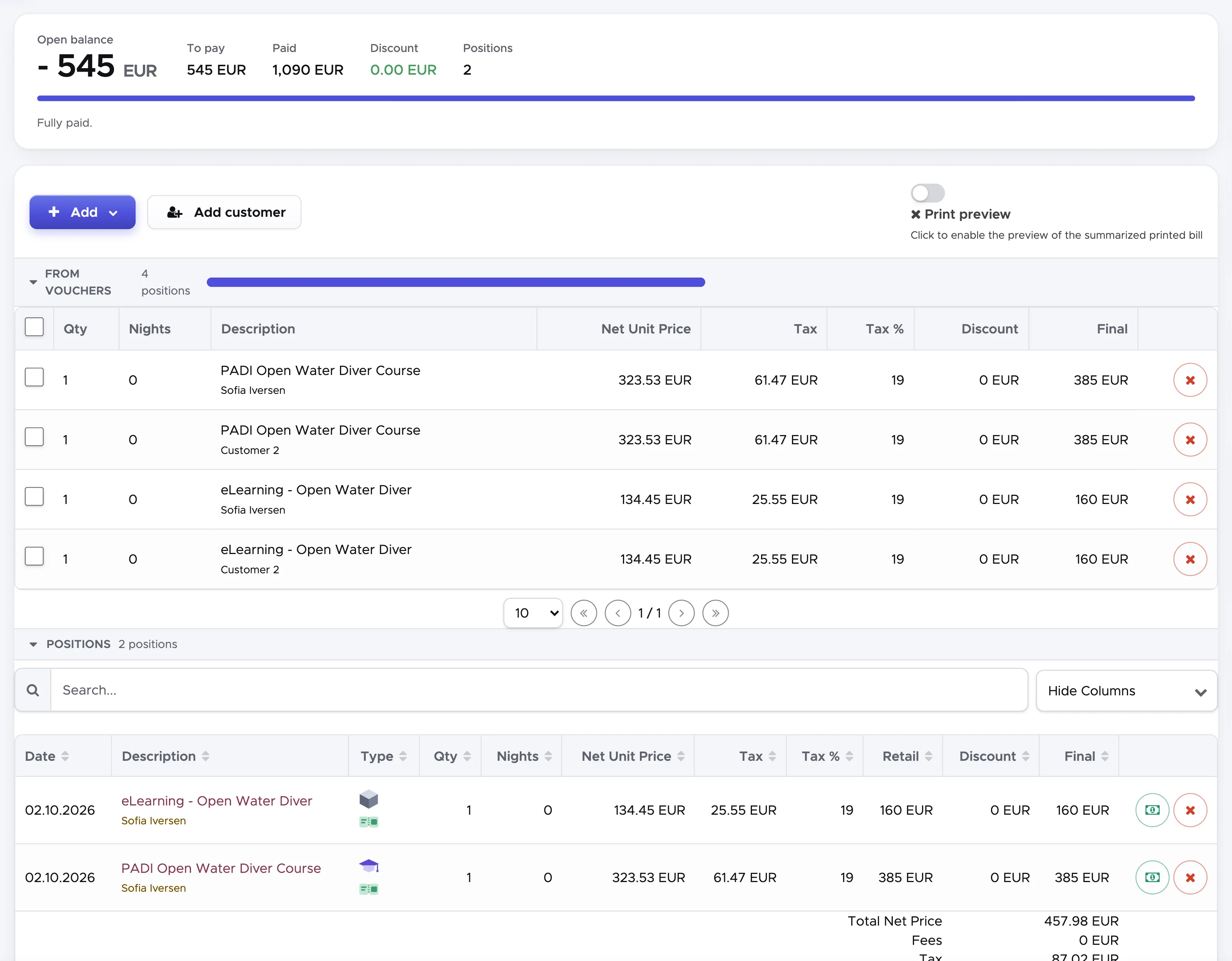
The voucher positions will be copied 1-to-1 from the quote, with the same descriptions, prices and discounts. The prices might be slightly different from your current prices. This is because your current price list might have changed between the time the quote was created and confirmed and now or because a discount was recorded in the quote.
Some voucher positions will be automatically copied in the bill positions: accommodation (room reservation from the Accommodation Calendar), meal plan, multi-package and type Package. Everything else will be either added automatically to the bill positions every time you plan the customer in the activity calendar or you can add items manually using button Add and Position from price list.
As soon as you plan the customer in the activity calendar or you add positions to the bill, the voucher positions will be marked in the bill positions with the green voucher icon in column Type. As soon as a voucher position matches a bill position, you will see the progress bar of the group From vouchers grow.
In the example above, the customer’s bill contains an Open Water course and its eLearning, which are both part of her voucher. The two bill positions show the voucher icon and the prices agreed in the quote.
In case of mistakes, voucher positions can be removed from a customer’s bill by clicking on the X button at the end of each voucher position, or by ticking the checkboxes of several voucher positions and clicking on Remove. If a voucher position is removed from a bill, it disappears from the current bill, but it remains available to be used in another customer’s bill, if the original quote was assigned to more than one customer. Removing a voucher position, if this is already matching a bill position, will not remove a bill position, but it might update it with the current prices. More on this in chapter Customer Quote.
Please consider that you can apply a voucher at any time, as long as the bill is still open and the customer has the correct check-in date. You can choose to apply a voucher at check-in, during the customer’s stay or before check-out.
9.5.2 Voucher from a partner quote
Section titled “9.5.2 Voucher from a partner quote”If the customer checks-in with a voucher because they have purchased your services through one of your partners or travel agents, in the sidebar you will not find the content of the partner quote because your first need to select a partner (the only exception is if the partner quote was also assigned to the customer).
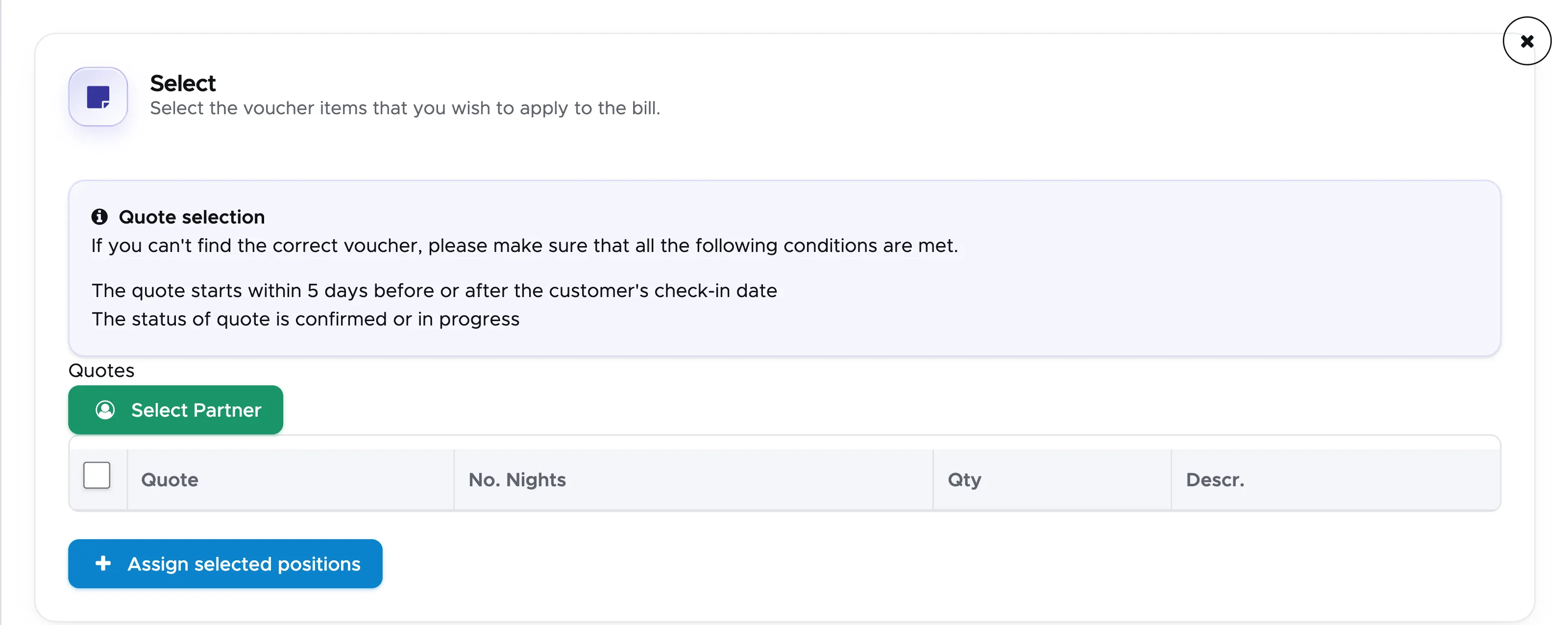
Click on the button Select Partner and choose the correct partner from the list. In the sidebar you will now see the partner quote positions that match the customer’s check-in date. You might find a lot more positions than the ones written in the customer’s voucher. Select only the positions that the customer has actually purchased and click on the button Assign selected positions.
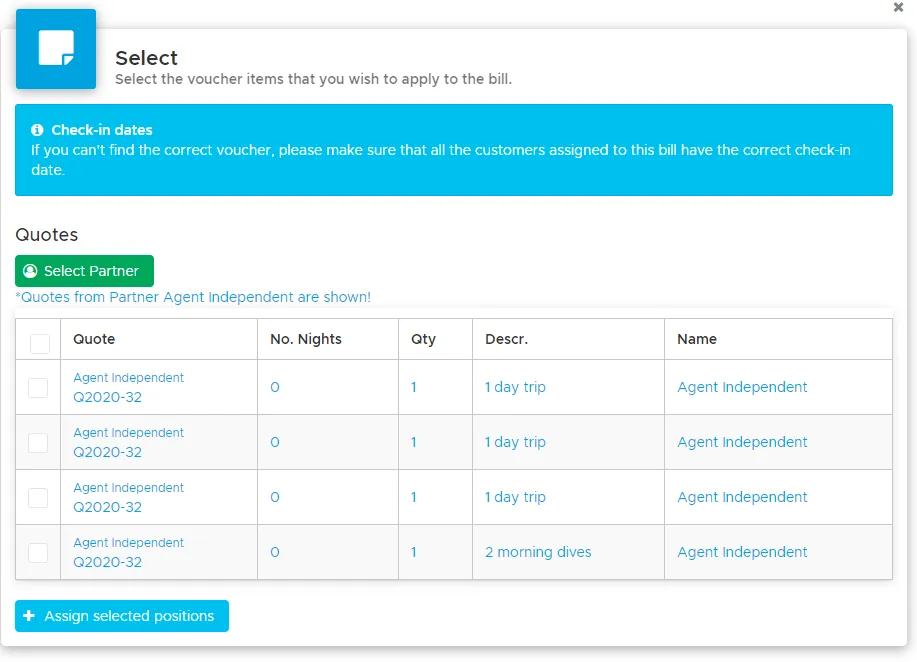
The selected positions will be written in the group From vouchers of the bill with the wording “Partner voucher” and no prices. As soon as you plan the customer in the activity calendar, new bill positions will be written in the bill and if they match any of the voucher positions, they will be marked as “Voucher” (no prices).
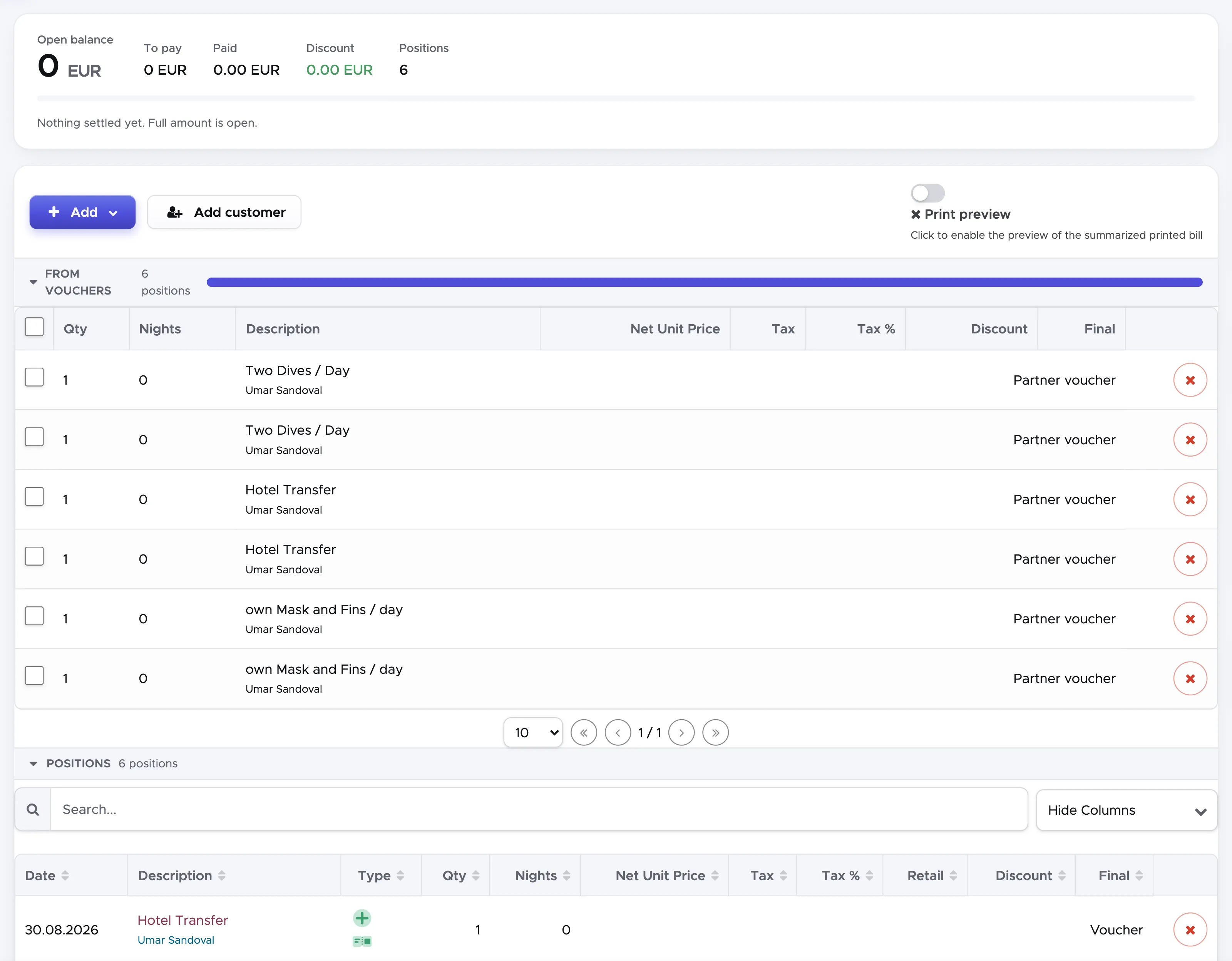
The group From vouchers shows a progress bar that is automatically updated whenever a voucher position is applied to the bill.
In case of mistakes, voucher positions can be removed from a customer’s bill by clicking on the X button at the end of each voucher position, or by ticking the checkboxes of several voucher positions and clicking on Remove. If a voucher position is removed from a bill, it disappears from the current bill, but it remains available to be used in another customer’s bill. Removing a voucher position, if this is already matching a bill position, will not remove a bill position, but it will update it with the current prices. More on this in chapter Partner Quote.
Please consider that you can apply a voucher at any time, as long as the bill is still open and the customer has the correct check-in date. You can choose to apply a voucher at check-in, during the customer’s stay or before check-out. Clearly, depending on the content of the voucher and the content of the bill, the Open amount will change.
9.6 Fees and Notes
Section titled “9.6 Fees and Notes”The fees that you charge to your customers are not part of your revenue and therefore they need to be shown separately in your customer’s bill.
You will see the fees written under the bill positions in a separate sub-total.
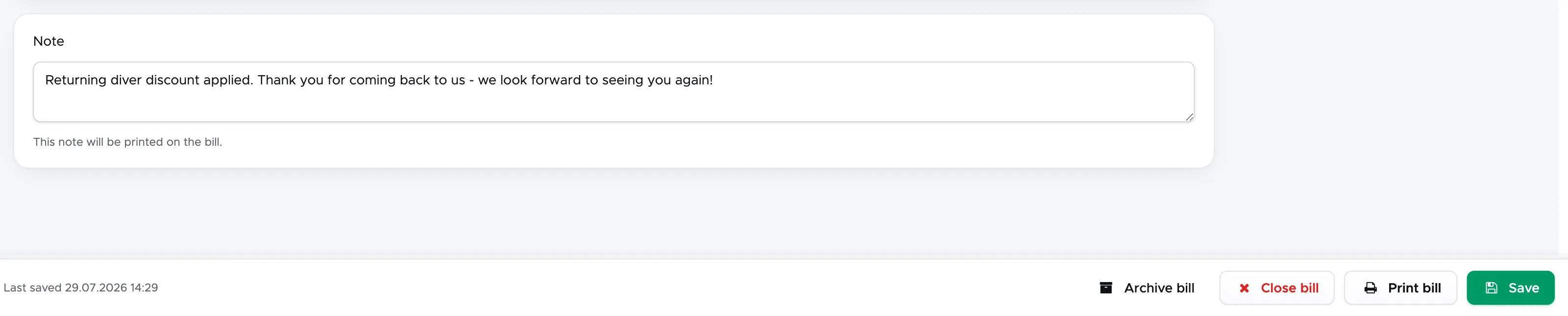
Below the bill total you will see a text field Note. If you wish to write a comment to the customer’s bill, you can do so in this field. If this text field contains at least one character, it will be printed in the pdf version of the bill before the bill footer.
9.7 Change date and bill number and share packages
Section titled “9.7 Change date and bill number and share packages”On the right of every bill you will find the card ‘Bill details’, with the bill date, the bill number and the Share packages switch.
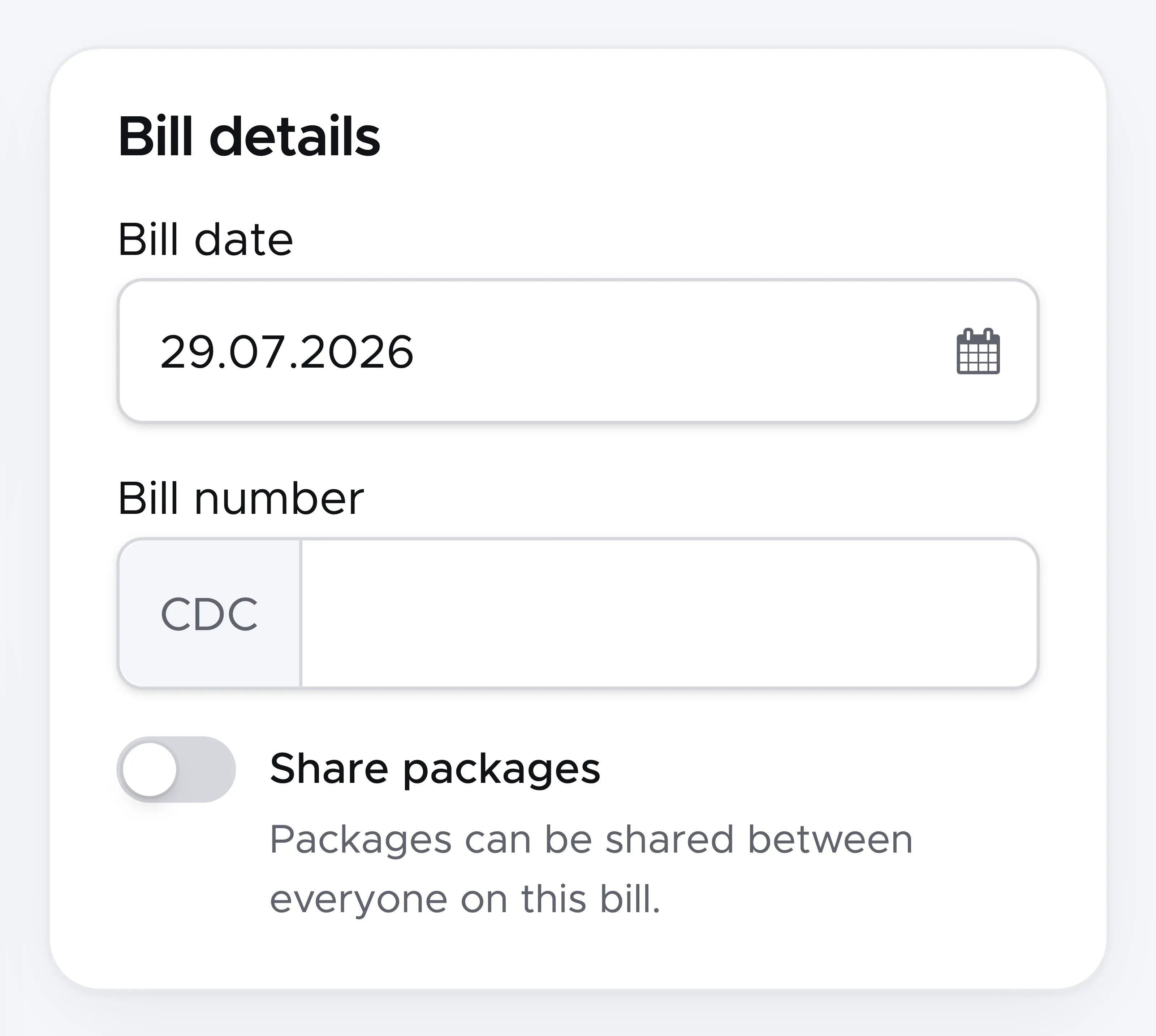
If the bill is open you will see the creation date. The Bill Number will be empty. You can change the date and write your own bill number and click on Save at the bottom of the bill. Please consider that by typing your own bill number you might end up having more than one bill with the same number in the system.
Once you close the bill, no more changes will be allowed.
The bill date that you see in this section is the bill creation date. The official bill date is the bill closing date that will be set together with the bill number once you close the bill. If you set a different date here, this date will be taken as bill date once you close the bill.
In version 2.0 you will find a new toggle: Share packages.
With the possibility to add customers to a bill (see following chapter), you can choose if you wish to share your item packages and multi-packages or if you prefer leaving the automatic discounts strictly to one customer at a time. By default this toggle is turned off, so your item package prices and your multi-packages will be applied separately per customer. If you wish to allow your customers to share a package price, you will need to manually turn on this toggle and click on button Save.
9.8 Add Customer
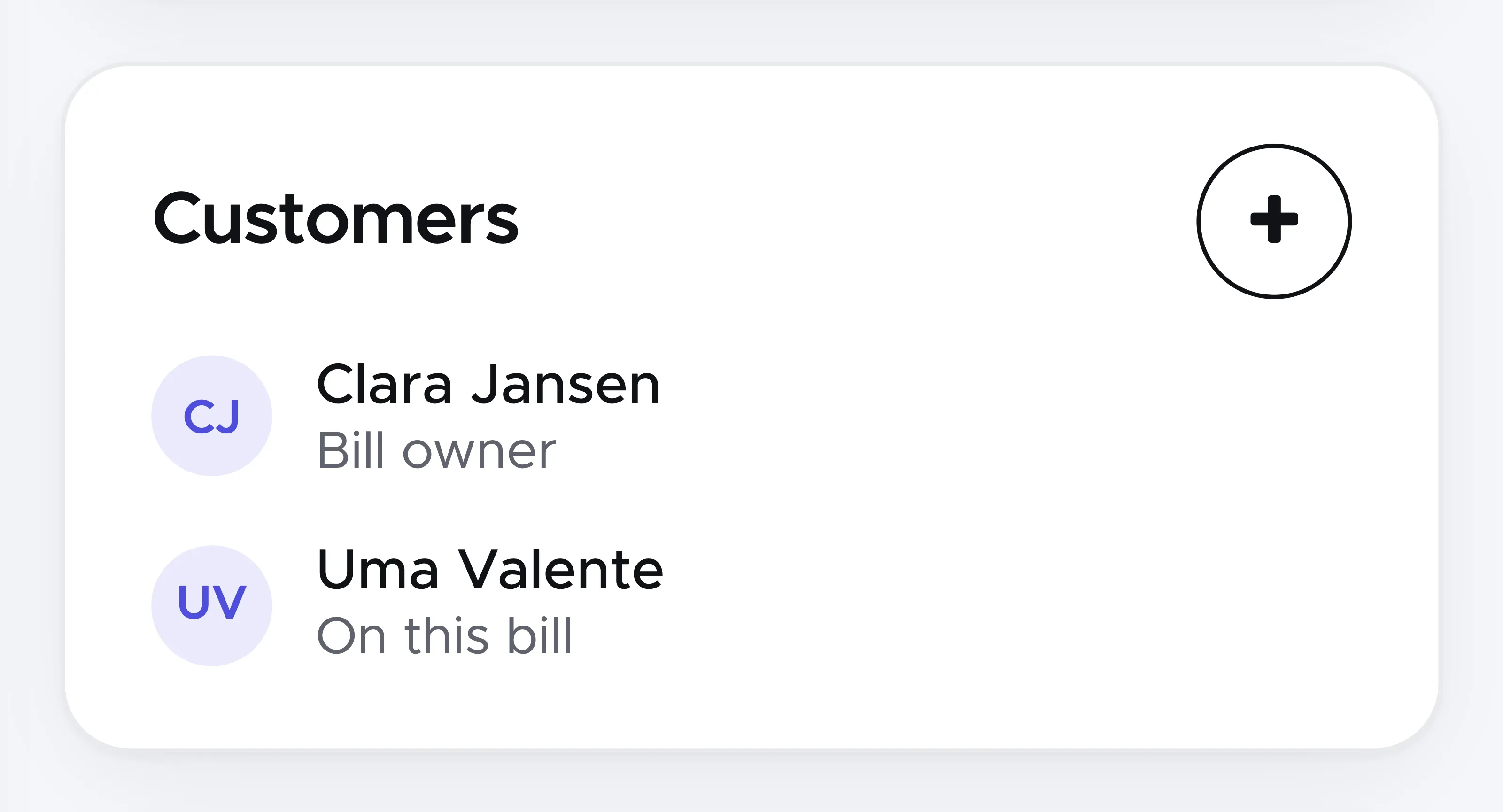
Section titled “9.8 Add Customer”With version 2.0 you can have more than one customer in one bill. To add a customer to an open bill, click on the button Add Customer. In the pop-up, start typing the customer’s name or last name. As soon as you see the correct customer, click on it to add it to the current bill.
If the added customer doesn’t have an open bill, the name will just be added to the card Customers of the bill, below the first customer.
If the added customer already has an open bill, Geek Divers will ask you if you wish to merge that bill into the one that you’re viewing.
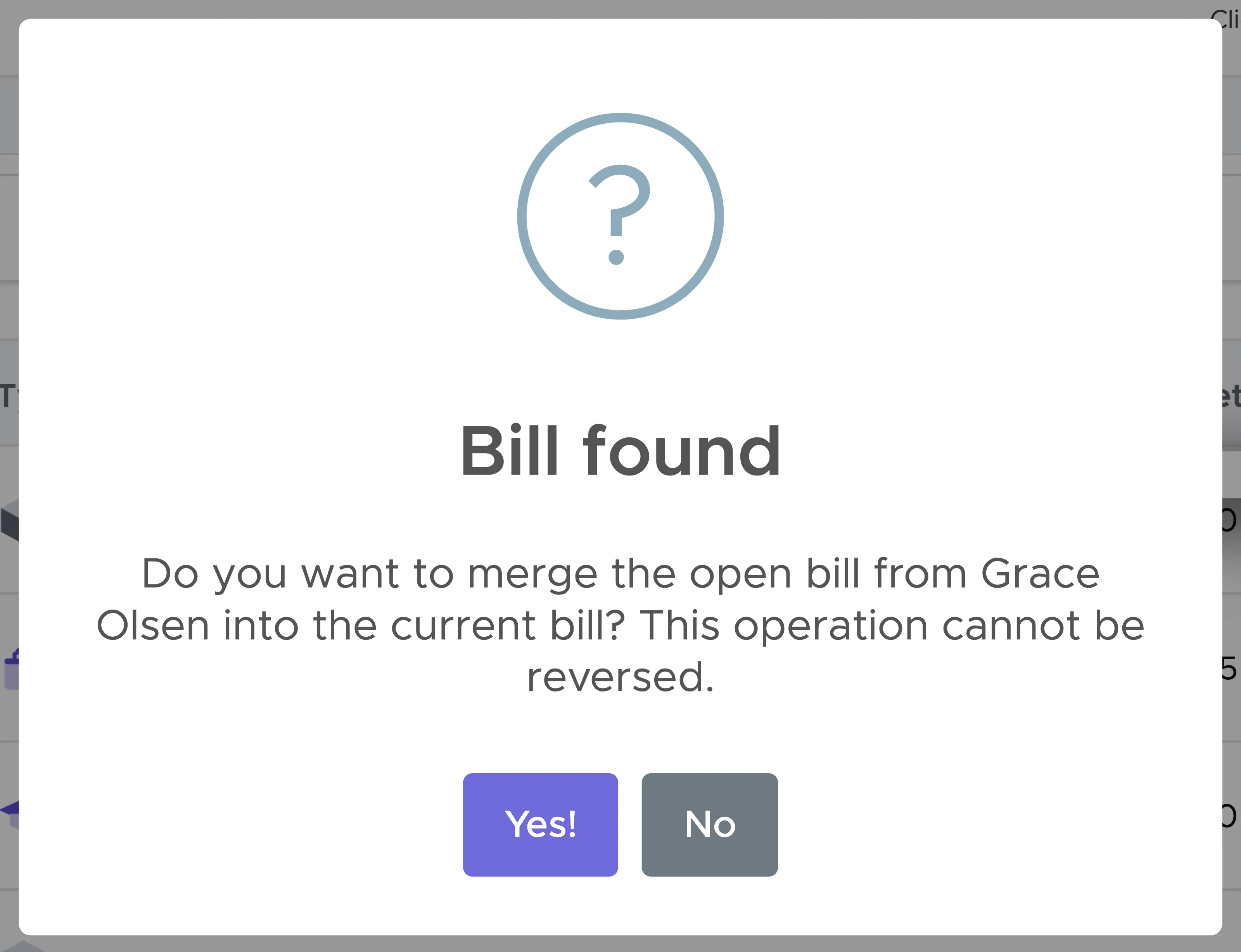
If you click on Yes, the system will take the content of the customer’s bill (bill positions, payments, vouchers) and transfer them to the bill that you’re viewing. The bill that was merged into the one that you’re viewing will be completely empty and it will disappear.
👀 Important!
Once two or more bills are merged, they cannot be split again. The Geek Divers support service cannot split them for you.
In the bill with more than one customer, every bill position will be assigned to a customer.
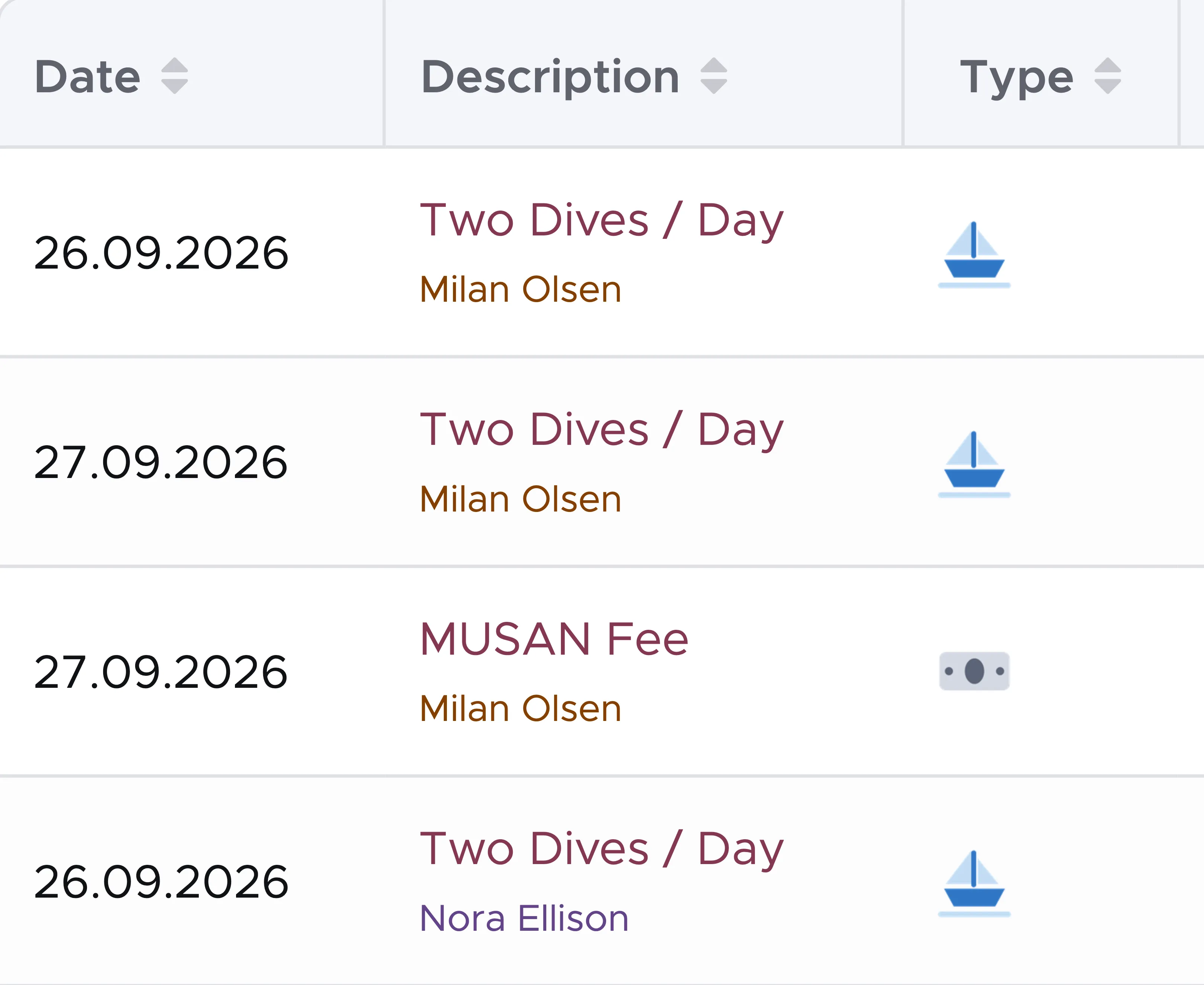
At this point, if you wish to add a Position from price list or a Position (manual) with button Add, you will need to select which customer the new position belongs to. The bill positions that are automatically generated from the Activity Calendar will show the correct customer’s name.
If the bill contains a voucher, the voucher positions will be applied to any matching bill position, regardless of the customer’s name written under the description.
Applying a customer credit or adding a payment or recording a refund will not distinguish between the open amount of a customer or the other. Once two or more customers are in one bill, the calculations will take into account every position and consider the total sums.
Any predefined discounts applied to the bill will calculate the discount on bill positions matching your setup, regardless of the customer they are assigned to.
It is therefore very important that you add a customer to an existing open bill only if you’re sure that these customers wish to settle the bill together and if you wish to apply the same conditions to all of them.
The customers can however check the bill positions and their names in the bill printed version and if they wish to split the costs, they can do so after check-out.
9.9 Print bill
Section titled “9.9 Print bill”You can print the customer’s bill at any time as long as there’s at least one bill position.
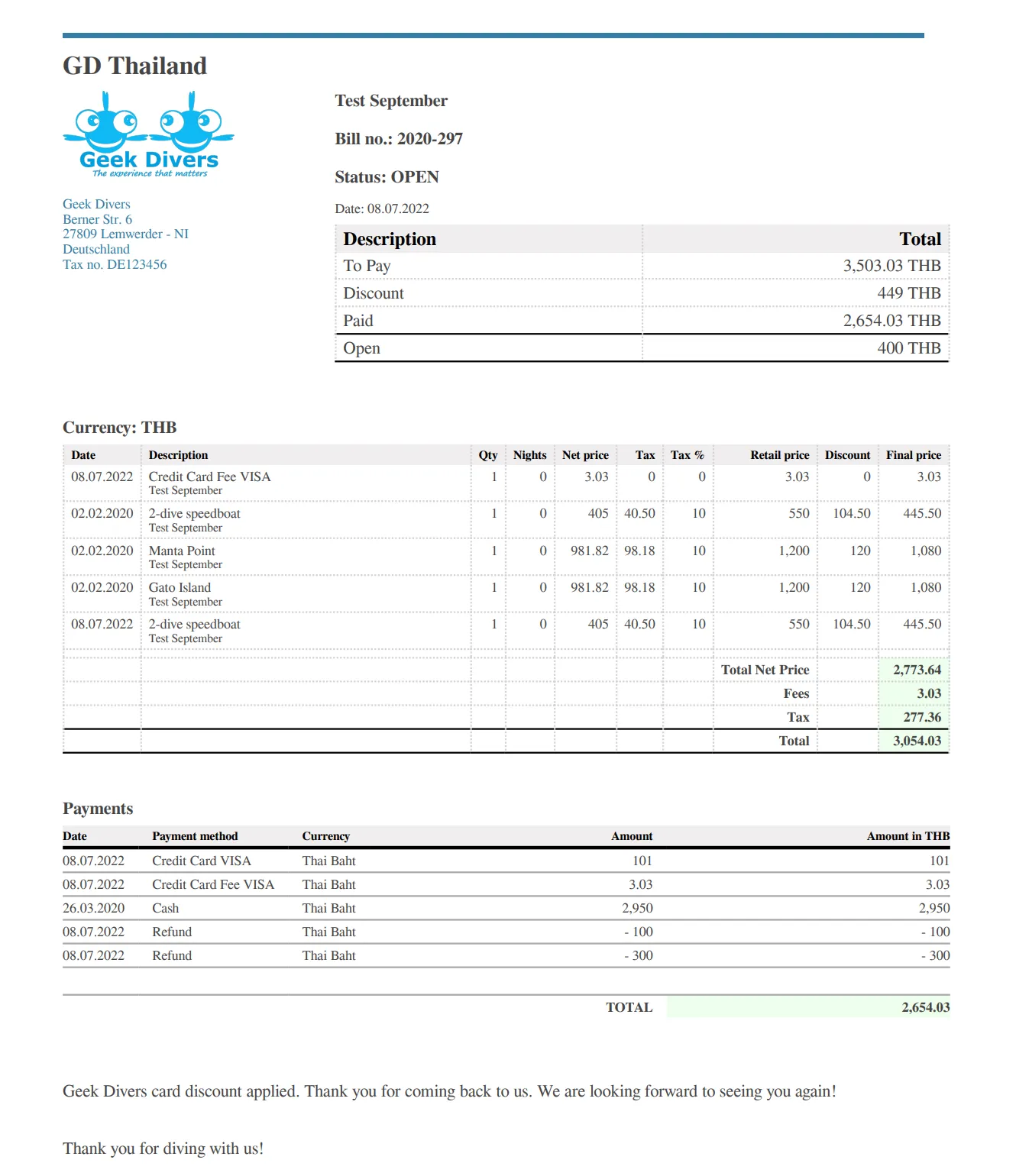
Print Preview - You will find this toggle before the Bill Positions section. If you click this toggle you will see a summarized version of the bill. E.g. instead of seeing each position with Qty 1, some positions might be merged and show you a quantity higher than 1. Positions will be merged only if they have the same date, description and net price. If the Print Preview toggle is set to ON while you add a payment or a new bill position, you might not see them immediately in the bill. Turn the Print Preview toggle to OFF to verify that they’ve been correctly added to the bill.
While in a customer’s bill, click on button Print bill, at the top of the bill or in the bar at the bottom. If the bill is still open, it is saved first.
You will see a sidebar containing the available printing options.
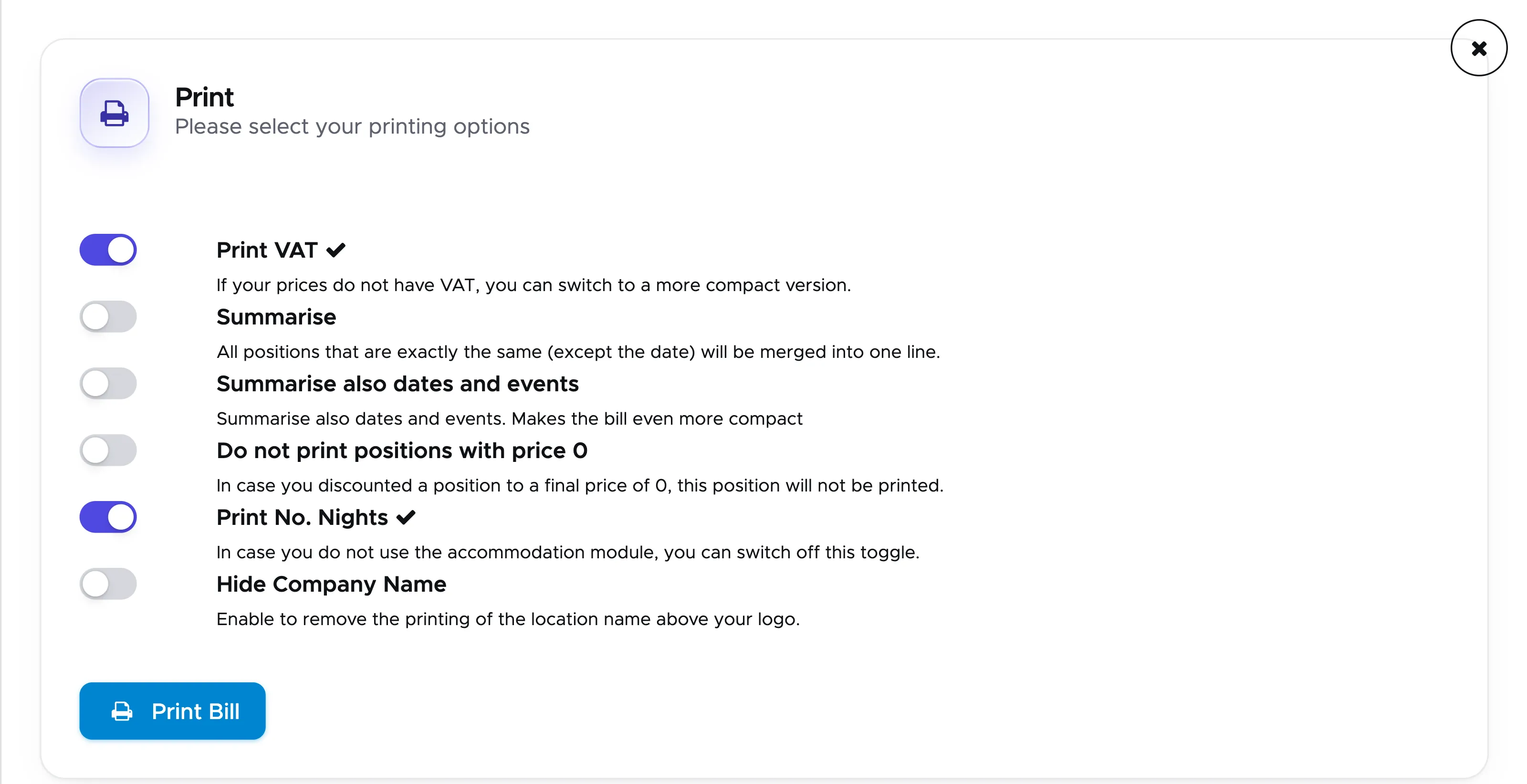
Click on the toggles to turn them on or off according to your preferences. A toggle that is turned on is blue and a toggle that is turned off is gray.
The first time you print a bill you will need to click on the toggles. Your preferences will be saved on the same device for the bills that you wish to print in the future, but you can always change your preferences.
Once you’ve made your choice click on button Print Bill.
A pdf file is generated and you can save it anywhere on your computer for your records. You can then send it to the customer via email or print it.
The bill status will show as Open if the value in Open is not zero. You will see status Paid if the amount in Open is exactly zero and status Closed if you’ve closed the bill, regardless of the amount written in Open.
9.10 Archive a bill
Section titled “9.10 Archive a bill”Starting from version 2.0, you can archive a bill if the following conditions are met:
-
The bill is still open.
-
There’s no bill number and no change was recorded to the original Bill Date in Bill details.
-
The bill has no bill positions or the bill positions are deleted.
-
The bill has no payment positions or the payment positions are deleted.
-
The bill has no applied vouchers.
-
The Bill Summary shows an amount of 0 in To Pay, Paid, Discount and Open.
You will find button Archive at the bottom of the bill and it will be available only if all the conditions listed above are met. An archived bill represents either a mistake or a peculiar situation. E.g. The customer was planned in the activity calendar, but for some reason they can’t join the activities and you don’t want to charge them. If their bill is completely empty, it doesn’t really make sense that you close it. Please remember that when you close a bill, Geek Divers will assign a progressive number to it and therefore it becomes an official accounting document.
You will find your archived bills on the Archived tab of menu Financial - Bills.
9.11 Close bill and check-out
Section titled “9.11 Close bill and check-out”Once the bill is paid and the customer has said bye-bye, you can close the bill. By closing the bill, you also check-out the customer. If you know that the customer is still around and might come back for a couple of dives, you might want to keep the bill open, so that the customer is still visible in your Current Customers. If you have accidentally closed a bill and the customer comes back to your dive center for a few dives, follow the steps in chapter Verify and Check-in to check-in the customer once again. As soon as you add this customer to an Activity, a new bill will be automatically created.
To check-out a customer, click on button Close bill at the bottom of the bill.
If you have added the customer to any past or future activities that are not yet closed, you won’t be able to close the bill and you will see a message similar to the one below:
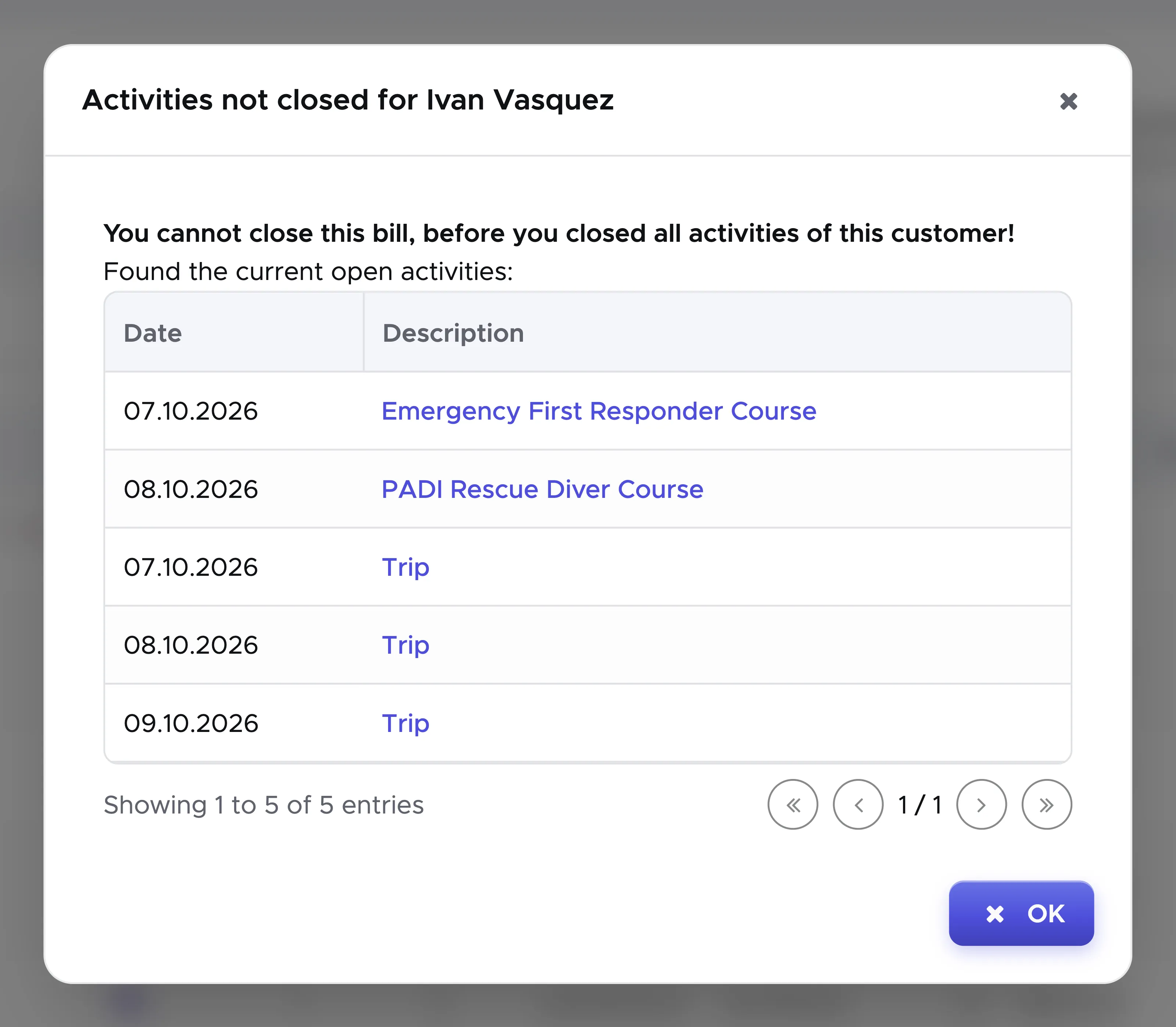
If you click on the name of the activities in this message you’re automatically redirected to the activity where you can decide to either remove this customer from the activity or close the activity. Once all the activities that this customer has joined have been closed, you can check-out the customer by clicking on Close Bill button.
If the customer is not part of any open activity and the bill is fully paid, this is the message that you will see:
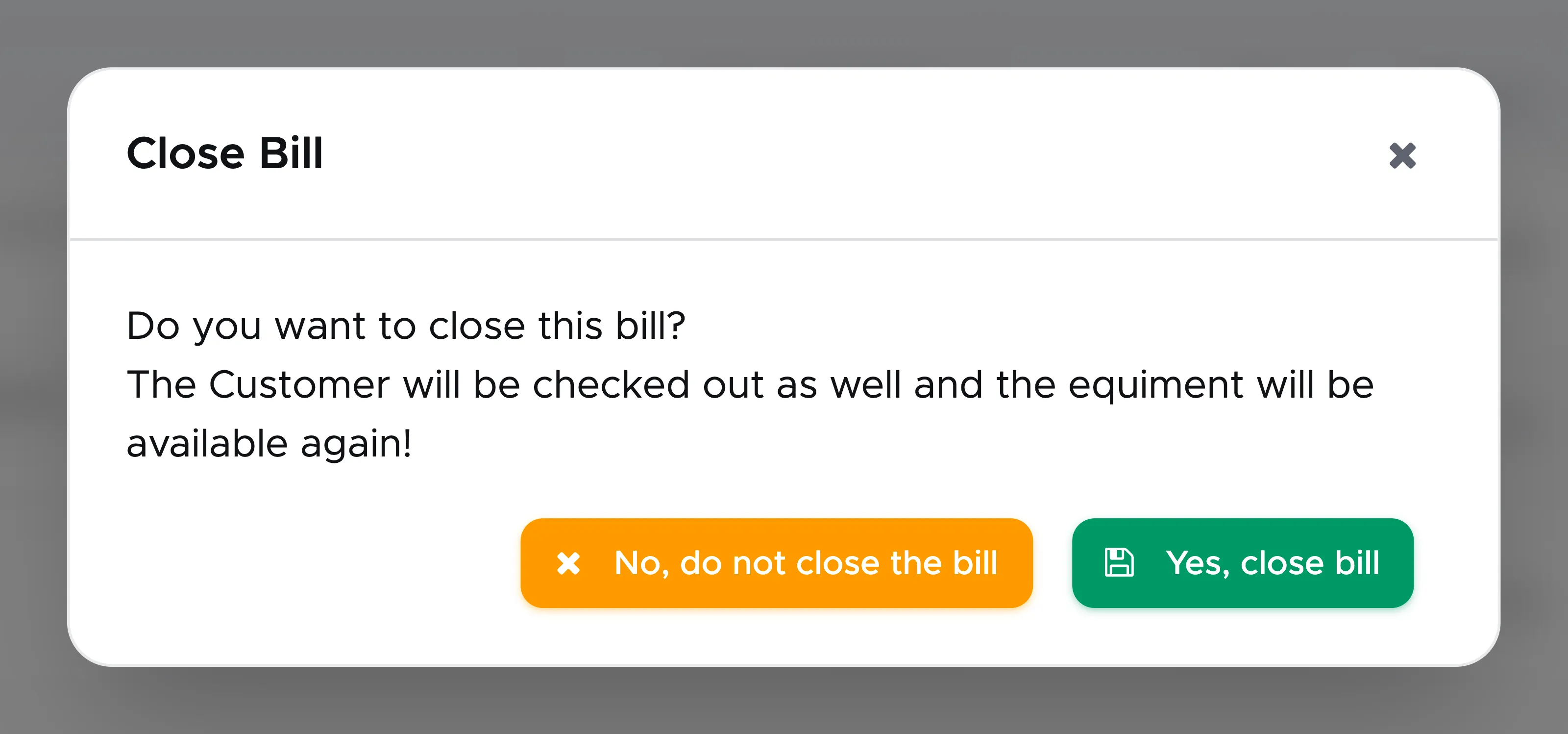
If the bill is not fully paid, you will see a similar message with the warning “Not fully paid!”, asking you whether you wish to close the bill anyway.
If you click on “Yes, close bill”, the bill will be closed (you won’t be allowed to make any more changes to the bill), the customer will be checked out and the rental equipment assigned to this customer in customer’s tab Equipment will be released.
If you haven’t typed a bill number and date in Bill details, when you click on button Close Bill, a bill number will automatically be generated and assigned to this bill. The bill closing date will be assigned to the bill as bill date.
9.12 Download a period of closed bills
Section titled “9.12 Download a period of closed bills”Your accountant asks for a year of invoices, and printing them one at a time is an afternoon. Open Bills - Closed, set the list to the period you need with the filters and the search, and use the Download button above the list: it builds one PDF per bill and hands you the lot as a single zip.
The number on the button is the number of bills it will export — it follows the list, so whatever you have filtered to is what you get. A large export takes a while to build; the button says so while it works.