
Online registration form
Every Geek Divers account comes with one or more online registration forms connected to it. You can find the URL for your online registration form in Settings → Registration Form, tab Share & locations. On this page you choose to use only one registration form for all your locations or a separate registration form for each of your locations. To view the location-specific URL of your online registration form, please change the location using the selection menu in the top bar.
The online registration form connected to your Geek Divers account will save customers only to your account and nowhere else. Your customers’ data is protected at all times.
The URL(s) can be added to your website, you can send it to your customers via email or you can use it in your dive center on a phone, tablet or laptop for walk-in customers. We recommend the usage of a free service to shorten the URL and generate a QR code. Print one or more copies of the short URL and QR code to keep available in your dive center for your customers. You could ask them to use their phone to fill out the registration form if they have an internet connection.
The form includes customer’s personal data, diver’s certifications, rental equipment, consent checkboxes and more. You can customize your online registration form following the instructions in chapter Registration Form. Once the customer confirms the data, you will see the customer in Customer → Upcoming Customers if the check-out date is in the future. If the customer doesn’t fill out check-in and check-out dates or if they are in the past, you can still find the incoming customer information by choosing the “RegForm” tag in All Customers. Every customer that fills out the registration form will be automatically tagged “RegForm”.
The online registration form can have up to 11 steps represented by sample pictures below here. On the Steps & fields tab of the Registration Form page you can choose to turn off some of the steps if you don’t need them. Below here you can find all the available steps. Please consider that if you turn off one or more steps, the step numbers described below here might be different.
Step 1 - Check-in/out dates
Section titled “Step 1 - Check-in/out dates”In this first step your customer will select which of your locations they wish to visit (or the locations they’ve already booked) and the dates. This is how Step 1 looks like if you’ve chosen to use one online registration form for all your locations (Global Settings):
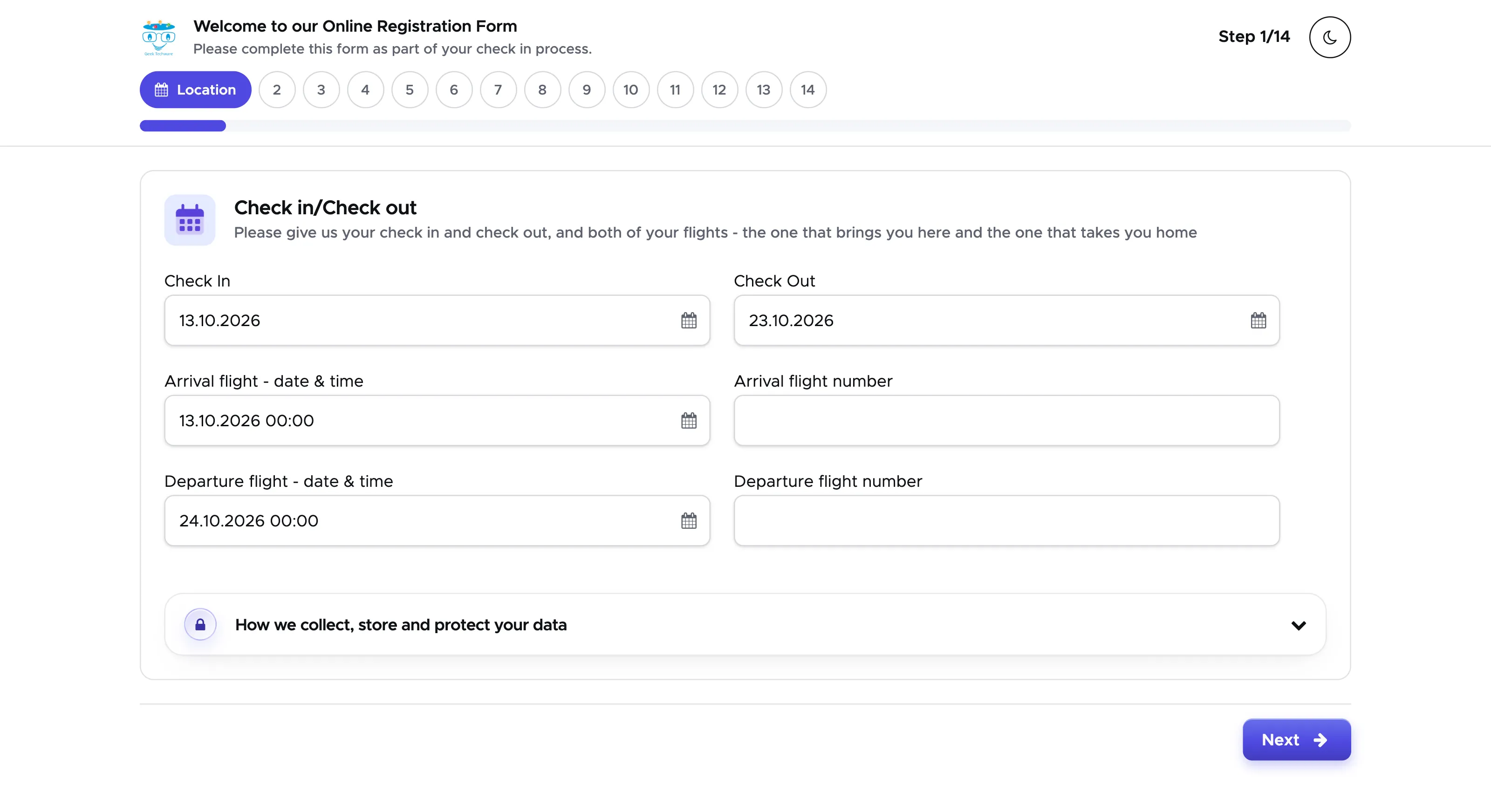
If you’ve chosen to use a separate URL for each of your locations, this is how the first step will look like:
Step 2 - Personal Data
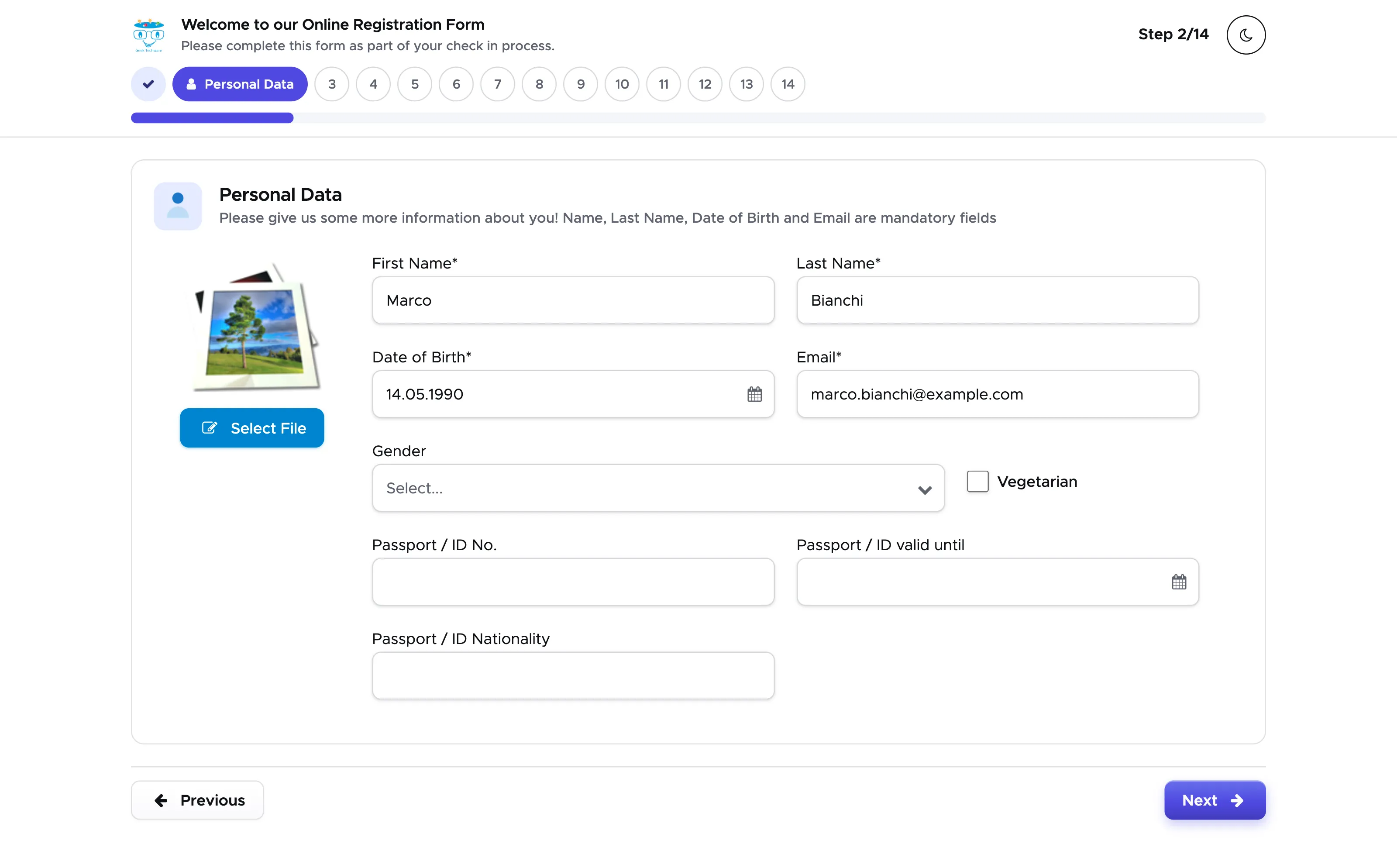
Section titled “Step 2 - Personal Data”The second step is related to the customer’s personal data. Here the mandatory information is represented by: Name, Last Name, Date of Birth and Email. If this customer is already in your Geek Divers customer base and there’s a match for all the mandatory fields, the existing customer’s profile will be updated with the information coming from the online registration form.
Step 3 - Address
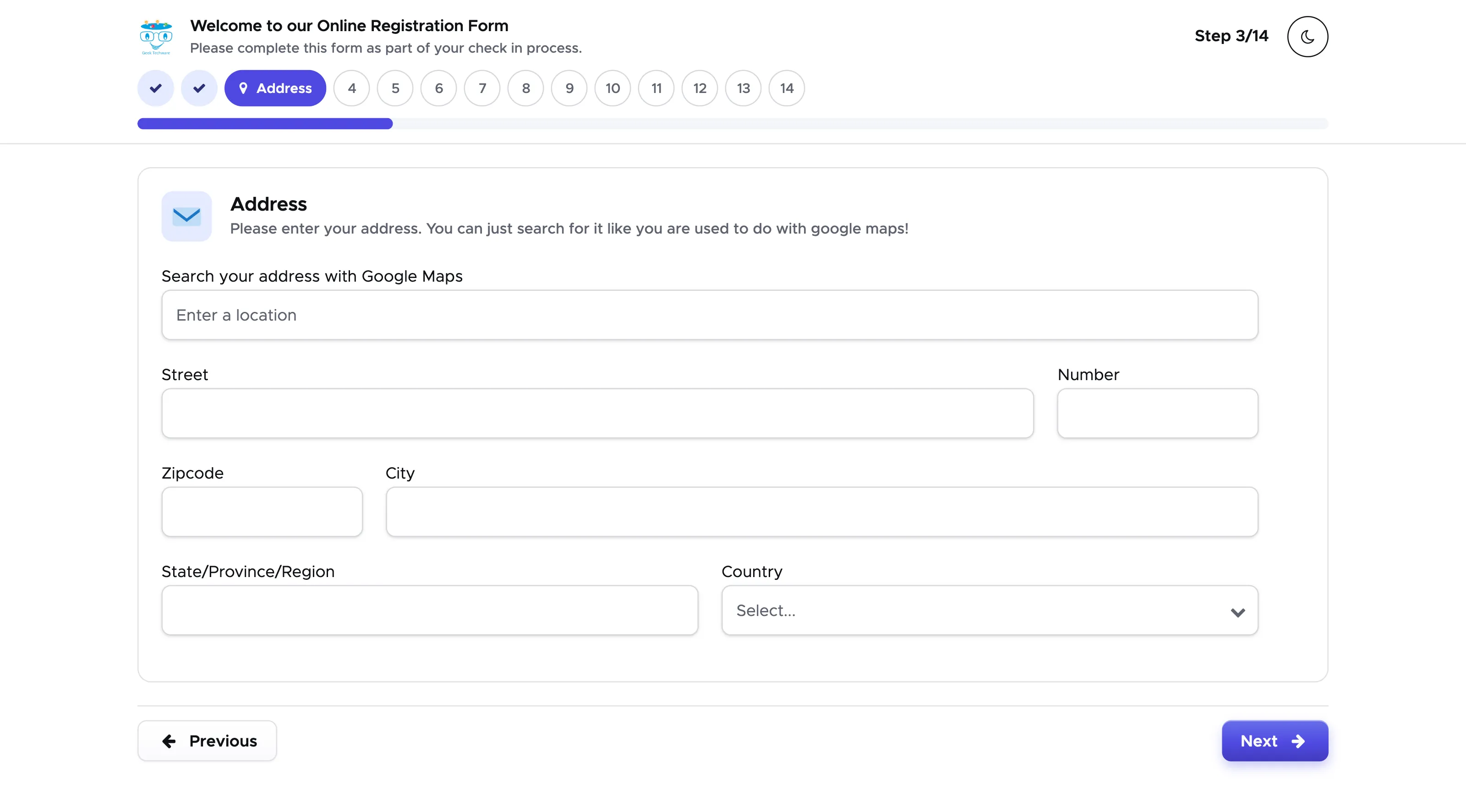
Section titled “Step 3 - Address”The third step is related to the customer’s home address. They can start typing their address in the first field at the top and Google Maps will propose suggestions.
Step 4 - Insurance
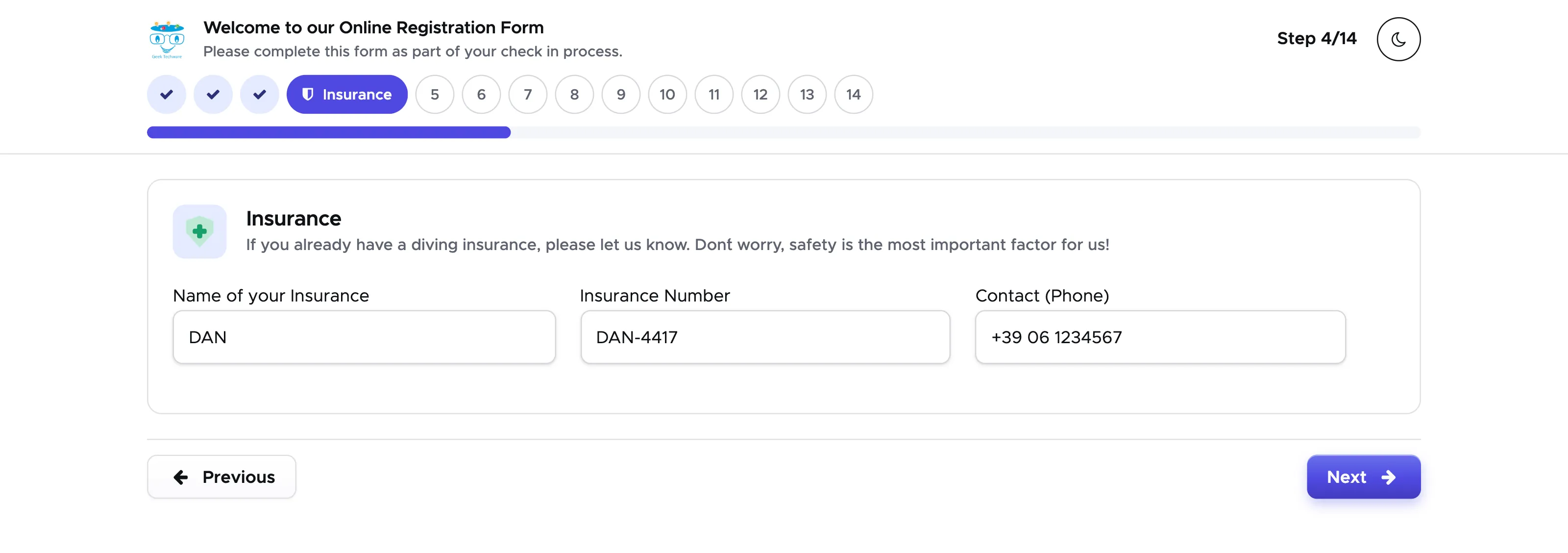
Section titled “Step 4 - Insurance”This step is related to the customer’s insurance information. If they have insurance that covers for diving activities they can write the related information here.
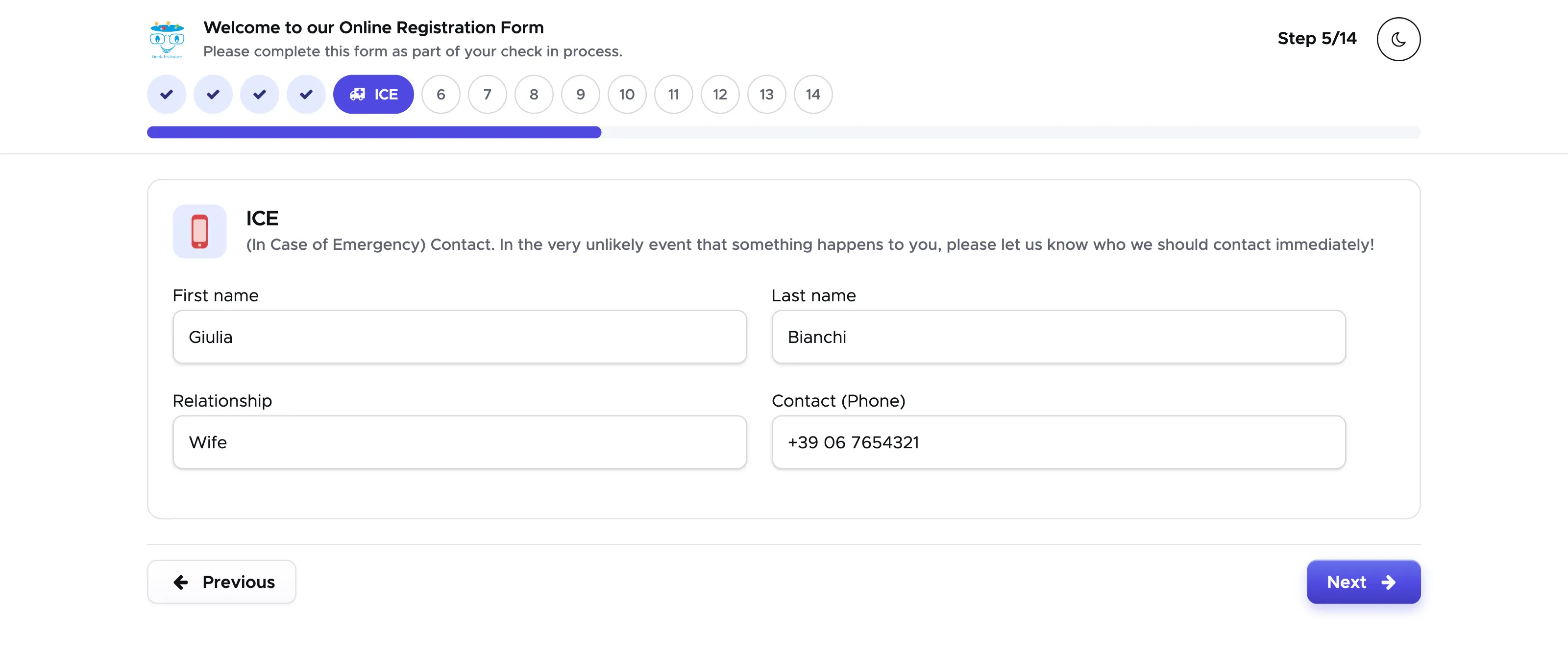
Step 5 - ICE
Section titled “Step 5 - ICE”This step is about In Case of Emergency contact information.
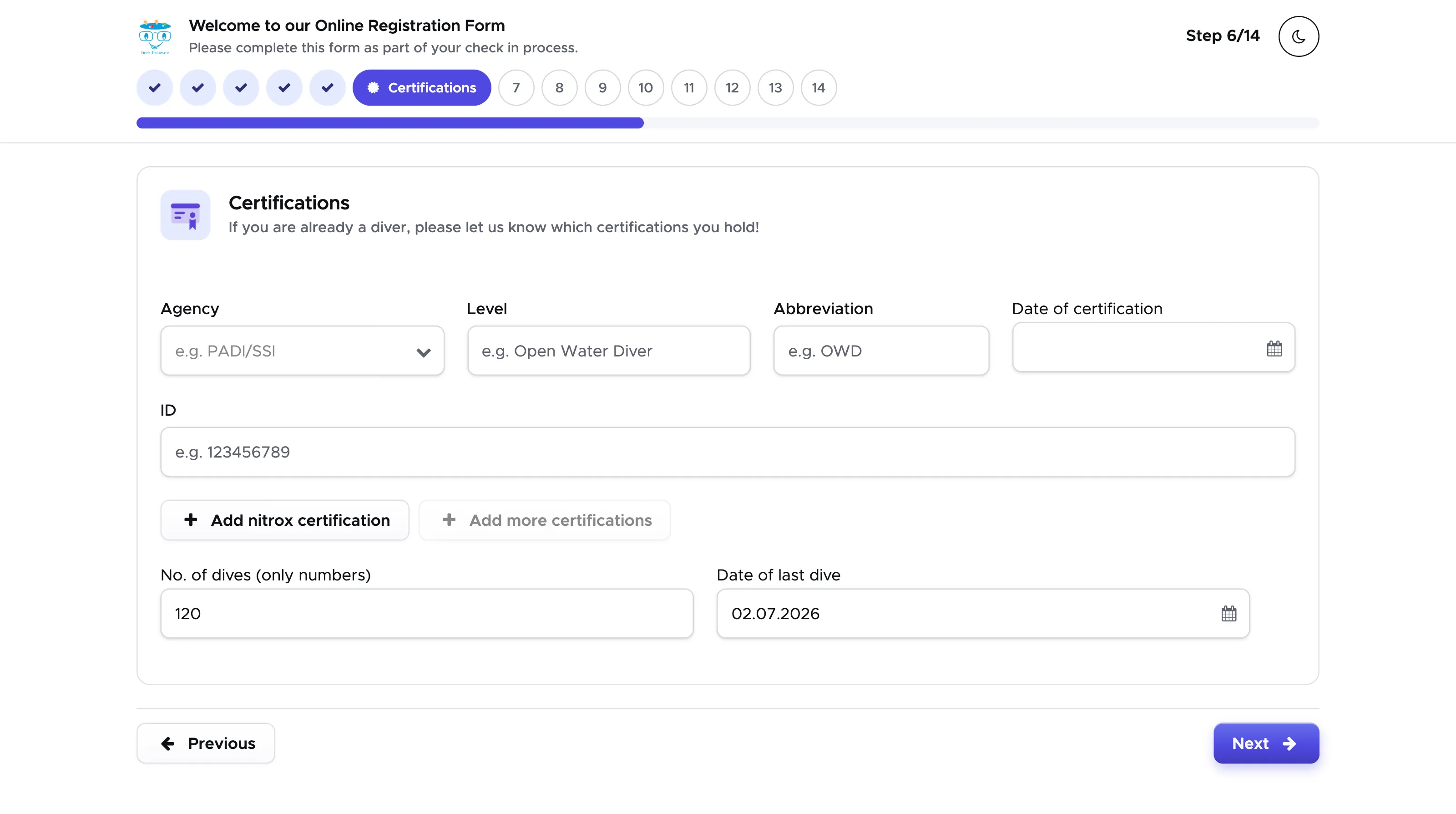
Step 6 - Certificates
Section titled “Step 6 - Certificates”This step collects the information related to the dive certifications that your customer already has. By typing the agency name in the first field, if you’ve saved some certificates in your Settings - General Settings - Certificates, these will be proposed and your customer can select one of them. If they don’t find the exact match, they can type the correct name. If needed, they can add their Nitrox certification and/or any additional certification. In the bottom part of this step they can add their number of dives and the date of last dive.
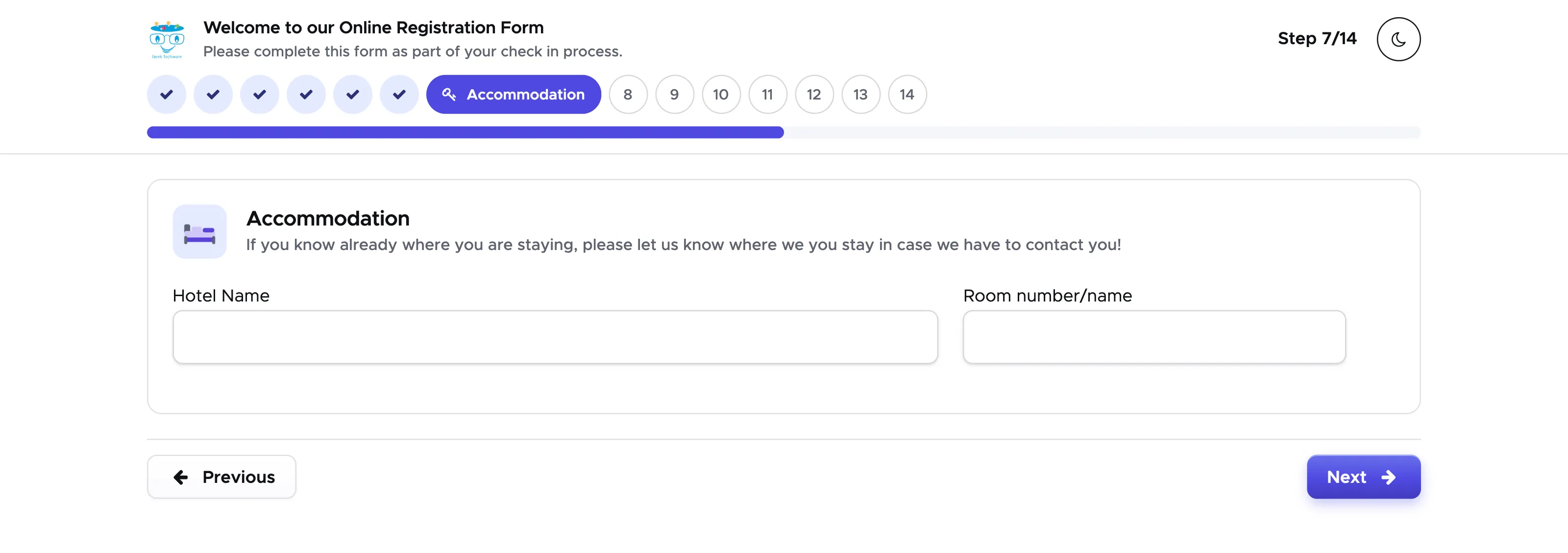
Step 7 - Accommodation
Section titled “Step 7 - Accommodation”This step is about your customer’s accommodation.
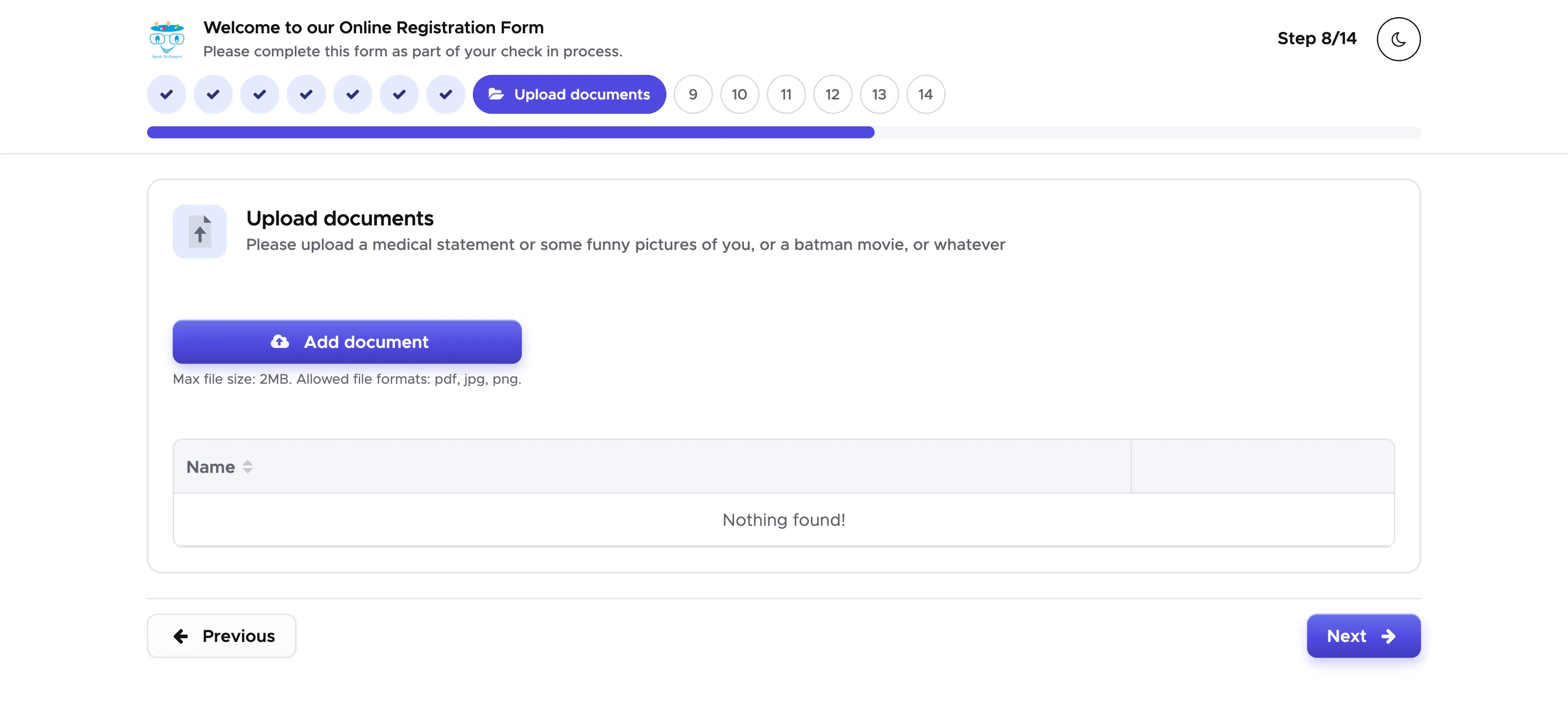
Step 8 - Upload documents
Section titled “Step 8 - Upload documents”This step allows your customer to upload any document that you might need or that you explicitly request in the customisable text at the top of the step.
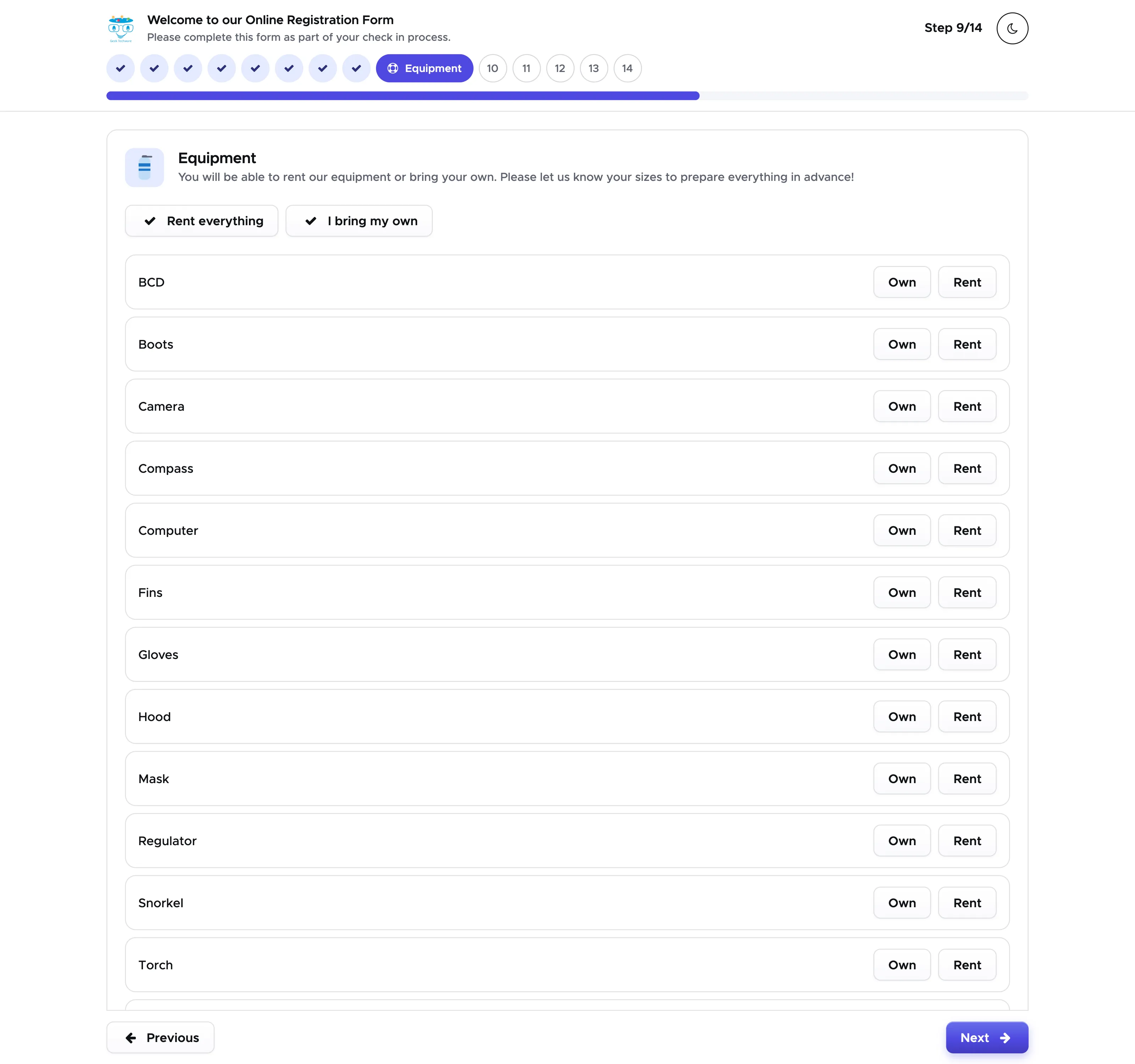
Step 9 - Equipment
Section titled “Step 9 - Equipment”In this step your customer can let you know if they are going to use their own equipment or if they need to rent some pieces. In case of equipment rental with a size, the form will ask to enter height, weight and shoe size. The most frequently used international units are provided.
Step 10 - Custom text
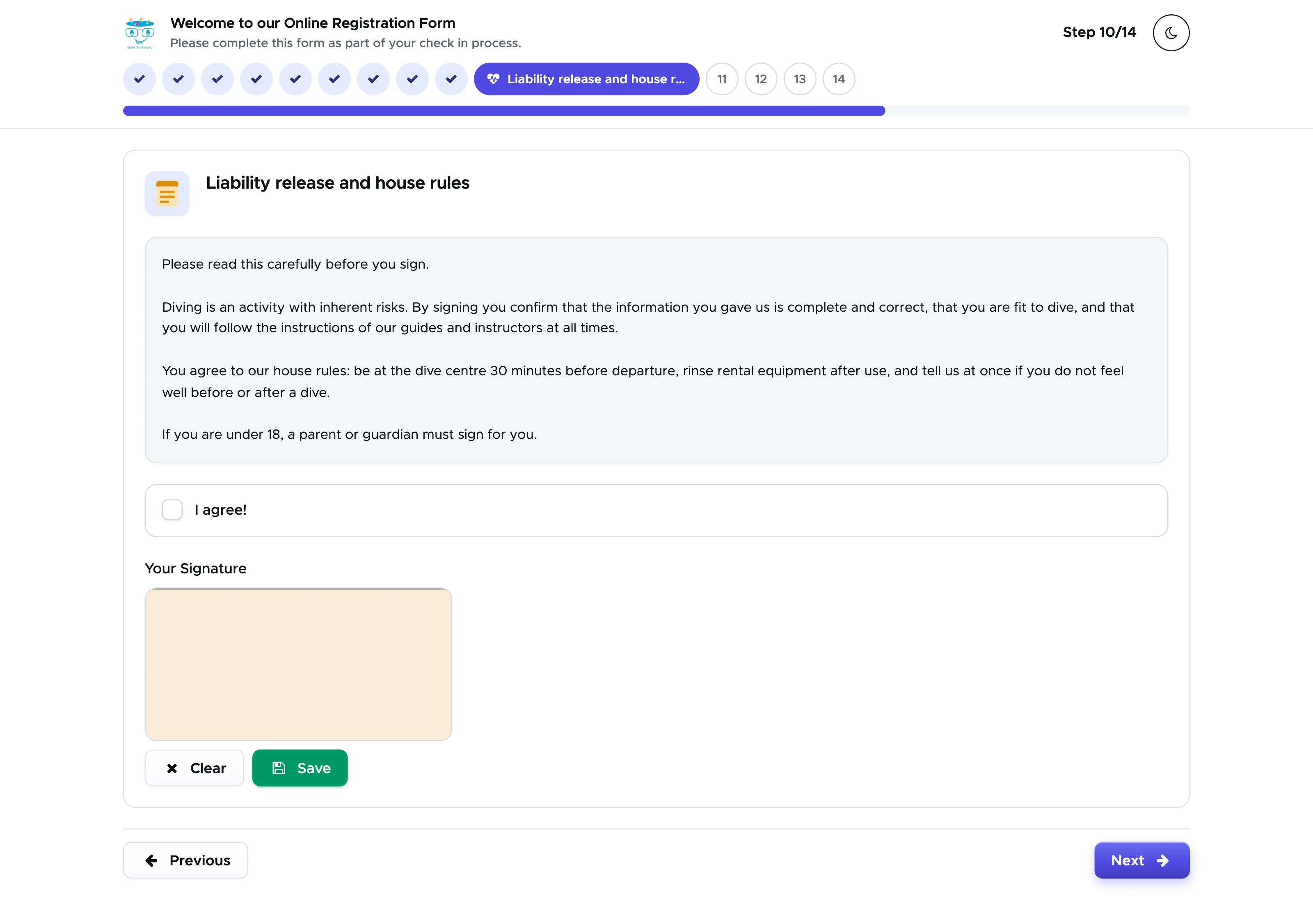
Section titled “Step 10 - Custom text”You can customise this step as you wish: you can copy and paste your liability statement, house rules, packing suggestions, FAQ or anything else that you wish your customers to know before using your services. In your settings you can also choose to add an “I agree” checkbox, an electronic signature or both. If you use this step and either the checkbox or the electronic signature, once the customer registration is completed, you will find a pdf document named Registration Form in the customer’s profile, tab Documents.
Step 11 - How did you hear about us
Section titled “Step 11 - How did you hear about us”This step allows your customer to let you know how they heard about you / your dive center.
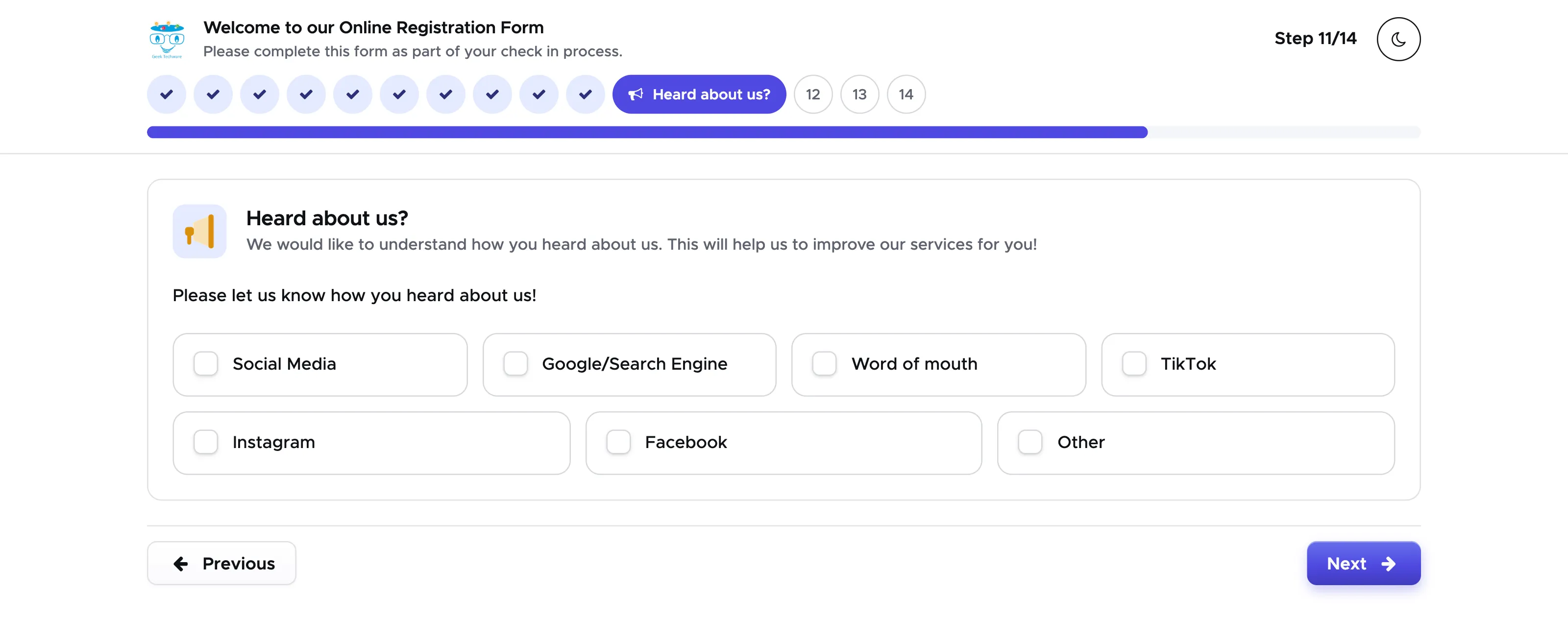
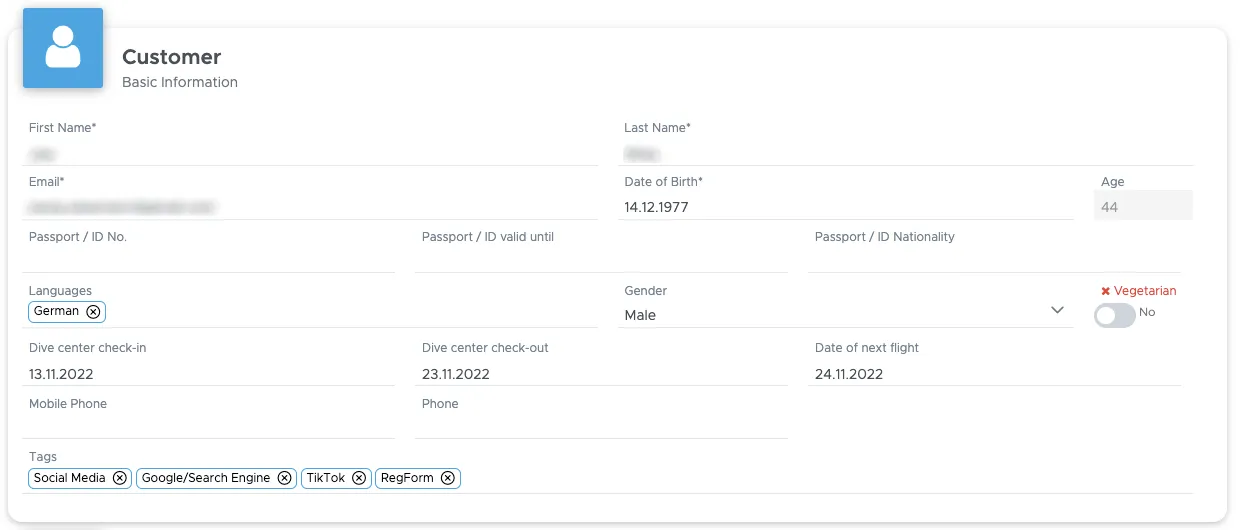
The customer’s selection will automatically add the selected values as tags to the customer.
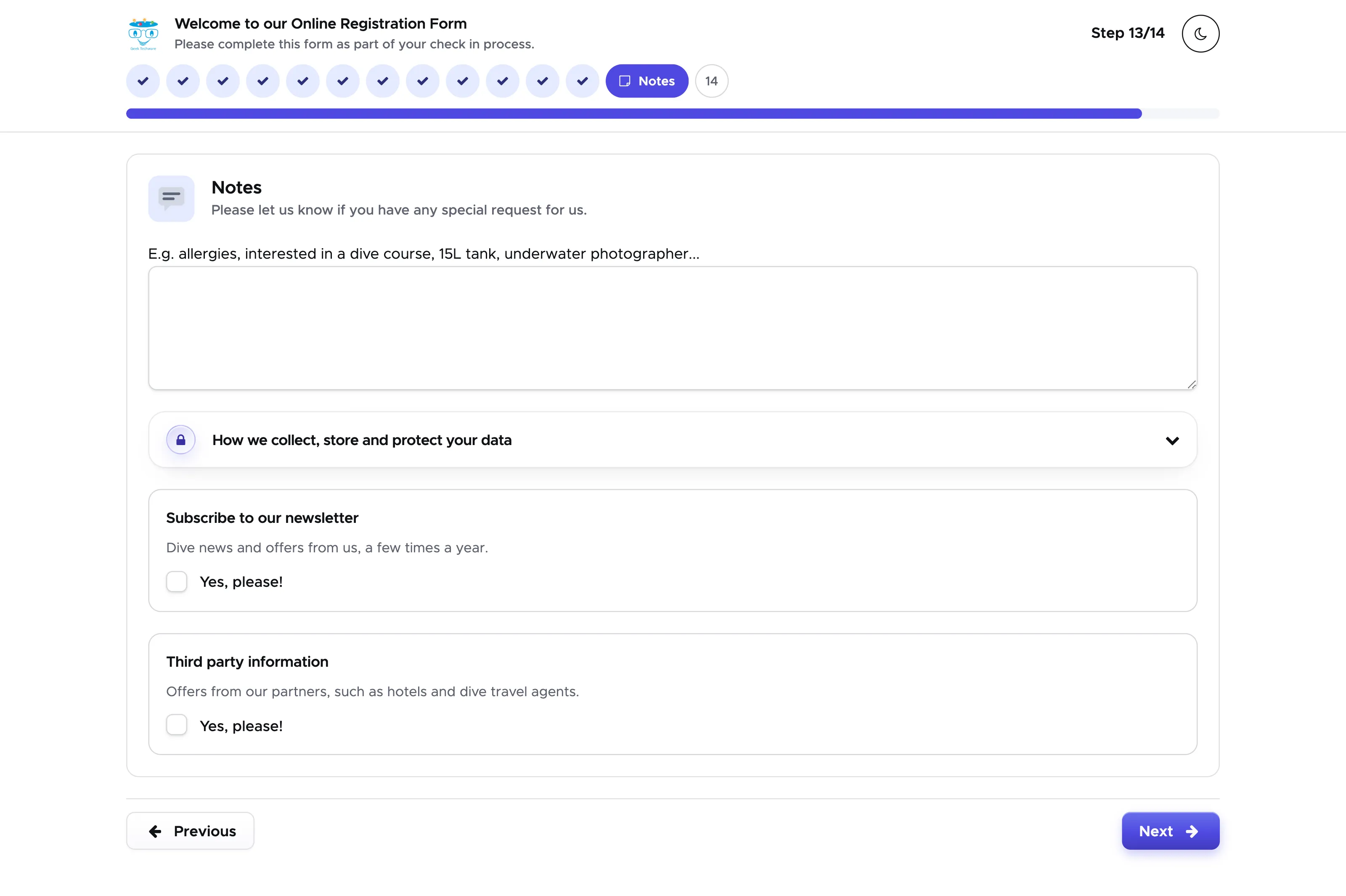
Step 12 - Notes
Section titled “Step 12 - Notes”This step allows your customer to write you a message or let you know of their allergies or anything else that you ask them to share. In this last step you can also ask them if they wish to receive your newsletter or any third-party offer.
While you set up your online registration form, click on its link (Registration Form page, tab Share & locations) to open it in a new tab. Every time you make changes, click Save and then reload the tab with your online registration form to view the changes immediately.